
Touch-AcceptCloud + on-prem
The user's Mideye+ app rings; one tap on Approve completes the logon. SMS magic-link fallback for users without the app installed. Reduces phishing risk, since there is no one-time code to trick out of the user.

A native credential provider DLL that adds Mideye two-factor authentication at the Windows logon screen itself, on every Remote Desktop session and console logon. Drops in alongside your existing Mideye deployment with no backend changes.
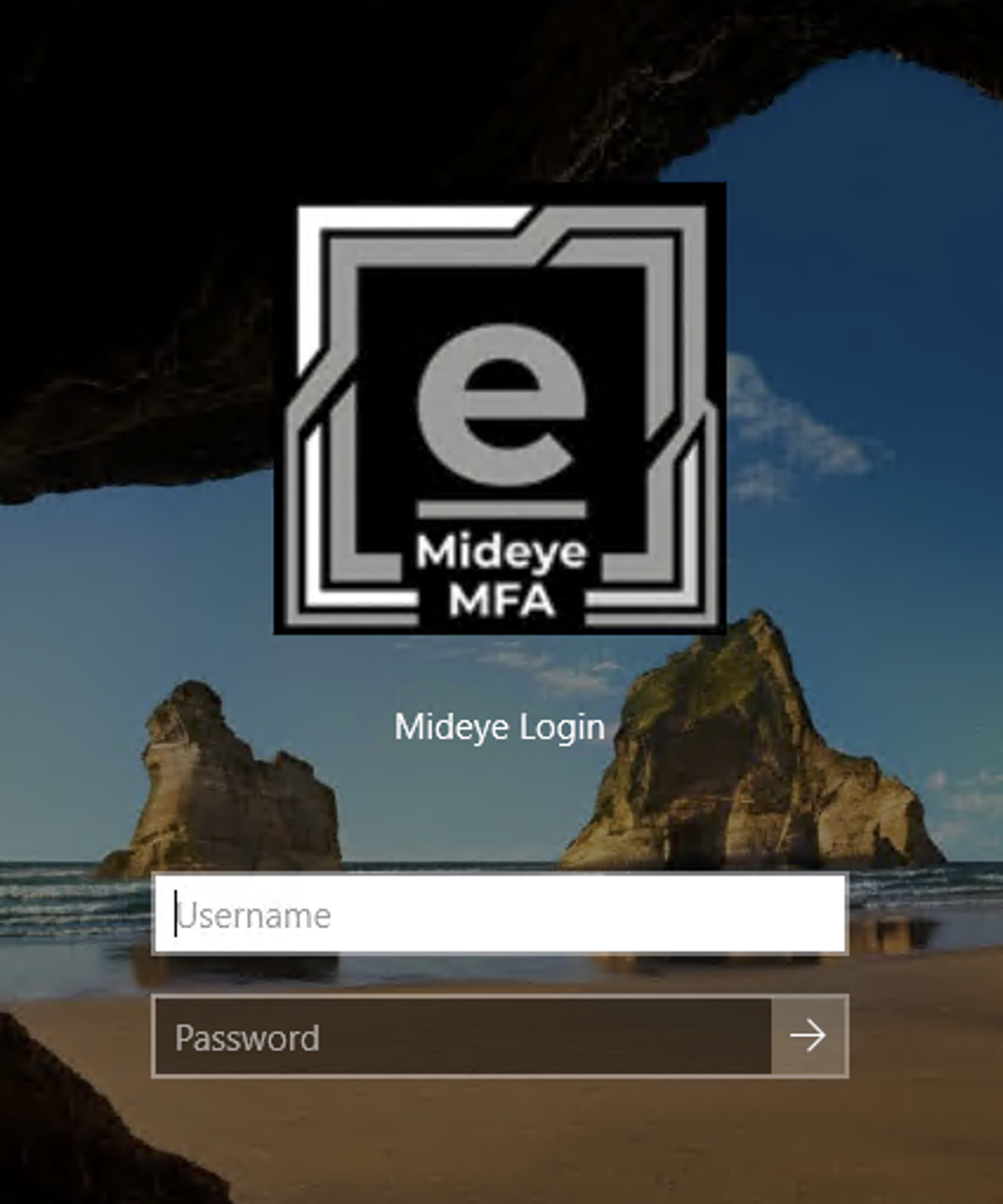
Why the logon screen
Your Mideye Authentication Service already covers VPN, RADIUS-protected apps, ADFS, and RDS. The credential provider extends that protection to the Windows logon screen itself, on every host where users RDP in or sit down at the console. The user types their Windows password as usual; Mideye then prompts for a Touch-Accept on the Mideye+ app, an SMS magic link, or a hardware-token OTP. Windows finishes the logon only when MFA succeeds. Activation covers RDP and the console together, and it will not hide the standard Windows tile until a real Mideye logon has proved the host can actually let someone in.
Stolen credentials are the leading vector for ransomware on Windows fleets. The credential provider intercepts every RDP and console logon, regardless of which application the user is heading for.
Talks to the same Mideye Authentication API or on-prem Mideye Server you already use. A signed MSI lays down two COM DLLs and a configuration tool. No second backend, no new identity store, no AD schema changes.
On-prem mode talks only to your local Mideye Server, over a static Bearer token, with no internet access needed on the endpoint. Every method is available; a fully air-gapped server falls back to hardware-token OTP.
Overview
A short overview of what the credential provider does and where it fits. Walkthroughs of the logon experience itself are on the way.

Authentication methods
The credential provider picks for the user, from what is configured for them. Touch-Accept starts immediately where it is available, and a choice is only ever offered as a fallback, when the push cannot be delivered or answered and a token is available instead.
The user's Mideye+ app rings; one tap on Approve completes the logon. SMS magic-link fallback for users without the app installed. Reduces phishing risk, since there is no one-time code to trick out of the user.

One-time codes from HID Approve and YubiKey hardware tokens, and from any standard OATH-HOTP token. Press the button or tap the key, type the code, in. The only method that also works fully air-gapped, with no network at all.

Four-eyes approval: the user requests; an approver on a separate phone confirms. In cloud mode approvers can be local SAM users, AD domain users, or external phone-only contacts with no Windows account on the host. In on-prem mode the approver list comes from the Assisted Login profile on your Mideye Server, so it is managed centrally rather than per machine.
Deployment modes
Same MSI, same configuration tool, same docs. A single registry value (Mode) picks the backend.
ModeOn-prem is not a cut-down mode. The endpoint sends a user id and the Mideye Server resolves the phone number or token itself, reaching the Mideye cloud on the endpoint's behalf where a phone method needs it, so the Windows host never needs internet access. A server with no cloud channel at all reports that fact, and the logon tile falls back to hardware-token OTP rather than leaving the user waiting.
Safe defaults
Built to keep secrets away from non-admin eyes, keep PII out of the logs, and make a bad deploy harmless.
A misconfigured deploy is silently inactive, not lockout-causing, and activation refuses without at least one Break-Glass principal. Mideye also will not become the only tile on a surface until a real logon there has proved it can admit someone.
API credentials live in a registry key readable only by SYSTEM and Administrators, and are never written to logs or exports. They never leave the host.
Phone numbers and token serials are masked in every log line, including in debug mode. Break-Glass logons are audited individually via Windows Event Log.
Deployment
Pilot install on a single host: wizard, license, install, configure.
msiexec /qn for SCCM, scripted rollouts, and custom orchestration. Per-host JSON config applied separately.
Software Installation policy plus a startup script that applies the per-OU JSON config. Built for AD-joined fleets.
Documentation
What each piece does: install, registry config, cloud / air-gapped, login schedule, Break-Glass, per-user overrides, approvers, customisation.
Read the overviewZero to MFA on RDP in ~10 minutes: install, paste Client ID and Secret, add Break-Glass, activate, then prove a logon.
Open the quickstartHow the credential provider DLL plugs into Windows LogonUI; the MFA decision ladder; cloud and on-prem flow diagrams.
See the architectureFAQ
Install the signed Mideye Credential Provider MSI on every Windows host where RDP terminates, paste the Client ID and Secret from your Mideye Authentication Service, configure at least one Break-Glass principal, then activate. That is about 10 minutes per host. Activation protects RDP and the console together, and it protects itself first: MFA is demanded from the first logon, but the standard Windows tile stays visible until the host has completed one successful Mideye logon on that surface. A configuration that cannot admit anyone therefore leaves you a way in instead of locking out the machine. Once a real logon has proved the host, Mideye becomes the only tile.
Yes. In on-prem mode the credential provider talks only to your local Mideye Server, over a static Bearer token, and the endpoint needs no internet access of its own. On-prem is not a reduced mode: Touch-Accept and Assisted Login work there too, because the Mideye Server makes those calls on the endpoint's behalf. On a genuinely air-gapped server, which reports that it has no cloud channel, the logon tile falls back to hardware-token OTP, which needs no network at all. A single registry value picks cloud or on-prem per machine.
Windows Server 2019, 2022 and 2025, and Windows 11 (23H2 or later) desktops. x64 only. Every DLL change is verified in the lab on one client each of Server 2019, 2022 and 2025 before release, because credential-provider behaviour differs between those versions in ways that can lock users out. Both Active Directory domain-joined and workgroup / standalone hosts are supported. Windows 10 and Windows Server 2016 are not supported - both leave Microsoft support in January 2027. Entra-ID-joined and hybrid-joined machines are not tested yet.
It is in early access. Everything described on this page is implemented and documented, and we are running supervised pilot deployments ahead of the 1.0 release. Contact us to join the early-access programme and we will plan the rollout with you.
Run the 10-minute quickstart on a test VM, or talk to us about an early-access pilot in your environment.