

Mideye Credential Provider for Windows logon and RDP
The Mideye Credential Provider is a native Windows credential provider DLL that adds MFA to RDP and console logon. The user types their Windows password as usual; the credential provider then prompts for a second factor, a Touch push on their phone or a one-time code from a hardware token. Windows finishes the logon only when MFA succeeds.
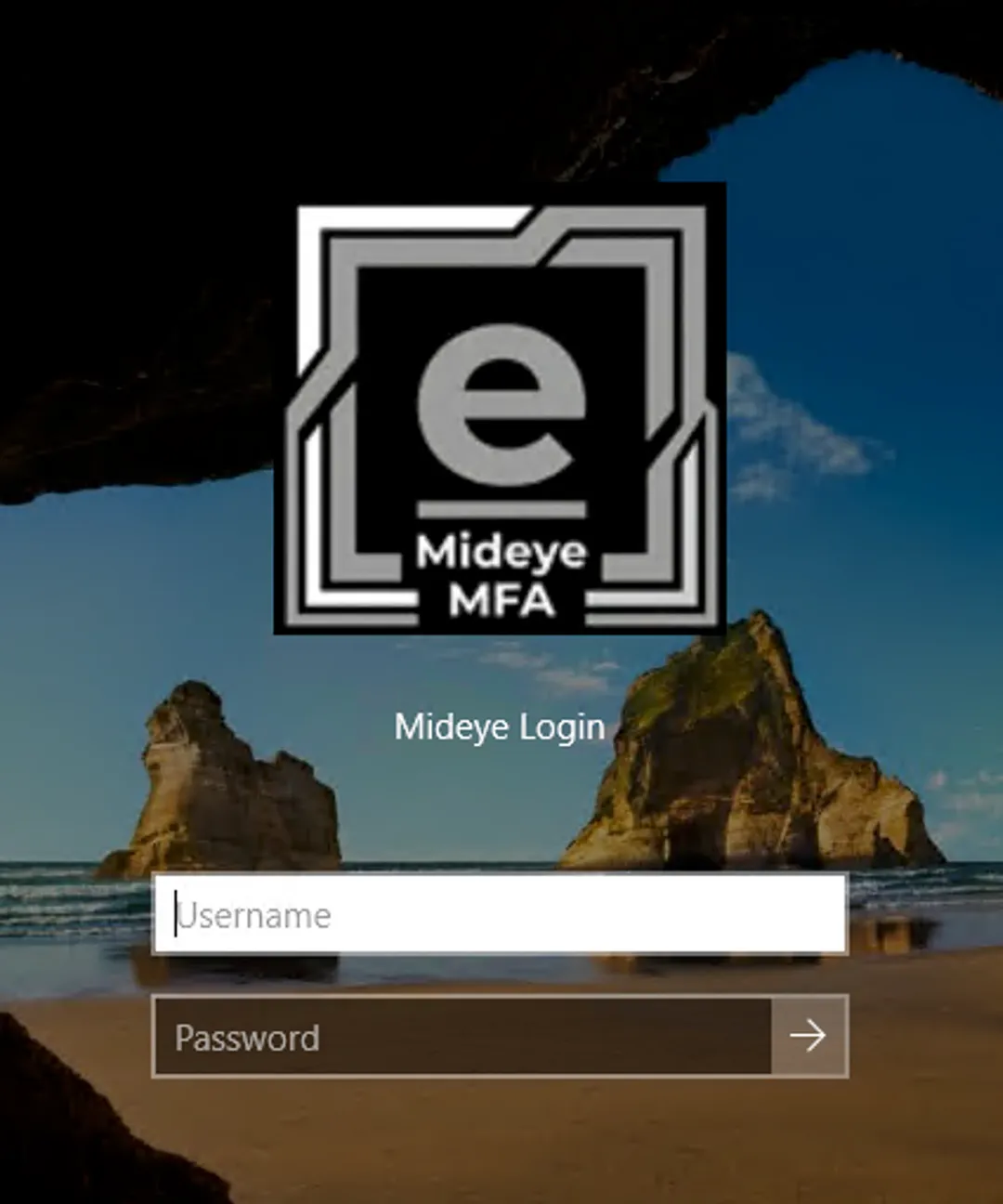
This page is the short story: what each piece does. Want the 10-minute, hands-on path instead? Go straight to the Quickstart.
Installation
Section titled “Installation”Ships as a single signed MSI, mideye-credential-provider.msi. Run interactively as administrator, or silently with msiexec /i mideye-credential-provider.msi /qn for SCCM and GPO Software Installation rollouts. The MSI lays down two DLLs (MideyeCredentialProvider.dll, MideyeCredentialFilter.dll), the configuration tool, and registers COM.
The credential provider is inactive immediately after install: you have to configure it and click Activate before it does anything. A misconfigured deployment is silently inactive rather than lockout-causing, which is the right default but also means “it installed fine” is not evidence that MFA is being enforced. MideyeProviderConfig.exe --preflight answers that question directly, and is read-only so it is safe to run on production hardware.
Configuration is stored in the registry
Section titled “Configuration is stored in the registry”Every Mideye Credential Provider setting lives under one key:
HKLM\SOFTWARE\Mideye\CredentialProviderThe credential-provider DLL re-reads the registry on every logon attempt: no service, no cache, no reboot after a change. MideyeProviderConfig.exe is a GUI on top of that tree, and it adds input validation, registry ACL hardening, and an audit event (1110) on every save.
For fleet rollouts use a JSON template with MideyeProviderConfig.exe --apply-config, which validates before it writes. Do not distribute the configuration as a .reg file through Group Policy: SYSVOL is readable by every authenticated user in the domain, and the file would carry your ClientSecret or ApiToken with it.
The registry root is locked to SYSTEM and Administrators by the installer. Secrets are stored as plain REG_SZ values protected by that ACL rather than by an application-layer cipher, the same convention the Mideye PAM module uses on Linux: an administrator on the box can read them, an ordinary user cannot.
Cloud or air-gapped
Section titled “Cloud or air-gapped”One registry value (Mode) picks the backend.
Cloud mode talks to the Mideye Authentication API over OAuth2 and supports all three methods: Touch push (or SMS magic link), hardware-token OTP, and Assisted Login.
On-prem / air-gapped mode talks to a LAN-hosted Mideye Server over a static Bearer token and intentionally supports one-time codes only. Touch and Assisted Login are force-disabled at startup because the on-prem server has no corresponding endpoints. Same MSI, same configuration tool.
On-prem token failover
Section titled “On-prem token failover”A cloud deployment can nominate a local Mideye Server as a fallback. With On-prem Token Failover enabled on the General tab, a cloud outage (network down, 5xx, OAuth failure) switches the logon tile to one-time-code entry against that server instead of refusing the logon.
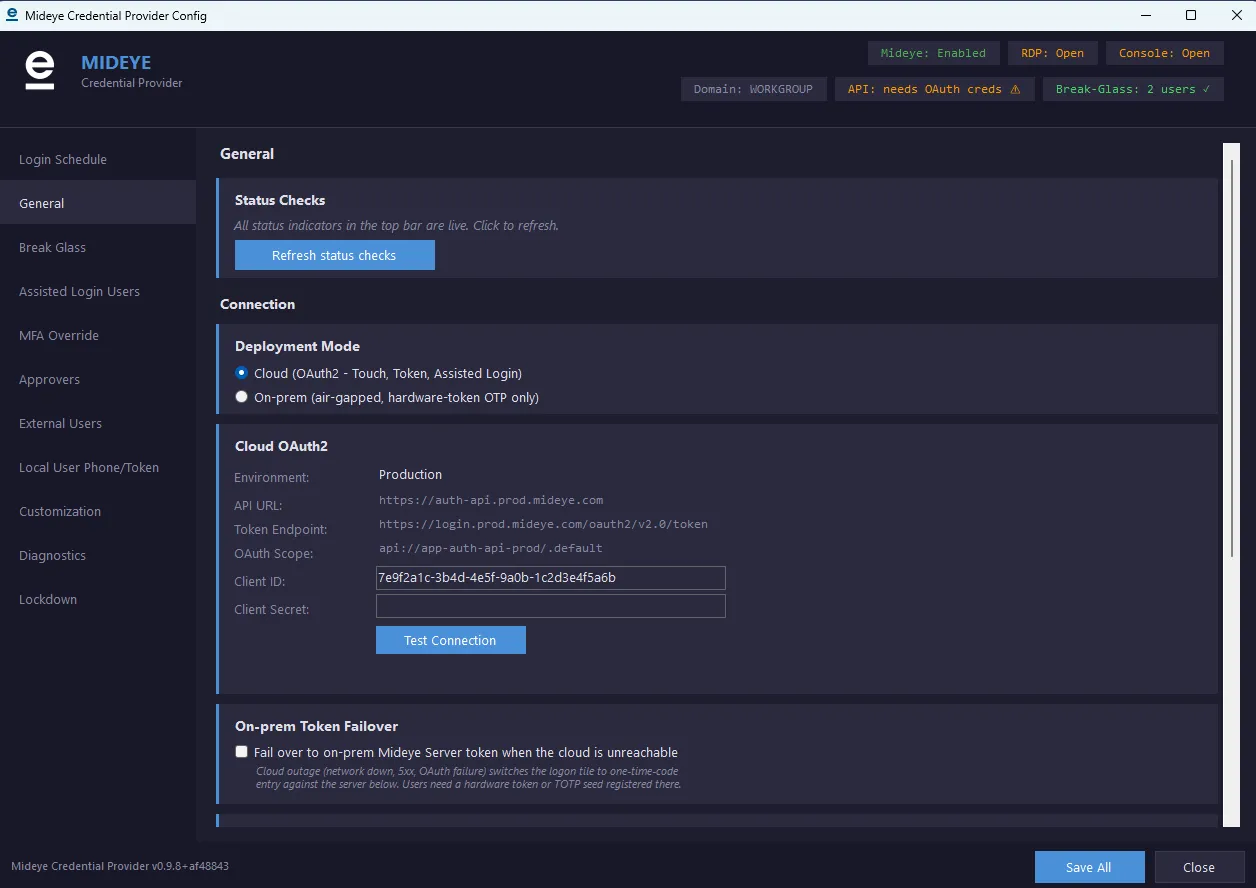
It is off by default and worth thinking about before enabling: users only get in during an outage if they already have a hardware token or TOTP seed registered on that server, so the failover has to be provisioned in advance to be worth anything.
Login schedule
Section titled “Login schedule”Not every hour of the week should be treated the same way. The Login Schedule tab gives you a 168-cell weekly grid (24 hours x 7 days) where each cell is independently MFA, Assisted Login, or Deny. Presets cover the common cases (always-MFA, always-Assisted, workshift, office-hours-only) and you can paint cells freely from there.
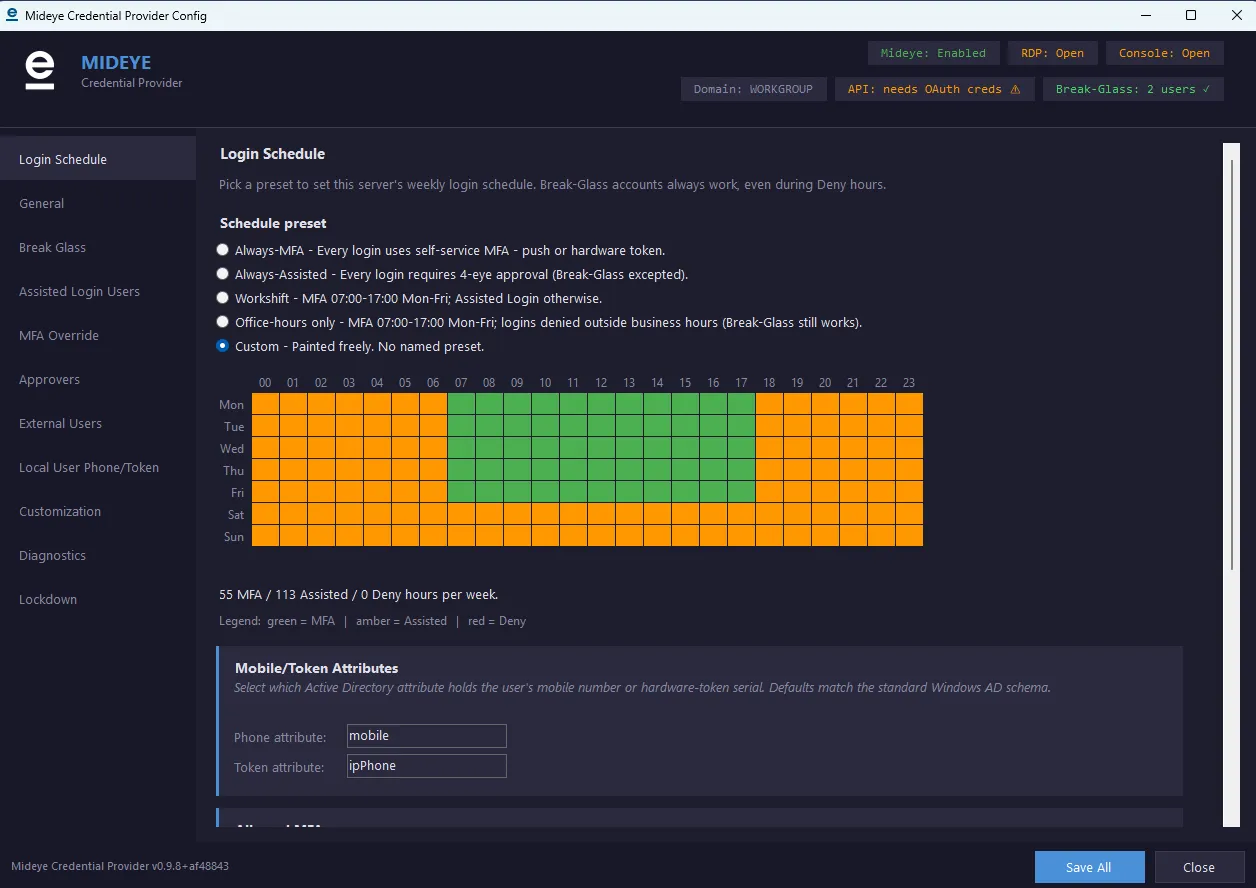
The cell is one input into an 11-step precedence ladder; Break-Glass beats everything, per-user overrides come next, the schedule cell is consulted last. The Architecture page has the full ladder.
Break-Glass accounts
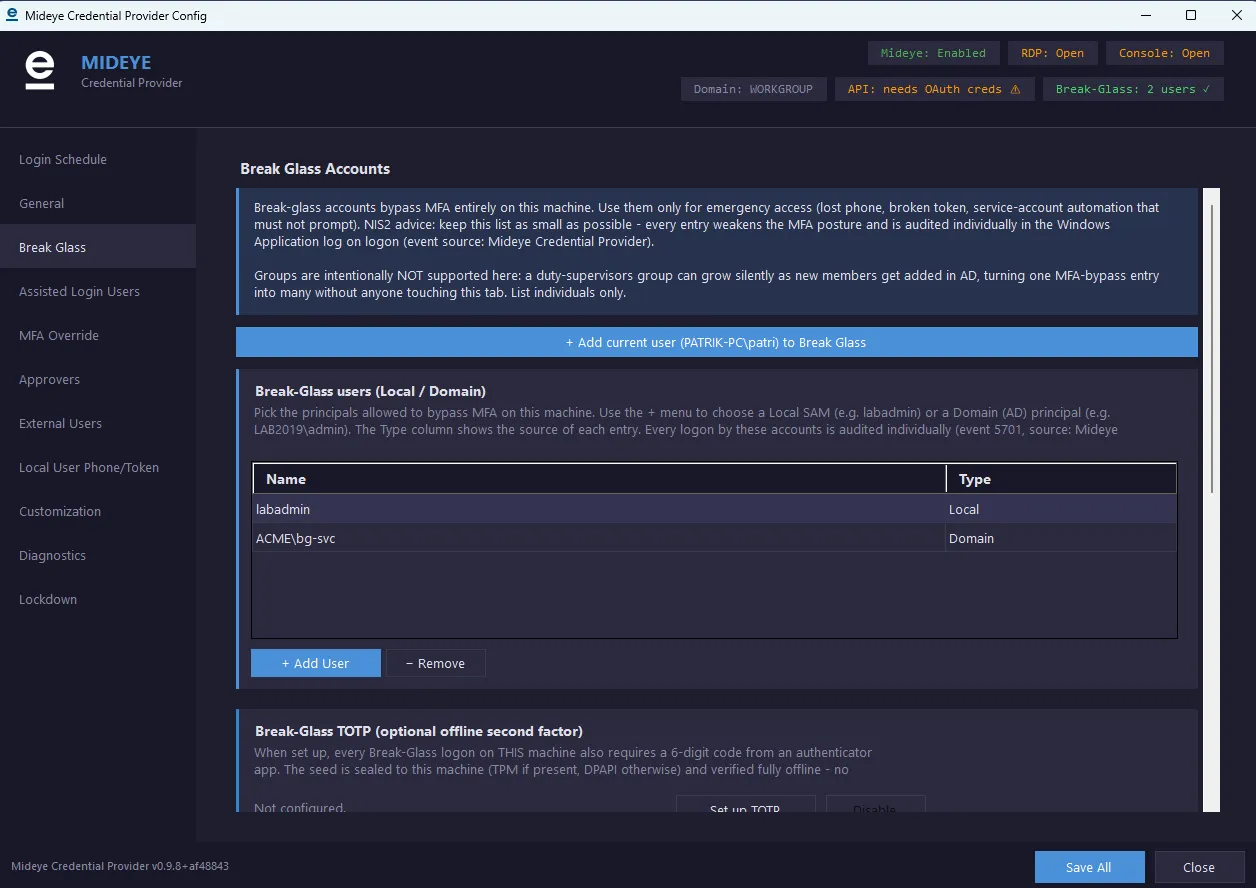
Section titled “Break-Glass accounts”Break-Glass accounts skip MFA entirely. They are the recovery path if the Mideye backend is unreachable or if a misconfiguration would otherwise lock everyone out, and the credential provider refuses to activate without at least one. The Break Glass tab adds the currently logged-in user in one click, or any local SAM account or AD domain principal.
The tab offers individuals only, deliberately. A duty-supervisors group grows silently as people are added in AD, turning one MFA-bypass entry into many without anyone opening this tab. Groups are supported by the credential provider and accepted by --apply-config, so if you want one you can have it: the point is that it takes a reviewed JSON change rather than a click.
Either way the roster is capped at five entries (users plus groups combined). --apply-config rejects a larger one, and event 5702 records the attempt.
Every Break-Glass logon is audited individually (event 5701). An optional Break-Glass TOTP second factor adds a 6-digit authenticator-app code to those logons, with the seed sealed to the machine and verified entirely offline, so it keeps working during exactly the outage that makes Break-Glass necessary.
Per-user overrides
Section titled “Per-user overrides”Two overrides bend the routing for specific users without rewriting the schedule:
- Pin a user to a single MFA method: list a SAM/AD user or group under Touch-only or Token-only on the MFA Override tab. That user can authenticate only with the pinned factor. Useful for service-style accounts that must use a hardware token, or for users with no mobile phone but a hardware token.
- Override Deny schedule: for users or groups on the Assisted Login Users tab (or MFA Override), tick Override Deny schedule and they can still log in during red hours via the chosen method. On-call admins get a defensible exception without painting the whole grid green.
External approvers
Section titled “External approvers”Assisted Login needs an approver to tap Approve before the user gets in. Approvers can be local SAM users, AD domain users, or external approvers: people who can approve a logon but have no Windows account on the machine (SOC operators, duty supervisors, vendor on-call). External approvers are defined on the External Users tab as name, full name and phone number, then picked on the Approvers tab.
Local user phone/token mapping
Section titled “Local user phone/token mapping”For workgroup hosts and untrusted-forest scenarios where AD lookups are not available, the Local User Phone/Token tab maps a local SAM username to a phone number (E.164) and an optional hardware-token serial. The credential provider uses these mappings as a fallback when the AD query for mobile or the token attribute fails.
Custom prompts for users and approvers
Section titled “Custom prompts for users and approvers”The Customization tab sets the text that appears on the user’s phone during a Touch push or SMS magic-link prompt, and the separate text the approver sees during Assisted Login (SMS body, dialog title, accept/reject button labels, confirmation text, per-prompt timeout). Available in cloud mode; on-prem deployments configure these strings on the Mideye Server side.
Interface language
Section titled “Interface language”The logon tile and the configuration tool ship in English, Ukrainian and Russian.
The two are set independently, because they answer different questions. The logon screen language is machine-wide and is what every user on that host meets; set it in the MSI dropdown at install time, with MIDEYELANGUAGE=uk on a silent msiexec command line, or on the General tab afterwards. The configuration tool language is per-operator and per-machine, so a support engineer can read the tool in English without changing what the customer’s users see. It is on the General tab and, deliberately, at the top of Diagnostics as well, since needing it and being unable to read the interface are the same moment.
Both default to following the machine’s Windows display language. Set the logon-screen value explicitly when the computer’s language does not match the people using it, which is common.
Security signals
Section titled “Security signals”Several signals are always on and have no toggle: NLA misconfiguration warning (event 5501), Safe-Mode policy-tamper detection (5602), per-Break-Glass-logon audit (5701), and PII masking in logs. Deeper policy (approver-roster source and integrity enforcement) lives under Policy\ in the registry and is applied through --apply-config rather than through a tab.
Debug logs to file
Section titled “Debug logs to file”The Diagnostics tab has a one-click Start debug logging button that writes verbose entries to C:\ProgramData\Mideye\credential-provider.log. PII is masked even in debug mode (phone numbers as *** plus last 4, token serials as first 2 plus last 4). Logging stops automatically when the file exceeds 5 MB or when the configuration window closes.
Continue from where you left off
Section titled “Continue from where you left off”| Topic | What it covers |
|---|---|
| Quickstart | Bare-minimum 10-minute path: install, paste Client ID and Secret, add Break-Glass, activate, enforce on RDP. |
| Architecture | How the DLLs plug into Windows LogonUI, the MFA decision ladder, cloud / on-prem / failover flows, and the filter health watchdog. |
| Recovery | You cannot log in: the one command that undoes any lockout, and four ways to deliver it. |