

Mideye+ App: Push & Offline TOTP Setup Guide
Users with smartphones can download the Mideye+ app to authenticate using push notifications and offline TOTP codes instead of SMS. There is no extra charge for using the Mideye+ app.
Download
Section titled “Download”Activate on iPhone
Section titled “Activate on iPhone”-
Open the Mideye+ app. When prompted with “Mideye+ Would Like to Send You Notifications”, tap Allow.
-
Enter the phone number in international format (e.g.,
+46735084555) and press Next.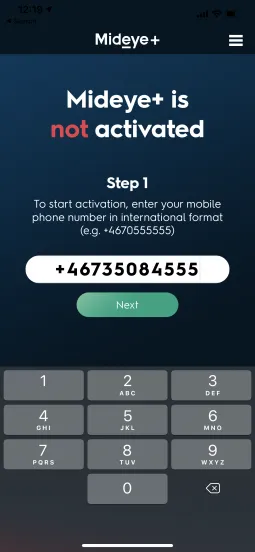
-
Make an authentication attempt to the corporate resource (VPN, Citrix portal, etc.) protected with Mideye.
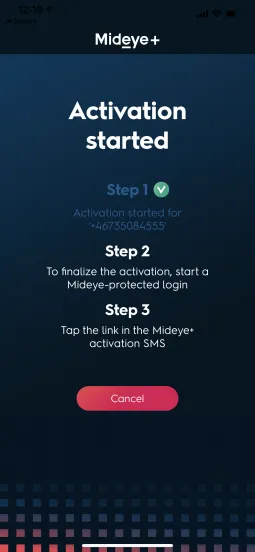
-
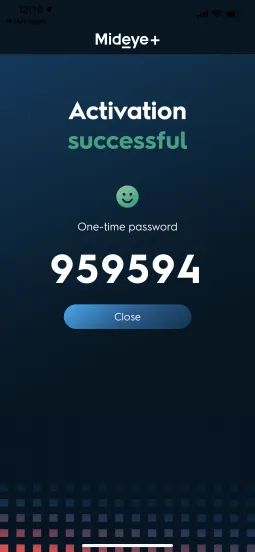
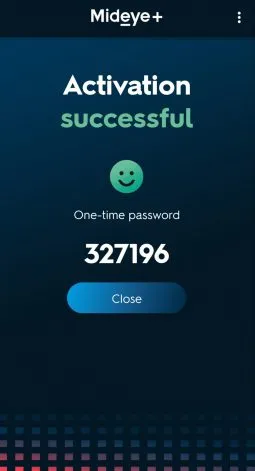
When the activation SMS arrives, open it and tap the link. The app displays “Activation successful” and shows an OTP.
Activate on Android
Section titled “Activate on Android”-
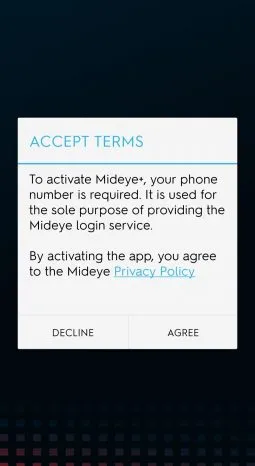
Open the Mideye+ app and agree to the terms.
-
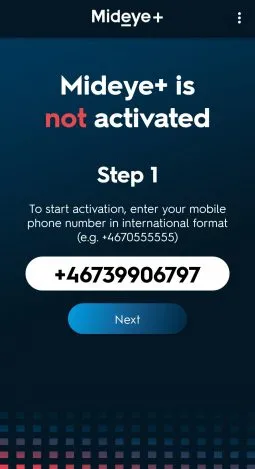
Enter the phone number in international format and press Next.
-
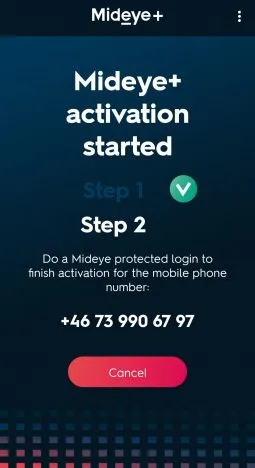
Make an authentication attempt to the protected corporate resource.
-
When the activation SMS arrives, open it and tap the link.
Using Mideye+
Section titled “Using Mideye+”Once activated, the app replaces SMS-based OTPs. When you authenticate, the OTP is delivered via data traffic and appears as a notification:
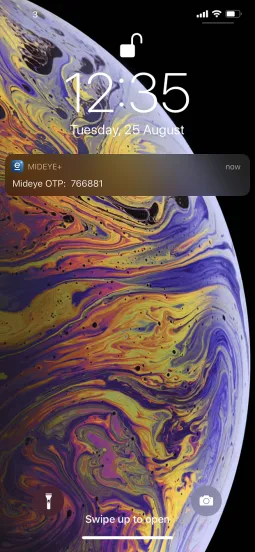
This works even without mobile network coverage, as long as the phone has internet access.
Offline manual challenge
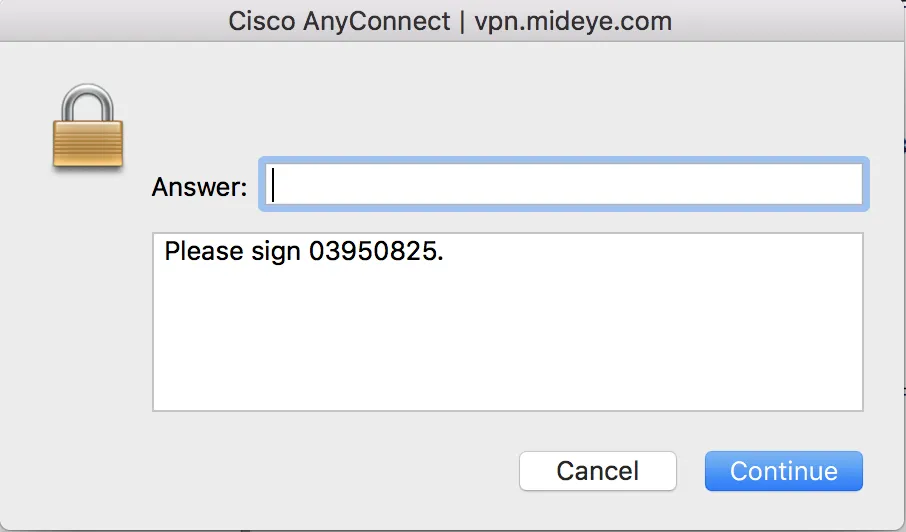
Section titled “Offline manual challenge”When both network coverage and internet are unavailable, Mideye presents a challenge code (e.g., “Phone not reachable, please sign xxxxxx”):
-
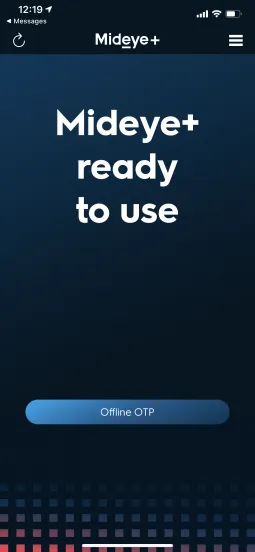
Open the Mideye+ app and tap Manual signature at the bottom.
-
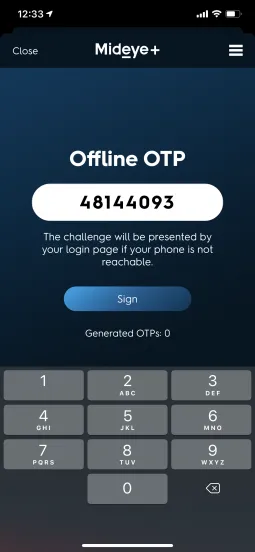
Tap Offline OTP and enter the challenge code.
-
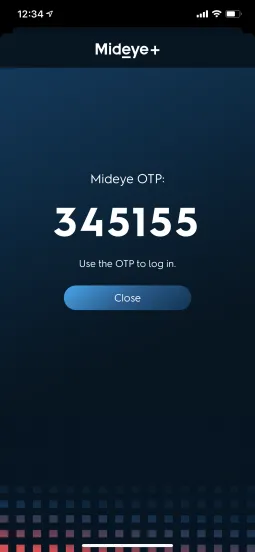
Enter the resulting OTP at the login screen.
Touch Accept
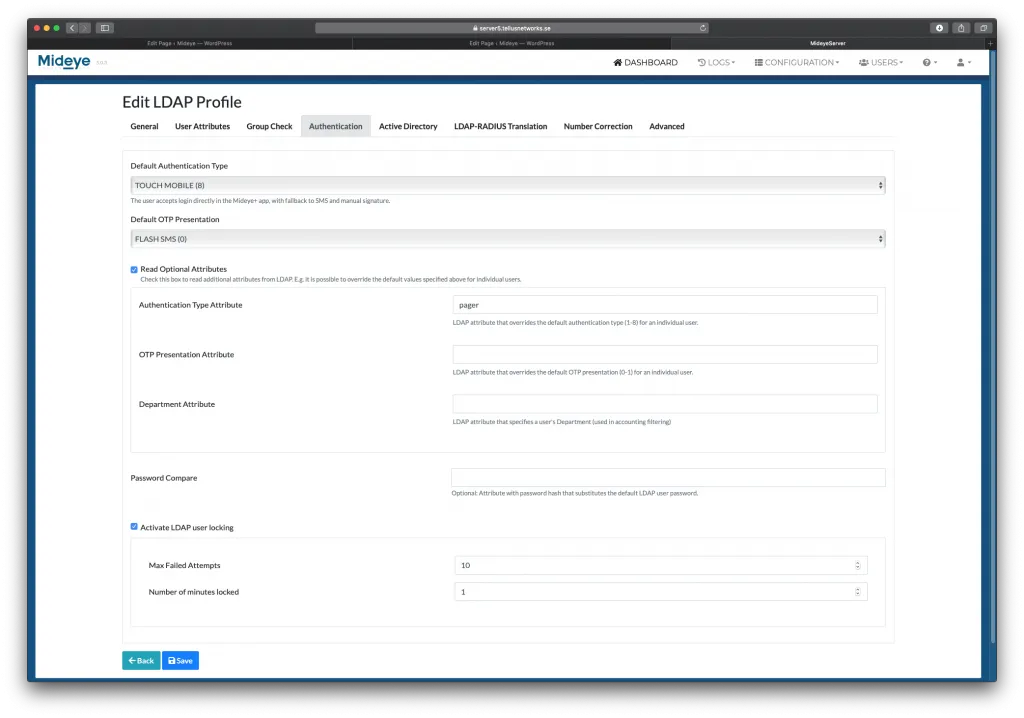
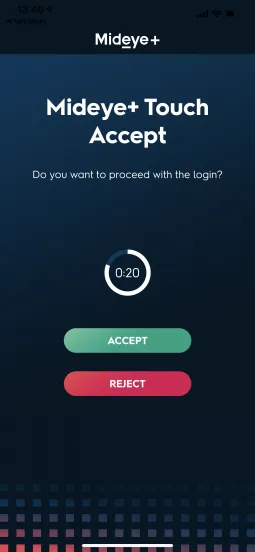
Section titled “Touch Accept”Touch Accept simplifies authentication to a single approve/reject action. It does not use RADIUS challenge-response, enabling two-factor authentication on services that don’t support it.
Enable Touch Accept
Section titled “Enable Touch Accept”- Navigate to Directory Settings → LDAP Profiles.
- Edit the LDAP profile → Authentication tab.
- Set Default authentication type to one of:
- 6 — Touch only (no fallback)
- 7 — Touch-Plus (fallback to OTP via Mideye+)
- 8 — Touch-Mobile (fallback to SMS OTP)
When the user authenticates, they receive a push notification to approve or deny the login:
Troubleshooting
Section titled “Troubleshooting”Offline signing fails
Section titled “Offline signing fails”If manual signing returns a failed authentication, the RADIUS client timeout is likely set below 35 seconds. Increase the timeout on the RADIUS client.
No notifications received
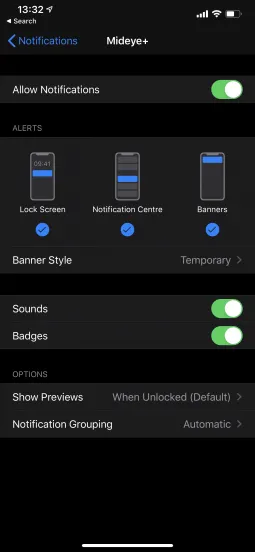
Section titled “No notifications received”The user may have denied notification permissions during initial setup.
iPhone: Settings → Notifications → Mideye+ → Enable Allow Notifications.
Android: Settings vary by manufacturer. Check the app notification settings.
Android battery saving mode blocks notifications
Section titled “Android battery saving mode blocks notifications”Exclude Mideye+ from battery optimization:
- Go to Settings → Battery → Unmonitored Apps.
- Tap Add apps, select Mideye+, and tap Done.

Related links
Section titled “Related links”- Authentication Types — All 11 authentication types explained
- Mideye+ Users and Tokens — GUI reference for user and token management