

Check Point Firewall VPN MFA Setup (R80/R81)
This guide describes how to configure Check Point Next Generation Firewalls to use Mideye Server as a RADIUS authentication source for Mobile Access and Remote Access VPN.
| Component | Supported versions |
|---|---|
| Check Point Security Gateway | R80.x / R81.x |
| SmartConsole | R80.x / R81.x |
| Mideye Server | 5.x / 6.x |
Prerequisites
Section titled “Prerequisites”- A running Mideye Server with RADIUS enabled (default UDP port 1812)
- Check Point Security Gateway with Mobile Access or Remote Access VPN blade enabled
- SmartConsole access to configure server objects and policies
- Network connectivity between the Check Point gateway and Mideye Server on UDP port 1812
1. Create a host object for Mideye Server
Section titled “1. Create a host object for Mideye Server”Create a host object in SmartConsole representing the server running Mideye Server.
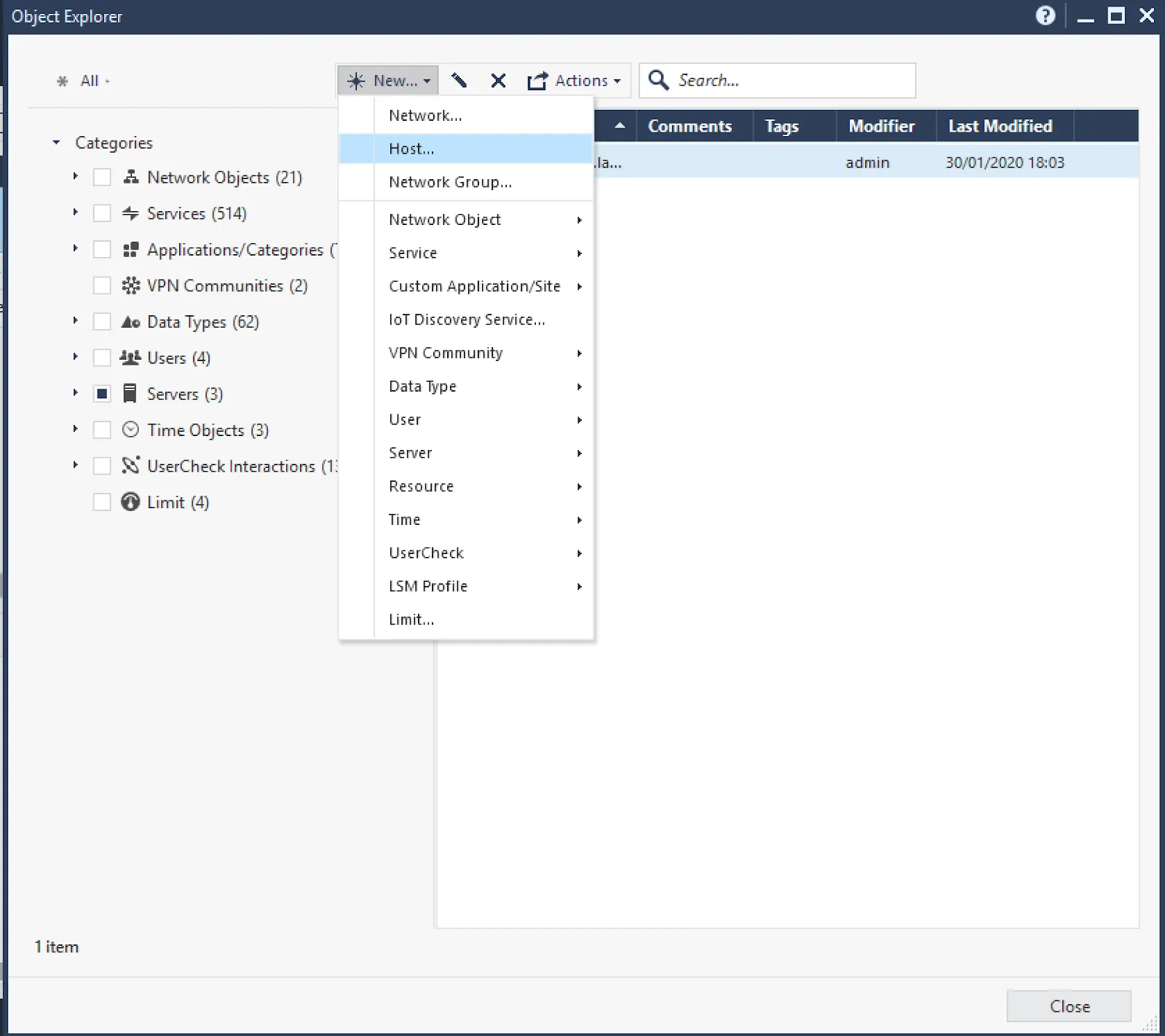
- In SmartConsole, open the Object Explorer.
- Choose New → Host.
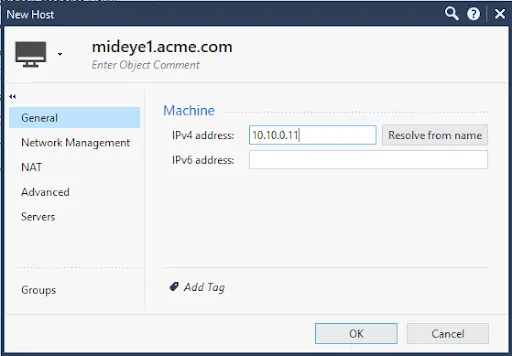
- Enter a descriptive name (e.g.
mideye1.example.com) and set the IPv4 Address to the IP address where the Mideye Server RADIUS service is running.
- Click OK to save.
2. Create RADIUS server object
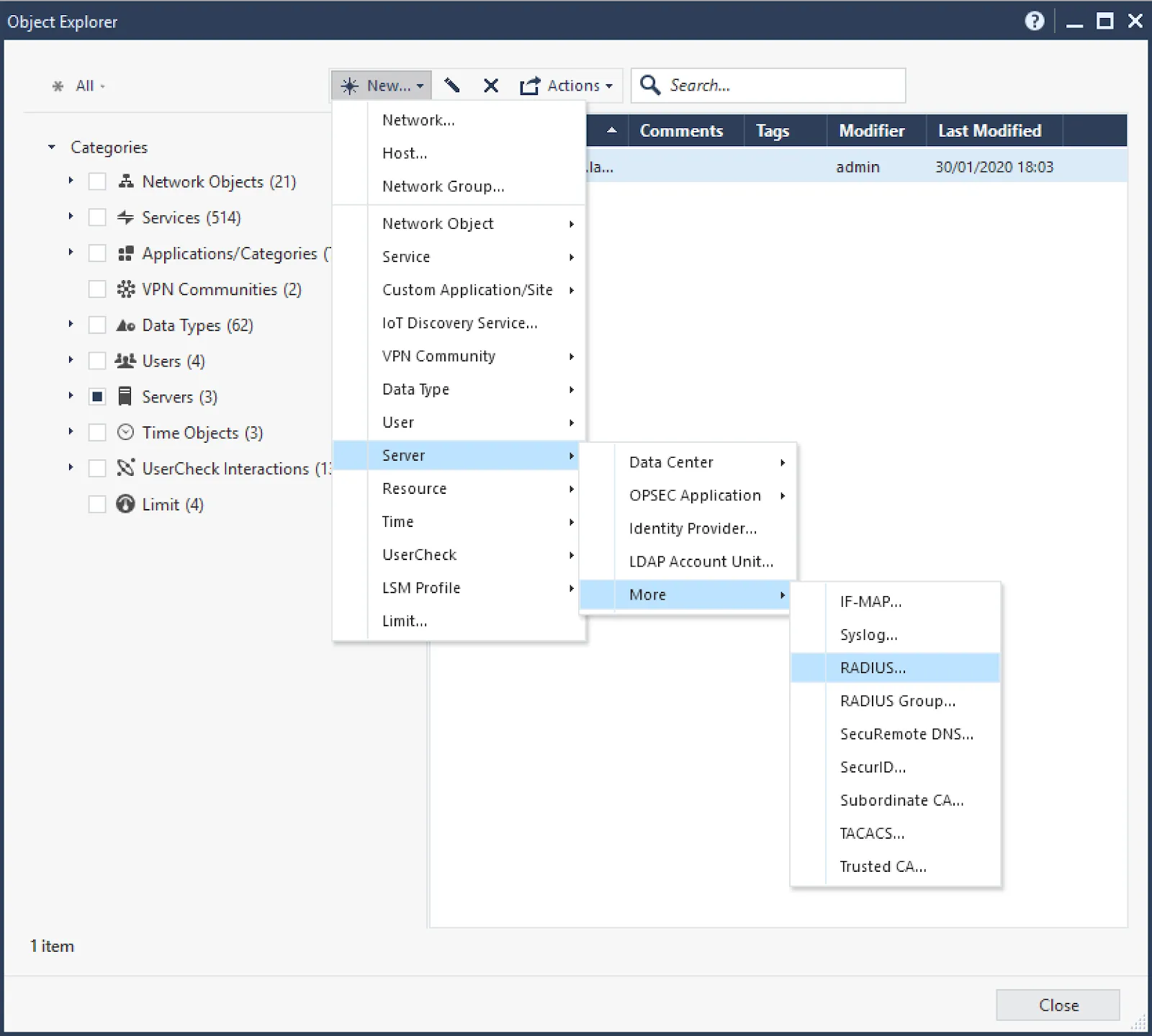
Section titled “2. Create RADIUS server object”- In Object Explorer, choose New → More → Server → RADIUS.
-
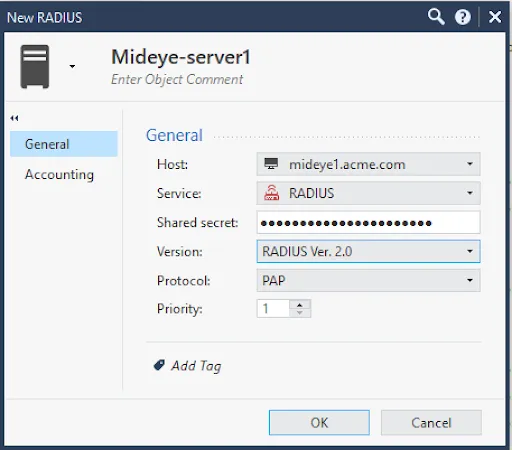
Configure the RADIUS server object:
- Name: enter a descriptive name (e.g.
Mideye-RADIUS-1) - Host: select the host object created in step 1
- Shared Secret: enter the shared secret that matches the Mideye Server RADIUS client configuration. If Mideye Server is not yet configured, choose a shared secret here and add it to Mideye Server later.
- Version: select RADIUS Ver. 2.0
- Protocol: set to PAP (required for Mideye RADIUS authentication)
- Service: verify the service object matches the port Mideye Server is listening on (RADIUS standard port is UDP/1812)
- Name: enter a descriptive name (e.g.
-
Click OK to save.
-
Repeat if redundant Mideye Servers are used.
3. Create RADIUS server group
Section titled “3. Create RADIUS server group”Check Point uses RADIUS server groups for high availability. Each server in the group is assigned a priority — if the highest-priority server fails, the next one takes over.
- In Object Explorer, choose New → More → Server → RADIUS Group.
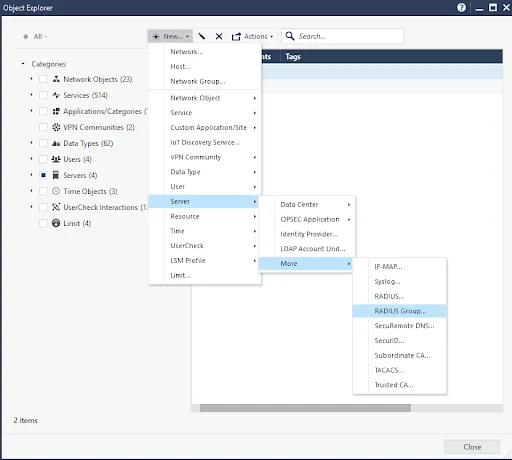
- Name the group (e.g.
Mideye-RADIUS-Group) and add each Mideye RADIUS server. Set appropriate priorities if redundancy is configured.
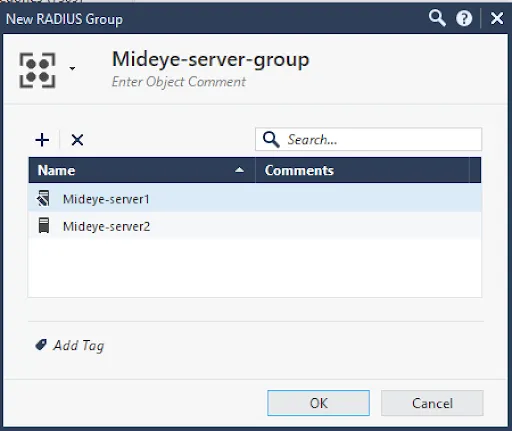
- Click OK to save.
4. Configure authentication method on gateway
Section titled “4. Configure authentication method on gateway”- Open the Gateway or Gateway Cluster object in SmartConsole.
- Navigate to Mobile Access → Authentication.
- Under Multiple Authentication Clients Settings, click Add → New to create a new login option for Mideye RADIUS authentication.
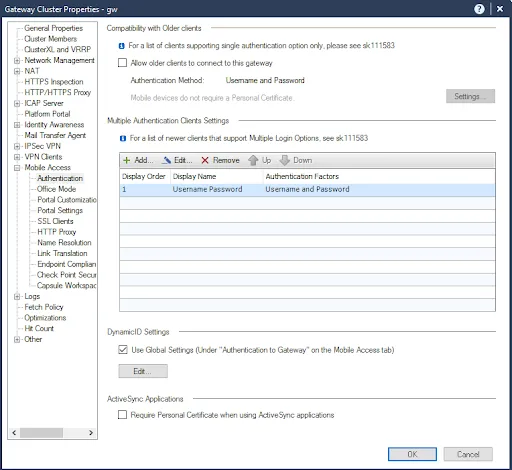
- Set a display name (e.g.
Mideye MFA) and add RADIUS as an authentication factor. Select the RADIUS Server Group created in step 3.
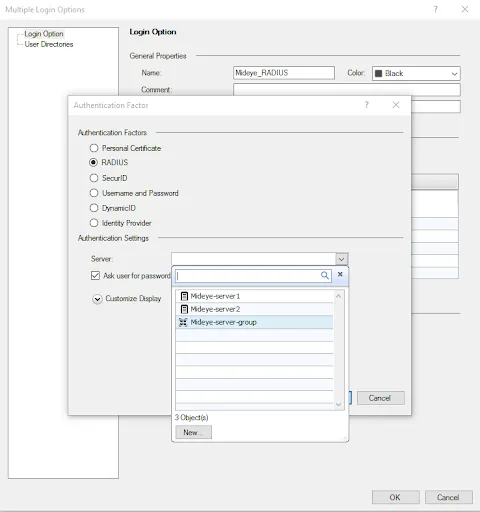
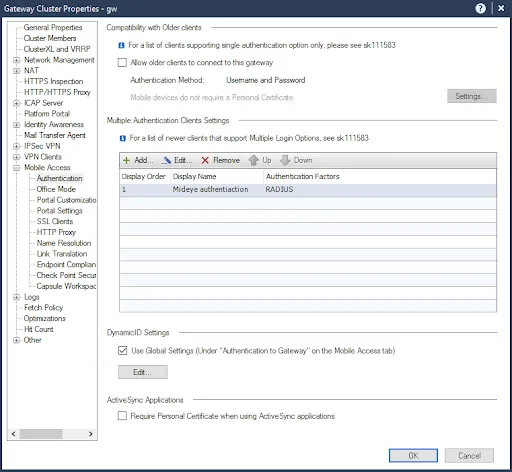
- Click OK and install the policy on the gateway.
5. Increase RADIUS timeout
Section titled “5. Increase RADIUS timeout”The RADIUS timeout must be increased to allow enough time for MFA authentication (e.g. push notification approval or OTP entry).
- In SmartConsole, open Global Properties.
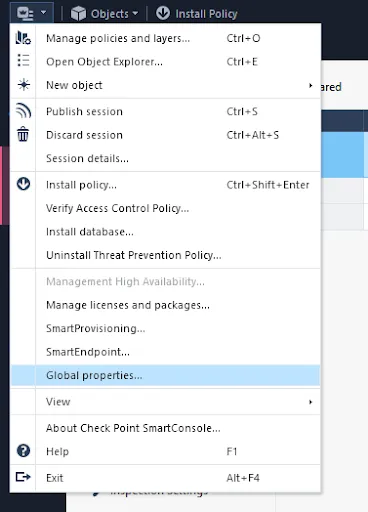
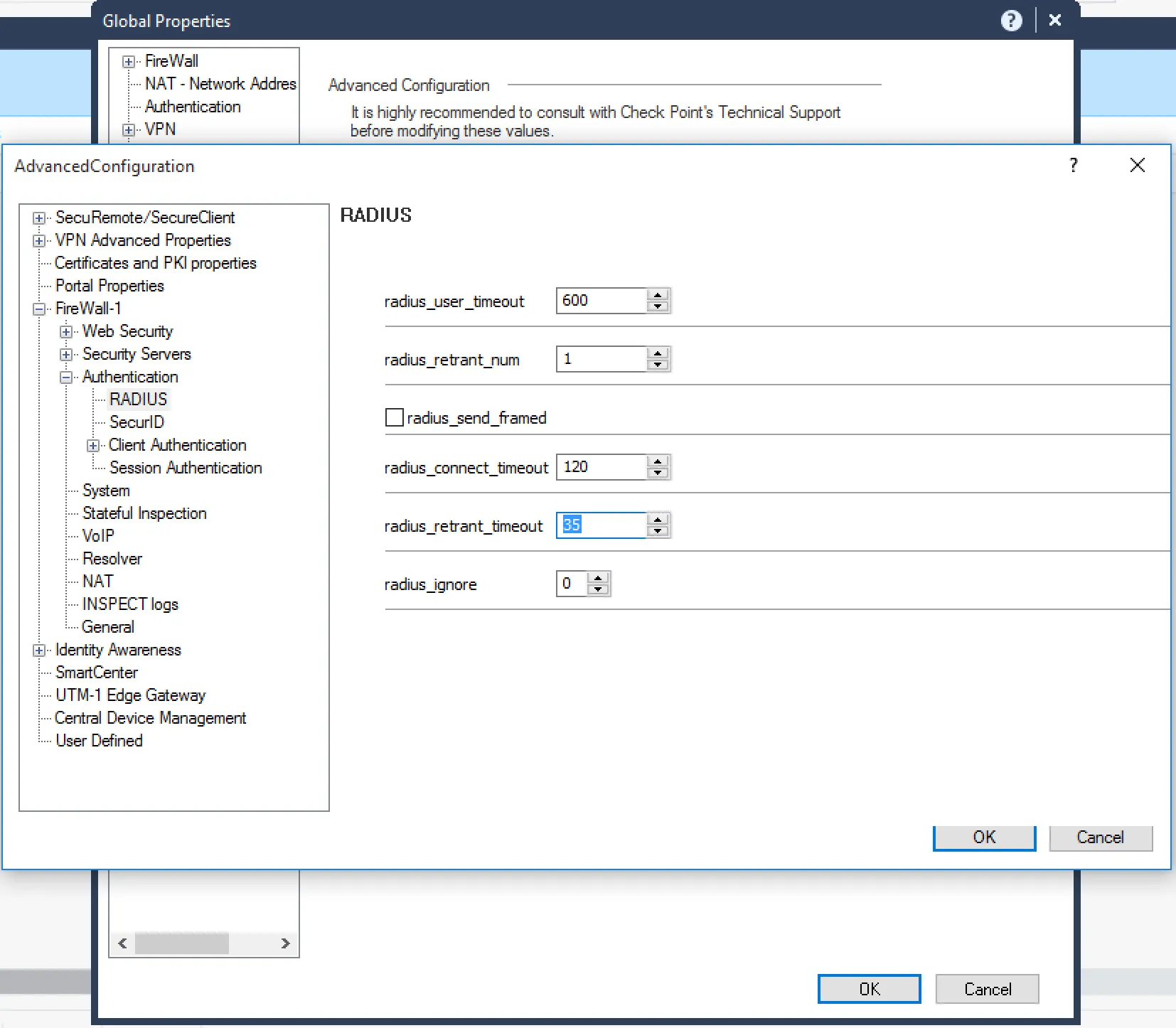
- Navigate to FireWall-1 → Authentication → RADIUS.
- Set
radius_treant_numto 1. - Set
radius_retrant_timeoutto 35. - Click OK and install the policy on the gateway.
6. Add Check Point as a RADIUS client in Mideye Server
Section titled “6. Add Check Point as a RADIUS client in Mideye Server”Add each Check Point gateway IP address as a RADIUS client in Mideye Server, using the same shared secret entered in the RADIUS server object (step 2).
See RADIUS Clients in the reference guide.
Troubleshooting
Section titled “Troubleshooting”| Symptom | Check |
|---|---|
| Authentication fails / times out | Verify radius_retrant_timeout is set to 35 in Global Properties |
| No RADIUS logs in Mideye Server | Verify UDP port 1812 is open between the Check Point gateway and Mideye Server |
| Shared secret mismatch | Ensure the secret in the RADIUS server object matches the Mideye RADIUS client configuration |
| Redundancy not working | Verify server priorities in the RADIUS server group — lower numbers have higher priority |
- Check Point uses UDP for RADIUS communication — ensure firewall rules allow UDP port 1812 (or your configured port) between Check Point and Mideye Server.
- RADIUS server objects within a group can be prioritized — lower priority numbers indicate higher preference.
- Both Mobile Access and Remote Access VPN blades support RADIUS authentication with Mideye.
Related links
Section titled “Related links”- RADIUS Clients — configure Mideye Server to accept requests from Check Point
- RADIUS Integrations — authentication flows and supported auth types
- Authentication Types — all supported Mideye authentication methods
- Support Center — contact Mideye support for integration assistance