

Cisco AnyConnect MFA with Mideye & FMC (FTD)
Applies to (versions & platforms)
Section titled “Applies to (versions & platforms)”| Component | Details |
|---|---|
| Platform | Secure Firewall Threat Defense (FTD) |
| Management | Firepower Management Center (FMC) |
| VPN | Remote Access VPN (AnyConnect / Cisco Secure Client) |
| Authentication | RADIUS Server Group |
Cisco’s FMC device configuration guides for Remote Access VPN and identity integration (RADIUS/AD/LDAP) are published per major release. Refer to the FMC 7.7 Remote Access VPN identity integration guide for the latest reference.
Licensing requirements
Section titled “Licensing requirements”Cisco Secure Client (formerly AnyConnect) licenses are required for Remote Access VPN on firewalls running Secure Firewall ASA or Secure Firewall Threat Defense.
- Feature tiers: Cisco historically offered AnyConnect Plus and Apex tiers. Apex includes advanced capabilities such as posture assessment. Map these to customer requirements as needed.
- Smart Licensing: Modern FMC/FTD deployments use Smart Licensing. Confirm that the FMC/FTD is properly registered and licensed.
Practical takeaway: Verify that the customer has valid Secure Client / AnyConnect licensing for RA VPN and that Smart Licensing is active before proceeding.
Prerequisites
Section titled “Prerequisites”- Mideye Server reachable from the firewall on UDP port 1812 (default RADIUS port).
- Decide whether you will also use Authorization and/or Accounting via RADIUS in the VPN policy.
- Create a RADIUS client in Mideye Server for the firewall (or the source IPs that will send RADIUS requests). See RADIUS Clients in the reference guide.
1. Create the RADIUS Server Group in FMC
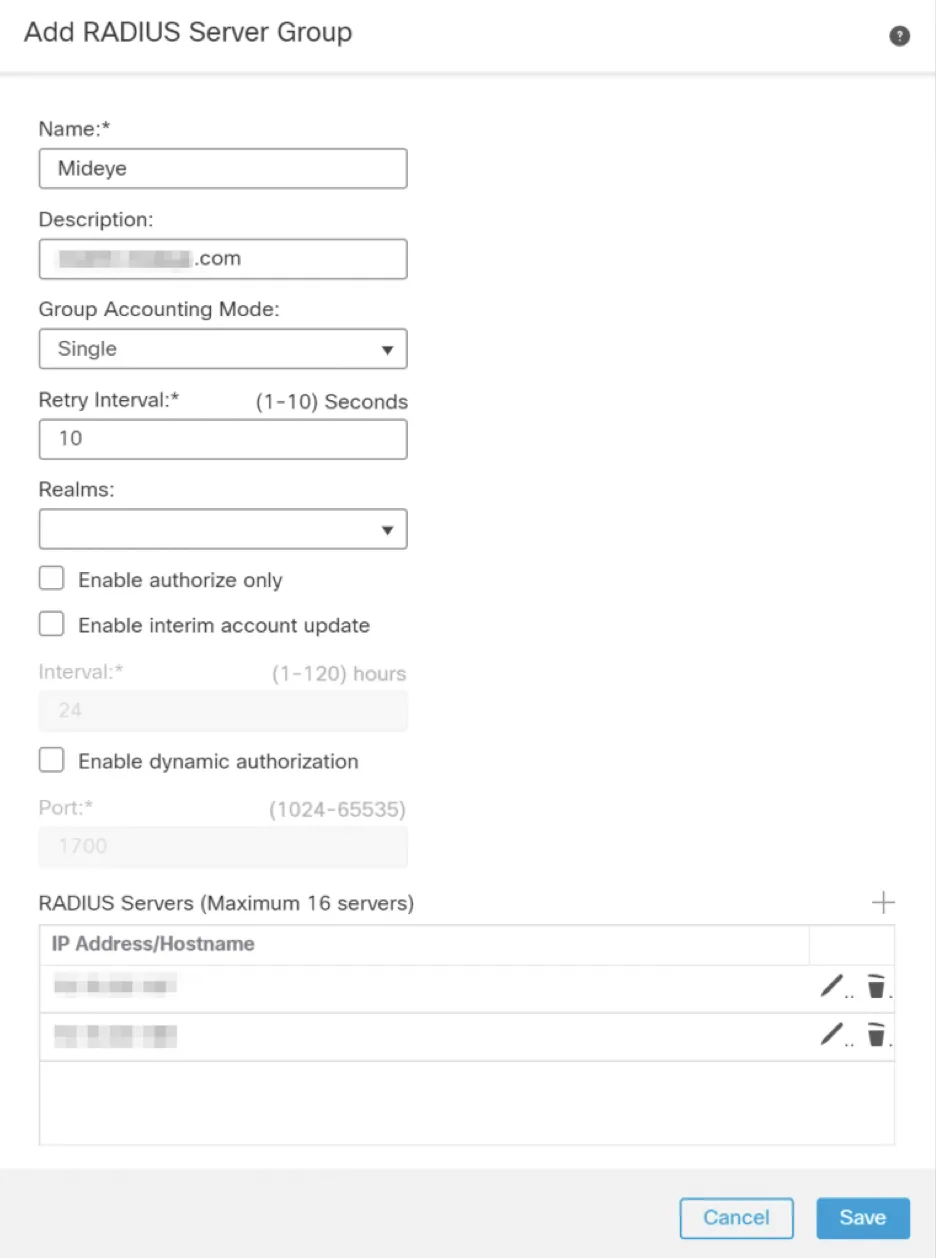
Section titled “1. Create the RADIUS Server Group in FMC”In FMC, Remote Access VPN uses a Realm or a RADIUS Server Group for user validation.
- In FMC, navigate to Objects → Object Management → AAA Server → RADIUS Server Group.
- Create a new RADIUS Server Group (example name:
Mideye_RADIUS_Group). - Add one or more RADIUS servers (your Mideye Server nodes), including:
- IP address or hostname
- Shared secret (must match the Mideye Server RADIUS client configuration)
- Timeout: set to at least 35 seconds (required for MFA / OTP flows)
2. Create a Remote Access VPN Policy
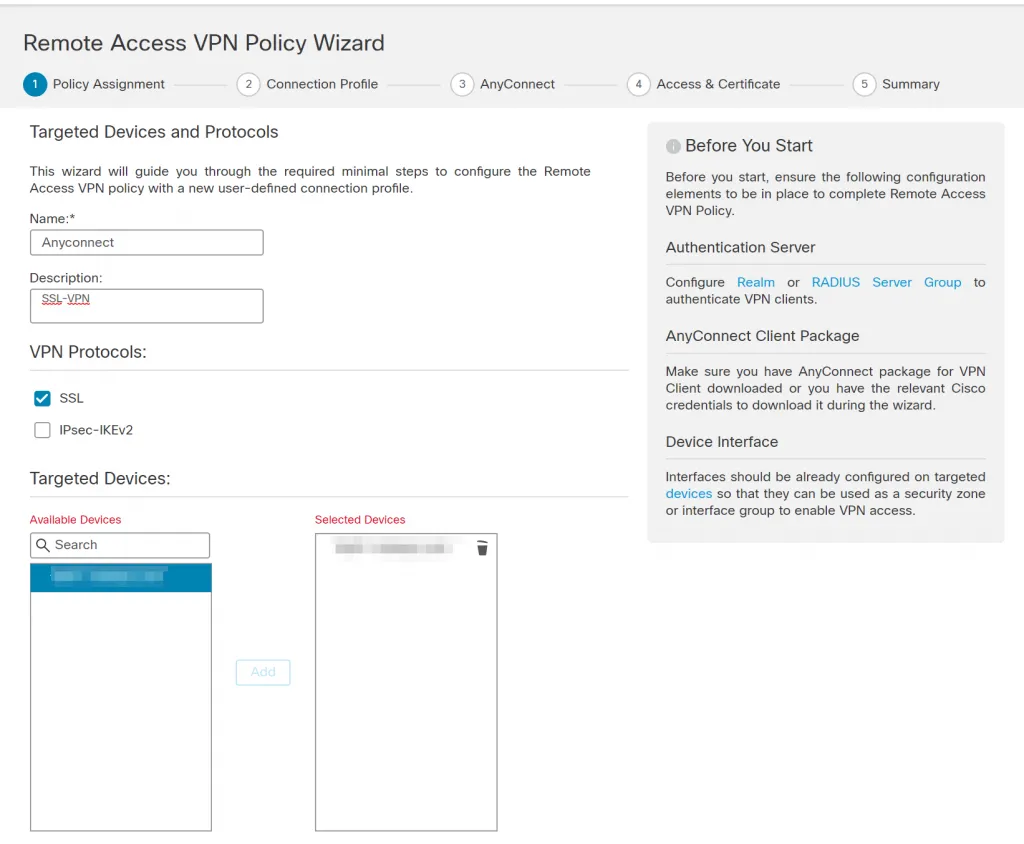
Section titled “2. Create a Remote Access VPN Policy”- Navigate to Devices → Remote Access and click Add to start the RA VPN wizard.
- Enter a policy name and description, select the VPN protocol (typically SSL), and select the target FTD device(s). Click Next.
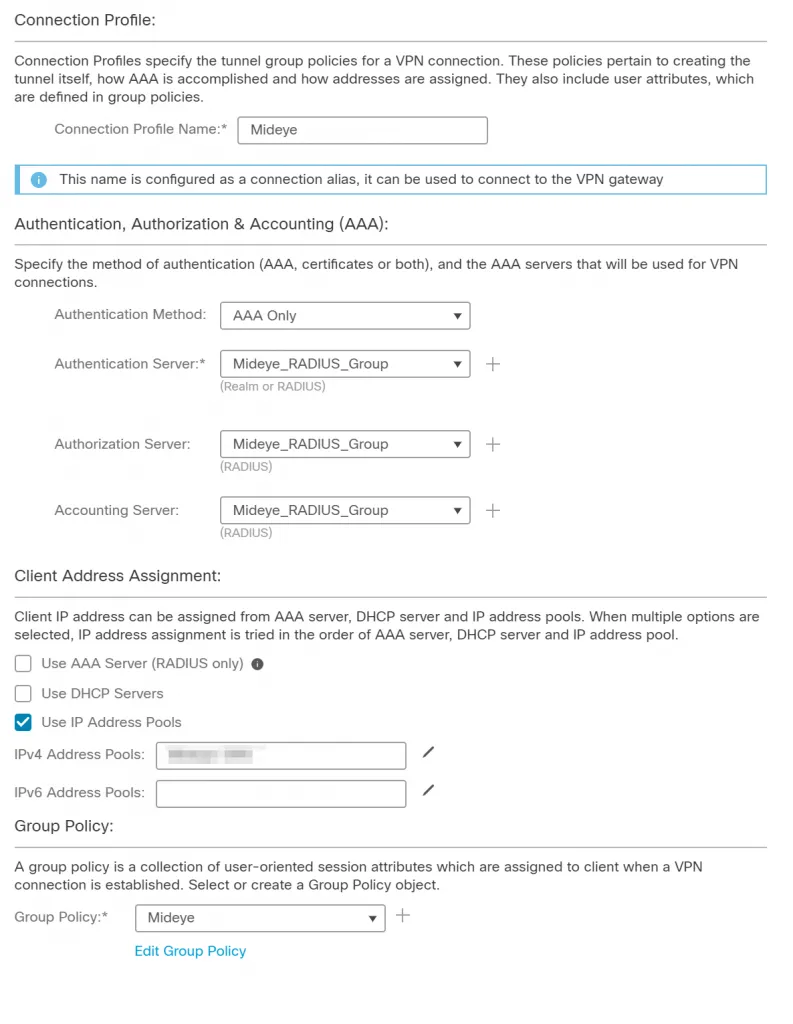
- Enter a Connection Profile name and select AAA Only in the authentication dropdown (typical for username/password + OTP flows).
- Select your RADIUS Server Group for Authentication. Optionally select the same or a different RADIUS Server Group for Authorization and Accounting.
- Configure client address assignment — create a new IP pool or use a predefined one.
- On the next page, select the AnyConnect / Secure Client images.
- Click Next to select the outside interface and certificate for Remote Access.
- Complete the wizard and deploy the configuration.
3. Set AnyConnect / Secure Client timeout for MFA
Section titled “3. Set AnyConnect / Secure Client timeout for MFA”There are two timeout layers that must both be configured for MFA to work reliably:
A) RADIUS Server Group timeout (server-side)
Section titled “A) RADIUS Server Group timeout (server-side)”This was already set in step 1. Keep it at ≥ 35 seconds.
B) AnyConnect / Secure Client authentication timeout (client-side)
Section titled “B) AnyConnect / Secure Client authentication timeout (client-side)”The AnyConnect Profile Editor controls how long the client waits for an authentication response before timing out.
- Download the AnyConnect Profile Editor matching your Secure Client / AnyConnect major version from cisco.com.
- Open the profile editor and navigate to Preferences (Part 2).
- Set Authentication Timeout (seconds) to 35.
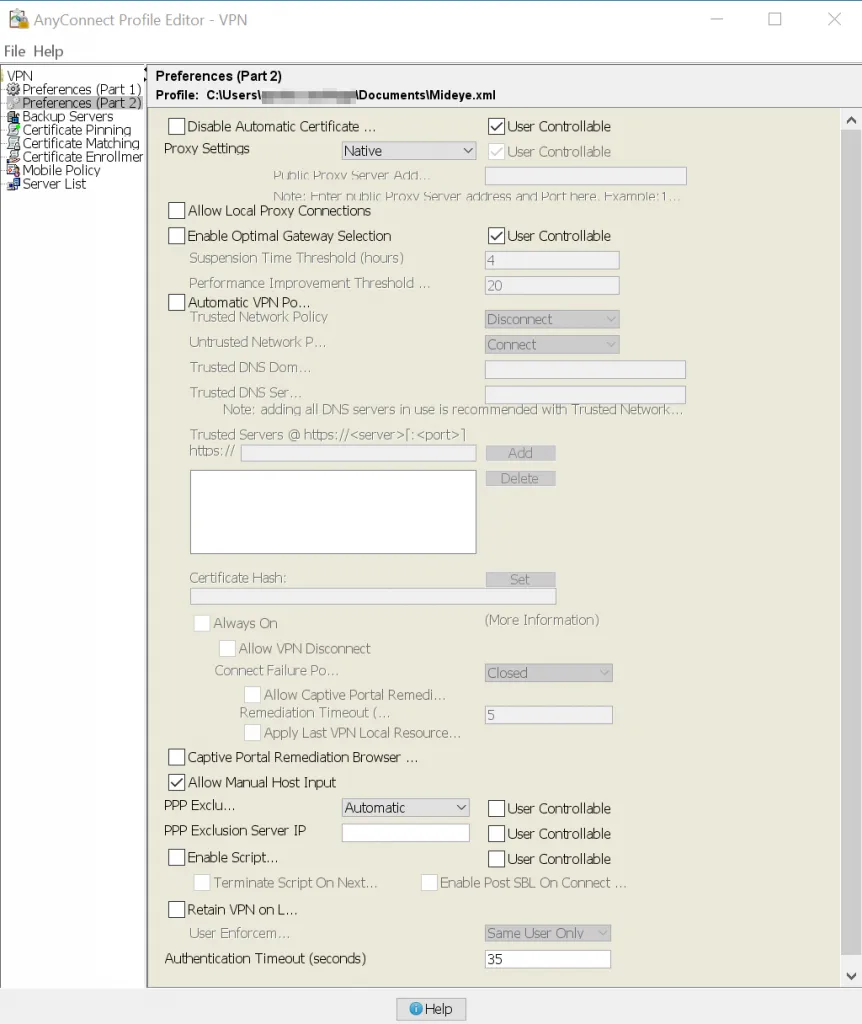
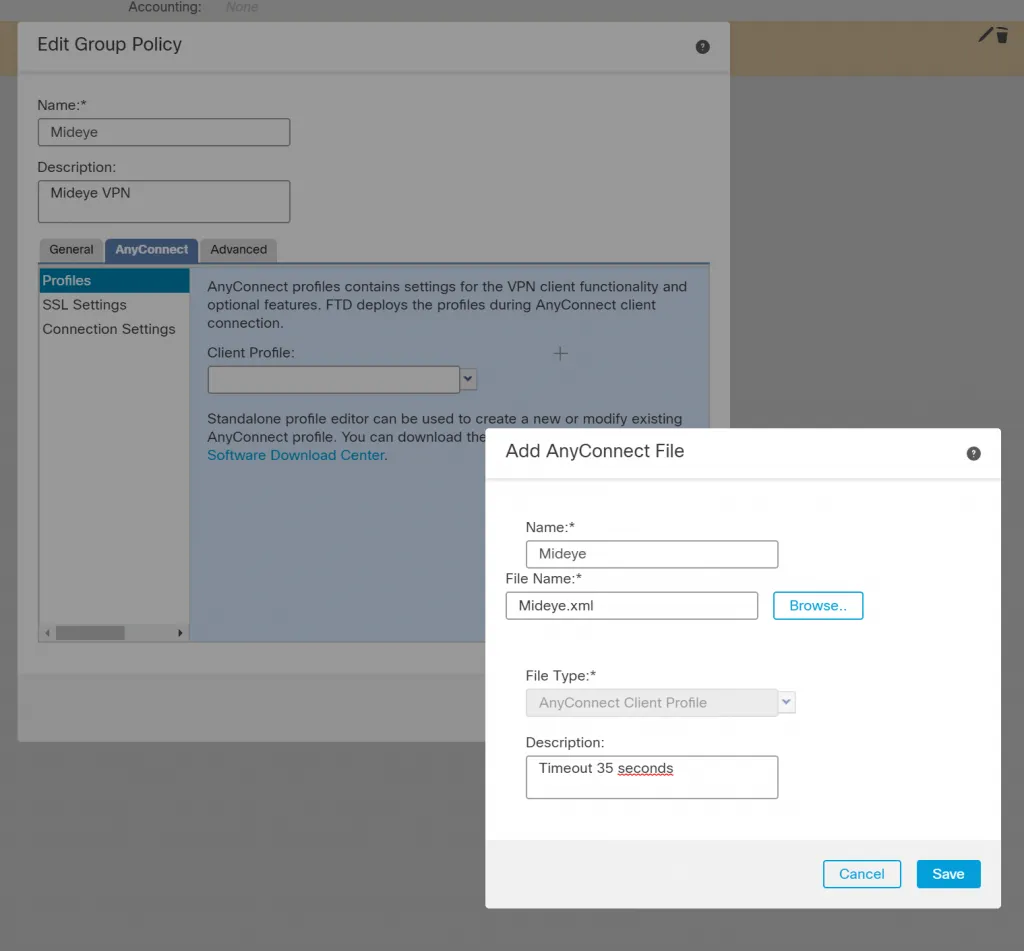
- Save the profile XML file (example:
Mideye.xml). - In FMC, edit your Remote Access VPN policy, click Edit Group Policy under the Group Policy name, and select the AnyConnect tab.
- Upload the saved XML profile and associate it with the group policy.
- Deploy the updated configuration.
4. Add the firewall as a RADIUS client in Mideye Server
Section titled “4. Add the firewall as a RADIUS client in Mideye Server”Add the firewall (or the NAT/source IP that originates RADIUS traffic) as a RADIUS client in Mideye Server. Ensure:
- The shared secret matches the FMC RADIUS Server Group configuration
- The UDP port matches (default 1812)
- Any vendor-specific requirements are configured (if applicable)
See RADIUS Clients in the reference guide.
Troubleshooting
Section titled “Troubleshooting”| Symptom | Check |
|---|---|
| Authentication fails quickly / times out | Verify both the RADIUS Server Group timeout (≥ 35s) and the client profile Authentication Timeout (≥ 35s) |
| FMC/FTD shows “realm/RADIUS” errors | Confirm the RADIUS Server Group object exists and is referenced by the VPN policy |
| RA VPN features blocked by licensing | Verify Secure Client / AnyConnect licensing and Smart Licensing status in FMC |
| OTP never arrives | Verify network connectivity between the FTD and Mideye Server on UDP 1812 |
| Shared secret mismatch | Ensure the secret configured in FMC matches the RADIUS client in Mideye Server exactly |
Related links
Section titled “Related links”Mideye documentation
Section titled “Mideye documentation”- Cisco AnyConnect (ASA) — if using ASA managed via ASDM/CLI
- RADIUS Clients — configure Mideye Server to accept requests from the firewall
- RADIUS Integrations — authentication flows and supported auth types
- Authentication Types — all supported Mideye authentication methods
- Support Center — contact Mideye support for integration assistance
Official Cisco documentation
Section titled “Official Cisco documentation”- Cisco Secure Firewall Management Center Device Configuration Guide, 7.7 — Remote Access VPN Identity Sources — RADIUS Server Group and Realm configuration for RA VPN
- Cisco Secure Client Ordering Guide — licensing and feature tiers
- AnyConnect Secure Mobility Client Administrator Guide, Release 4.1 — Profile Editor — authentication timeout and profile settings