

Palo Alto GlobalProtect MFA Setup with Mideye
This guide describes how to configure Palo Alto GlobalProtect to use Mideye Server for multi-factor authentication via RADIUS.
Palo Alto acts as a RADIUS client toward Mideye Server.
| Component | Versions |
|---|---|
| PAN-OS | 9.x / 10.x / 11.x |
| Mideye Server | 5.x / 6.x |
Architecture
Section titled “Architecture”Prerequisites
Section titled “Prerequisites”- Mideye Server 5 or 6 with RADIUS enabled (default UDP port 1812)
- GlobalProtect Portal and Gateway already configured — refer to Palo Alto GlobalProtect documentation for initial setup
- UDP port 1812 open from the Palo Alto firewall to Mideye Server
- Administrative access to the PAN-OS web interface
1. Add Palo Alto as a RADIUS client in Mideye Server
Section titled “1. Add Palo Alto as a RADIUS client in Mideye Server”On the Mideye Server, add the Palo Alto firewall IP address as a RADIUS client with a shared secret. This shared secret must be identical on both the Palo Alto firewall and in Mideye Server.
See RADIUS Clients in the reference guide.
2. Adjust Mideye push delivery timeout
Section titled “2. Adjust Mideye push delivery timeout”To allow fallback to manual signature when the user’s phone is unreachable, reduce the Push delivery timeout in Mideye:
- Log in to the Mideye Server web interface.
- Navigate to RADIUS Servers and click the edit icon on the RADIUS server used by the Palo Alto RADIUS client.
- Open the Advanced tab.
- Change Push delivery timeout (seconds) from 17 to 11.
- Click Save.
Why 11 seconds?
Section titled “Why 11 seconds?”GlobalProtect drops the RADIUS session at approximately 25 seconds. With an 11-second push delivery timeout, Mideye has enough time to detect that the phone is unreachable, fall back to manual signature, and complete the challenge-response exchange before PAN-OS closes the session.
3. Create RADIUS server profile
Section titled “3. Create RADIUS server profile”Navigate to Device → Server Profiles → RADIUS and click Add.
| Setting | Value |
|---|---|
| Profile Name | Mideye (or a descriptive name) |
| Timeout | 35 seconds |
| Retries | 1 |
| Authentication Protocol | PAP |
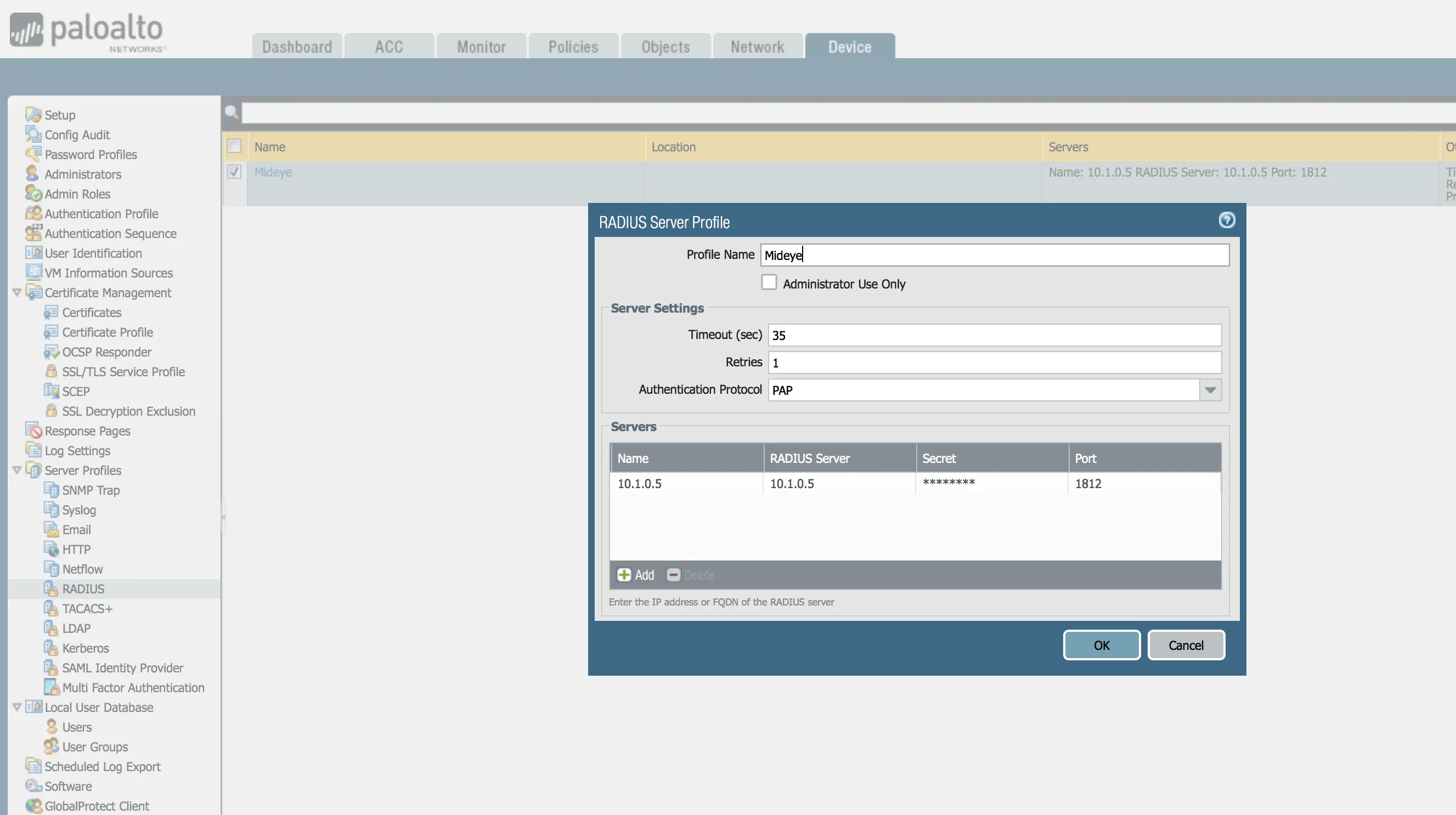
Click Add under Servers to define the Mideye RADIUS server:
| Setting | Value |
|---|---|
| Server Name | Mideye |
| RADIUS Server | Mideye Server IP address |
| Port | 1812 |
| Secret | Shared secret (must match Mideye Server) |
Click OK.
4. Create authentication profile
Section titled “4. Create authentication profile”Navigate to Device → Authentication Profile and click Add.
| Setting | Value |
|---|---|
| Name | Mideye-auth (or a descriptive name) |
| Type | RADIUS |
| Server Profile | Select the RADIUS profile created in step 3 |
Click the Advanced tab to define which users or groups are allowed to authenticate with this profile.
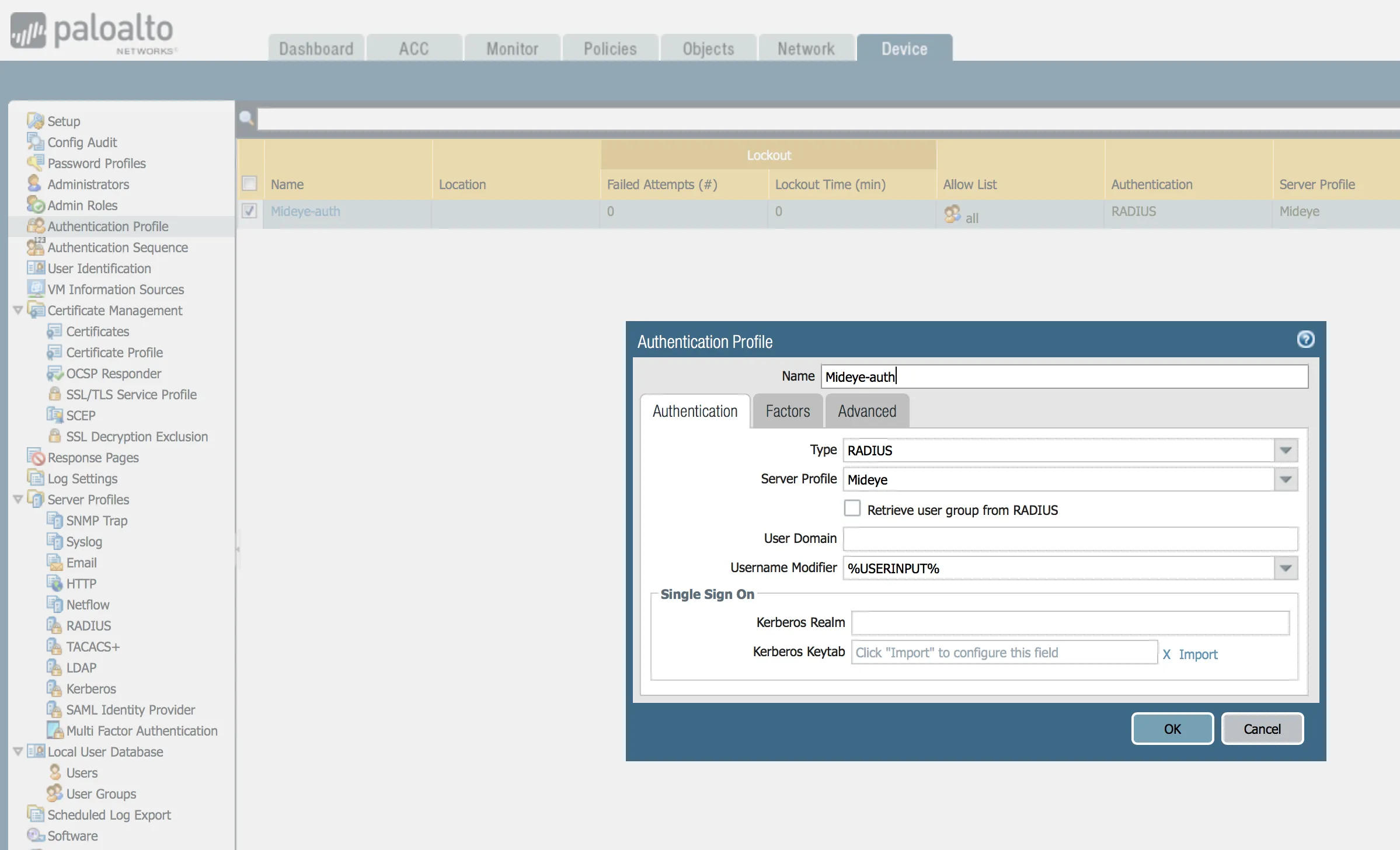
Click OK.
5. Apply authentication profile to GlobalProtect gateway
Section titled “5. Apply authentication profile to GlobalProtect gateway”Navigate to Network → GlobalProtect → Gateways and edit your existing gateway.
Under Authentication → Client Authentication, add:
- Authentication Profile: select
Mideye-auth
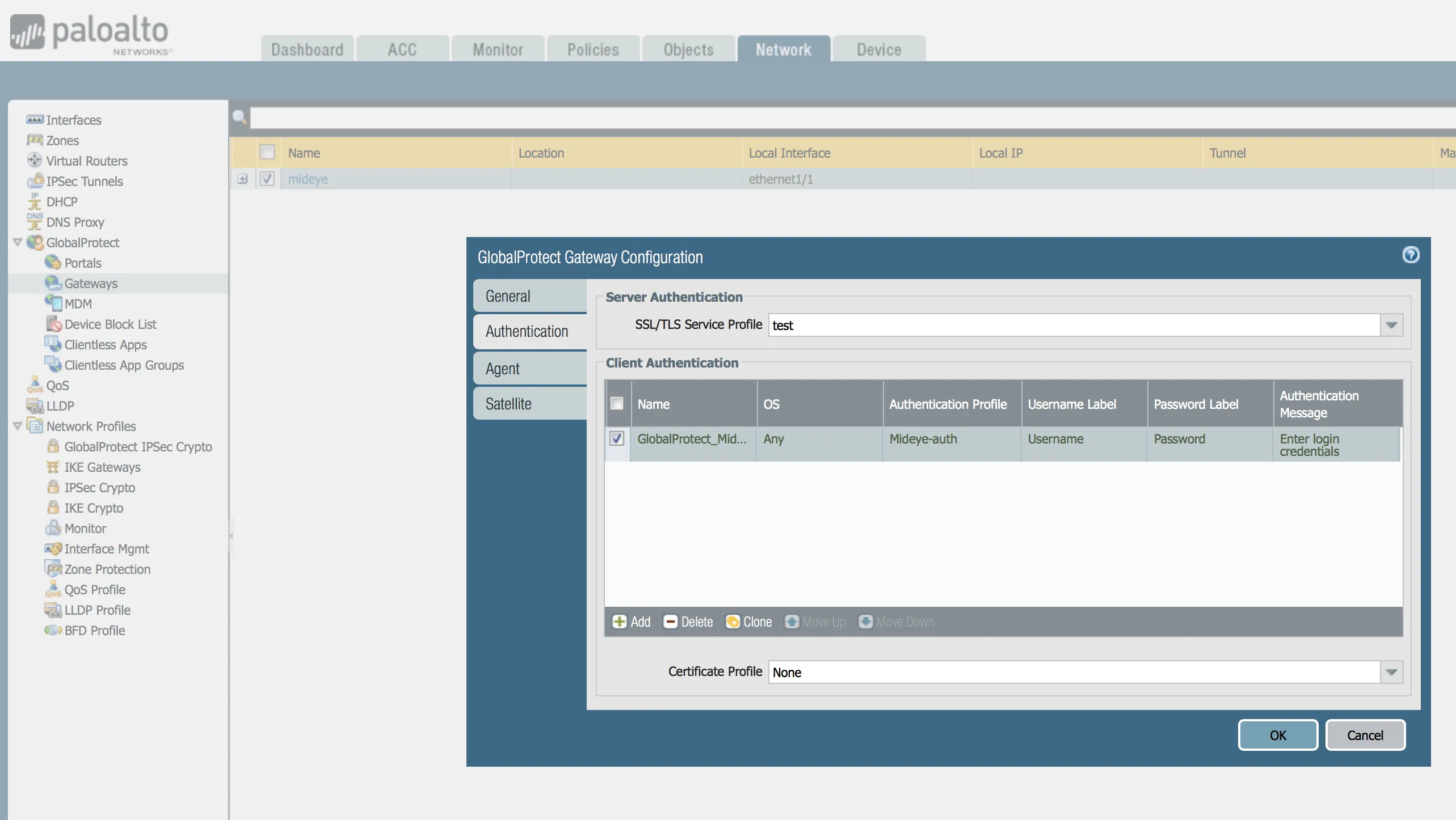
Click OK and Commit changes.
6. Verification
Section titled “6. Verification”Connect using the GlobalProtect client or the web portal and verify the following scenarios:
| Scenario | Expected result |
|---|---|
| Push approved in Mideye+ | Login succeeds |
| SMS OTP entered correctly | Login succeeds |
| TOTP entered correctly | Login succeeds |
| Wrong OTP entered | Authentication fails |
| Phone unreachable (with timeout adjusted) | Falls back to manual signature |
Troubleshooting
Section titled “Troubleshooting”| Symptom | Check |
|---|---|
| Authentication times out | GlobalProtect enforces ~25 second internal limit. Verify Mideye push delivery timeout is set to 11 seconds (step 2) |
| Push never arrives / falls back to manual signature | Verify Mideye+ app is activated and the phone has internet connectivity |
| ”Authentication failed” with no details | Palo Alto does not display dynamic RADIUS reject messages — this is a known limitation |
| OTP never arrives | Verify UDP port 1812 is open between the Palo Alto firewall and Mideye Server |
| Shared secret mismatch | Ensure the secret in the PAN-OS RADIUS server profile matches the Mideye RADIUS client |
Known limitations
Section titled “Known limitations”Dynamic RADIUS reject messages
Section titled “Dynamic RADIUS reject messages”Palo Alto does not display dynamic RADIUS reject messages to end users. If Mideye Server sends a descriptive reject message (for example, “Phone not reachable”), GlobalProtect will display a generic “Authentication failed” message instead.
GlobalProtect RADIUS timeout restriction
Section titled “GlobalProtect RADIUS timeout restriction”- The effective RADIUS timeout is approximately 25 seconds, regardless of the configured value.
- This cannot be extended via the PAN-OS GUI or CLI.
- Adjust the Mideye push delivery timeout as described in step 2.
Best practices
Section titled “Best practices”| Setting | Recommended value |
|---|---|
| RADIUS Protocol | PAP |
| PAN-OS RADIUS Timeout | 35 seconds |
| PAN-OS RADIUS Retries | 1 |
| Mideye Push Delivery Timeout | 11 seconds |
Multiple Mideye Servers (redundancy)
Section titled “Multiple Mideye Servers (redundancy)”You can define multiple RADIUS servers in the PAN-OS Server Profile. Palo Alto will attempt servers sequentially if the primary is unreachable.
For true high availability, consider using a load balancer in front of multiple Mideye Servers, or define primary and secondary RADIUS servers in the server profile.
Related links
Section titled “Related links”Mideye documentation
Section titled “Mideye documentation”- RADIUS Clients — configure Mideye Server to accept requests from Palo Alto
- RADIUS Integrations — authentication flows and supported auth types
- Authentication Types — all supported Mideye authentication methods
- RADIUS Servers — User Messages — customize RADIUS reject and challenge messages
- Support Center — contact Mideye support for integration assistance
Official Palo Alto Networks documentation
Section titled “Official Palo Alto Networks documentation”- Configure RADIUS Authentication — RADIUS server profiles and authentication profiles in PAN-OS
- RADIUS Authentication Types — RADIUS authentication type and supported attributes
- GlobalProtect User Authentication — how GlobalProtect uses external authentication including RADIUS
- Set Up RADIUS or TACACS+ Authentication for GlobalProtect — step-by-step RADIUS configuration for GlobalProtect
- GlobalProtect Documentation Hub — complete GlobalProtect documentation