

Install Mideye ADFS Module for Push, SMS & TOTP MFA
Mideye ADFS Module lets users login with Mideye OTP alternatives in the ADFS portal.
- SMS OTP
- Touch Accept
- Offline Challenge
- Token Authentication
- Yubikey Authentication
Overview
Section titled “Overview”Supported ADFS-versions are:
| Windows Server | ADFS version | Status |
|---|---|---|
| 2019 | 4.0 | Supported |
| 2016 | 3.0 | Supported |
| 2012 R2 | 2.0 | Not supported (EOL) |
Prerequisites
Section titled “Prerequisites”This guide requires a working ADFS environment. Refer to Microsoft-documentation on how to configure ADFS before proceeding with this integration document.
Install Mideye ADFS module
Section titled “Install Mideye ADFS module”Step 1 - Install
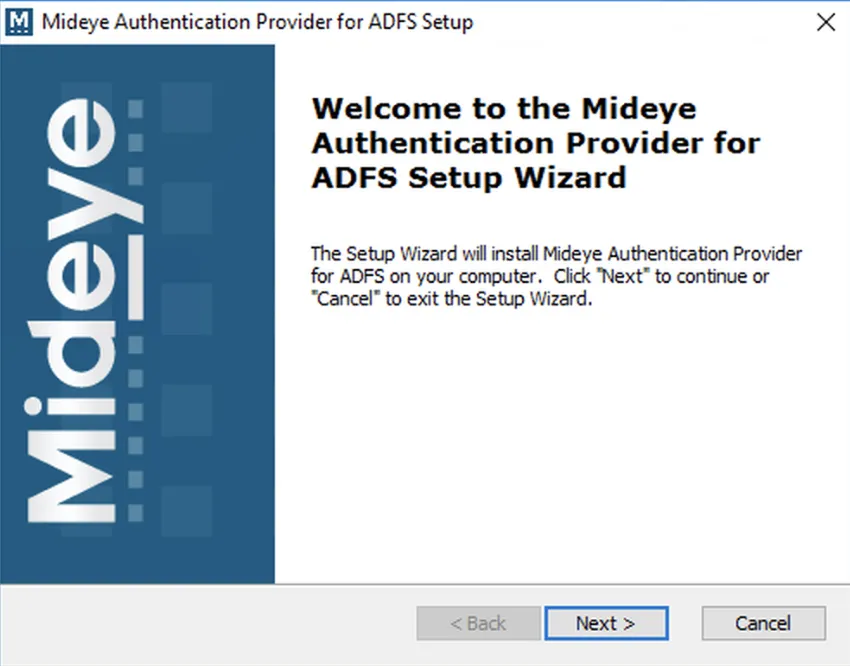
Section titled “Step 1 - Install”Run the ADFS-package as an administrator.
Step 2 - Install
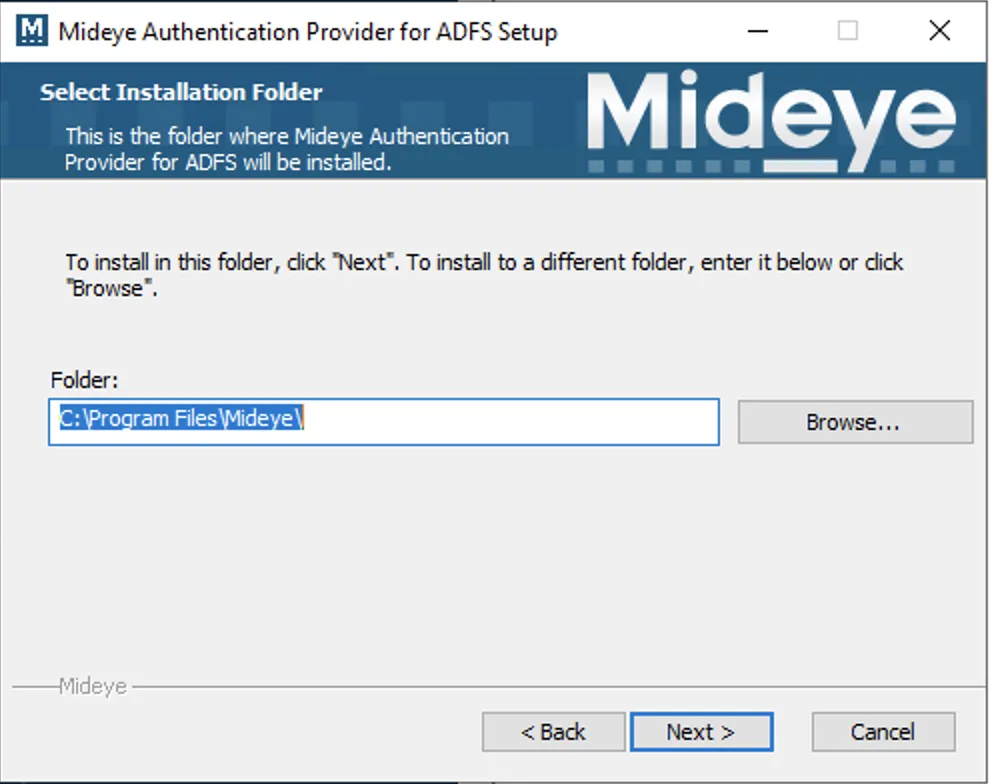
Section titled “Step 2 - Install”Specify installation folder. Use default for easier troubleshooting.
Step 3 - Install
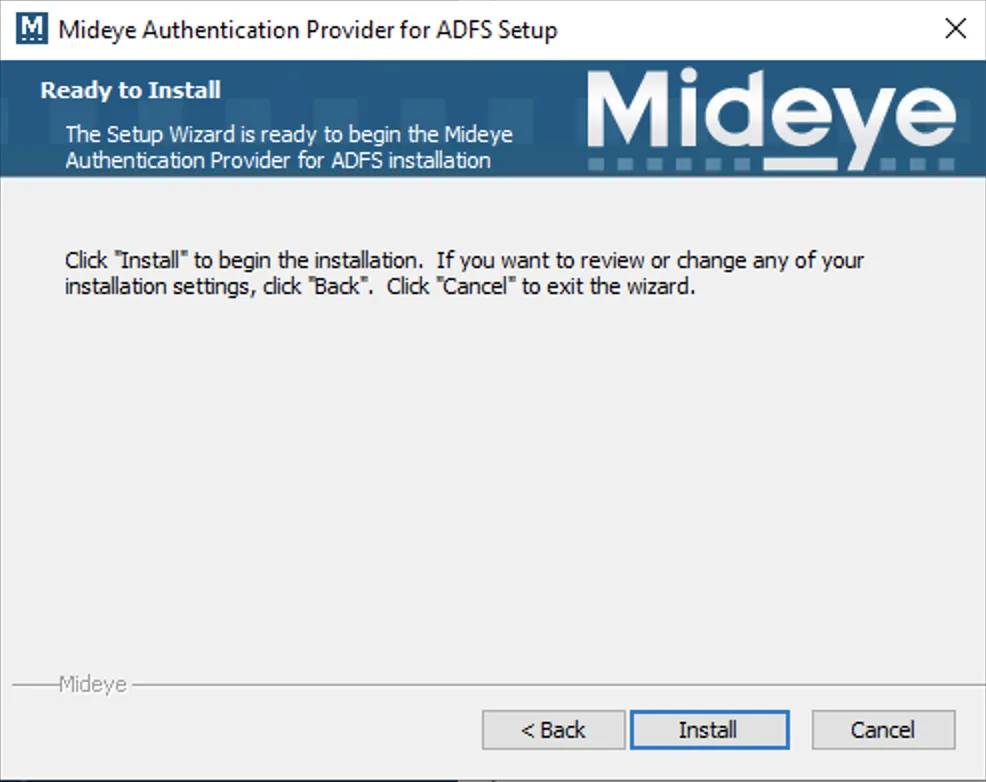
Section titled “Step 3 - Install”Click Install.
Step 4 - Install
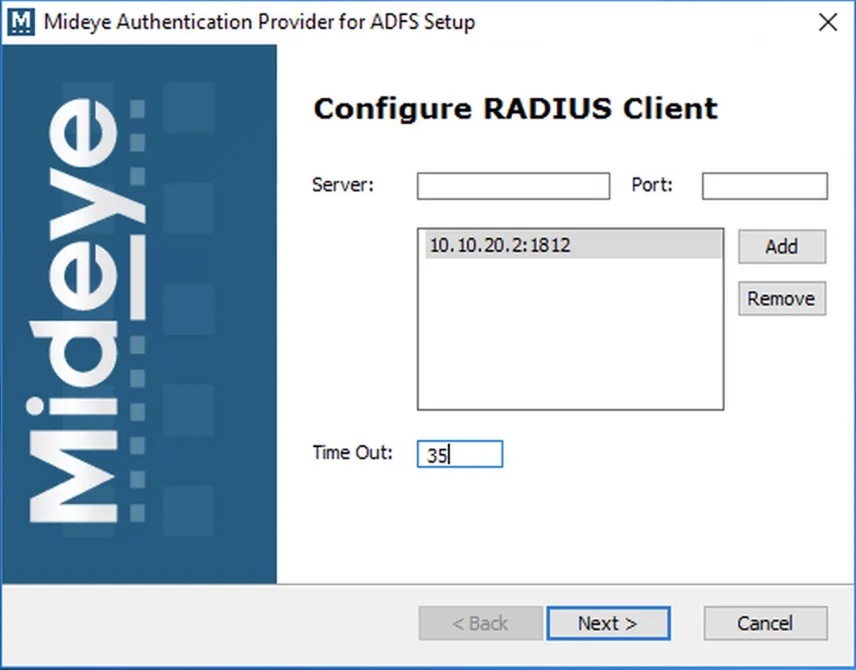
Section titled “Step 4 - Install”Add all Mideye Servers to the list. Default port is 1812. Timeout should be 35 multiplied with number of Mideye Servers in the list.
Step 5 - Install
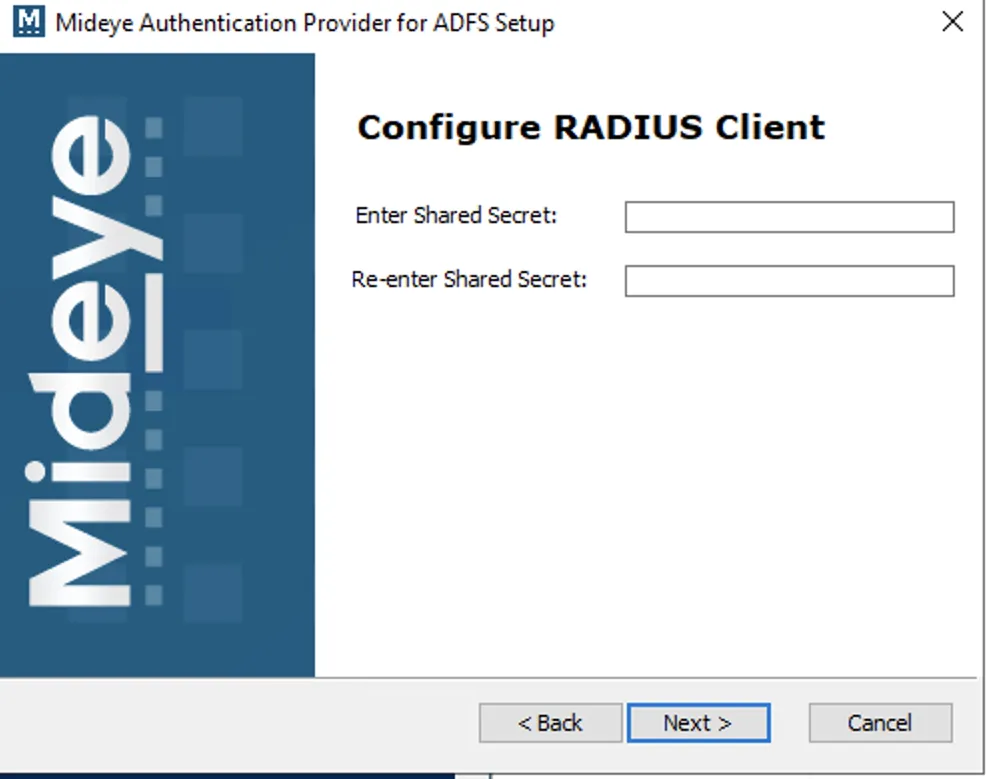
Section titled “Step 5 - Install”Configure Shared Secret for all Radius Client/Server communication.
Step 6 - Install
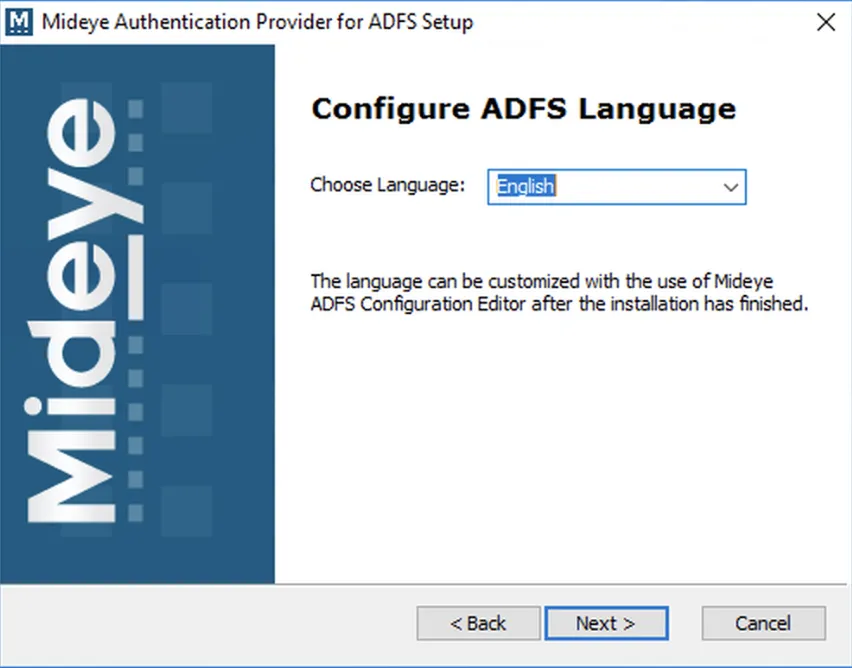
Section titled “Step 6 - Install”Choose language for informational / error messages and finish the installation.
Uninstall Mideye ADFS module
Section titled “Uninstall Mideye ADFS module”Step 1 - Gui Uninstall
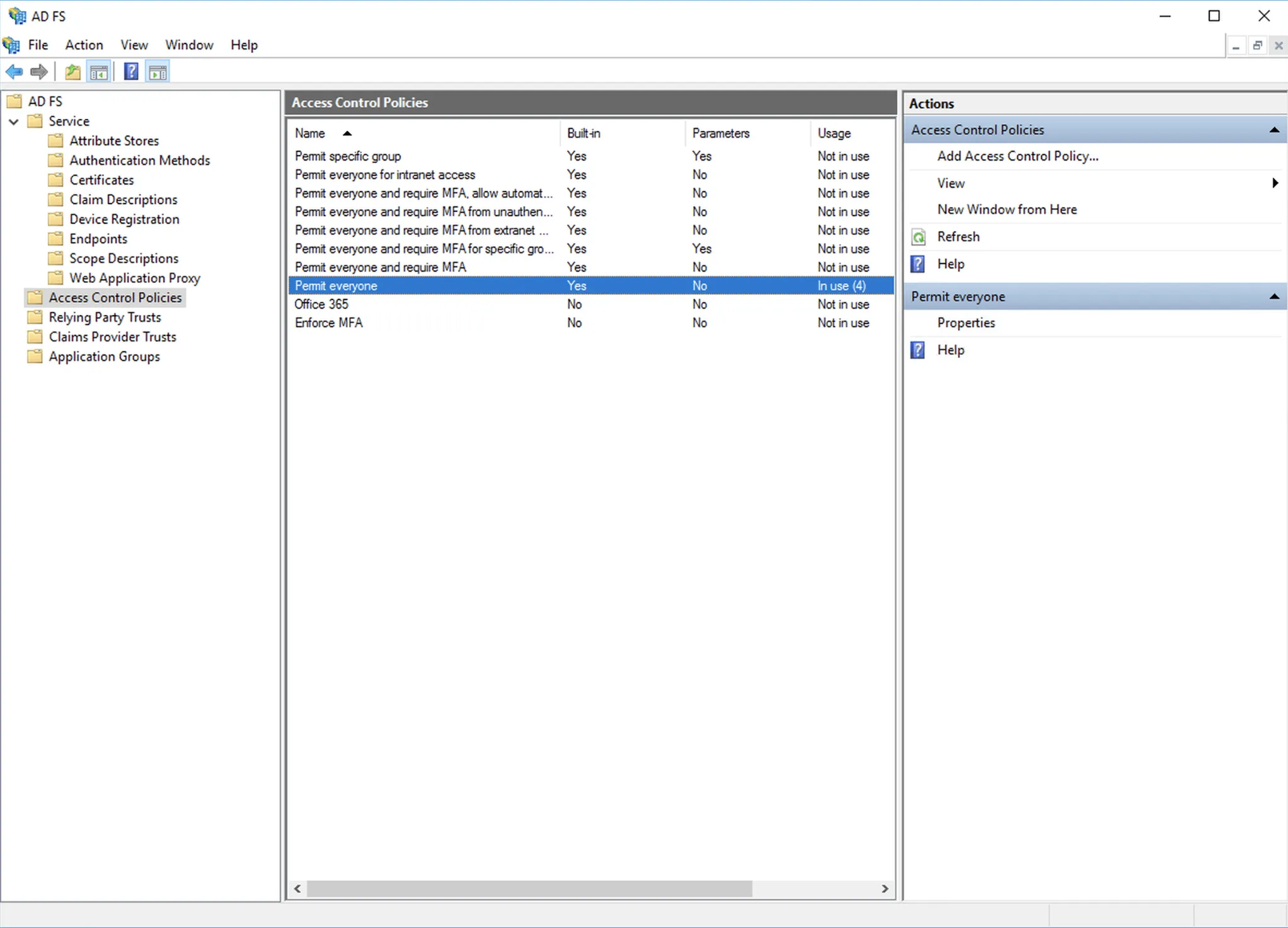
Section titled “Step 1 - Gui Uninstall”Open AD FS management console and navigate to Access Control Policies. Remove all relying parties from any MFA policies.
Step 2 - Gui Uninstall
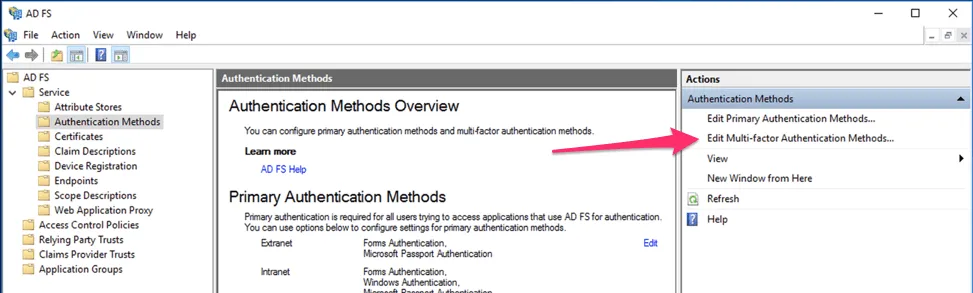
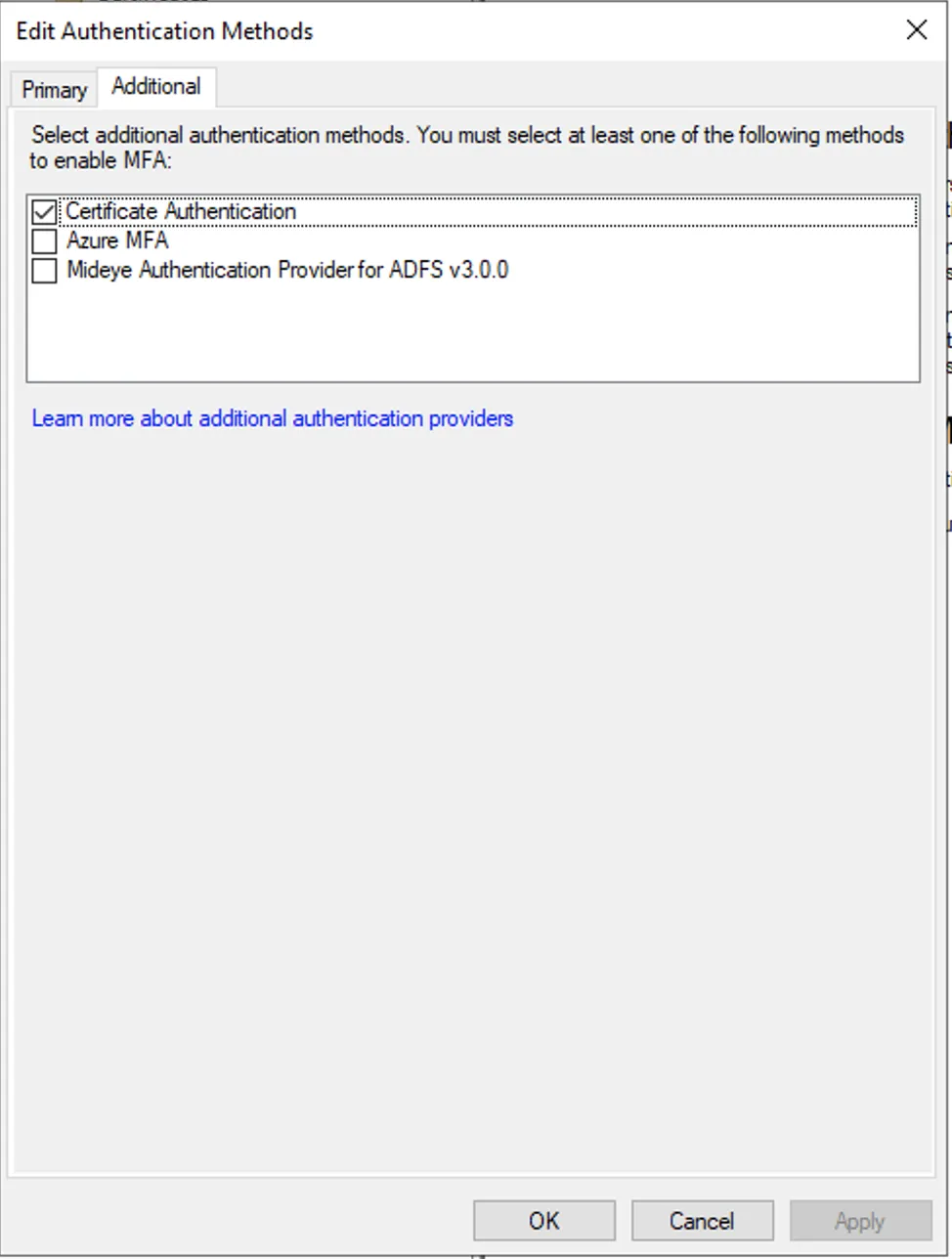
Section titled “Step 2 - Gui Uninstall”Navigate to Authentication Methods and click Edit Multi-factor authentication methods.
Step 3 - Gui Uninstall
Section titled “Step 3 - Gui Uninstall”Uncheck the Mideye ADFS-module and click OK.
Step 4 - Gui Uninstall
Section titled “Step 4 - Gui Uninstall”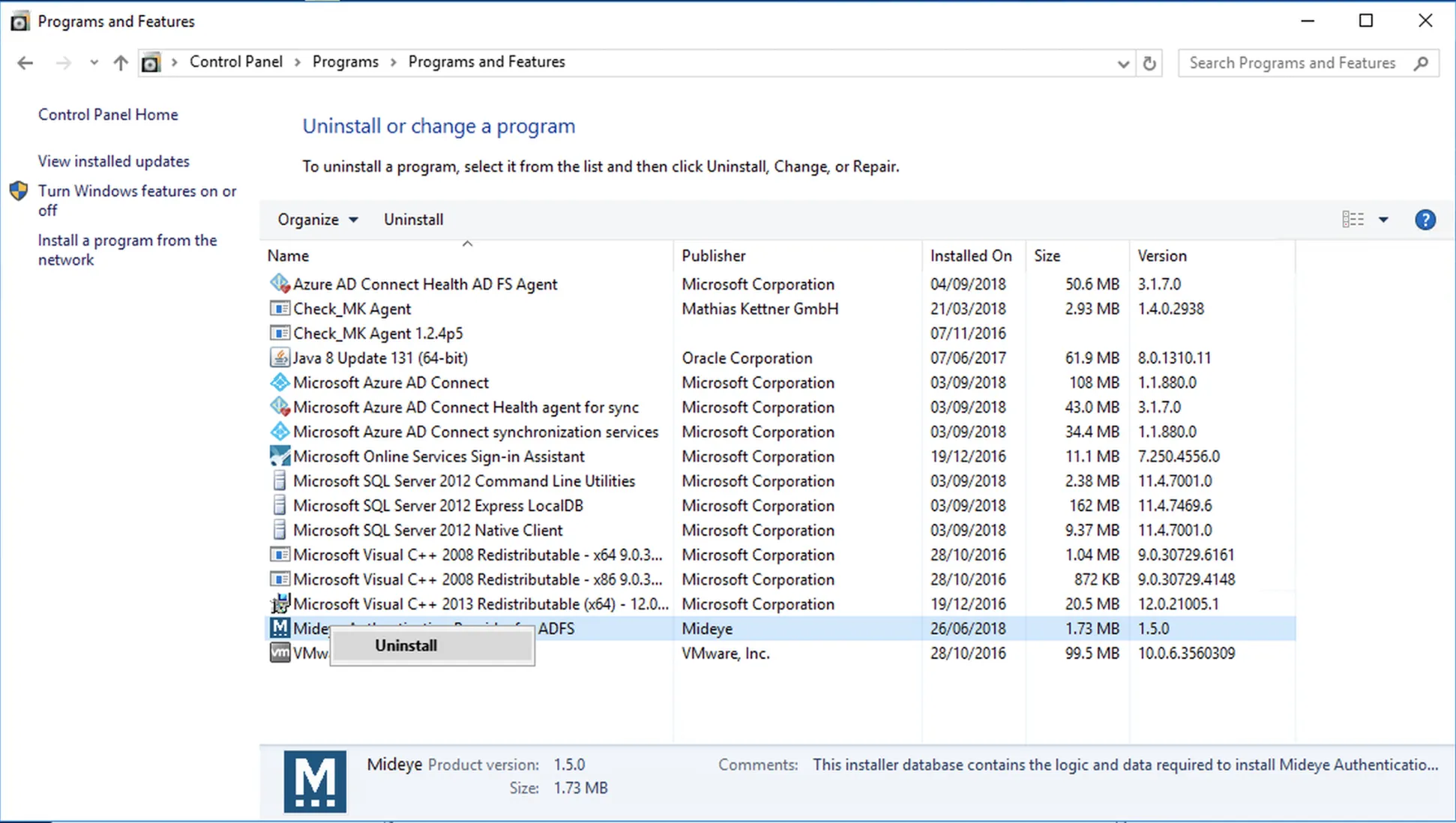 Open Control Panel and navigate Remove/Add programs. Uninstall the Mideye ADFS module.
Step 5 - Gui Uninstall
Section titled “Step 5 - Gui Uninstall”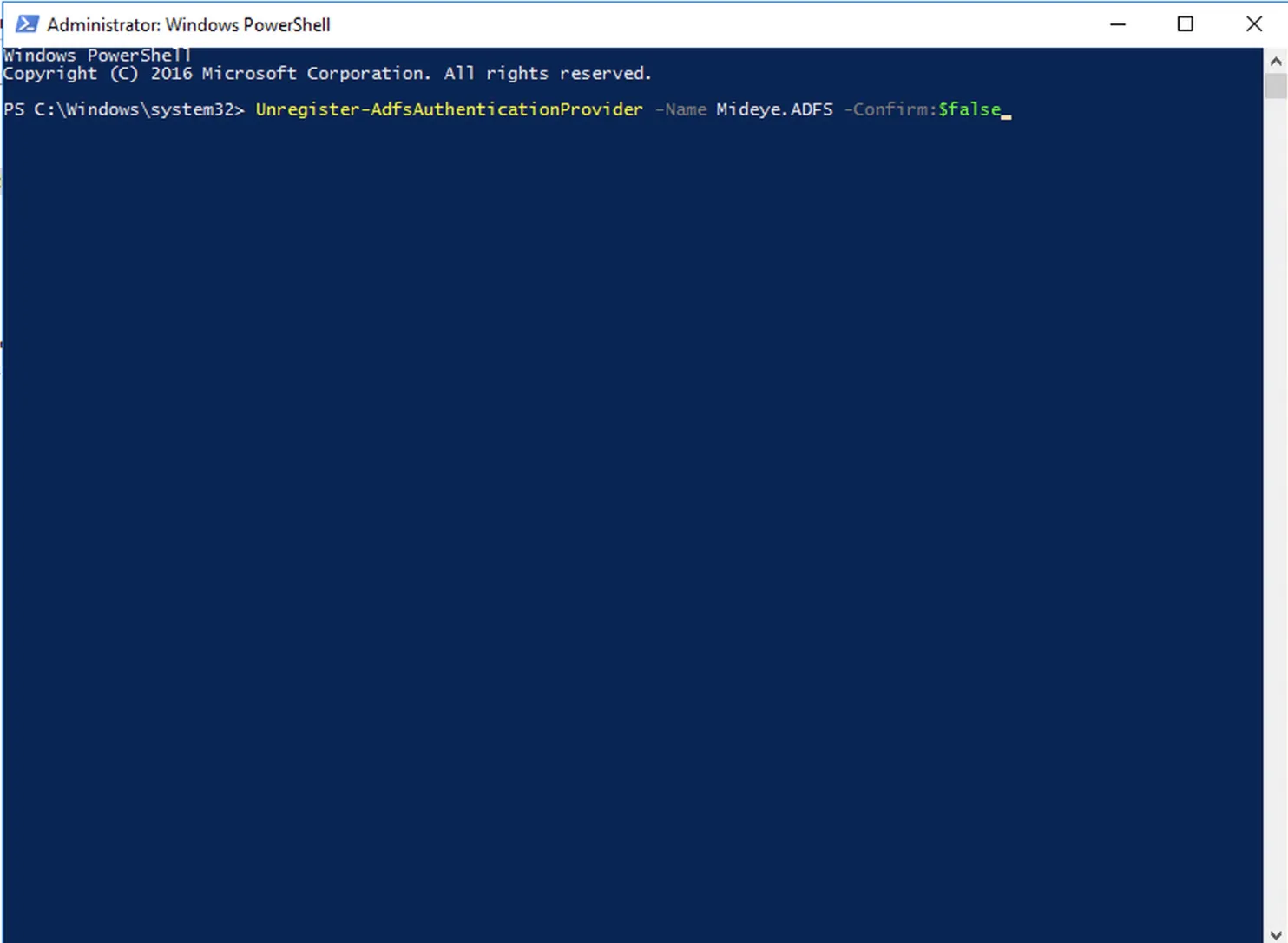 To make sure that all register keys are removed from any older versions, open Powershell as an administrator and run
Unregister-AdfsAuthenticationProvider -Name Mideye.ADFS -Confirm:$falseStep 1 - Powershell Uninstall
Section titled “Step 1 - Powershell Uninstall”Check if Mideye ADFS Module is in use. There should be no Mideye.ADFS output before continuing to next step.
(Get-AdfsGlobalAuthenticationPolicy).AdditionalAuthenticationProviderIf Get-AdfsGlobalAuthenticationPolicy output other than Mideye.ADFS. Add it to Set-AdfsGlobalAuthenticationPolicy command.
With only Mideye.ADFS output.
Set-AdfsGlobalAuthenticationPolicy -AdditionalAuthenticationProvider {}With other services in output.
Set-AdfsGlobalAuthenticationPolicy -AdditionalAuthenticationProvider {OtherService}Step 2 - Powershell Uninstall
Section titled “Step 2 - Powershell Uninstall”Uninstall Mideye Authentication Provider for ADFS
$uninstall64 = gci "HKLM:\SOFTWARE\Microsoft\Windows\CurrentVersion\Uninstall" | foreach { gp $_.PSPath } | ? { $_ -match "Mideye Authentication Provider for ADFS" } | select UninstallStringif ($uninstall64) {$uninstall64 = $uninstall64.UninstallString -Replace "msiexec.exe","" -Replace "/I","" -Replace "/X",""$uninstall64 = $uninstall64.Trim()Write "Uninstalling..."start-process "msiexec.exe" -arg "/X $uninstall64 /qb" -Wait}Step 3 - Powershell Uninstall
Section titled “Step 3 - Powershell Uninstall”Verify no Mideye.ADFS module is present in ADFS.
Unregister-AdfsAuthenticationProvider -Name Mideye.ADFS -Confirm:$falseThis should show following output.
WARNING: PS0105: No authentication provider with name 'Mideye.ADFS' is present in the policy store.Update Mideye ADFS module
Section titled “Update Mideye ADFS module”A update of the module consists of two steps. Uninstall and Install.
Step 1 - Uninstall”
Section titled “Step 1 - Uninstall””[First step is to follow the uninstall guide](#uninstall-mideye-adfs-module).Step 2 - Install”
Section titled “Step 2 - Install””[Second step is to follow the install guide](#install-mideye-adfs-module).Forgot to Uninstall?
Section titled “Forgot to Uninstall?”If the Mideye ADFS Module is present when installing new update there will be some errors when trying to configure and uninstall the Mideye ADFS Module.Operate the ADFS module
Section titled “Operate the ADFS module”The Mideye ADFS Module is configured via the Configuration Editor found in "C:\Program Files\Mideye\ADFS\Mideye ADFS Configuration Editor.exe" This needs to be opened with Administrator privileges.
Enable Mideye ADFS Module in ADFS MFA.
Section titled “Enable Mideye ADFS Module in ADFS MFA.”Enabling Mideye MFA requires two steps in AD FS Management console. First it needs to be added as a MFA alternative. Then MFA needs to be set as a Access policy for the relying party.
1. Enable Mideye MFA
- Navigate to AD FS Management → Service → Authentication Methods → Edit Multi-Factor Authentication Methods… and select Mideye Authentication Provider for ADFS v3.0.0 checkbox.
2. Enable MFA on Relying party
- Navigate to AD FS Management → Relying Party Trust → Relying Party → Edit Access Control Policy.. and set the Permit everyone and require MFA
Policies can be modified under “AD FS Management → Access Control Policies”
Create RADIUS-client ¨ Refer to Reference Guide (Mideye Server 4) and RADIUS Clients (Mideye Server 5+), how to create a new RADIUS-client on the Mideye Server.
Multiple MideyeServers
Section titled “Multiple MideyeServers”Configure Multiple Mideye Servers in Client Settings in "C:\Program Files\Mideye\ADFS\Mideye ADFS Configuration Editor.exe"
When more than one Mideye-server is specified in the RADIUS-server list, the module will always try with the one on top of the list. If the first Mideye Server does not respond, the next in the list will automatically be moved up to the top. The failed Mideye Server will be placed in the bottom.
Check RADIUS-logs
Check if anything is written to the Mideye RADIUS logs
Mideye Server\log\radius-messages.logIf nothing is logged, verify that udp/1812 is allowed between your ADFS server and Mideye Server. Also, check Event viewer for logs on the ADFS-server.
Multiple Adapters
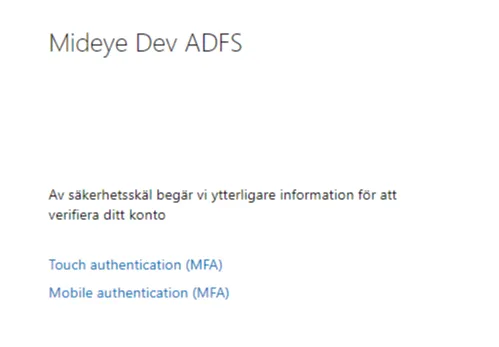
Section titled “Multiple Adapters”With the release of Mideye ADFS Module 3.1 it is now possible to use two different adapters, which are identified by the Mideye Server by their NAS ID. This makes it possible to configure ADFS with two different authentication types (e.g. each adapter has its own authentication type and configuration), which will be presented at the login portal as two choices of authentication methods.
Each adapter can be presented to the end user with its own ‘Provider friendly name’, which could help to distinguish between which adapter provides which authentication type.
An example of how it could look:
The two adapters can be configured through the Mideye ADFS configurator, which is usually found in "C:\Program Files\Mideye\ADFS\Mideye ADFS Configuration Editor.exe".
Passwordless Authentication
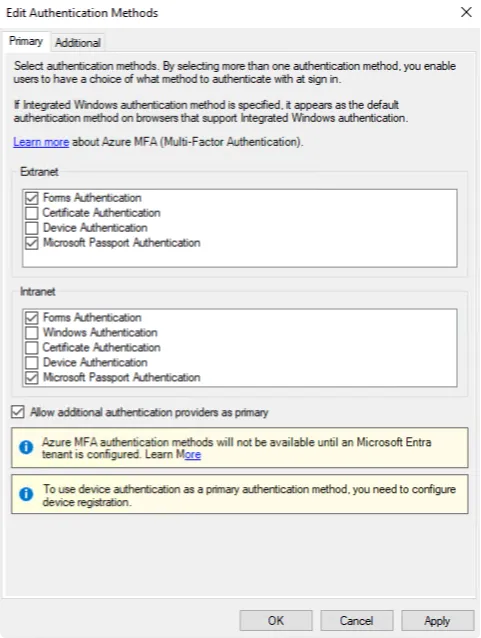
Section titled “Passwordless Authentication”Mideye ADFS Module 3.1 also offers the possibility to configure the ADFS server to use passwordless authentication. This feature is enabled by ticking a box named ‘Allow additional authentication providers as primary’ found in the following path: AD FS Management → Service → Authentication Methods → Edit Primary Authentication Methods → Allow additional authentication providers as primary
It should look something like this:
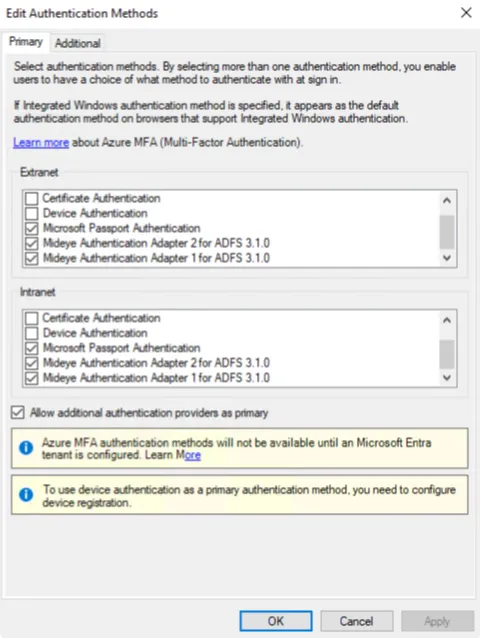
After clicking ‘Apply’, followed by closing and opening the window again, it should now allow the adapters from the Mideye module to be set as primary:
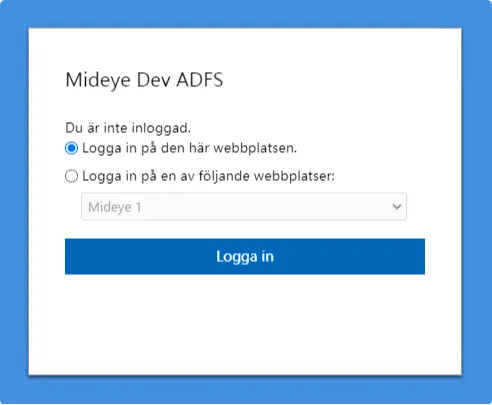
The login page will also receive a different look once this setting is enabled:
Test login
Section titled “Test login”After setting Multi-Factor Authentication methods you can test the login by going to the ADFS login portal if that is enabled.
https://<adfs_fqdn>/adfs/ls/idpinitiatedsignon
check if idpinitiatedsignon-page is enabled:
Get-AdfsProperties | Select-Object EnableIdpInitiatedSignonpage
enable idpinitiatedsignon-page:
Set-AdfsProperties –EnableIdpInitiatedSignonPage $True
Configure Mideye Server
Section titled “Configure Mideye Server”Mideye Server Radius Client needs to be configured to Ignore user password This is because the user is verified and authenticated through the ADFS system. Mideye Server just adds the one time password part to the login.
Configure Mideye Server 5
Section titled “Configure Mideye Server 5”Open Mideye Web-GUI and navigate to “Configuration” followed by RADIUS-clients. Select Edit on the new RADIUS client and click the “Client Configuration” tab. Check the checkbox for “Ignore password”.
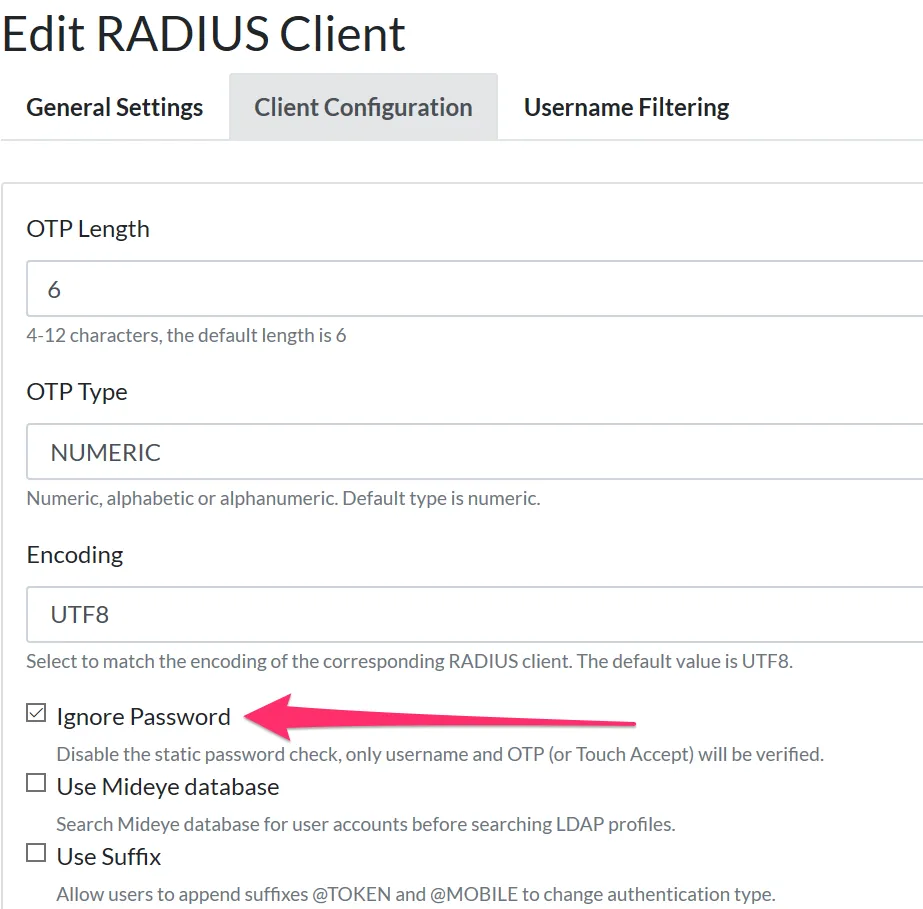
Check “Ignore Password”
Customise error messages, language and Serverlist
To change language and customise informational / error messages, open Mideye ADFS configuration editor. To customise any field, check the Custom edit button and make any changes followed by Save.
To add/remove/edit the RADIUS-server list open the tab Client settings and check the Custom edit button. Make any changes followed by Save.
Configure Mideye Server 4
Section titled “Configure Mideye Server 4”On the created RADIUS-client, navigate to Client configuration and remove the “Check static password”. This check is not necessary since ADFS will perform a username and password check before allowing an authentication.
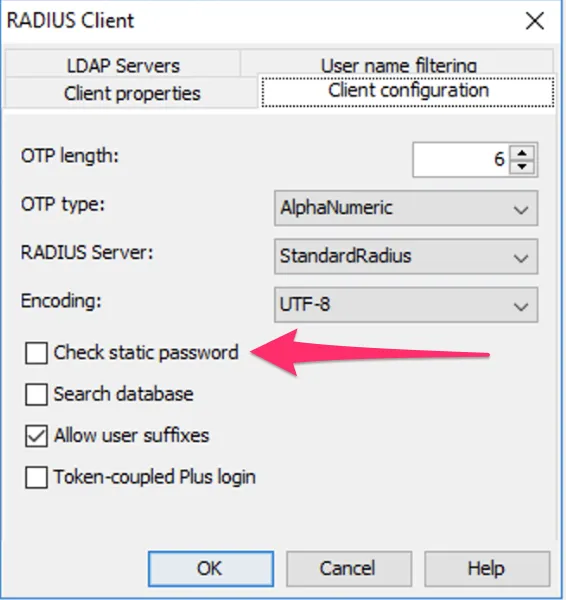
Uncheck “Check static password”
Troubleshooting
Section titled “Troubleshooting”Permissions
Section titled “Permissions”Error: System.AggregateException: One or more errors occurred. System.Exception: Could not connect to regedit.
Problem: Permissions for the service account used by ADFS, was not executed correctly during installation.
Fix:
Open "C:\Program Files\Mideye\ADFS\Mideye ADFS Configuration Editor.exe" as Administrator and add permissions to registry. Go to Permissions tab and click Add Permissions.
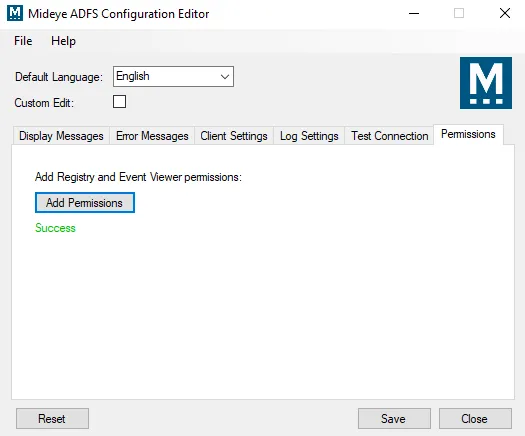
Failed update
Section titled “Failed update”Error:
- Mideye Authentication Provider for ADFS is displayed in Apps & Features (seems to be installed)
- Old version is located in AD FS Management → Service → Authentication Methods → Edit Multi-Factor Authentication Methods…
- Event ID: 364
Microsoft.IdentityServer.RequestFailedException: No strong authentication method found for the request from - When opening
"C:\Program Files\Mideye\ADFS\Mideye ADFS Configuration Editor.exe"following error message is shown. An error occurred - Registry path is invalid Parameter name: regPath - Uninstall does not work.
Windows can't access the specified device, path, or file. You may not have the appropriate permissions to access the item.
Reason: Mideye ADFS Module was not properly uninstalled before updating to next release.
Fix: Do a proper uninstall of Mideye ADFS Module and reinstall.
- Make sure that Mideye ADFS Module is not present in AD FS Management → Service → Authentication Methods → Edit Multi-Factor Authentication Methods…
- Unregister the module from ADFS
Unregister-AdfsAuthenticationProvider -Name Mideye.ADFS -Confirm:$false - Run the install package ex.
Mideye ADFS v3.0.0.exeClick Next > then Remove then Finish. - Do a new install of Mideye ADFS Module.
Event Viewer
Section titled “Event Viewer”ID: 364 - Encountered error during federation passive request.
Section titled “ID: 364 - Encountered error during federation passive request.”Error:
Encountered error during federation passive request.
Additional DataProtocol Name:SamlRelying Party:Exception details:System.AggregateException: One or more errors occurred. ---> System.Exception: Requested registry access is not allowed.
Reason: This error occurs in v2.3.4 when Mideye ADFS Module can not write to registry.
Fix: Known Bug and fixed in v3.0.0
Related links
Section titled “Related links”Mideye documentation
Section titled “Mideye documentation”- RADIUS Clients — configure ADFS servers as RADIUS clients
- ADFS Access Control Policies — customise ADFS access control policies
- Windows Integrations — overview of all Windows integration options
- Release Notes — Mideye ADFS module release history
Official Microsoft documentation
Section titled “Official Microsoft documentation”- ADFS Overview — Active Directory Federation Services documentation
- ADFS Access Control Policies — configure access control policies
- Additional Authentication Methods — configure MFA providers in ADFS