

Recovery
There is one recovery command. Everything below is a different way of getting it to a machine you cannot log in to.
The command
Section titled “The command”Set-ItemProperty "HKLM:\SOFTWARE\Mideye\CredentialProvider" -Name Enabled -Value 0 -Type DWordThis is a complete recovery on its own, because it disarms both halves of the product at once:
- The credential provider returns
E_NOTIMPL, so Windows draws its own tiles. - The credential filter stops hiding those tiles.
Either alone would leave you locked out.
It applies at the next logon attempt. No reboot and no service restart: Windows builds a fresh credential provider for every attempt.
Afterwards, fix the configuration with
MideyeProviderConfig.exe --apply-config <file>.json, verify with
--preflight (read-only, exit 0 to proceed), and turn the product back on
with --activate.
Choosing a route
Section titled “Choosing a route”| Route | Needs | Time | Scope |
|---|---|---|---|
| Break-Glass | An account configured in advance | Seconds | One machine |
| Console | Platform console + a local password | ~5 min | One machine |
| Remote | WinRM or SSH reachable | ~1 min | One or many |
| GPO | Domain member, DC reachable | One policy refresh | Whole fleet |
Break-Glass
Section titled “Break-Glass”A Break-Glass account skips MFA entirely. The check runs in-process before any network call, so it works when the Mideye service is unreachable or misconfigured. Sign in normally and fix the config.
This is the route that means you never need the others. --preflight fails a
host that has no Break-Glass account for exactly that reason.
Console
Section titled “Console”Every virtualisation platform and every server management controller gives you a screen and keyboard that do not depend on the guest’s network, RDP listener, or WinRM. Open the console, sign in with a Break-Glass or local administrator account, run the command.
If no usable tile appears at all, you need the Windows recovery environment.
Shift + Restart needs a session you do not have, so from a console alone,
interrupt the boot three times: power on, force a reset as the Windows logo
appears, repeat. Windows then enters recovery by itself.
Forcing that reset is the only step that differs per platform:
| Platform | Console | Force a reset | Attach the disk elsewhere |
|---|---|---|---|
| VMware vSphere / ESXi | Web console or VMRC | Power -> Reset | Detach the VMDK, attach to another VM |
| Hyper-V | VMConnect | Restart-VM -Force | Mount-VHD on the host |
| XenServer / XCP-ng | XenCenter or Xen Orchestra | Force reboot | Attach the VDI to another VM |
| Proxmox / KVM | noVNC or SPICE | Reset | Attach the disk image to another VM |
| Bare metal | iLO, iDRAC, IPMI | Virtual power reset | Boot WinPE from USB, or move the disk |
| Azure / AWS | Serial console | Portal or CLI restart | Attach the OS disk to another instance |
For any platform not listed: if it can show you a screen before Windows finishes booting and can force a power reset, every step above applies unchanged.
Once you are in recovery, there are two routes, and they need different commands. They sit next to each other in the same menu and the prompts look identical, so decide which one you are on before typing anything:
| Route | Windows is | Registry to edit |
|---|---|---|
Startup Settings -> F4 (Safe Mode) | running | the live HKLM |
| Command Prompt | not running | the offline hive, mounted by hand |
Safe Mode is the shorter path when the machine still boots: sign in as a local administrator, open an elevated prompt, run the command, reboot. Safe Mode bypasses the credential provider chain entirely, so the Mideye tile is not in your way.
The Command Prompt route below works whether or not Windows boots, and needs nothing but a local administrator password.
Console: the offline route, step by step
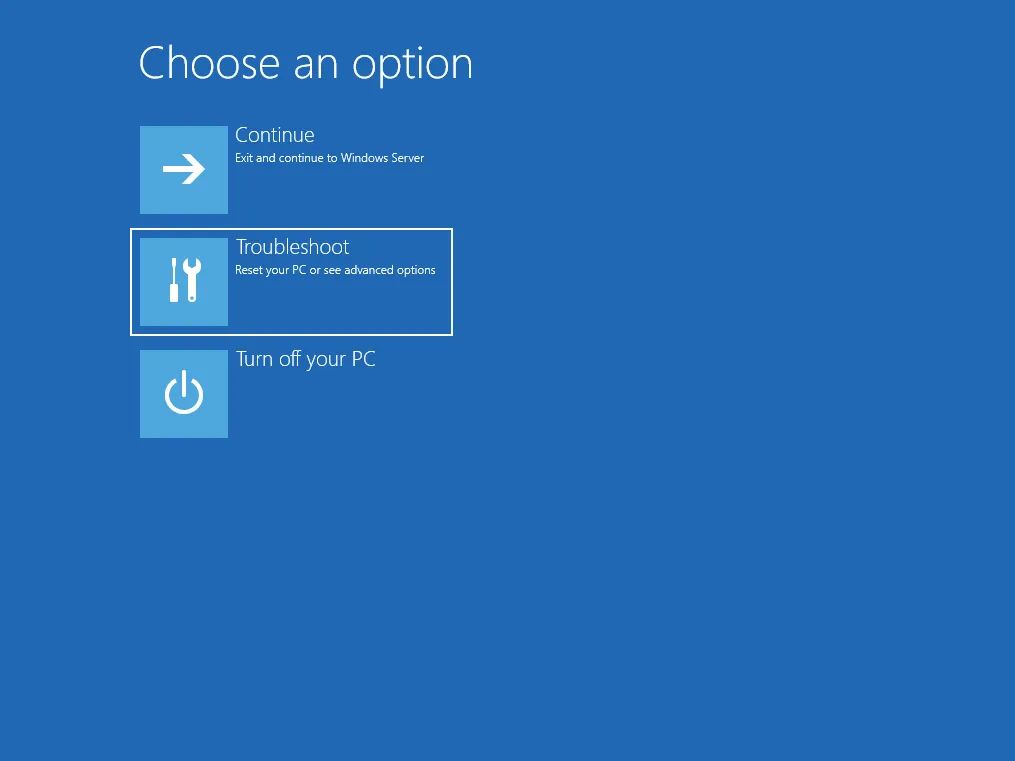
Section titled “Console: the offline route, step by step”1. Troubleshoot
2. Advanced options -> Command Prompt
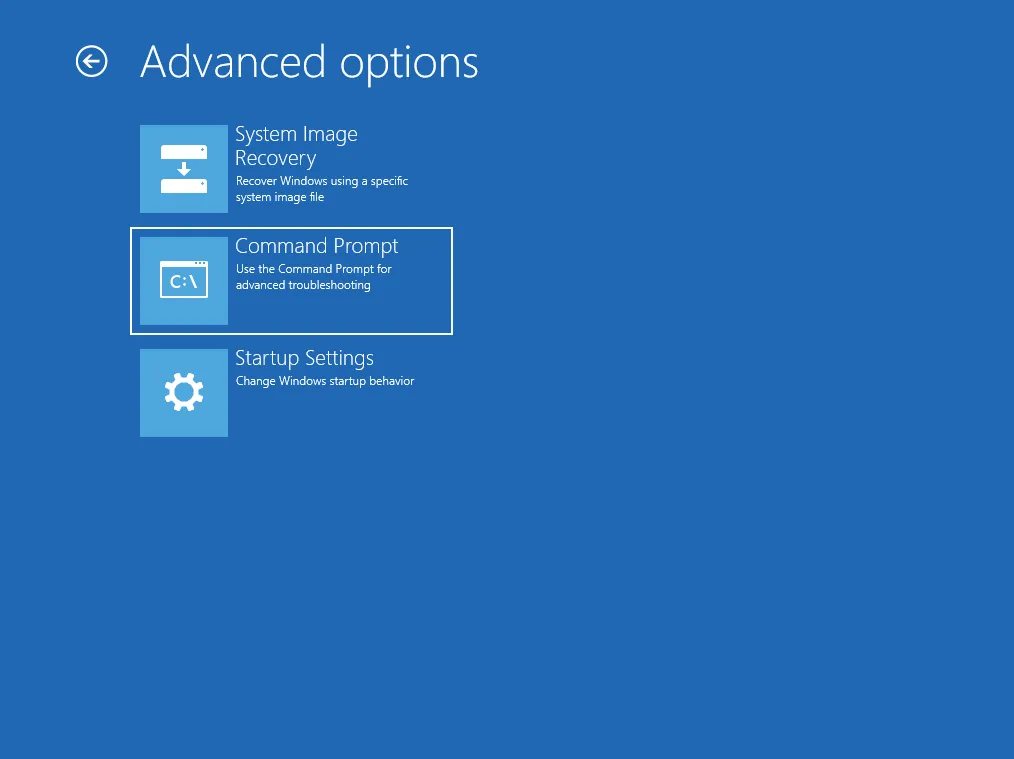
Startup Settings, on the same screen, is the Safe Mode route instead.
3. Choose a local administrator account
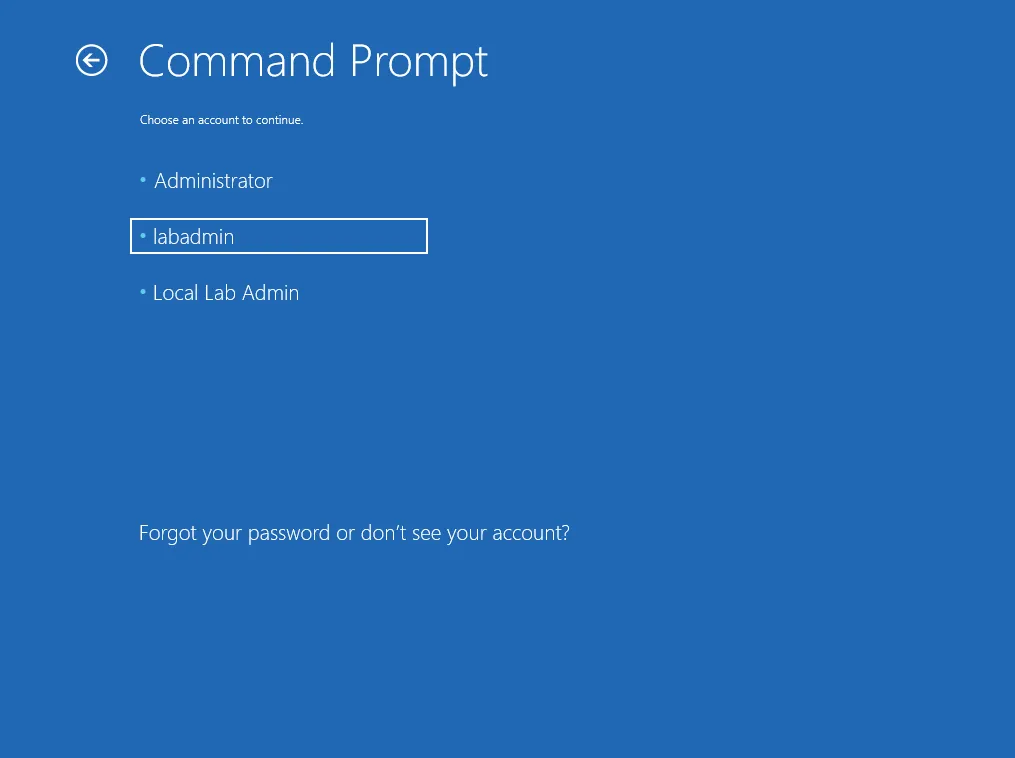
This must be a local account. Domain accounts are not offered here: there is no domain to authenticate against yet.
4. Enter the password, minding the keyboard layout
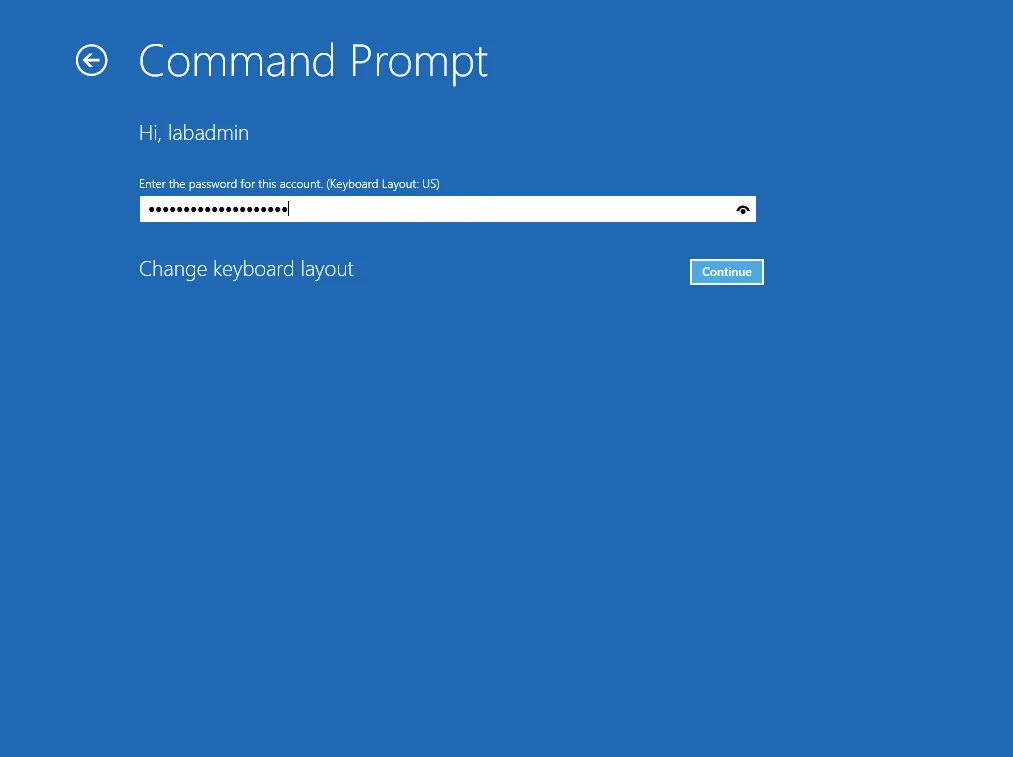
Recovery defaults to a US layout regardless of the machine’s normal one. If a correct password is rejected, that is usually why, and not a wrong password. Use Change keyboard layout, or click the eye icon to see what you actually typed.
5. Mount the installed system’s hive and turn Mideye off
Find the real Windows volume first. In recovery the drive letters are reassigned, so do not assume:
dir C:\Windows\System32\config\SOFTWAREThen, with the letter that worked:
reg load HKLM\OFFLINE C:\Windows\System32\config\SOFTWAREreg add "HKLM\OFFLINE\Mideye\CredentialProvider" /v Enabled /t REG_DWORD /d 0 /freg unload HKLM\OFFLINE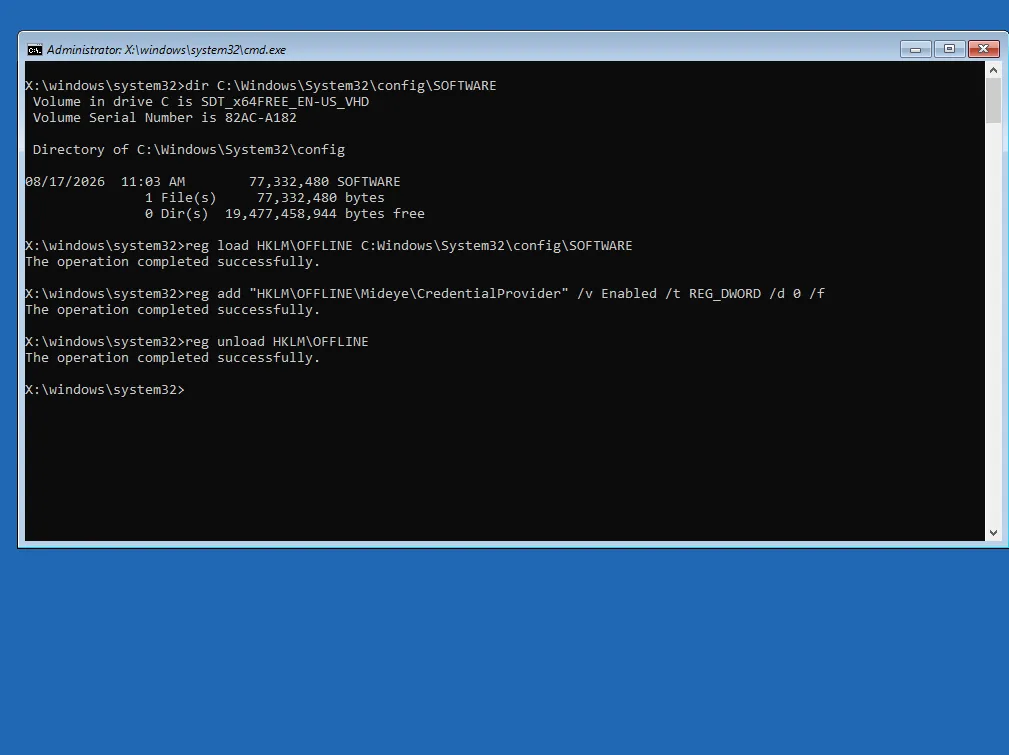
Mounting the SOFTWARE hive makes its root become HKLM\OFFLINE, which is why
there is no SOFTWARE in the path afterwards. reg unload is not optional:
reboot with the hive still mounted and the file can be left locked.
6. Verify before you reboot
reg load HKLM\OFFLINE C:\Windows\System32\config\SOFTWAREreg query "HKLM\OFFLINE\Mideye\CredentialProvider"reg unload HKLM\OFFLINE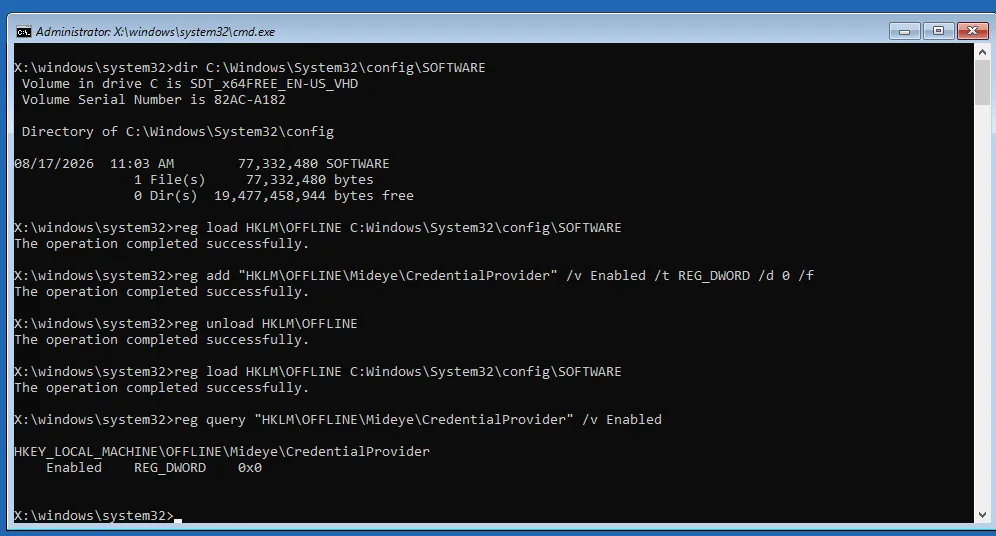
Query the whole key, not just Enabled. reg add /f creates a missing key,
so a mounted-the-wrong-volume mistake produces a brand-new key containing
exactly the value you just wrote, and checking that one value only proves your
own write back to you. The real key also holds Mode, ClientId, MideyeUrl
and the rest. If Enabled stands alone, you edited the wrong volume.
7. Continue to Windows
Close the prompt with the window’s X, or exit, then Continue. Do not
power-cycle; you want the clean exit.
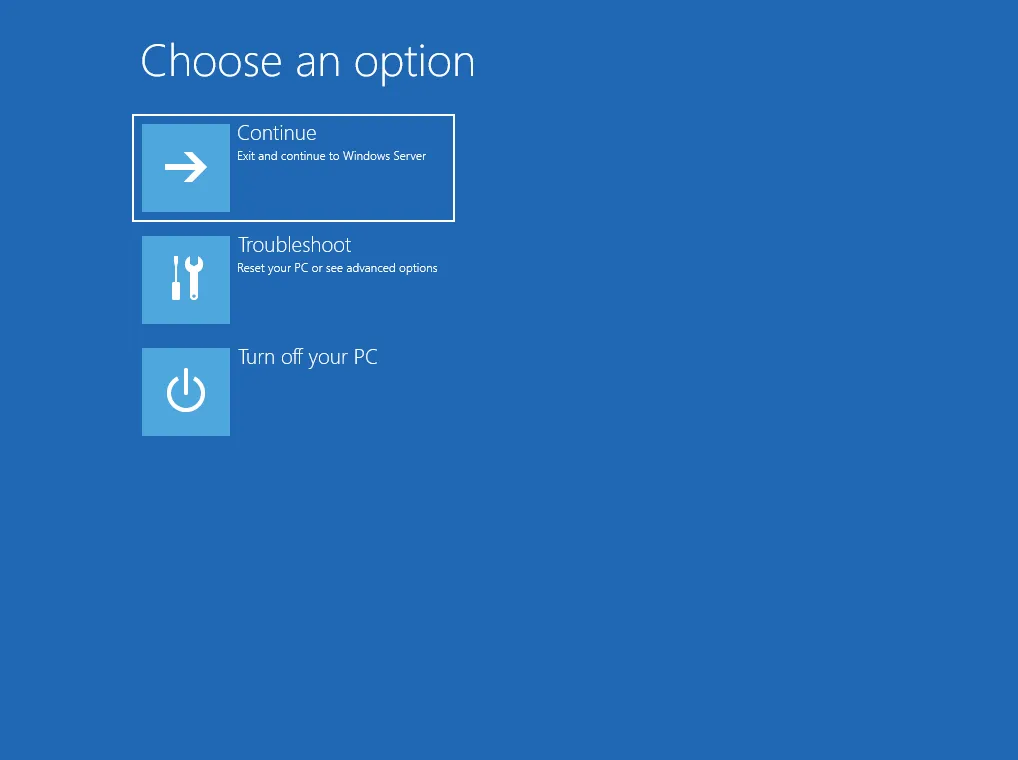
You should land on the standard Windows password tile with no Mideye tile.
Remote
Section titled “Remote”If the machine still answers on the network, none of the above is needed. The lockout is at the logon screen; the OS underneath is running normally.
Invoke-Command -ComputerName <target> -Credential (Get-Credential) -ScriptBlock { Set-ItemProperty "HKLM:\SOFTWARE\Mideye\CredentialProvider" -Name Enabled -Value 0 -Type DWord}A bad config on 400 machines is not four hundred console sessions.
Group Policy reaches a machine nobody can log in to: Computer Configuration policy applies under the machine account at boot and at every refresh (90 minutes by default, plus up to 30 minutes of randomisation), whether or not anyone is signed in.
Create a GPO with a single Preferences registry item - Computer Configuration ->
Preferences -> Windows Settings -> Registry, action Update, hive
HKEY_LOCAL_MACHINE, key SOFTWARE\Mideye\CredentialProvider, value Enabled,
type REG_DWORD, data 0.
Keep it in its own GPO and leave it unlinked until you need it.
Limits: domain members only, the domain controller must be reachable, a DC cannot rescue itself this way, and it is not instant.
Who can actually get in through Safe Mode
Section titled “Who can actually get in through Safe Mode”Safe Mode does not let anyone in. It still requires a valid Windows account and password. What it removes is MFA, not authentication.
That is the honest way to think about the risk: Safe Mode turns a multi-factor logon into a password-only logon for whoever already holds a working local credential - in practice a local administrator password, since a domain account in Safe Mode depends on cached credentials.
Windows fundamentally allows this, and no credential provider can prevent it.
The product therefore detects it instead: a normal boot following a Safe
Mode boot in which the policy state changed raises event 5602
(EVENT_SAFEMODE_TAMPER). After a legitimate recovery, re-seal the baseline
with MideyeProviderConfig.exe --refresh-baselines.
What actually narrows the exposure:
- Unique local administrator passwords (Windows LAPS). One shared local admin password across the estate turns a single leak into a fleet-wide MFA bypass.
- BitLocker. An encrypted volume makes the recovery environment demand the recovery key before it will do anything, which is a real gate rather than a speed bump. Escrow the keys in AD or Entra ID first: without them an unbootable encrypted machine is a rebuild.
- Treat hypervisor console rights as physical access. Anyone who can open a VM console and force a reset has everything they need. vCenter, Hyper-V Manager, XenCenter and IPMI permissions are part of your MFA boundary.
When Windows will not boot at all
Section titled “When Windows will not boot at all”The offline route above is already the answer: it edits the disk, not a running system, so it does not care whether Windows boots. Reach a prompt from a WinPE USB or by attaching the disk to another machine instead of from the recovery menu, find the volume the same way, and run the same three commands.
The Windows volume is frequently not C: in that situation either. Check with
dir <letter>:\Windows\System32\config\SOFTWARE before trusting a letter.
Test this before you need it
Section titled “Test this before you need it”- A Break-Glass account exists, its password is in a vault, and someone has signed in with it.
- The platform console has been opened once for every platform in the estate, not just the most common one.
- The interrupt-the-boot route into the recovery environment has been walked once, on one machine, all the way to a logon - including reading a local administrator password out of the vault and typing it on a US keyboard layout.
- The recovery GPO exists, is unlinked, and has been linked to a canary once to confirm it applies.
- BitLocker recovery keys are escrowed, and one has been retrieved as a drill.
MideyeProviderConfig.exe --preflightexits0on a representative host.