

Extended Kerberos Certificates
This guide creates a Kerberos authentication certificate with a longer validity period than the default. This is useful when using Mideye Server with ADFS and you want to avoid frequent certificate renewals.
1. Configure Certificate Authority for extended validity
Section titled “1. Configure Certificate Authority for extended validity”On the Certificate Authority (CA) server, open CMD.exe as Administrator and run:
certutil -setreg ca\ValidityPeriodUnits Xcertutil -setreg ca\ValidityPeriod YearsReplace X with the desired number of years. The validity period cannot exceed the CA certificate’s own validity.
Restart the Certificate Authority service:
net stop certsvcnet start certsvc2. Create a duplicate Kerberos template
Section titled “2. Create a duplicate Kerberos template”- Open the Certificate Authority console.
- Right-click Certificate Templates → Manage.
- Right-click the Kerberos Authentication template → Duplicate Template.
- On the General tab, set a friendly name and change the Validity period to the desired length.
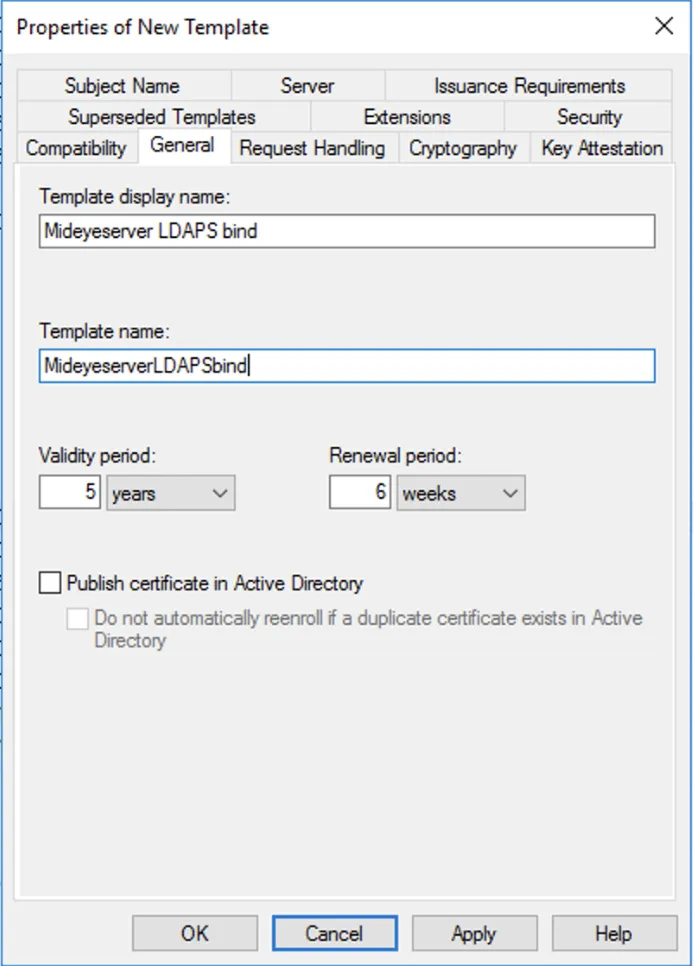
3. Configure permissions and issue the template
Section titled “3. Configure permissions and issue the template”- On the Security tab, add the computer account of the Domain Controller → OK.
- Close the Certificate Templates Console.
- In the Certificate Authority console, right-click Certificate Templates → New → Certificate Template to Issue.
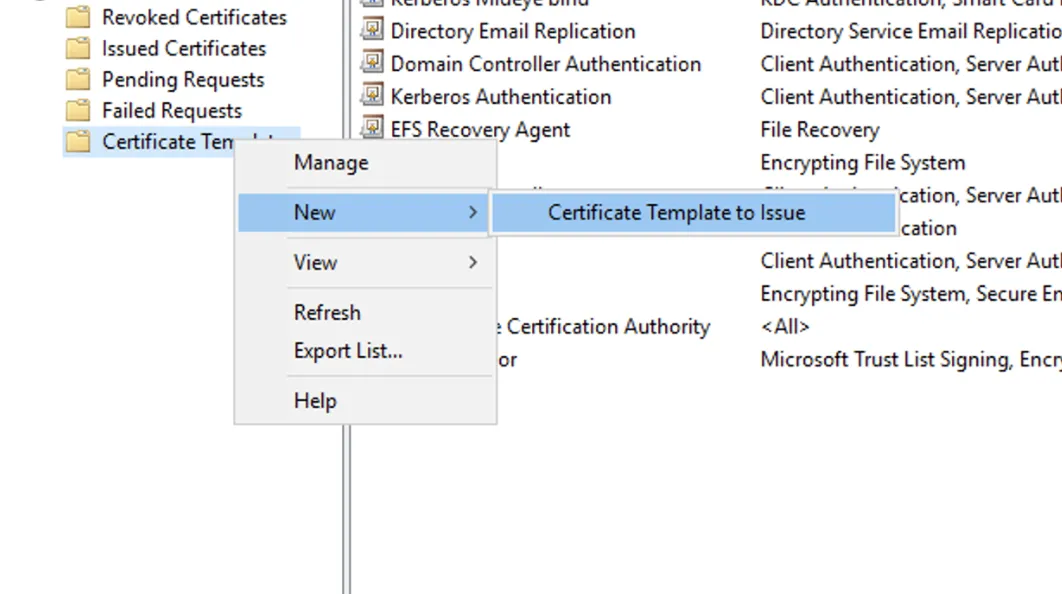
- Select the template you created → OK.
- Restart the Certificate Authority service.
4. Enroll the certificate on the Domain Controller
Section titled “4. Enroll the certificate on the Domain Controller”- On the Domain Controller, open mmc.exe.
- File → Add/Remove Snap-in → Certificates → Computer Account → Local Computer → OK.
- Expand Certificates → Personal → right-click Certificates → All Tasks → Request New Certificate.
- Select the certificate template created above → Enroll.
5. Import the certificate into Mideye Server
Section titled “5. Import the certificate into Mideye Server”- Log in to the Mideye Server Admin GUI.
- Navigate to Configuration → LDAP Profiles.
- Click Modify on the LDAP server.
- Click Fetch Certificate and import the new certificate with the extended validity period.
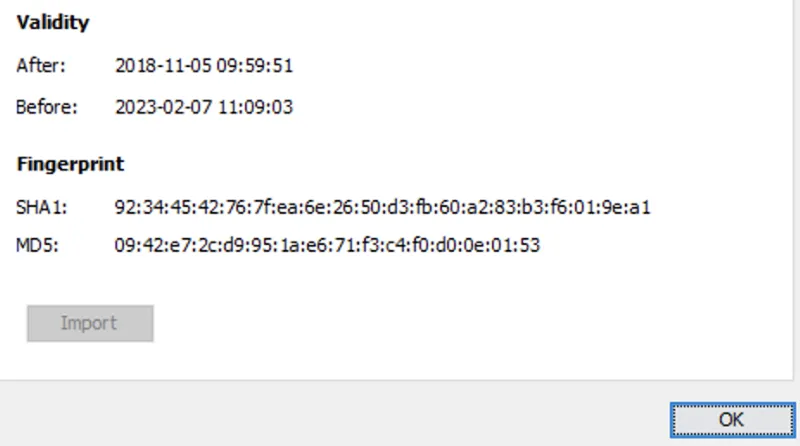
- Save the configuration.
Related links
Section titled “Related links”- Certificate Management — Manage SSL/TLS certificates in Mideye Server
- LDAP Profile — LDAP directory configuration
- ADFS Module — Mideye ADFS integration guide
- Support Center