

Migrate from MySQL to MSSQL
This guide outlines the steps and prerequisites required to migrate a MideyeServer database from MySQL to MSSQL.
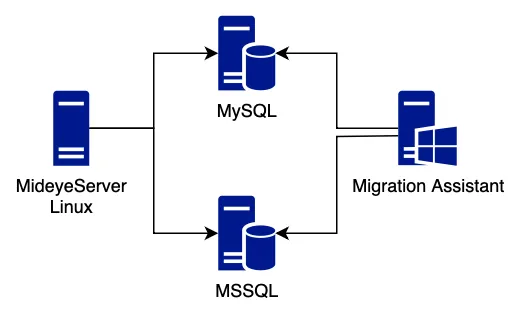
Prerequisites
Section titled “Prerequisites”- MSSQL Server (Standard or higher) with MSSQL Agent running.
- MideyeServer instance for populating the MSSQL database (Note: This will cause downtime during population).
- Network Access: MideyeServer must be able to connect to the MSSQL server.
- Keystore Access: If deploying a new MideyeServer after migration, ensure it is configured with the same
keystore.p12file and corresponding keystore password, specified in theapplication-prod.ymlfile, of the current MySQL-based MideyeServer. - Windows Client with access to both MySQL and MSSQL servers.
- Microsoft SQL Server Migration Assistant (SSMA) for MySQL installed on the Windows client. Download here
- Credentials for both MySQL and MSSQL databases.
- Install SSMA: Install Microsoft SQL Server Migration Assistant for MySQL on a Windows client.
- Create MSSQL Database: On the MSSQL server, create a new database for MideyeServer.
- Prepare Config Files:
- On MideyeServer, copy
application-prod.ymlinto two new files:application-prod-mssql.ymlandapplication-prod-mysql.yml.
- On MideyeServer, copy
- Configure MSSQL YAML: Update
application-prod-mssql.ymlwith your MSSQL settings. - Test Connectivity: From the MideyeServer, test the MSSQL connection:
/opt/mideyeserver6/config# telnet 172.26.128.1 1433Trying 172.26.128.1...Connected to 172.26.128.1.Escape character is '^]'.A successful connection will show Connected to 172.26.128.1.
Populating MSSQL
Section titled “Populating MSSQL”- Stop MideyeServer: This will cause downtime.
- Switch to MSSQL Config: Copy application-prod-mssql.yml to application-prod.yml.
- Start MideyeServer: The server will now populate the MSSQL database.
- Check Logs: Wait until the MideyeServer logs confirm it is running.
- Verify Tables in MSSQL: Check the MSSQL database; new tables like dbo.accounting and dbo.al_approver_group should be present.
- Revert to MySQL Config (Optional): If needed, stop MideyeServer, then copy application-prod-mysql.yml to application-prod.yml and restart it. This allows MideyeServer to remain operational while the data migration is performed on the side.
Migrating the Data
Section titled “Migrating the Data”- Open SSMA: On the Windows client, start Microsoft SQL Server Migration Assistant for MySQL.
- Create a New Project in SSMA.
- Connect to MySQL with the MySQL credentials.
- Connect to MSSQL using the newly created/populated MSSQL database.
- Select MySQL Database: Choose the Mideye database from MySQL as the source.
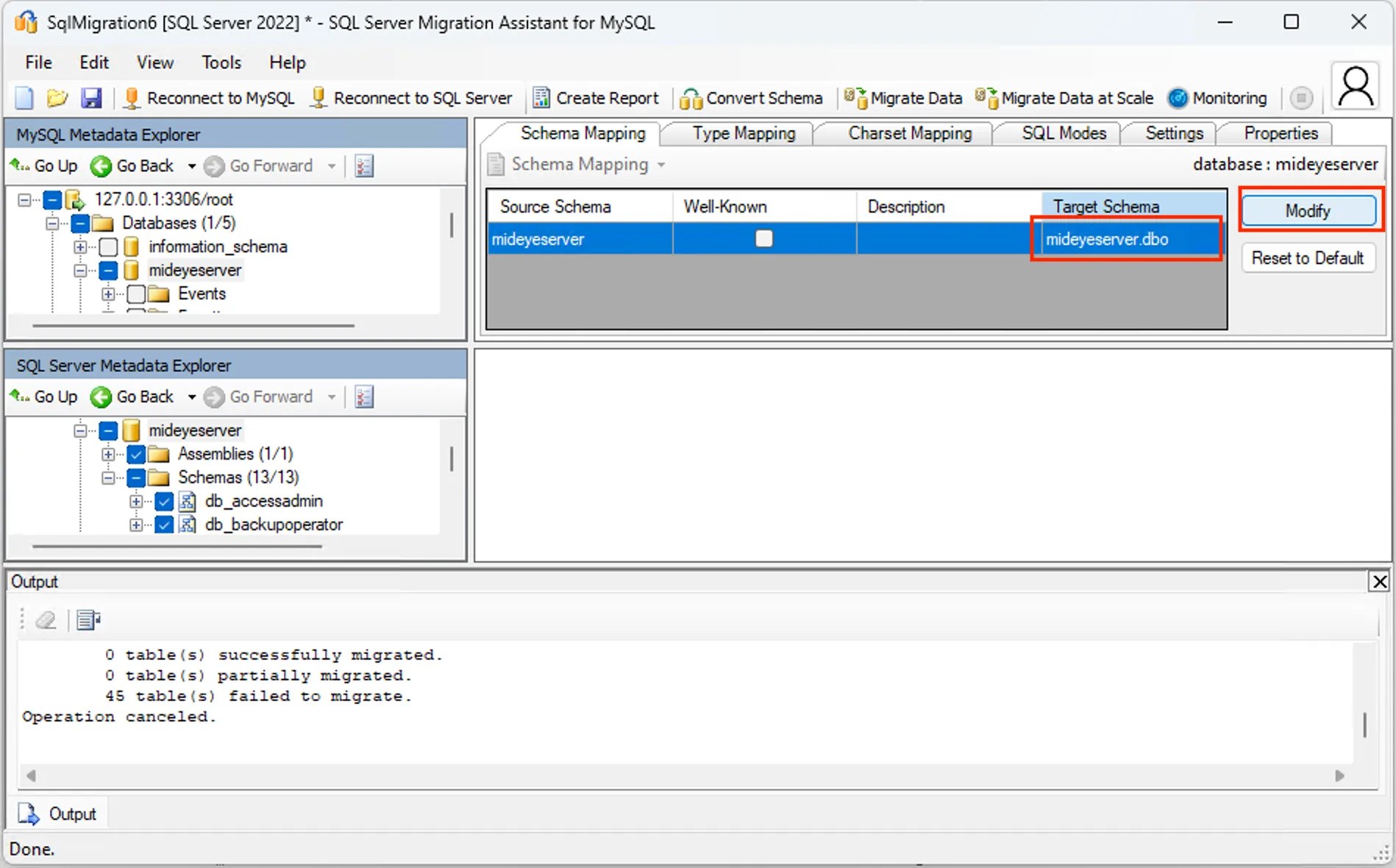
- Schema Mapping: Adjust the schema mapping so the MSSQL target schema is dbo instead of databasename.databasename.
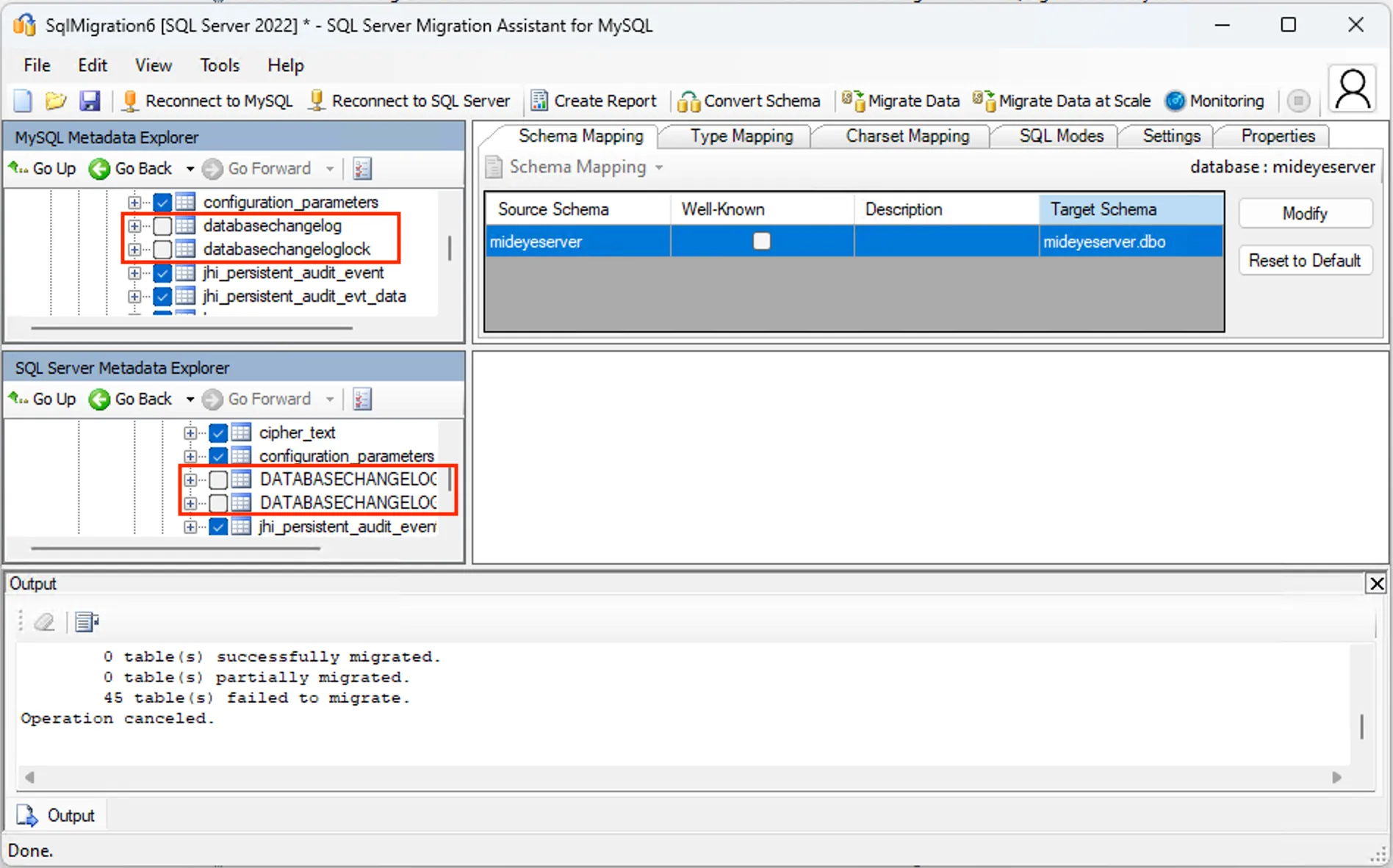
- Exclude ChangeLog Tables: Deselect DATABASECHANGELOG and DATABASECHANGELOGLOCK on both the MySQL and MSSQL sides.
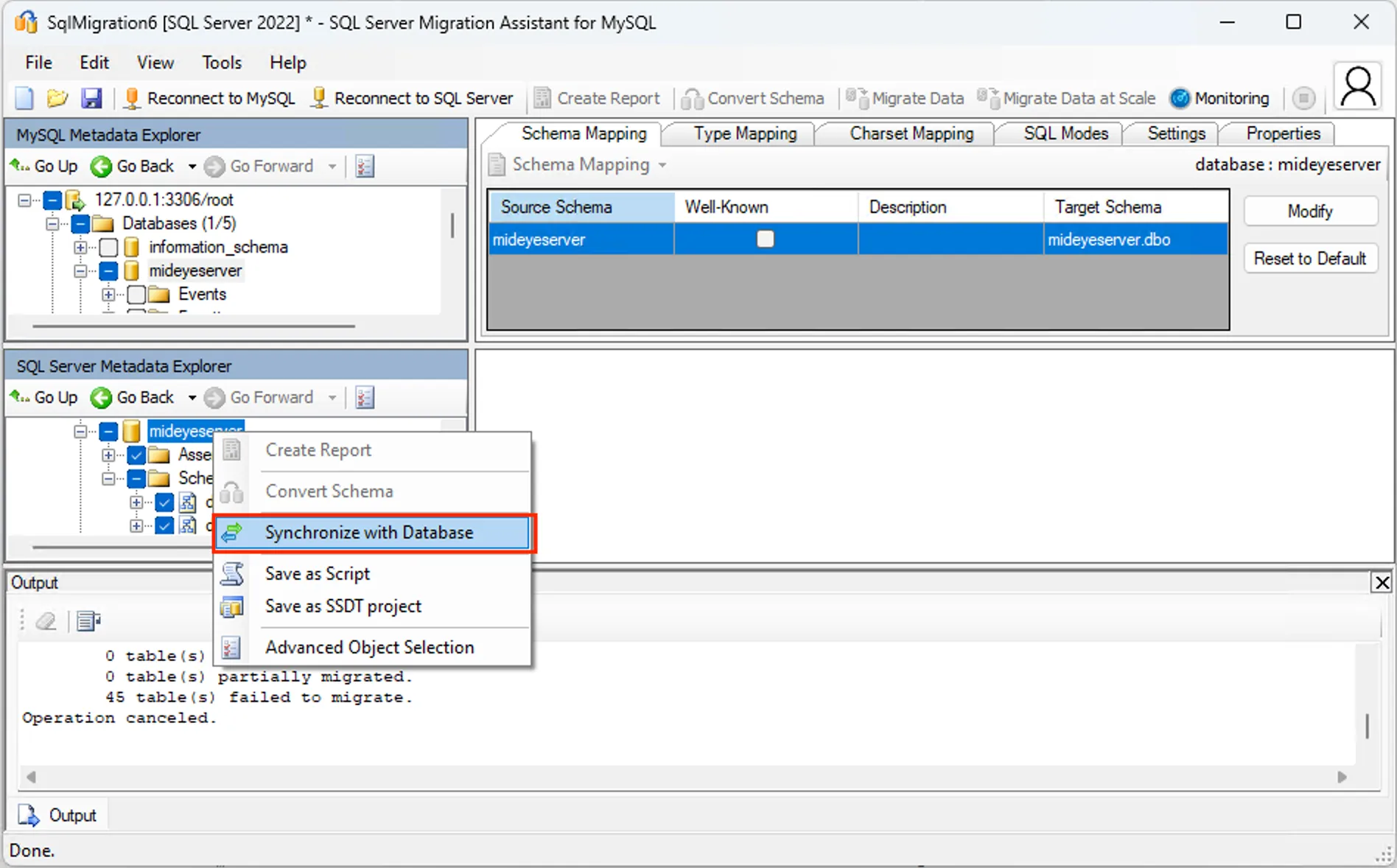
- Synchronize with Database: Right-click the MSSQL target database and select Synchronize with Database.
- Migrate Data: Back in SSMA, choose the MySQL source database and select Migrate Data.
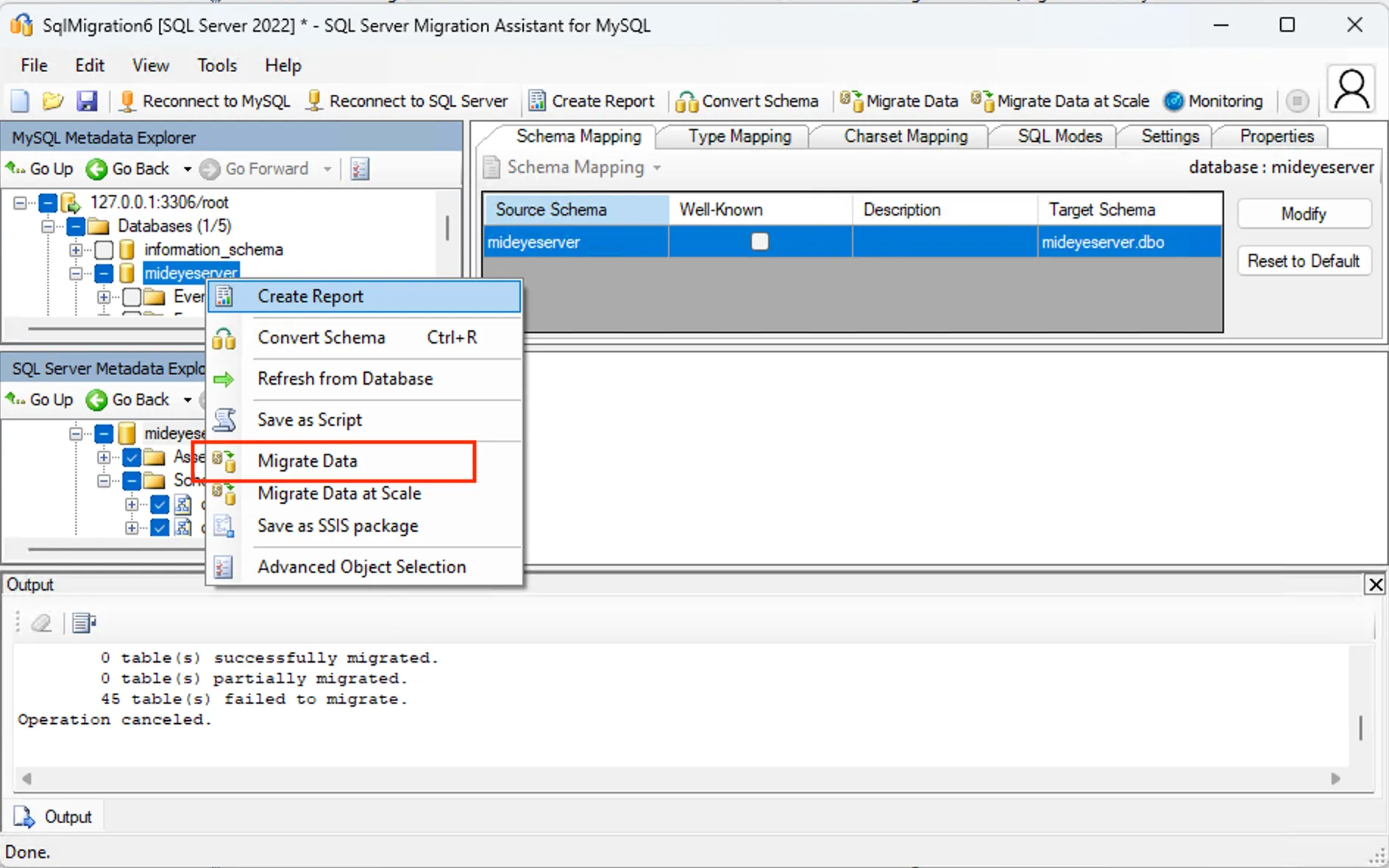
- Credentials: Enter the MySQL and MSSQL credentials as prompted.
- Ignore Warnings: If you see “Operation prerequisites not met,” continue the migration.
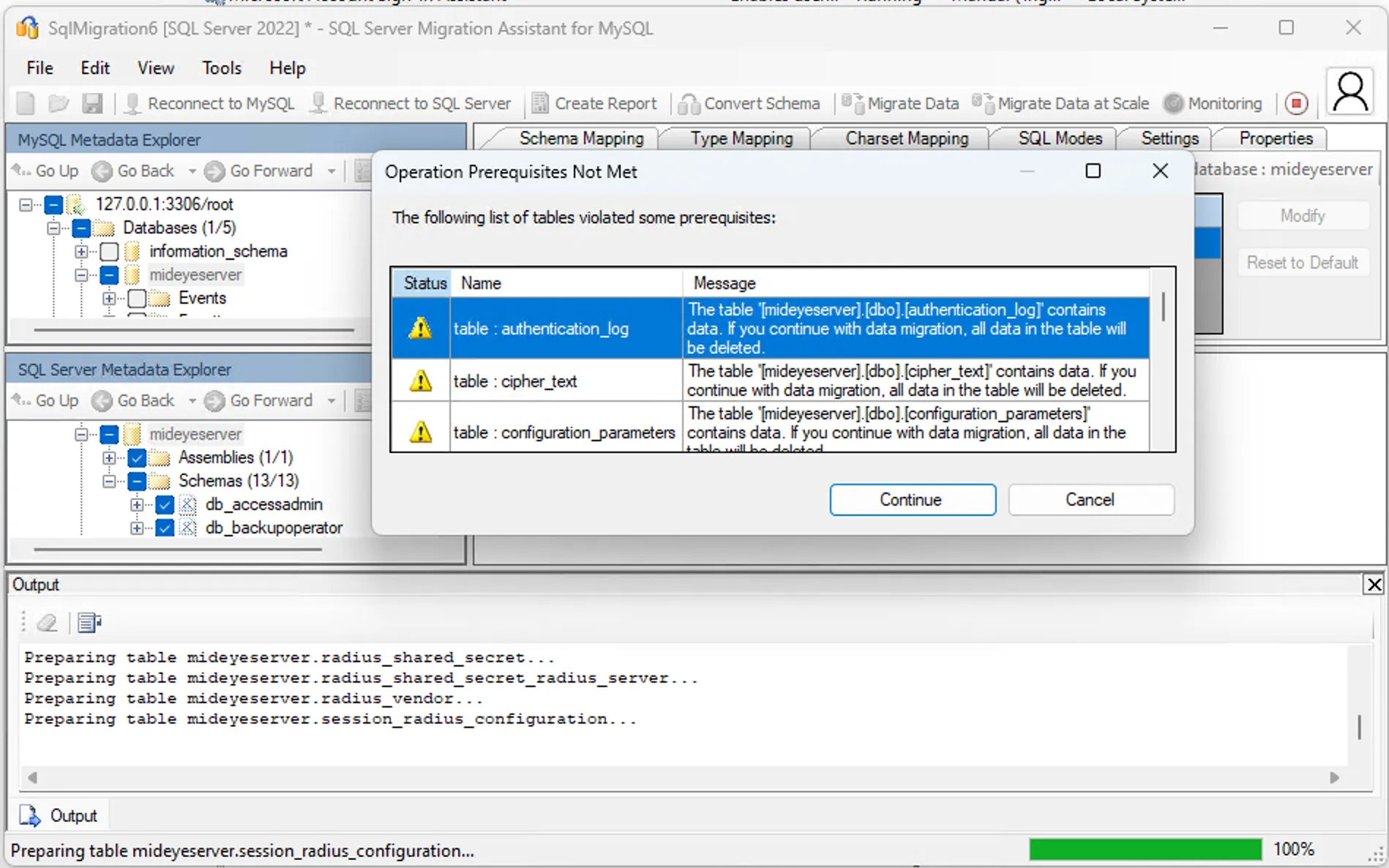
- The data is now migrated — Mideye Server can use MSSQL instead of MySQL.
Sample Configuration Files
Section titled “Sample Configuration Files”For complete database configuration examples and detailed instructions, see Database Configuration.
MSSQL Configuration (application-prod-mssql.yml)
spring: devtools: restart: enabled: false livereload: enabled: false datasource: type: com.zaxxer.hikari.HikariDataSource driver: com.microsoft.sqlserver.jdbc.SQLServerDriver url: jdbc:sqlserver://172.26.128.1:1433;databaseName=MideyeServer_DB;authenticationScheme=NTLM;useNTLMv2=true;user=PLACEHOLDER_DO_NOT_CHANGE_OR_REMOVE;password=PLACEHOLDER_DO_NOT_CHANGE_OR_REMOVE;encrypt=false username: mideyeuser password: 'SUPER_SECRET_PASSWORD' hikari: connection-test-query: SELECT 1 initializationFailTimeout: 10000 data-source-properties: cachePrepStmts: true prepStmtCacheSize: 250 prepStmtCacheSqlLimit: 2048 useServerPrepStmts: true jpa: database-platform: org.hibernate.dialect.SQLServer2012Dialect database: SQL_SERVER show-sql: false properties: hibernate.id.new_generator_mappings: true hibernate.cache.use_second_level_cache: false hibernate.cache.use_query_cache: false hibernate.generate_statistics: false liquibase: contexts: prod mail: host: localhost port: 25MySQL Configuration (application-prod-mysql.yml)
spring: devtools: restart: enabled: false livereload: enabled: false datasource: type: com.zaxxer.hikari.HikariDataSource url: jdbc:mariadb://172.26.128.1:3306/MideyeServer_DB?sslMode=TRUST username: mideyeuser password: 'SUPER_SECRET_PASSWORD' hikari: initializationFailTimeout: 10000 data-source-properties: cachePrepStmts: true prepStmtCacheSize: 250 prepStmtCacheSqlLimit: 2048 useServerPrepStmts: true max-lifetime: 600000 jpa: liquibase: contexts: prod mail: host: localhost port: 25