

Configure Mideye Server 4 Database Connection
Overview
Section titled “Overview”Mideye Server requires a database to store user accounts, authentication logs, and configuration data. This guide explains how to configure the database connection for both Microsoft SQL Server and MySQL.
Use this guide to:
- Configure a new database connection after installation
- Switch between SQL Server and MySQL
- Install the MySQL JDBC connector on Windows
- Enable TCP/IP for SQL Server Express
- Troubleshoot database connection issues
For hardware and software requirements, see Pre-install checklist.
Database Connection Settings
Section titled “Database Connection Settings”Configure the Database
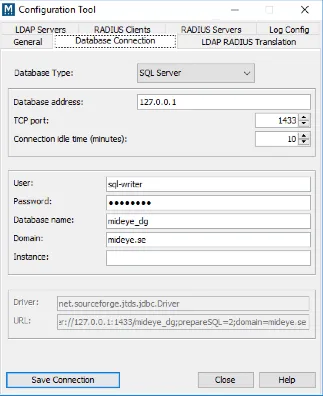
Section titled “Configure the Database”After a new installation of the Mideye Server, a popup window with the text “Database Connection not properly set up” will be shown when opening Mideye Configuration Tool.
Installing or upgrading a Mideye Server requires a database account with rights to ALTER, CREATE and DELETE tables in the Mideye database.
Configure the following to complete the database connection:
-
Database Type: Select SQL Server or MySQL.
-
Database address: Enter the database hostname or IP.
-
TCP-port: The default TCP port for SQL Server is 1433. For MySQL it is 3306. This can be modified if needed.
-
Connection idle time: Default value is 10 minutes. This parameter is rarely changed.
-
User: Enter the username of the database user. This user must have alter, create and delete permissions.
-
Password: Enter the password of the database user.
-
Database name: Enter the database name. Be advised that Mideye requires a pre-configured empty database. Refer to Microsoft or CentOS documentation on how to create an empty database.
-
Domain (optional): Enter domain name if the database is part of a domain.
-
Instance(optional): If instances are used, enter the instance name. Be advised that Mideye Server will automatically use port udp/1434 when searching for databases inside an instance.
MySQL JDBC Driver (Windows Only)
Section titled “MySQL JDBC Driver (Windows Only)”On Windows, the MySQL JDBC driver must be installed manually before connecting to MySQL:
- Close Mideye Configuration Tool if open
- Download
mysql-connector-java-5.1.49.jarfrom the MySQL Connector/J Archives - Copy the JAR file to all three locations:
C:\Program Files (x86)\Mideye Server\lib\C:\Program Files (x86)\Mideye Server\webserver\lib\C:\Program Files (x86)\Mideye Server\webserver\webapps\ROOT\WEB-INF\lib\
- Open Mideye Configuration Tool — MySQL should now be available as a database type
Microsoft SQL Server Express TCP/IP Configuration
Section titled “Microsoft SQL Server Express TCP/IP Configuration”Why Can’t I Connect to SQL Server Express on Port 1433?
Section titled “Why Can’t I Connect to SQL Server Express on Port 1433?”SQL Server Express is designed for local development and ships with remote TCP/IP connections disabled. This causes the following errors when Mideye Server tries to connect:
- “Cannot connect to database”
- “Connection refused on port 1433”
- “TCP/IP connection to host failed”
- “A network-related or instance-specific error occurred”
- “No connection could be made because the target machine actively refused it”
To fix this, you must:
- Enable the TCP/IP protocol in SQL Server
- Configure port 1433 (or your chosen port)
- Open Windows Firewall for port 1433
- Restart the SQL Server service
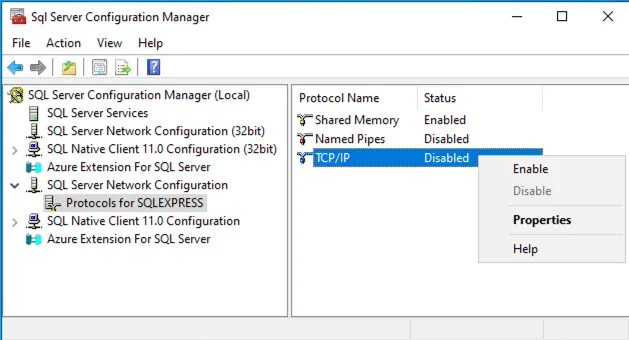
Step 1: Enable TCP/IP Protocol
Section titled “Step 1: Enable TCP/IP Protocol”-
Open SQL Server Configuration Manager
- On Windows Server 2016/2019/2022: Search for “SQL Server Configuration Manager” in the Start menu
- On older systems: Find it under Start → Microsoft SQL Server → Configuration Tools
-
In the left pane, expand SQL Server Network Configuration
-
Click Protocols for SQLEXPRESS (or your instance name)
-
In the right pane, right-click TCP/IP and select Enable
Step 2: Configure Port 1433
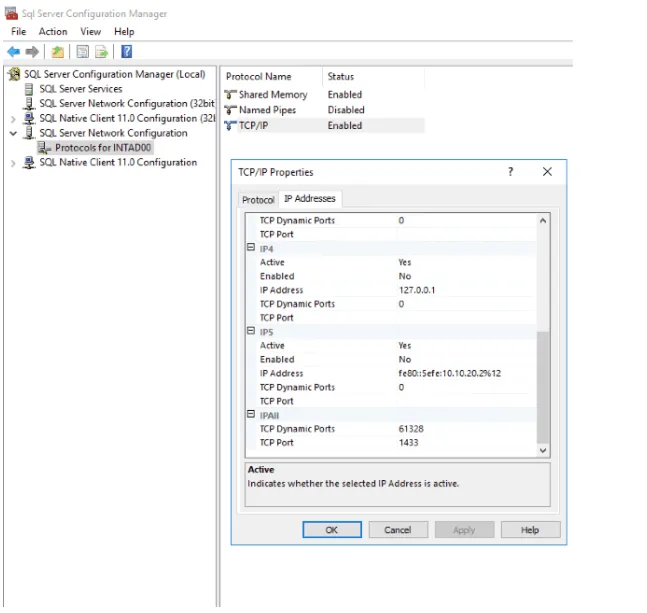
Section titled “Step 2: Configure Port 1433”-
Right-click TCP/IP again and select Properties
-
Go to the IP Addresses tab
-
Scroll down to the IPAll section at the bottom
-
Clear the TCP Dynamic Ports field (leave it empty)
-
Set TCP Port to
1433
Step 3: Open Windows Firewall
Section titled “Step 3: Open Windows Firewall”SQL Server port 1433 must be allowed through Windows Firewall:
- Open Windows Defender Firewall with Advanced Security
- Click Inbound Rules → New Rule
- Select Port and click Next
- Select TCP and enter 1433 in “Specific local ports”
- Select Allow the connection
- Check all profiles (Domain, Private, Public) as appropriate
- Name the rule
SQL Server TCP 1433and click Finish
Or use PowerShell (run as Administrator):
New-NetFirewallRule -DisplayName "SQL Server TCP 1433" -Direction Inbound -Protocol TCP -LocalPort 1433 -Action AllowStep 4: Restart SQL Server Service
Section titled “Step 4: Restart SQL Server Service”The changes only take effect after restarting SQL Server:
- In SQL Server Configuration Manager, click SQL Server Services in the left pane
- Right-click SQL Server (SQLEXPRESS) and select Restart
Or use PowerShell:
Restart-Service -Name 'MSSQL$SQLEXPRESS'Step 5: Verify the Connection
Section titled “Step 5: Verify the Connection”Test that port 1433 is now accessible:
From the Mideye Server, open Command Prompt and run:
telnet localhost 1433If the screen goes blank (no error), TCP/IP is working. Press Ctrl+] then type quit to exit.
Or use PowerShell:
Test-NetConnection -ComputerName localhost -Port 1433You should see TcpTestSucceeded : True.
SQL Server Express Troubleshooting
Section titled “SQL Server Express Troubleshooting””Cannot connect to port 1433” — Checklist
Section titled “”Cannot connect to port 1433” — Checklist”If you still cannot connect after following the steps above, verify each item:
| Check | How to Verify | Fix |
|---|---|---|
| TCP/IP enabled | SQL Server Configuration Manager → Protocols | Enable TCP/IP protocol |
| Static port set | TCP/IP Properties → IPAll → TCP Port = 1433 | Set port, clear dynamic ports |
| SQL Server running | Services.msc → SQL Server (SQLEXPRESS) | Start the service |
| Firewall open | Test-NetConnection localhost -Port 1433 | Add firewall rule for 1433 |
| SQL Browser running | Only needed for named instances with dynamic ports | Start SQL Server Browser service |
| Correct instance | Check if using default or named instance | Use correct connection string |
SQL Server Authentication vs Windows Authentication
Section titled “SQL Server Authentication vs Windows Authentication”Mideye Server supports both authentication modes:
| Mode | Connection String | When to Use |
|---|---|---|
| SQL Server Authentication | Username + Password | Mideye on separate server |
| Windows Authentication | Domain\Username | Mideye on same server as SQL |
Named Instance Connection Issues
Section titled “Named Instance Connection Issues”If using a named instance (e.g., YOURSERVER\SQLEXPRESS):
- UDP port 1434 must be open for SQL Server Browser
- The SQL Server Browser service must be running
- Or specify the port directly:
YOURSERVER,1433(note the comma, not colon)
Still Can’t Connect?
Section titled “Still Can’t Connect?”Run this diagnostic query in SQL Server Management Studio to check what ports SQL Server is listening on:
SELECT DISTINCT local_net_address, local_tcp_portFROM sys.dm_exec_connectionsWHERE local_net_address IS NOT NULL;General Troubleshooting
Section titled “General Troubleshooting””Can’t Connect to Database” Error
Section titled “”Can’t Connect to Database” Error”If Mideye Configuration Tool hangs or fails to start due to database connection issues:
- Close Mideye Configuration Tool
- Navigate to the config directory:
- Windows:
C:\Program Files (x86)\Mideye Server\config\ - Linux:
/opt/mideyeserver/config/
- Windows:
- Backup
DbConnection.properties(copy to a safe location) - Delete
DbConnection.properties - Restart Mideye Configuration Tool
- Re-enter the correct database connection settings
Common Connection Issues
Section titled “Common Connection Issues”| Symptom | Likely Cause | Solution |
|---|---|---|
| Connection timeout | Firewall blocking port | Open TCP 1433 (SQL) or 3306 (MySQL) |
| Authentication failed | Wrong credentials | Verify username/password in database server |
| Database not found | Wrong database name | Check database exists and name is spelled correctly |
| TCP/IP connection refused | SQL Express TCP disabled | See SQL Server Express TCP/IP Configuration |
| ”Target machine actively refused” | SQL Server not listening on TCP | Enable TCP/IP and set port 1433 |
| Named instance not found | SQL Browser not running | Start SQL Server Browser or use static port |
Frequently Asked Questions
Section titled “Frequently Asked Questions”Why does SQL Server Express not accept TCP connections by default?
Section titled “Why does SQL Server Express not accept TCP connections by default?”Microsoft disables TCP/IP in SQL Server Express as a security measure. Express edition is intended for local development, so remote connections are opt-in.
Can I use a port other than 1433?
Section titled “Can I use a port other than 1433?”Yes. Configure any available port in SQL Server Configuration Manager and use the same port in Mideye’s database settings. Remember to update firewall rules accordingly.
Do I need SQL Server Browser service?
Section titled “Do I need SQL Server Browser service?”Only if you use dynamic ports or need to connect to a named instance without specifying the port. For static port 1433 with the default instance, SQL Server Browser is not required.
How do I check if SQL Server is listening on port 1433?
Section titled “How do I check if SQL Server is listening on port 1433?”Run netstat -an | findstr 1433 in Command Prompt. You should see LISTENING for port 1433.