

Mideye Server 4 to 5 Migration (Import Wizard)
Overview
Section titled “Overview”Migrate your existing Mideye Server 4 configuration to Mideye Server 5 using the Import Wizard. This tool transfers LDAP profiles, RADIUS clients, users, and authentication logs from your v4 database to the new v5 installation.
What gets migrated:
- LDAP server profiles and settings
- RADIUS client configurations
- User accounts and authentication types
- Last 100,000 login statistics
- Accounting entries from the last year
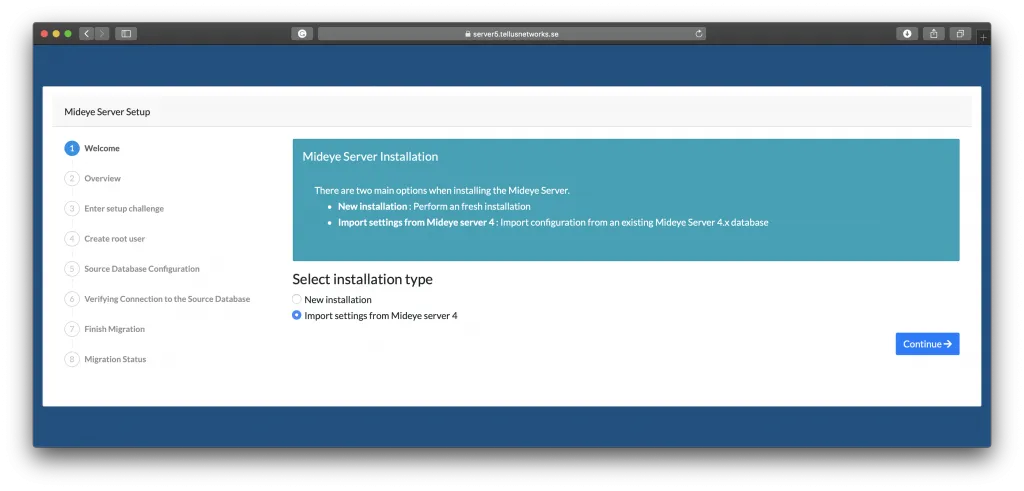
The first time browsing to Mideye Web GUI, two options will be presented:
- New installatiion - create a fresh installation
- Import settings from Mideye Server 4 - import settings when migrating from a Mideye Server 4 (4.6.5 or above)
Import settings from Mideye Server 4
Section titled “Import settings from Mideye Server 4”It is not possible to directly upgrade from Mideye Server 4 to Mideye Server 5, but there is an option to import configuration data from the Mideye Server 4. The migration of data will also include the last 100 000 login statistics and accounting entries from the last year.
Preparation
Section titled “Preparation”Before proceeding, make sure you have the following information available:
- IP or hostname of the old SQL-server
- Port used by the old database
- Name of the old database
- Credentials with read access to the old database
- Mideye Server 5 must be able to contact the Mideye Server 4 database
Migration
Section titled “Migration”Select installation type “Import settings from Mideye Server 4”.
 { loading=lazy }
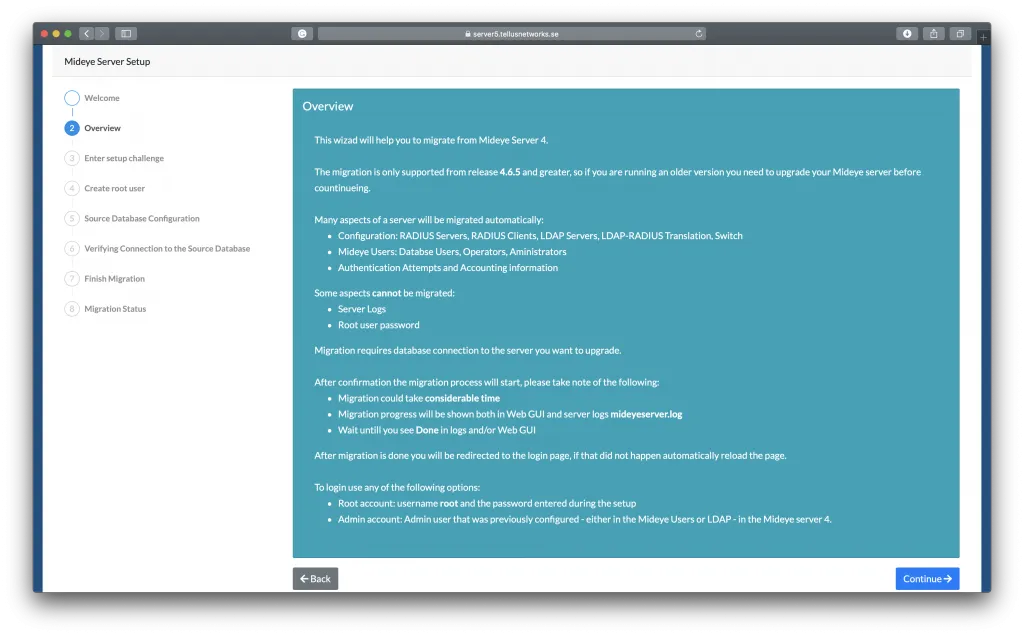
Review the information in the overview of the import wizard!
 { loading=lazy }
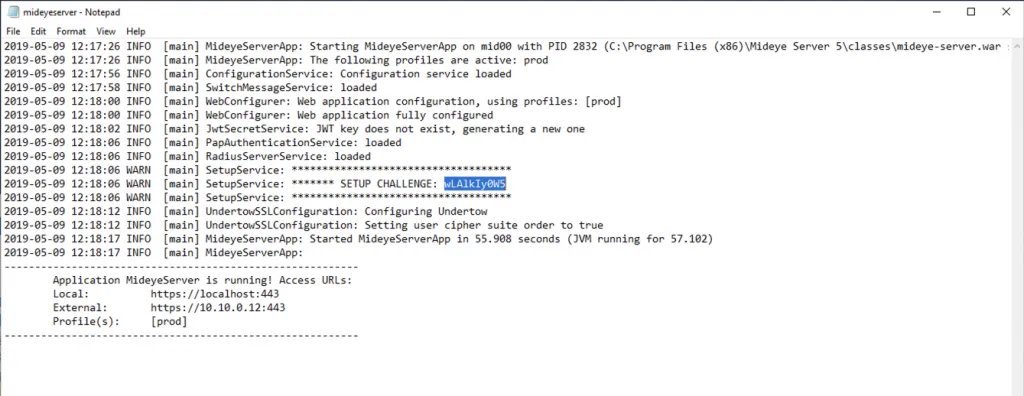
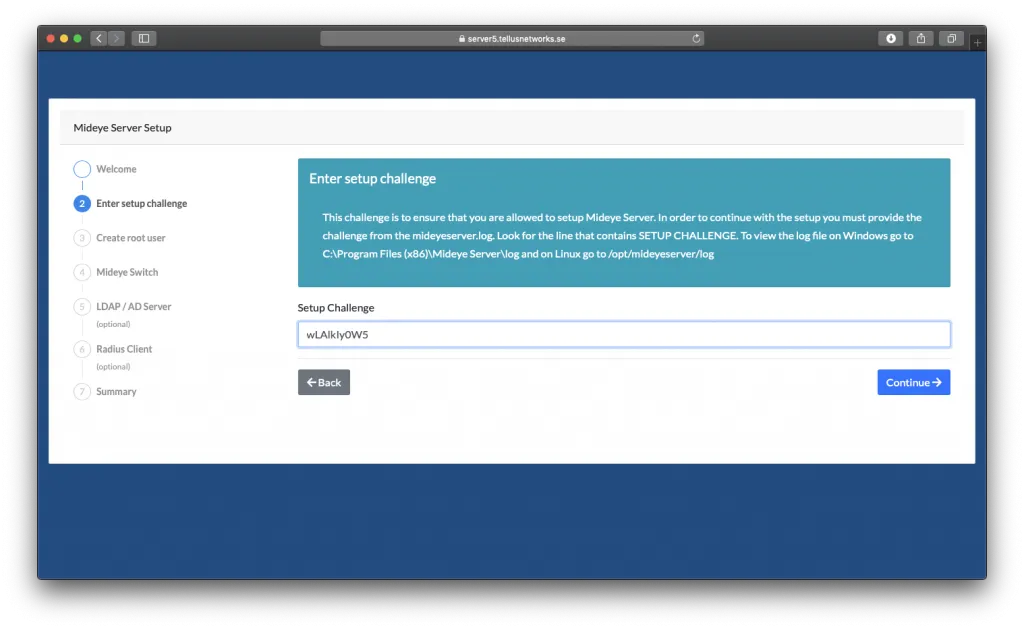
To protect the web interface from unauthorized access, a challenge from the Mideye Server logs must be fetched before proceeding. This challenge can only be accessed by local administrators and is located by default in:
=== “Windows”
`C:\Program Files (x86)\Mideye Server 5\log\mideyeserver.log`=== “Linux”
`/opt/mideyeserver/log/mideyeserver.log`Copy the challenge from the Mideye Server log…
… and paste it into the Setup Challenge window.
Enter the information of the old database that the data should be migrated from.
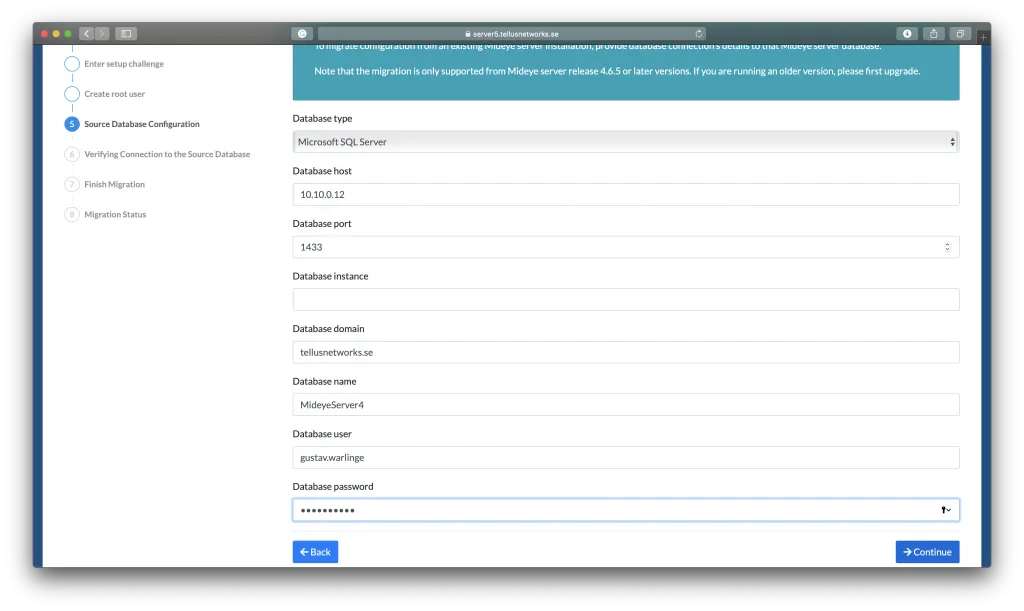
Fill in the fields needed to connect to the old database:
- Select the database type that the migration tool should migrate data from.
- Enter the IP or the hostname of the old Mideye Servers database
- Enter the port used by the old database
- Enter instance (if applicable)
- Enter domain if Windows account is used
- Enter Database name
- Enter username and password
- Click Continue
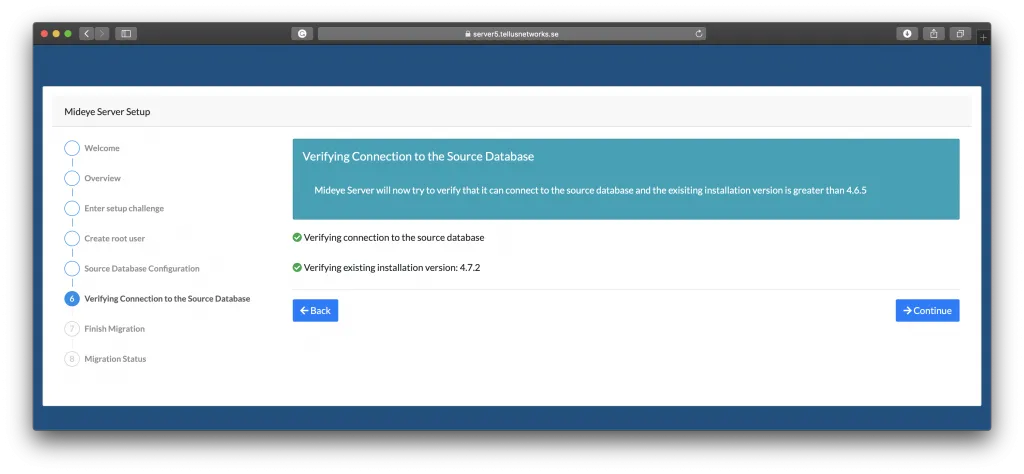
Verify that the migration tool can connect to the old database and click Continue when connection is established.
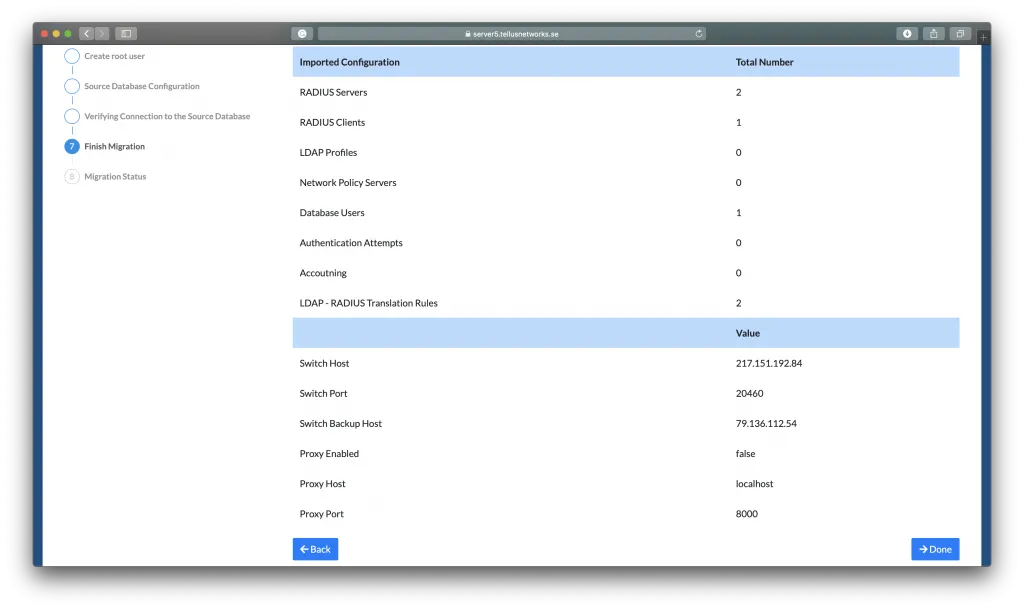
Review the summary of the data being migrated and click Done.
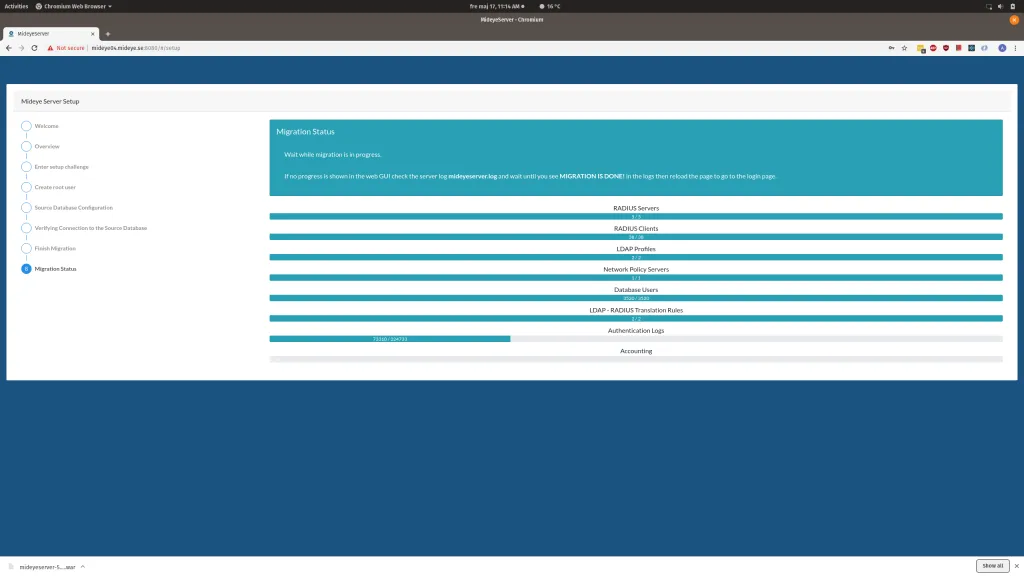
Progress bars will show the status of the migration. The current version might not show the bars in all web browsers. If that’s the case, make sure the migration is completed by viewing the log file before refreshing the page.
=== “Windows”
C:\Program Files (x86)\Mideye Server 5\log\mideyeserver.log
=== “Linux”
/opt/mideyeserver/log/mideyeserver.log
When the database have been migrated proceed to finalize the migration.
!!! Important If the connections to the LDAP servers are done with encrypted LDAPS, check the Reference Guide on how to manually add the certificates to the LDAP Profiles, else authentications will fail.