

Install Mideye Server 5 on Windows Server
Overview
Section titled “Overview”This guide walks you through installing Mideye Server 5 on Windows Server. You’ll learn how to run the MSI installer, configure the SQL Server or MySQL database connection, set up SSL certificates, and troubleshoot common installation issues.
What this guide covers:
- Running the Windows MSI installer
- Configuring SQL Server or MySQL database connections
- Upgrading from previous versions
- Backup and restore procedures
- Troubleshooting installation problems
Make sure that the requirements in the Pre-install checklist are met before continuing with the installation.
Installing MideyeServer consists of the following steps:
- Install MideyeServer Package.
- Install a database.
- Configure MideyeServer
application-prod.yml. - Open firewall ports.
- Configure MideyeServer.
Install MideyeServer
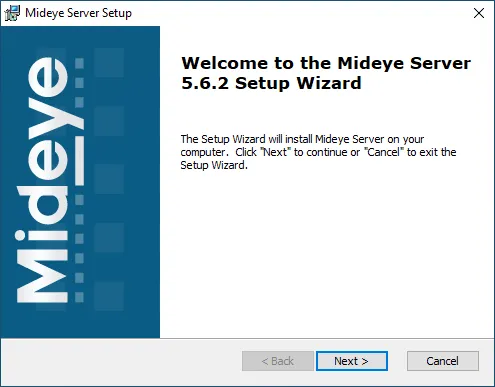
Section titled “Install MideyeServer”Execute the Mideye Server installation package as a local administrator and follow the instructions on the screen.
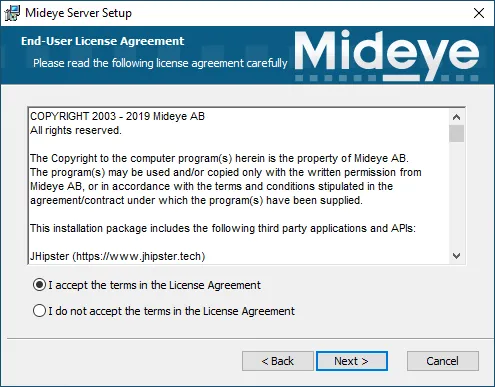
Accept the license agreement.
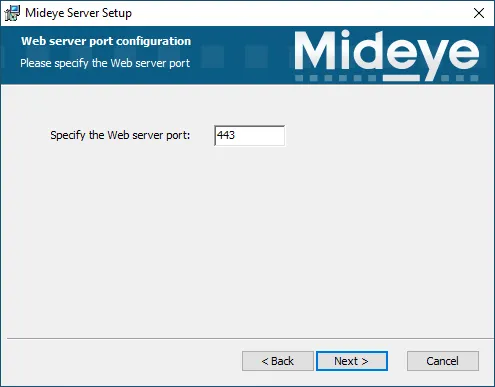
Specify a SSL port for the Web Gui.
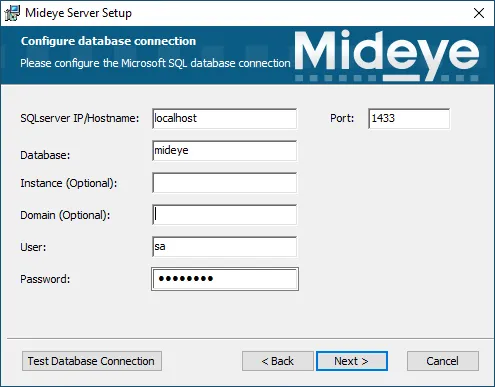
Fill in the configuration credentials for MSSQL Server.
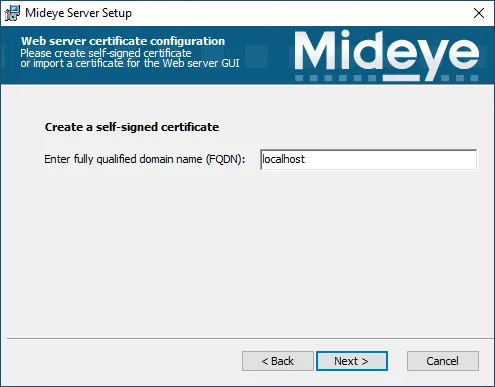
Create a selfsigned certificate with hostname localhost
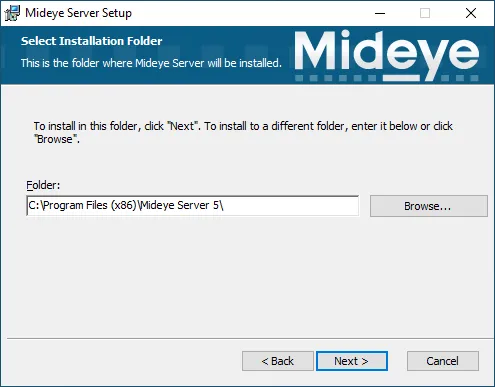
Specify which path to install MideyeServer in.
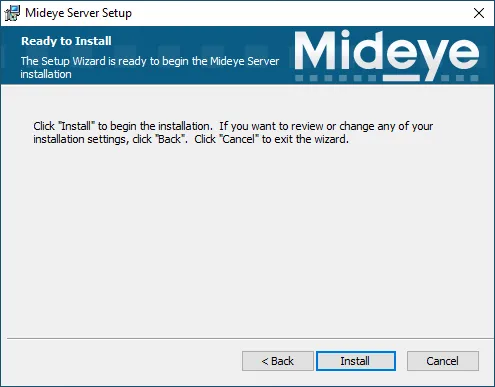
Install the application.
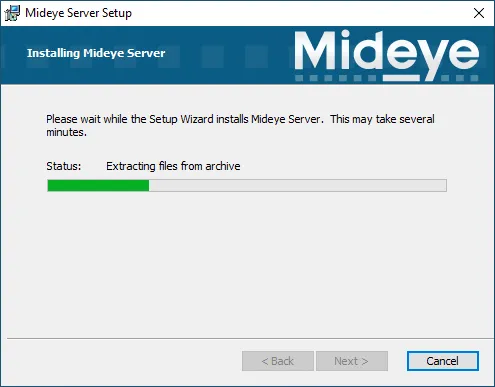
Wait for files to be installed.
Finish the installation
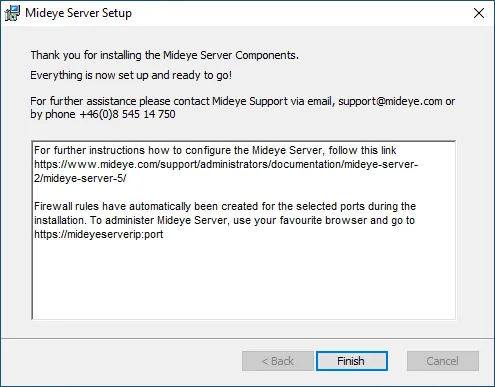
Uninstall MideyeServer
Section titled “Uninstall MideyeServer”In Windows. Navigate to Add remove programs or Apps & Features.
Press Uninstall on the MideyeServer Application.
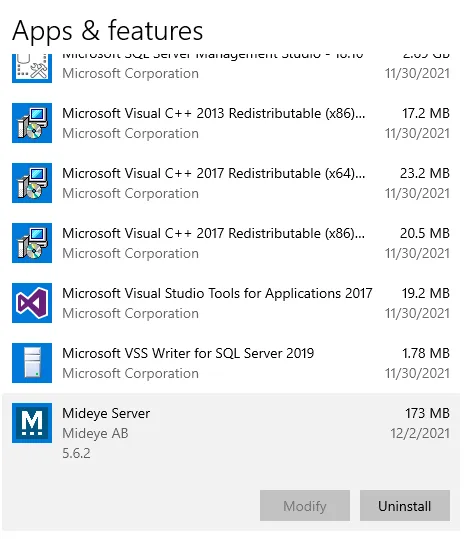 |
|---|
Backup
Section titled “Backup”Before proceeding with an upgrade, take a backup of the Mideye Server file system and the Mideye database. Some files containing customized settings may need to be replaced after the update.
Backup Mideye Server file system
Section titled “Backup Mideye Server file system”To take a backup of the Mideye Server, copy or compress the whole Mideye Server installation directory. The default directory is:
C:\Program Files (x86)\Mideye Server 5Backup the database
Section titled “Backup the database”Backup MS SQL database:
To back up a database on Microsoft SQL Server, use SQL Server Management Studio. Right-click the database used by Mideye and choose “Tasks” followed by “Back up”.
Backup Mysql database:
mysqldump -u[username] -p[password] [database name] > mideye_backup.sqlUpgrade
Section titled “Upgrade”Mideye Server 5.x to 5.x
Section titled “Mideye Server 5.x to 5.x”Before starting the upgrade, ensure you have backed up both the Mideye Server file system and the Mideye database. You may need to restore certain files containing custom settings after the upgrade is completed.
The installation package will automatically detect the presence of an existing R5 version. The upgrade process involves a service restart, which typically results in approximately 40 seconds of downtime.
Mideye Server 4.x to 5.x
Section titled “Mideye Server 4.x to 5.x”Direct upgrades from Mideye Server 4.x to 5.x are not supported. For detailed instructions, please refer to Upgrade Mideye Server 4.x to 5.x.
Modify database configuration
Section titled “Modify database configuration”Open C:\Program Files (x86)\Mideye Server 5\config\application-prod.yml as an administrator. Navigate to the database section (see example below) and modify according to the new database settings.
MSSQL Database Configuration
Section titled “MSSQL Database Configuration”Quick way to create database in admin cmd.
sqlcmd -Q "CREATE DATABASE mideye"Following is the default database configuration for Windows Servers.
spring: devtools: restart: enabled: false livereload: enabled: false datasource: type: com.zaxxer.hikari.HikariDataSource driver: com.microsoft.sqlserver.jdbc.SQLServerDriver url: jdbc:sqlserver://localhost:1433;databaseName=DATABASENAME_HERE;authenticationScheme=NTLM;useNTLMv2=true;user=PLACEHOLDER_DO_NOT_CHANGE_OR_REMOVE;password=PLACEHOLDER_DO_NOT_CHANGE_OR_REMOVE username: mideye password: password hikari: connection-test-query: SELECT 1 initializationFailTimeout: 3600000 data-source-properties: cachePrepStmts: true prepStmtCacheSize: 250 prepStmtCacheSqlLimit: 2048 useServerPrepStmts: true jpa: database-platform: org.hibernate.dialect.SQLServer2012Dialect database: SQL_SERVER show-sql: false properties: hibernate.id.new_generator_mappings: true hibernate.cache.use_second_level_cache: false hibernate.cache.use_query_cache: false hibernate.generate_statistics: false liquibase: contexts: prod mail: host: localhost port: 25MySQL Database Configuration
Section titled “MySQL Database Configuration”To use MySQL or Mariadb in Windows Server change to following Database configuration.
spring: devtools: restart: enabled: false livereload: enabled: false datasource: type: com.zaxxer.hikari.HikariDataSource url: jdbc:mariadb://localhost:3306/MideyeServer username: mideye password: password hikari: initializationFailTimeout: 3600000 data-source-properties: cachePrepStmts: true prepStmtCacheSize: 250 prepStmtCacheSqlLimit: 2048 useServerPrepStmts: true max-lifetime: 600000 jpa: database-platform: org.hibernate.dialect.MySQL5InnoDBDialect database: MYSQL show-sql: false properties: hibernate.id.new_generator_mappings: true hibernate.cache.use_second_level_cache: true hibernate.cache.use_query_cache: false hibernate.generate_statistics: false hibernate.cache.region.factory_class: io.github.jhipster.config.jcache.BeanClassLoaderAwareJCacheRegionFactory liquibase: contexts: prod mail: host: localhost port: 25Troubleshooting
Section titled “Troubleshooting”Logfiles
Section titled “Logfiles”MideyeServer logs are located in mideyeserver.log
C:\Program Files (x86)\Mideye Server 5\log\mideyeserver.log
EventViewer Logs
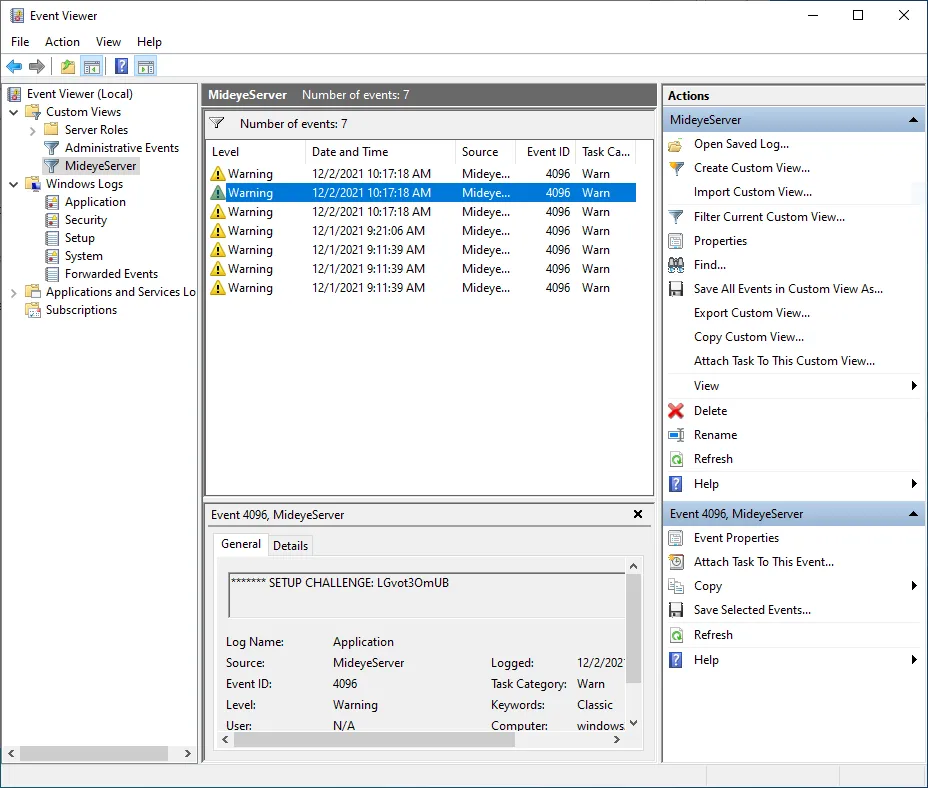
Section titled “EventViewer Logs”MideyeServer logs can also be found in Event Viewer.
- Open Event viewer and click Create Custom View…
- Select By source and find MideyeServer in the list and press OK.
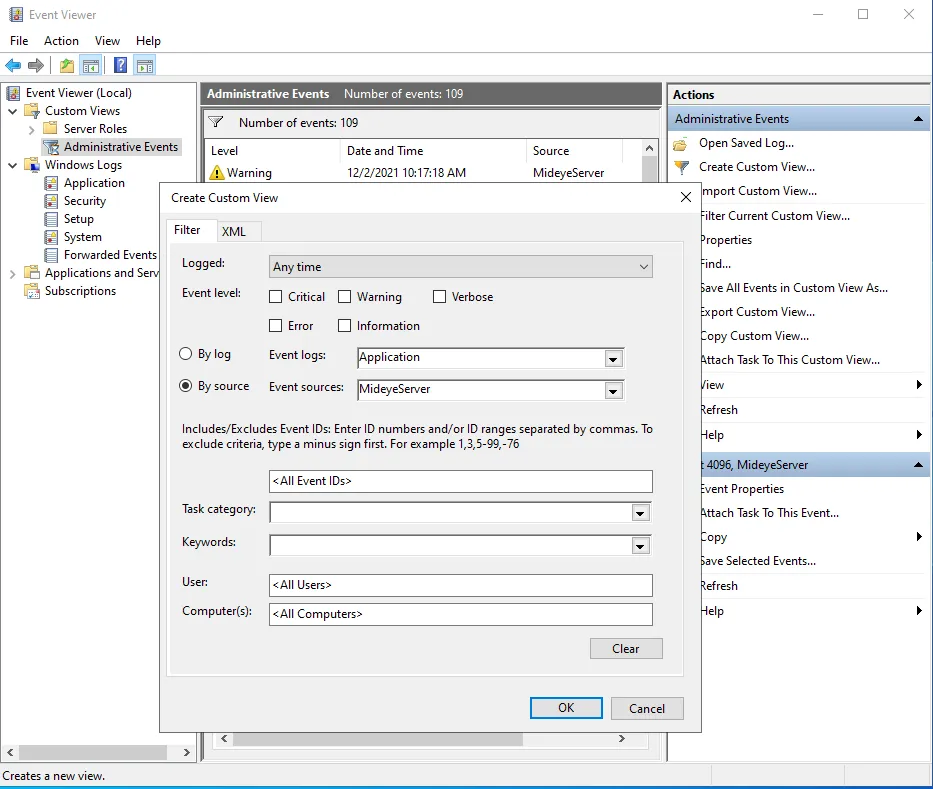
- Specify a Name for the View and press OK
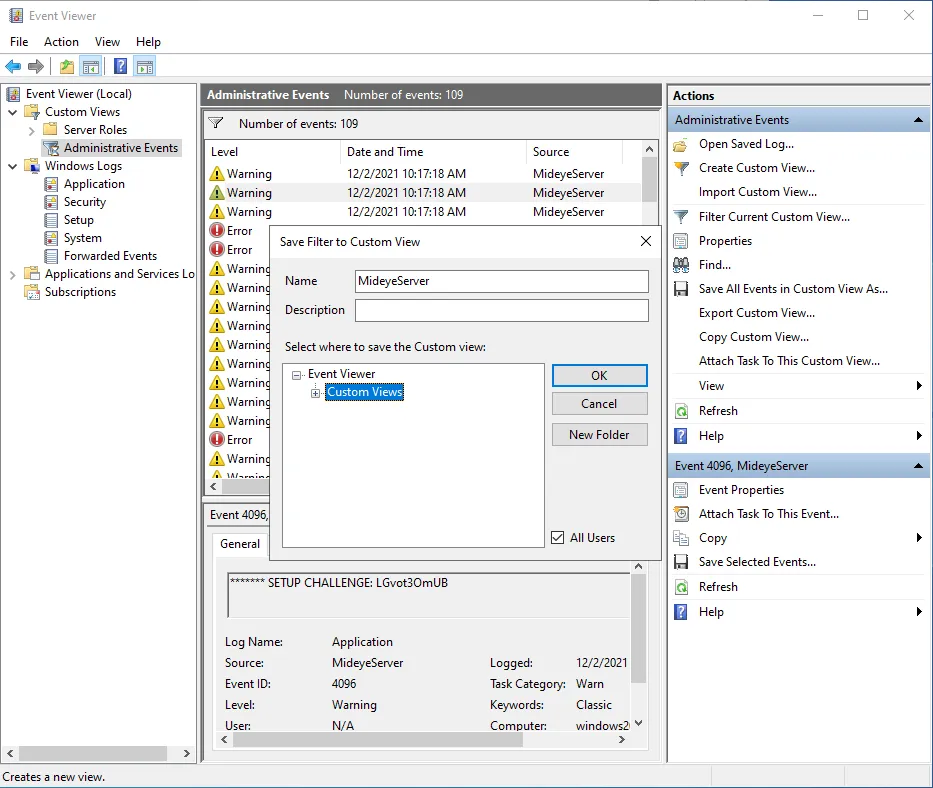
- See the setup-challenge in event-viewer.
Server not starting
Section titled “Server not starting”If nothing shows up in the logs when starting the server. The Database Fail Timeout could be changed to get a faster fail. Change 3600000 to 10000. Restart mideyeserver and check the logs after 10 seconds.
initializationFailTimeout: 10000Error message: ERROR [XNIO-2 task-19] HikariPool: HikariPool-2 - Exception during pool initialization.java.sql.SQLException: Login failed for user 'user.name'.This error message is due to invalid credentials to the SQL database. Verify the configuration in C:\Program Files (x86)\Mideye Server 5\config\application-prod.yml. Also, check the database log files. Manually start the Mideye Server service from Services.
Service ports
Section titled “Service ports”MideyeServer needs two ports to start correctly. A port for Web GUI and a port for RADIUS traffic. The Web GUI Port can be changed.
- Webgui: tcp/8443
- RADIUS: udp/1812
Check the firewall too see that these ports are open.
Enable TCP/IP 1433/tcp on MS SQL Server Express
Section titled “Enable TCP/IP 1433/tcp on MS SQL Server Express”Corrupt keystore when reinstalling same version
Section titled “Corrupt keystore when reinstalling same version”When uninstalling Mideye Server and reinstalling the same version, the keystore must be manually removed before installing the Mideye Server again.
After a successful uninstall, delete /opt/mideyeserver/config/keystore.p12. Once removed, the same version of Mideye Server can be installed again.