

Configure Assisted Login for Temporary Access
Overview
Section titled “Overview”Assisted Login allows managers and administrators to grant temporary network access to users who don’t have permanent credentials. This is ideal for consultants, contractors, or temporary employees who need short-term VPN access.
Key features:
| Feature | Description |
|---|---|
| Manager approval | Approvers verify access requests via Mideye+ app |
| Session timeouts | Configurable session and idle timeout values |
| Remote disconnect | Terminate active sessions from Mideye+ app |
| Self-approval | Optional setting to allow users to approve themselves |
Assisted Login (Authentication type 9) can be enabled on each RADIUS client and will enable managers, administrators, etc. to give temporary access to end-users that normally do not need to have permanent access to certain resources. Assisted Login is only applicable to LDAP accounts, and can be set as a default authentication type as well as per LDAP-account with “Read optional attributes”.
Create a new Assisted Login Profile
Section titled “Create a new Assisted Login Profile”Navigate to Configuration followed by “Assisted Login Profiles”. Click “+” to create a new profile.
General tab
Section titled “General tab”- Give the profile a suitable name.
- Adjust the session and the idle timeout for the approved users. These values are only applicable if RADIUS attribute 27 (Session-Timeout) and RADIUS attribute 28 (Idle-Timeout) can be configured on the RADIUS client (e.g. Cisco Anyconnect, Pulse secure). Please refer to RFC 2865 section 5.27 and 5.28 for more details.
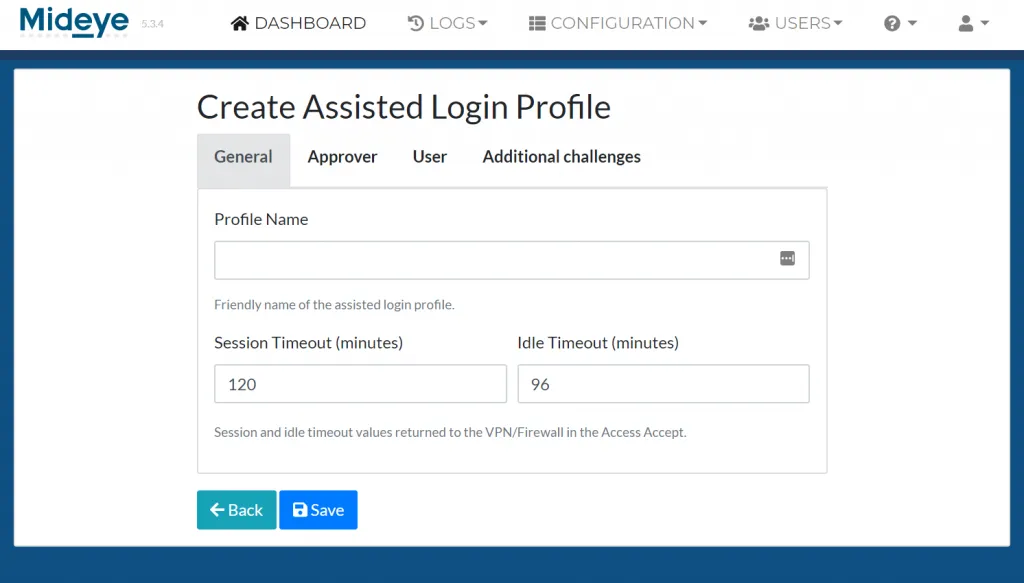
Add a friendly name and adjust session and idle timeouts
Approver tab
Section titled “Approver tab”- Choose what LDAP attribute that should be used to identify the approver. Default values are sAMAccountName and mobile but can be customized to any other LDAP-attribute available.
- Enable or disable “Allow self approval”. This allows the approver and the approved to be the same person.
- Select, None, Any or All for the following conditions:
- Manager attribute match: In ADUC, the approver must be added as a Manager in the approvers LDAP-profile.
- Approver member of authorized group: Specify an LDAP-group that contains all the managers.
- Approver pre-listed: Add approvers based on their UPN.
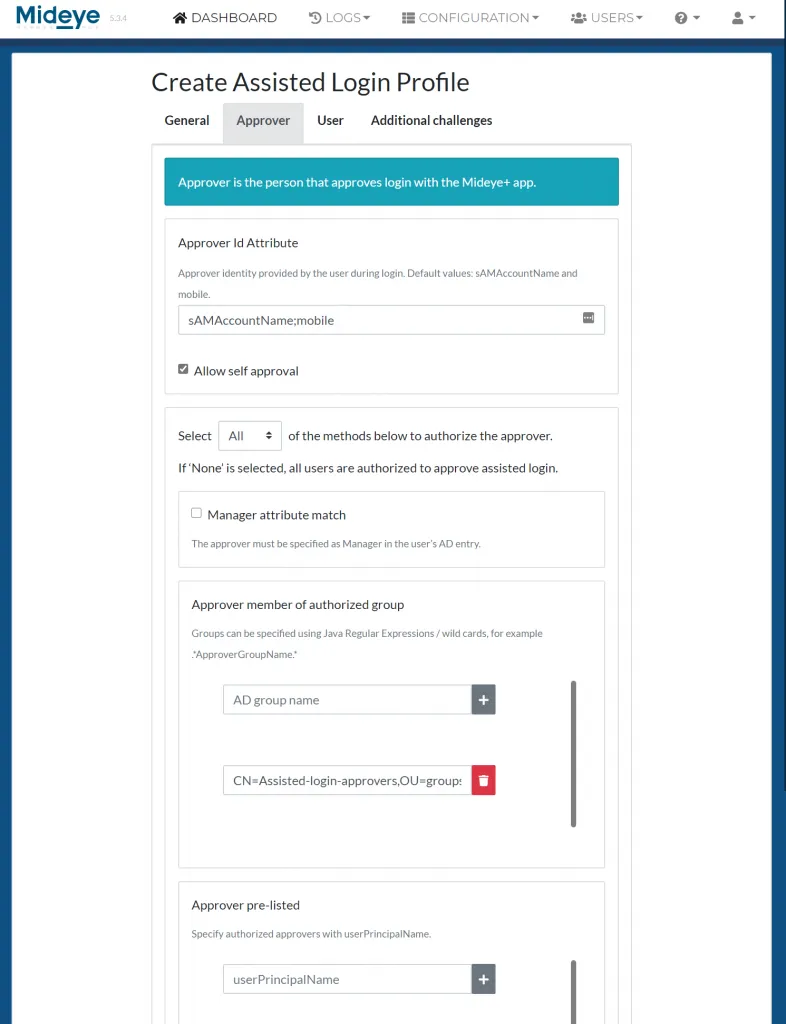
Approver setup
User tab
Section titled “User tab”Select, None, Any or All for the following conditions:
- User assigned authentication type 9 in the user repository: This requires that read optional attributes is enabled on the LDAP-profile. See section Authentication for more details.
- User member of authorized group: Specify an LDAP-group that contains all the users that should be allowed to login using Assisted Login.
- Users pre-listed: Add users based on their UPN.
If none of the options are selected all users can be approved.
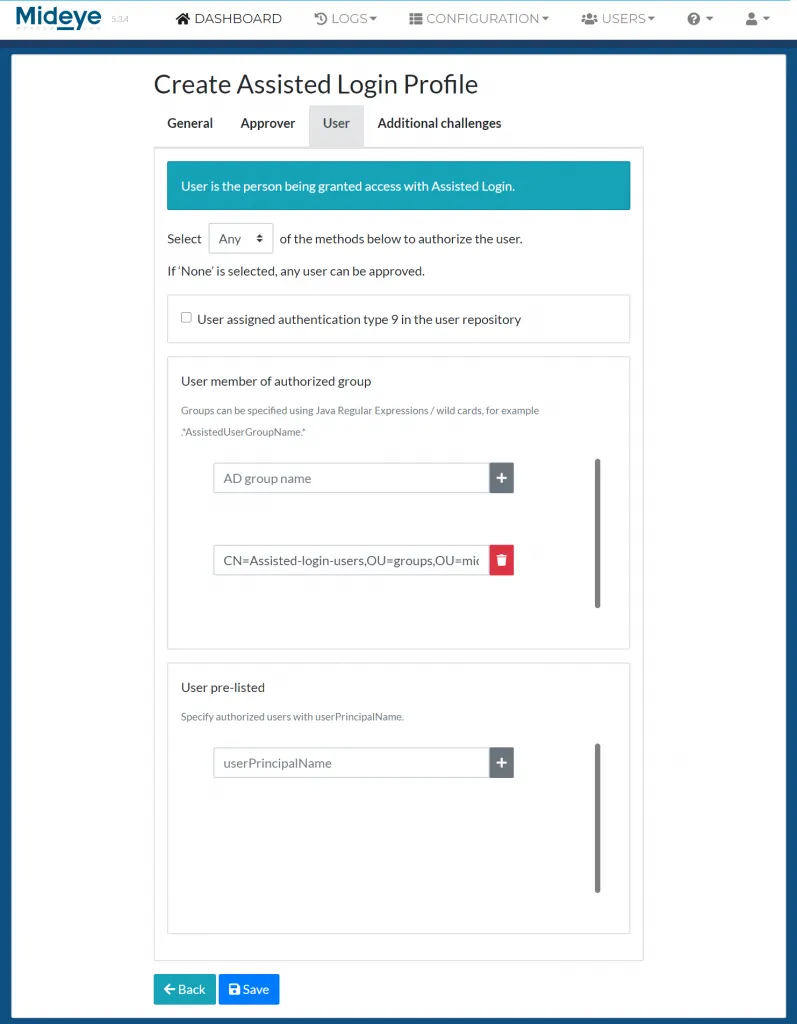
User setup
Additional challenges
Section titled “Additional challenges”As part of the Assisted Login flow, additional challenges can be added to add more information to the login. This requires that the RADIUS-client can handle challenge-response messages.
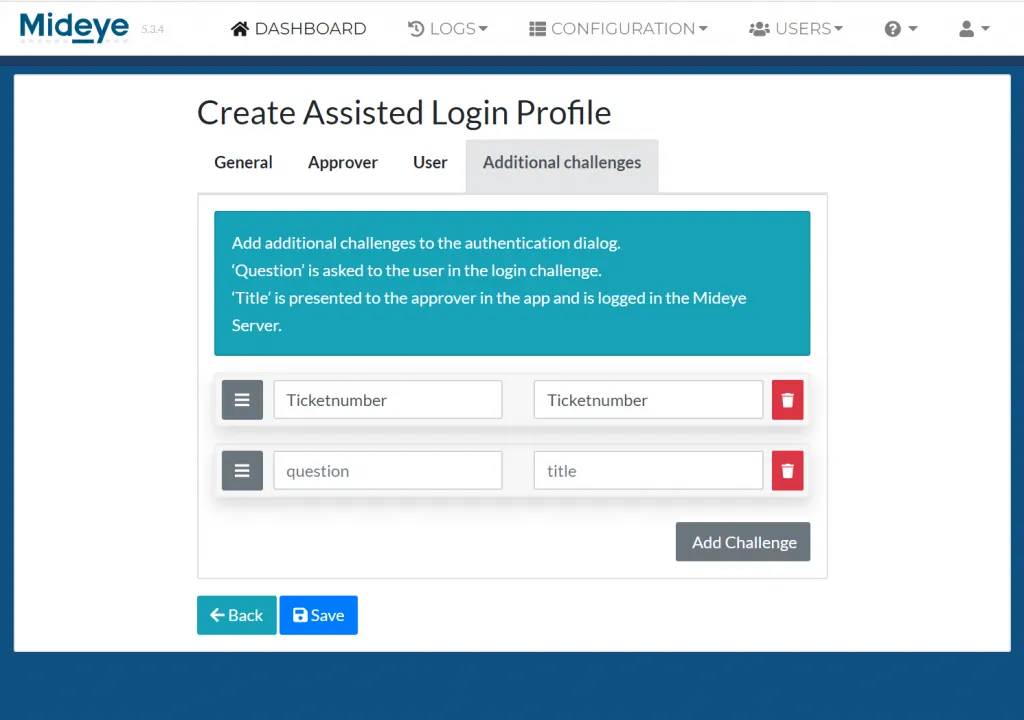
Additional challenges
Modify the RADIUS-client
Section titled “Modify the RADIUS-client”Navigate to “Configuration” followed by RADIUS-clients. Choose to modify the RADIUS-client that should be enabled with Assisted Login. At “Assisted Login” select the profile created in the previous step.
Enable Disconnect Messages
Section titled “Enable Disconnect Messages”If the RADIUS-client (e.g. Pulse Secure) supports Disconnect Messages, this option can be enabled. This will allow the approver to disconnect the approved user at any time.
End-user experience
Section titled “End-user experience”Pictures below will show the authentication flow when user “Consultant” (user who should be approved) tried to authenticate with authentication type 9 set. User “gustav.warlinge.a” will be the approver.
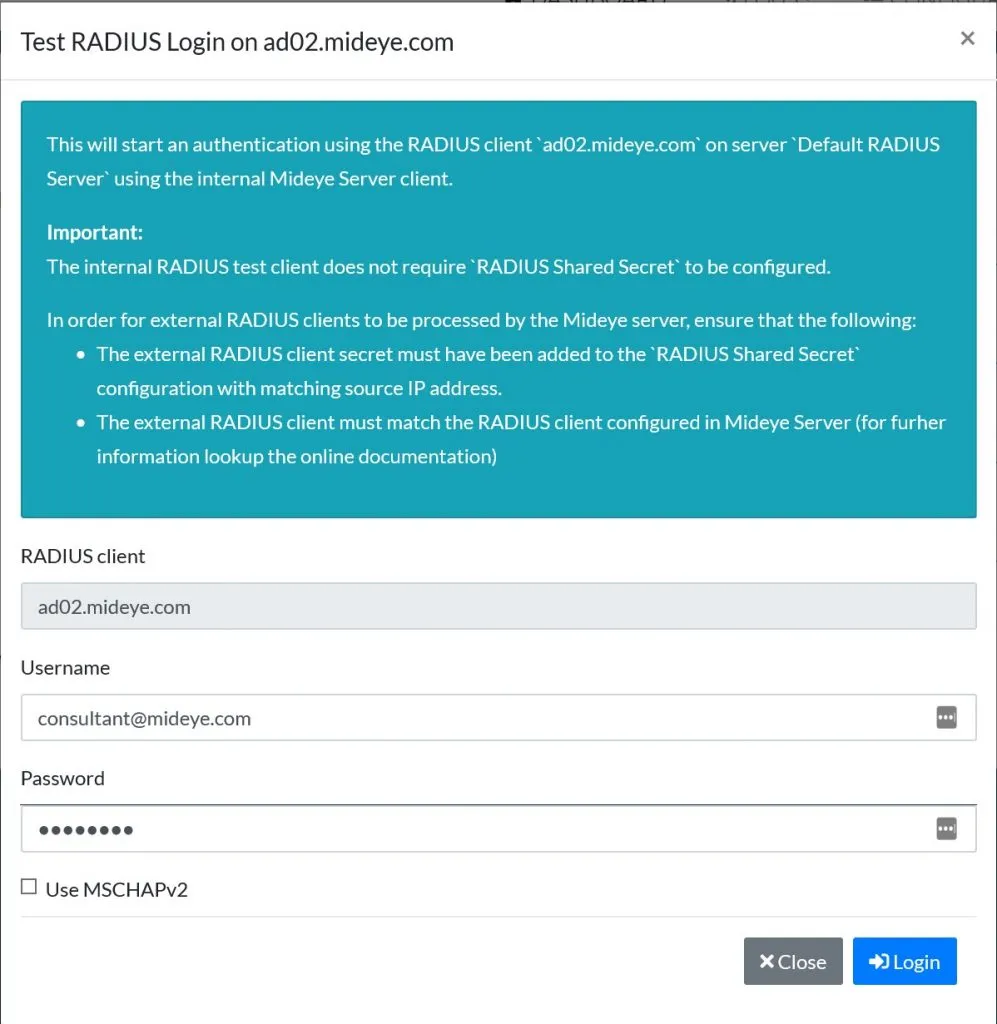
User consultant@mideye.com tries to login using username and password.
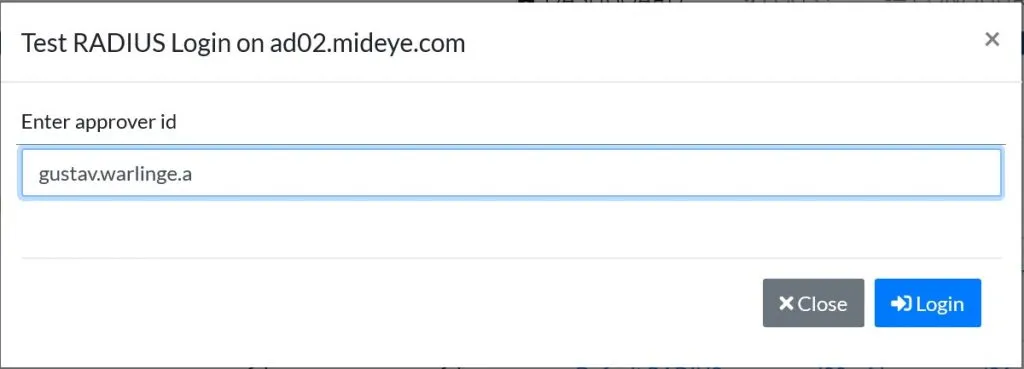
As a response the user consultant is being asked to enter approver id. The default identity is sAMAccountname and mobile. In this case the consultant types the sAMAccountname of the manager which is gustav.warlinge.a.
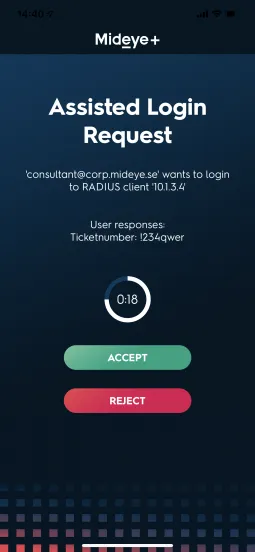
The approver (gustav.warlinge.a) gets a notification that user consultant@corp.mideye.se is trying to login to RADIUS-client 10.1.3.5. If the approver taps “Accept” the user consultant@corp.mideye.se authentication attempt will be accepted.
Assisted login with RADIUS Disconnect Messages
Section titled “Assisted login with RADIUS Disconnect Messages”If the RADIUS client has support for RADIUS Disconnect Messages the approver have the option to terminate an ongoing session directly from the Mideye+ app.
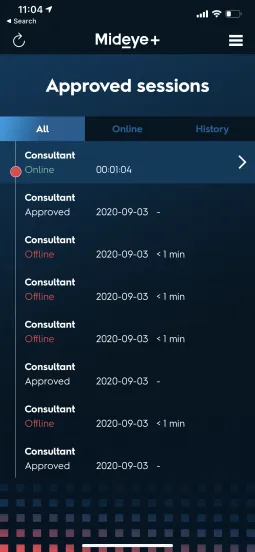
When an approved user is granted access, the session will be shown as “Online” if the RADIUS client have Disconnect Messages enabled.
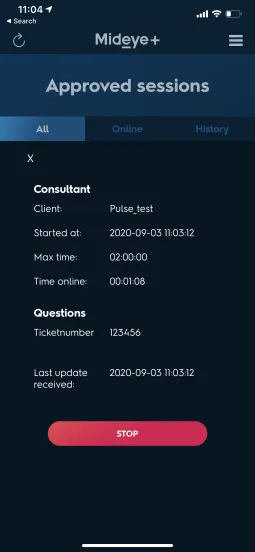
Swipe left to see details of the session and click “Stop” to terminate the session.
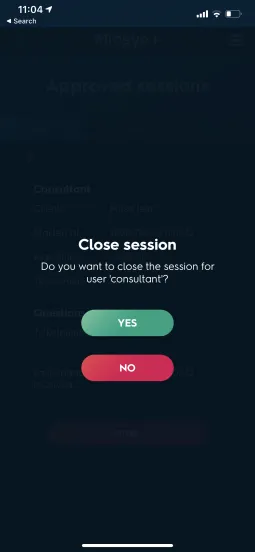
Select “Yes”.