

Mideye+ App and Touch Accept Configuration
Overview
Section titled “Overview”Mideye+ is a free smartphone app that enables push-based OTP delivery and Touch Accept authentication. Users receive one-time passwords via data push instead of SMS, and can approve logins with a single tap.
Key benefits:
- Works without mobile network coverage (WiFi only)
- Touch Accept for one-tap authentication
- Offline manual signature when no connectivity
- No additional cost
Users with smartphones can choose to download the Mideye+ app. This enables login also when the phone is not reachable via the mobile network. There is no extra charge using the Mideye+ app and does not need to be used by the entire organization.
Installation and activating Mideye+ app
Section titled “Installation and activating Mideye+ app”Mideye+ can be downloaded for both Android and iPhone by searching in Apple/Google store or following below links.
Activating iPhone app
Section titled “Activating iPhone app”Once downloaded and installed, open the Mideye+ app. First time opening the Mideye+ app, the message “Mideye+ Would Like to Send You Notification” pops up. Click “Allow” to allow the app to send notifications each time an authentication attempt is made.
Activate iPhone App: === “1. Enter Phone number”
- Enter the phone number in international format e.g +46735084555 and press “Next”.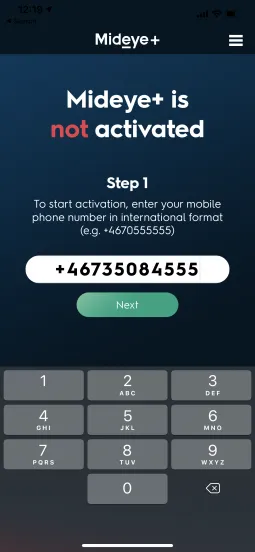
=== “2. Authenticate to corporate resource”
- Make an authentication attempt to the corporate resource (e.g Anyconnect, Citrix-portal etc) that is protected with Mideye.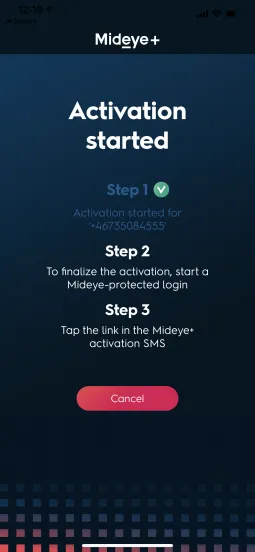
=== “3. Activation SMS”
- Once the SMS is received, open the message and click the link. A redirect to the Mideye+ app will take place with the text “Activation successful” and an OTP is displayed. This can be used to login to the corporate resource during an app activation.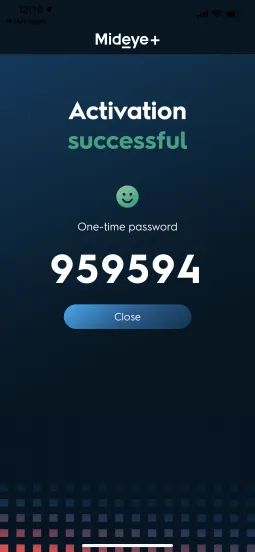
Mideye+ is now activatedActivating the Android app
Section titled “Activating the Android app”Activate Android App:
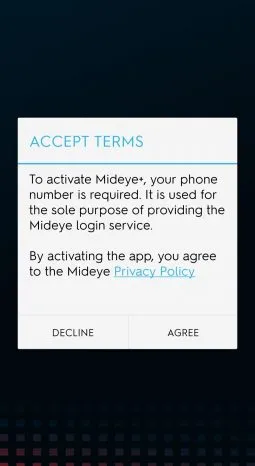
“1. Agree to terms”
- Open the Mideye+ app and agree to the terms.
“2. Enter Phone number”
- Enter the phone number in international format e.g +46735084555 and press “Next”.
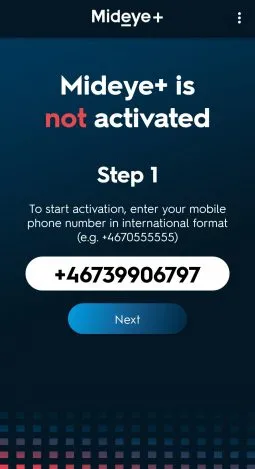
“3. Authenticate to corporate resource”
- Make an authentication attempt to the corporate resource (e.g Anyconnect, Citrix-portal etc) that is protected with Mideye.
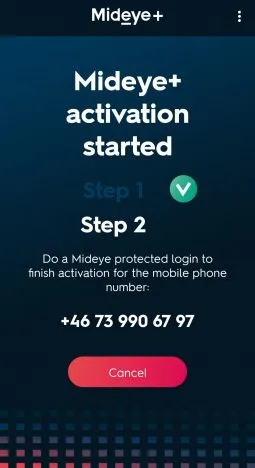
“3. Activation SMS”
- Once the SMS is received, open the message and click the link. A redirect to the Mideye+ app will take place with the text “Activation successful” and an OTP is displayed. This can be used to login to the corporate resource during an app activation.
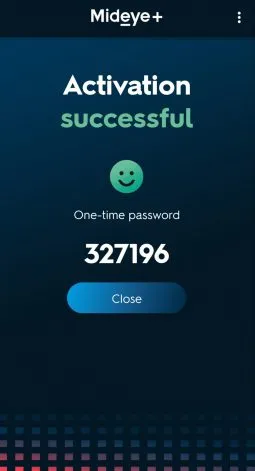
Using Mideye+
Section titled “Using Mideye+”When Mideye+ is activated, the app can be used to authenticate when logging on to a protected resource that is using Mideye two-factor authentication. Instead of receiving traditional text-messages containing an OTP, Mideye will send the OTP using data traffic and the OTP will be presented in the phone as a notification.
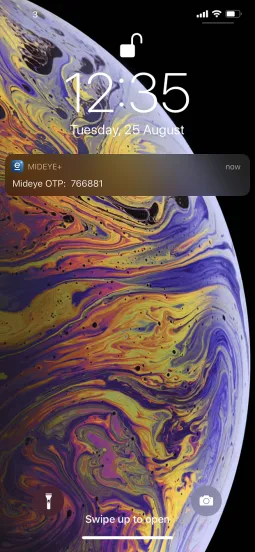
Sending data OTP instead of traditional text messages have a big advantage when end-users do not have any network coverage but still have internet access.
Offline manual challenge
Section titled “Offline manual challenge”Mideye+ also works as a token card and can be used when both network coverage and internet access is missing. When end users try to authenticate, and the phone does not have any coverage, Mideye will instead present the user with the message “Phone not reachable, please sign xxxxxx”.
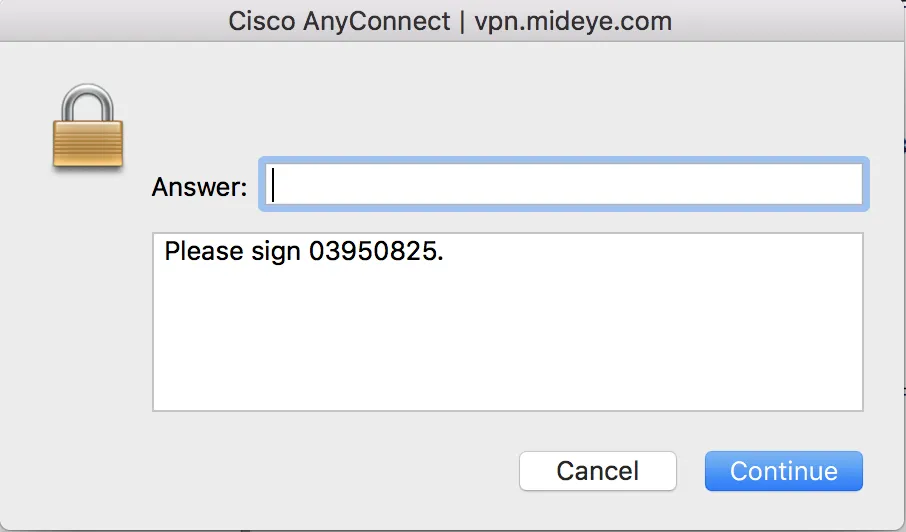
The message presented to the end-user when logging on lacking coverage. In this example, Cisco Anyconnect. To sign, open the Mideye+ app and click “Manual signature at the bottom of the screen”
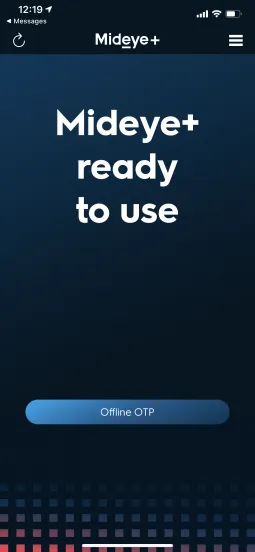
Click “Offline OTP” to manually sign the login
Enter the challenge presented on your loginscreen.
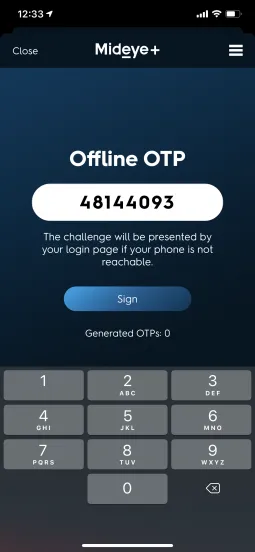
Enter the OTP presented in the Mideye+ app
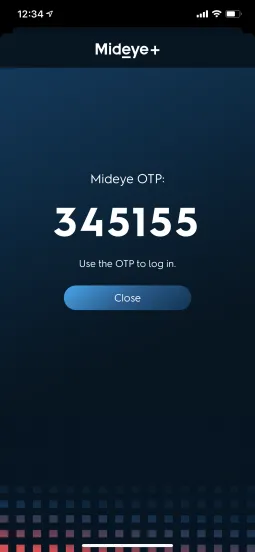
Use the OTP at the login page.
Troubleshooting Mideye+
Section titled “Troubleshooting Mideye+”Offline signing of challenge
Section titled “Offline signing of challenge”If a manual signing does not work, but instead the end-user is presented with a failed authentication, it is likely because the RADIUS timeout of the RADIUS client is set to less than 35 seconds. Refer to the section “Troubleshooting RADIUS client” in the Configuration guide.
User is not receiving any notifications when using Mideye+
Section titled “User is not receiving any notifications when using Mideye+”For Mideye+ to function correctly it is important that the end-user accepts that Mideye+ can present notifications. This question is presented to the end-user only once after installing the app. If the user accidentally pressed “Deny” instead of “Allow”, no notifications with OTP will be shown during authentication. To manually fix this follow the instructions below:
iPhone users
Section titled “iPhone users”- Tap the “Settings” icon.
- Scroll down and tap “Notifications”
- Tap Mideye+ in the “Notification style”
- Enable “Allow Notifications”
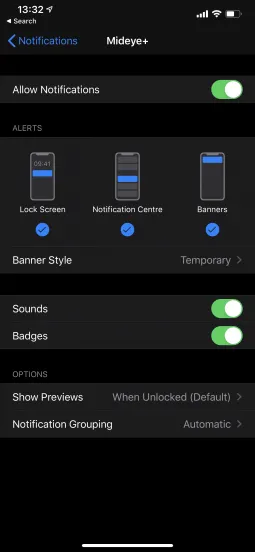
Enable notifications
Android users
Section titled “Android users”Enabling notifications vary depending on what version of Android is being used. Refer to each manufacturer’s manual for details.
Android is not presenting any notifications while the phone is in battery saving mode
Section titled “Android is not presenting any notifications while the phone is in battery saving mode”If the phone is low on battery and the end-user enables battery saving mode, Mideye+ must be excluded to still be able to present notifications when authenticating. The example below shows how to achieve this using a Samsung phone. For other phones, refer to the manual from the manufacturer.
- Open “Settings”
- Open “Battery” and navigate to “Unmonitored Apps”
- Click “Add apps” and select Mideye+ followed by “Done”

Add Mideye+ to unmonitored apps
Touch Accept
Section titled “Touch Accept”To further ease the authentication process, Touch Accept can be used to simply allow or deny an authentication attempt. This function can be enabled from Mideye configuration tool and does only affect those users that have Mideye+ installed on their cellphones. Also, Touch Accept does not use challenge-response when authenticating, which enables two-factor authentication on applications and services that do not have support for traditional two-factor authentication.
Enabling Touch Accept
Section titled “Enabling Touch Accept”Navigate to “Configuration” followed by “LDAP Profiles”. Select the LDAP-Profile that is being used, and click “Edit”. Select the tab “Authentication” and change the “Default authentication type” to 6, 7 or 8 depending on if there should be a fallback available to traditional OTP. Fallbacks are only efficient if the authentication service supports challenge-response. In those cases, if for any reason Touch accept would fail, a normal OTP will be sent to the phone. If the authentication service does not have any support for challenge-response, authentication type 6 will be the only option.
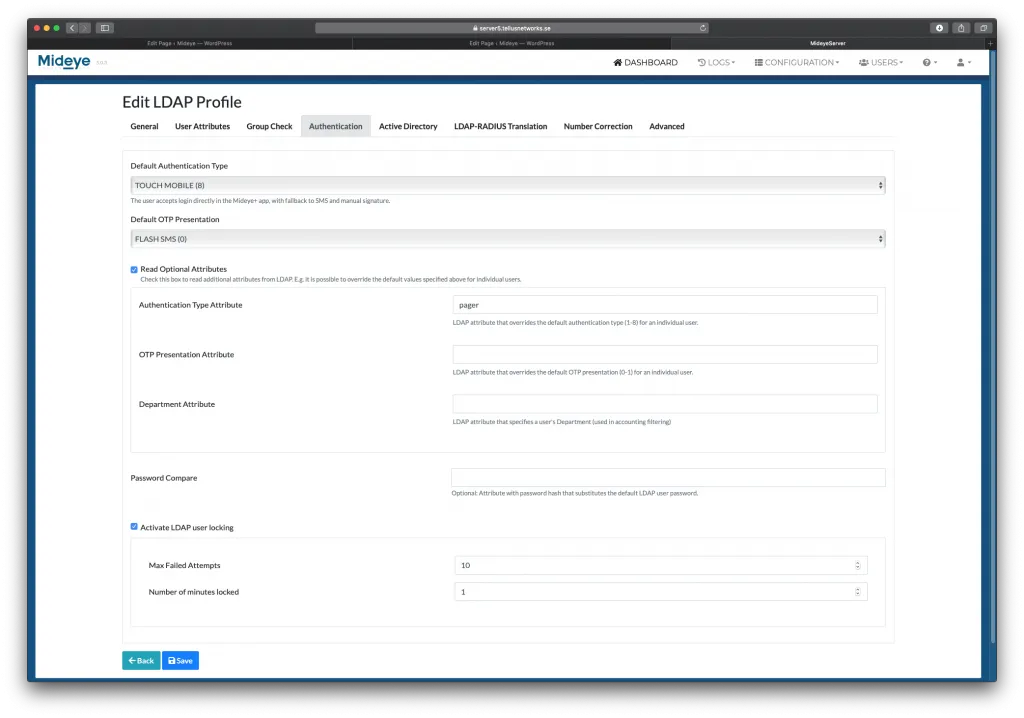
To verify if the configuration is working, simply perform an authentication attempt to any Mideye enabled service. Now, instead of receiving an OTP to the Mideye+ app, a question to allow or deny the login will be presented. Since the authentication type 8 (Touch-mobile) was selected in the previous step, an OTP will be sent if Touch should fail.
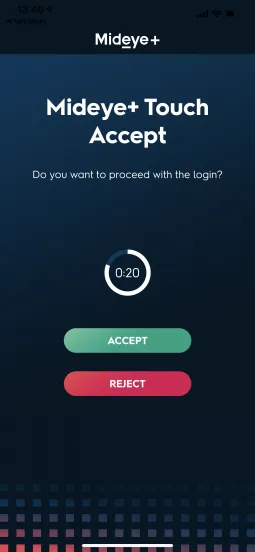
Login using Touch Accept.