

Configure RADIUS Clients in Mideye Server 5
Overview
Section titled “Overview”RADIUS clients are devices that send authentication requests to Mideye Server (VPN concentrators, firewalls, access portals). Each client needs a unique configuration with IP address, shared secret, and authentication settings.
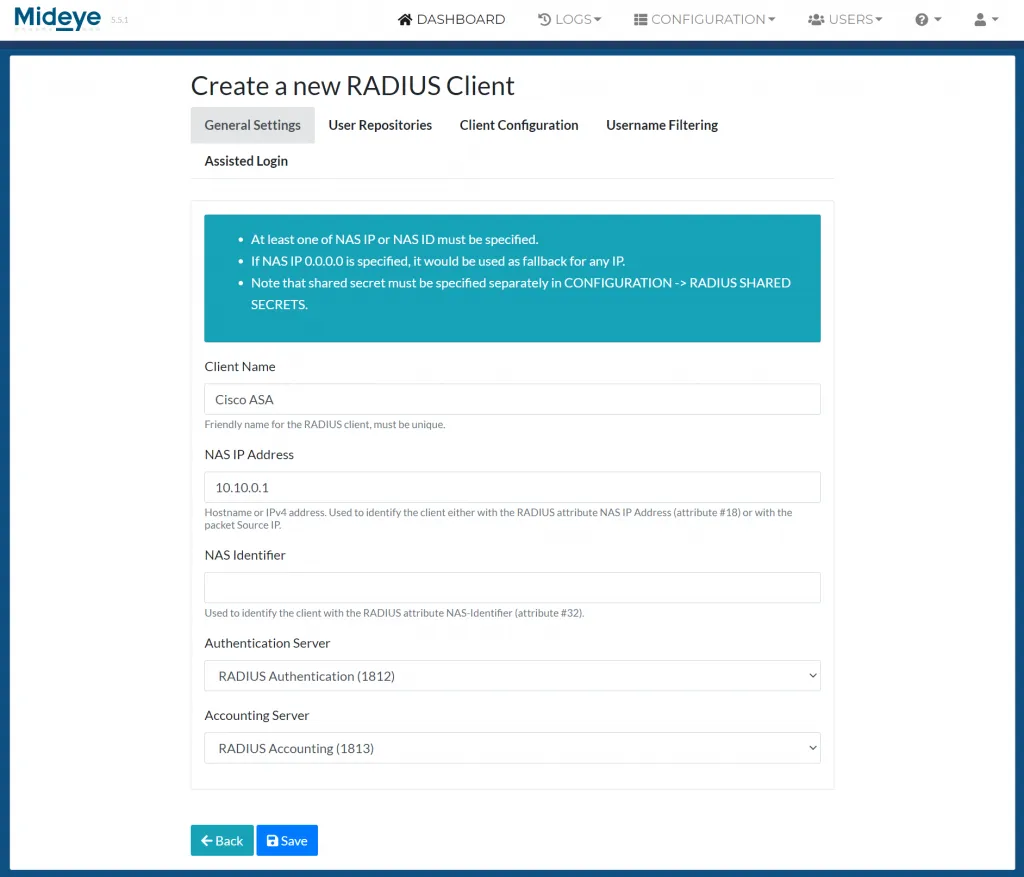
To create a new RADIUS Client, navigate to “Configuration” followed by RADIUS clients and click “Create a new RADIUS client”. Note that shared secrets are added separately in the shared secret menu.
General Settings
Section titled “General Settings”Client Name: Add a friendly name to the RADIUS client. This must be unique.
NAS IP Address: Add the hostname or the IP of the RADIUS client.
NAS Identifier: Instead of using a NAS IP address, a NAS Identifier (Attribute #32) can be used for the RADIUS client.
Authentication Server: Select what authentication server to use.
Accounting Server: Select what accounting server to use.
User Repositories
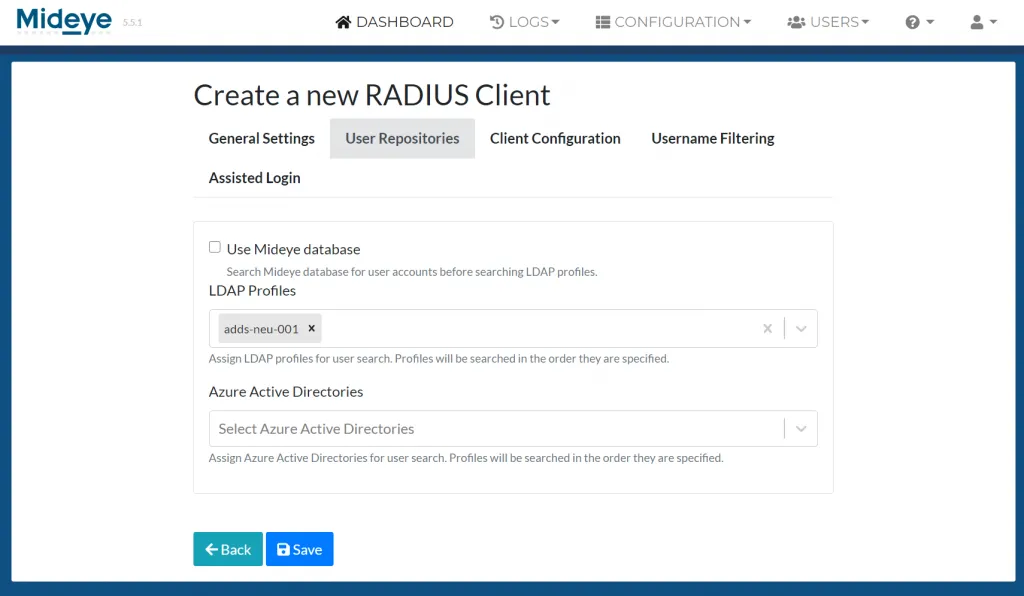
Section titled “User Repositories”Use Mideye Database: Except for LDAP, Mideye Server can perform a search from its own database. When enabled, Mideye Server will always start searching for users in the database before moving on to LDAP.
LDAP Profiles: Select one or more LDAP-profiles to use for the RADIUS client.
Azure Active Directory: Select one or more Entra ID profiles to use for the RADIUS client
Client Configuration
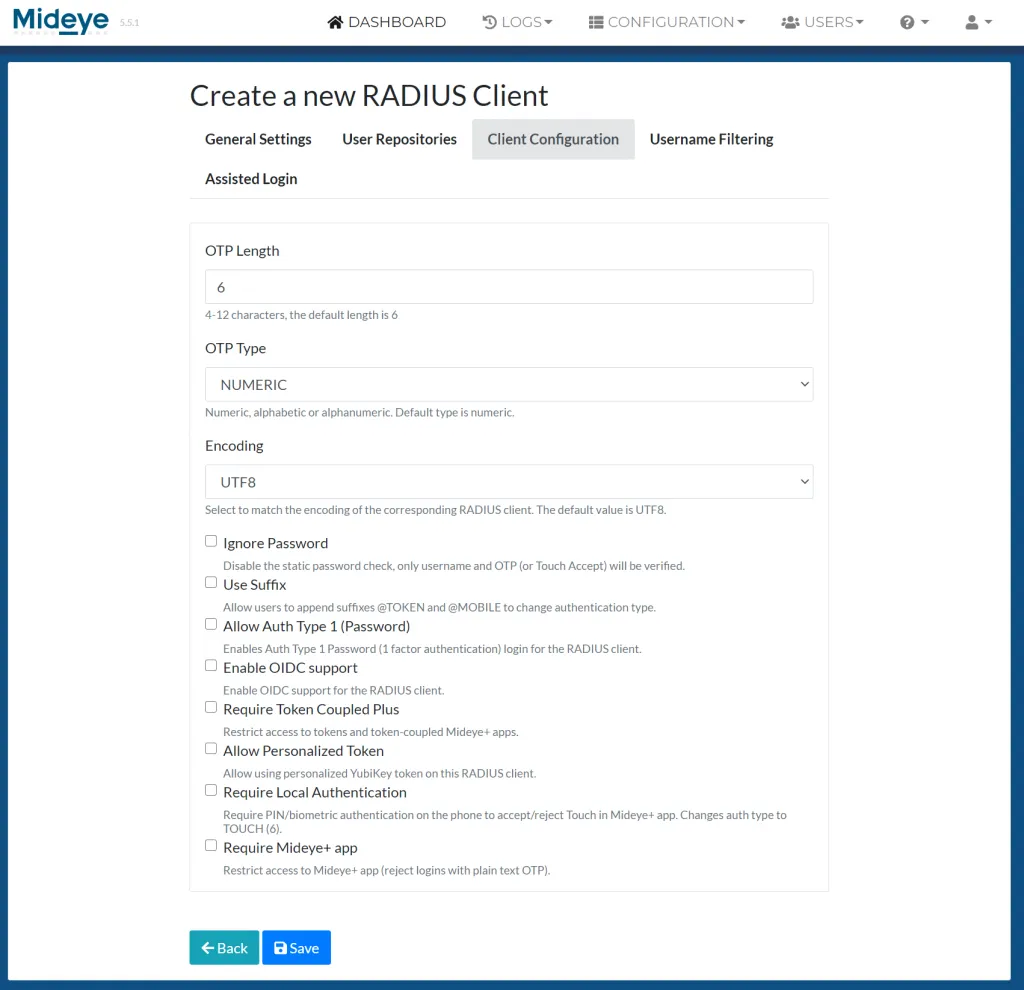
Section titled “Client Configuration”OTP Length: The Default value of the OTP length is 6, but it can be customized to a minimum 4 and maximum 12.
OTP Type: Default all OTP will be numeric but can be customized to numeric, alphabetic and alphanumeric.
Encoding: Assign the appropriate encoding for the RADIUS client. The default value is UTF-8.
Ignore password: Enable if Mideye Server should ignore the password sent by the end-user for this RADIUS Client. If ignored, be advised that only a correct username and the chosen Authentication Type is needed for successful authentication. Will not work with Authentication Type 1 - “Password”.
User suffix: Enable if Mideye should enable user-selected authentication types.
Allow Auth Type 1 (Password): Starting from release 5.2 auth type 1 will be disabled by default. This can be enabled by checking the “Allow auth type 1 (Password).
Require Token-coupled Plus login: Enable to only accept login with token-coupled Mideye+ apps or token cards.
Allow Personalized Token: Starting from release 5.2, the use of personalized YubiKeys will be disabled by default. This can be enabled by checking the “Allow Personalized Token”.
Require Local Authentication: With this option enabled, PIN or biometric authentication is mandatory if end users are using Mideye+ and Touch. No fallback will be available.
Require Mideye+ app: If enabled, Mideye+ app is mandatory for all end users.
Username Filtering
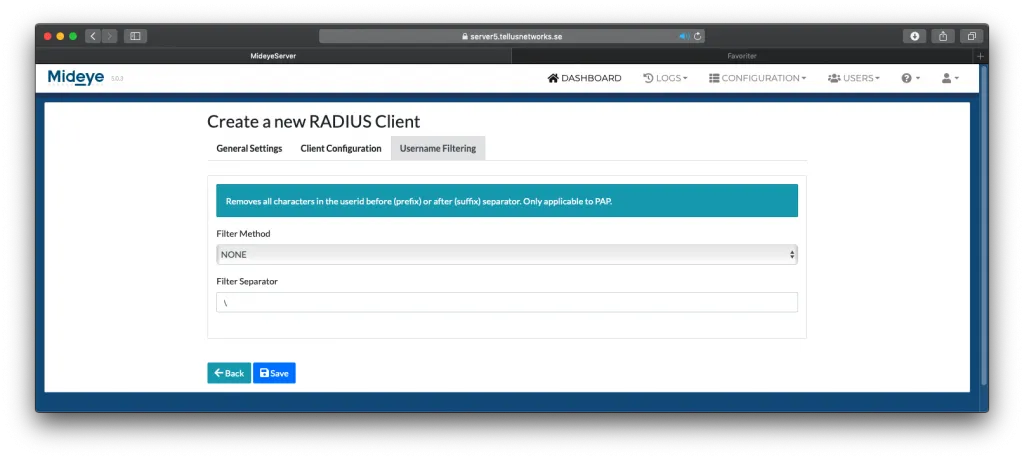
Section titled “Username Filtering”Mideye can filter part of the username sent from the RADIUS client. Choose the filter method and add a filter separator. Username filtering will only function with authentication type PAP.
Default RADIUS-client
Section titled “Default RADIUS-client”A default RADIUS client can be configured to allow all incoming requests from any RADIUS client that is not specified in the RADIUS client list. This can be done by adding a new RADIUS-client with the IP-address 0.0.0.0. Also, a new shared-secret must be added for the default RADIUS-client using the Shared Secret menu.