

Configure Server Logging, Syslog, SNMP, and Event Viewer
Overview
Section titled “Overview”Mideye Server logs authentication events, errors, and system activity. Logs can be forwarded to Syslog servers, SNMP management systems, and Windows Event Viewer.
Log locations:
| Platform | Path |
|---|---|
| Windows | C:\Program Files (x86)\Mideye Server 5\log\ |
| Linux | /opt/mideyeserver/log/ |
Mideye Server supports Syslog, SNMP and Event Viewer (Windows) for service monitoring and forwarding of log information. Mideyeserver.log is located in C:\Program Files (x86)\Mideye Server 5\log in Windows Server and /opt/mideyeserver/log/ in Linux.
Log files in Web Gui
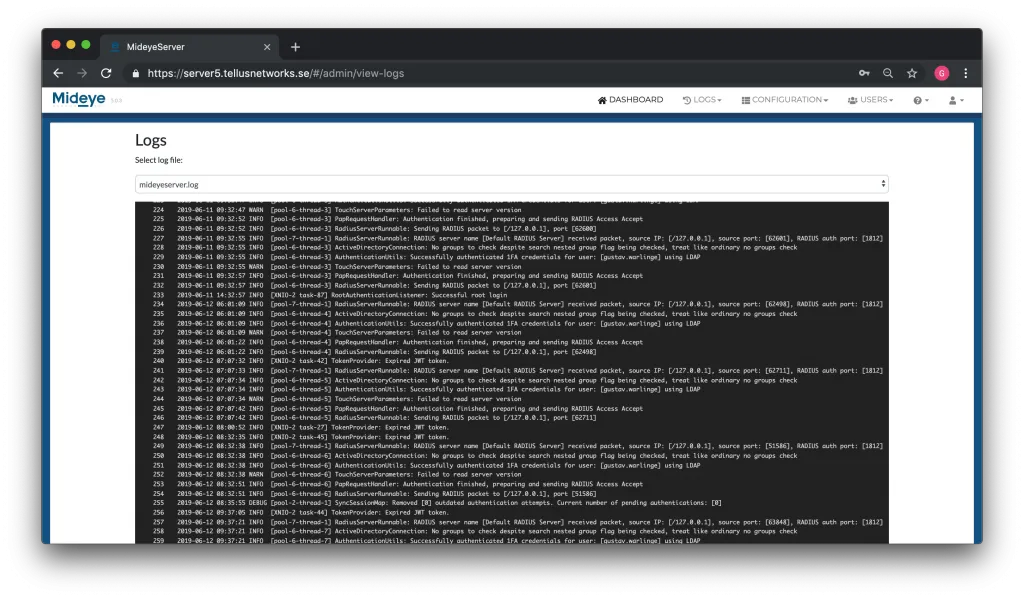
Section titled “Log files in Web Gui”To brows logs in the webgui. Navigate to “LOGS” → “LOG FILES”. The default settings will show info, warning and error messages but can be customized from the “Logging” page located in the “Configuration” tab.
Except for the MideyeServer.log file, all trace files that have been created can be viewed from this page.
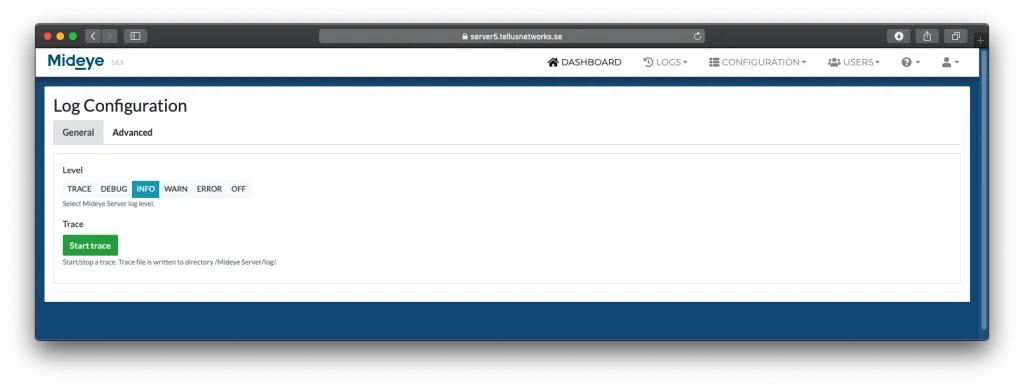
Log Configuration - Web Gui
Section titled “Log Configuration - Web Gui”The level of logging can be customized. The default value is “Info”.
The “Start Trace” button can be used for troubleshooting purposes and will continue until the “Stop trace” button is pressed. The trace-file will be written to %installdir%\log.
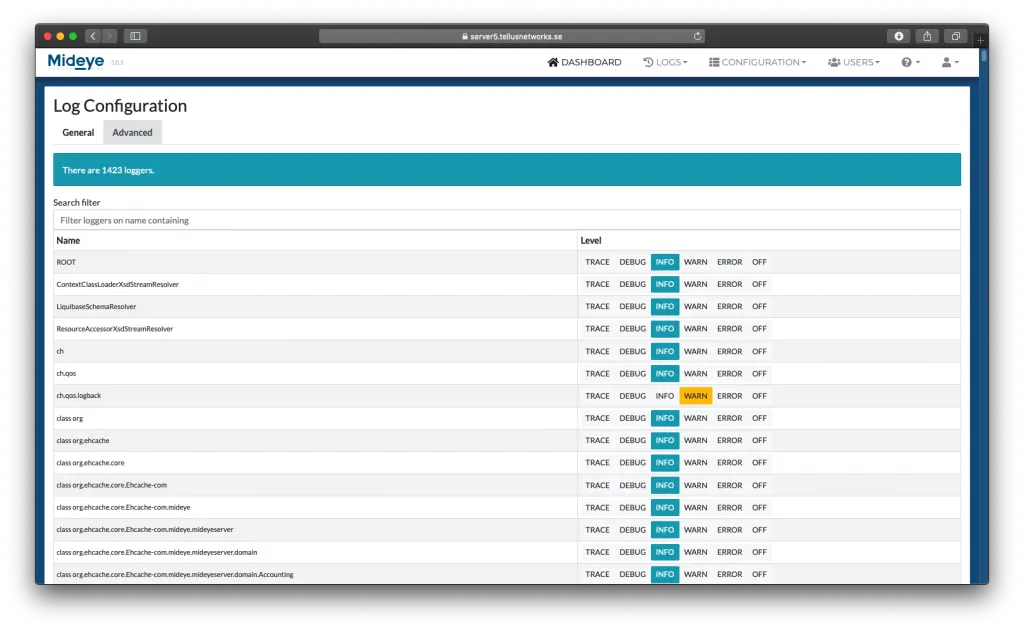
Advanced Log Configuration - Web Gui
Section titled “Advanced Log Configuration - Web Gui”All the loggers can be individually customized. These should normally not be changed.
Syslog
Section titled “Syslog”Mideye Server log files can be sent to a Syslog server through the logback configuration %installdir%\config\logback.xml. By default it is commented out.
<appender name="SYSLOG" class="ch.qos.logback.classic.net.SyslogAppender">    <syslogHost>172.16.3.51</syslogHost>    <facility>SYSLOG</facility>    <port>514</port>    <suffixPattern>java %d{ISO8601,UTC} %p %t %c %M - %m%n</suffixPattern></appender>
<root level="INFO">    <appender-ref ref="SYSLOG" /></root>
Event Viewer
Section titled “Event Viewer”Windows Event Viewer logging for Mideye Server is enabled by default. All Mideye Server logs with severity Warning or higher will be sent to the Event Viewer. The location for these logs is Windows Logs – Application. To get a better overview of logs, a custom view can be created in the Event Viewer console.
Open Event Viewer and right clock “Custom Views”. Select “Create Custom View…” and choose “By Source”. Click the dropdown list and select “MideyeServer”. Click “OK”.
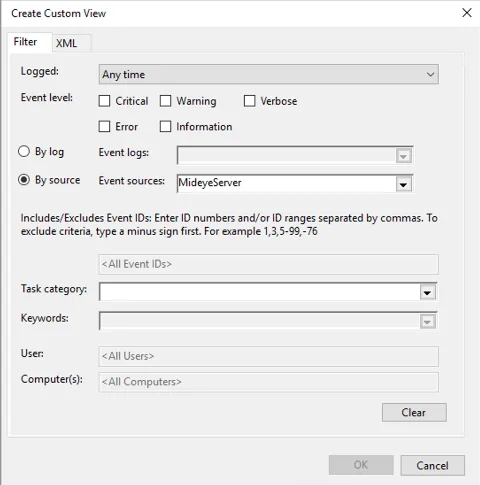
Now all logs from the Mideye Server will be found in the “Custom View” tree.
To change the severity level of the logs sent to the Event Viewer open %installdir%\config\logback.xml as an administrator. In the appender named “Windows” change the level of severity. Save the file and restart the Mideye Server service.
<appender name="WINDOWS" class="com.mideye.mideyeserver.logging.JNAAppender"> <filter class="ch.qos.logback.classic.filter.ThresholdFilter"> <level>WARN</level> </filter> <filter class="ch.qos.logback.core.filter.EvaluatorFilter"> <evaluator> <expression>return logger.startsWith("com.mideye");</expression> </evaluator> <OnMismatch>DENY</OnMismatch> <OnMatch>NEUTRAL</OnMatch> </filter></appender>SNMP can be enabled by opening %installdir%\config\logback.xml as an administrator. Uncomment everything for the SNMP appender and add the necessary configuration. Add the following line under root level warn line:
<appender name="SNMP" class="com.sathwik.logback.appender.SNMPTrapAppender"> <!--properties--> <community>public</community> <enterpriseId>1.3.6.1.4.1.16625.1.12.5</enterpriseId> <host>localhost</host> <port>161</port> <specificTrapType>1</specificTrapType> <!-- Major, warning etc--> <priority>Critical</priority> <escalation>escalate immediate</escalation> <filter class="ch.qos.logback.classic.filter.ThresholdFilter"> <level>ERROR</level> </filter></appender><root level="ERROR"> <appender-ref ref="SNMP"/></root>Save the file and restart the service.