

Vendor-Specific Attributes – Define Custom RADIUS Attributes
Overview
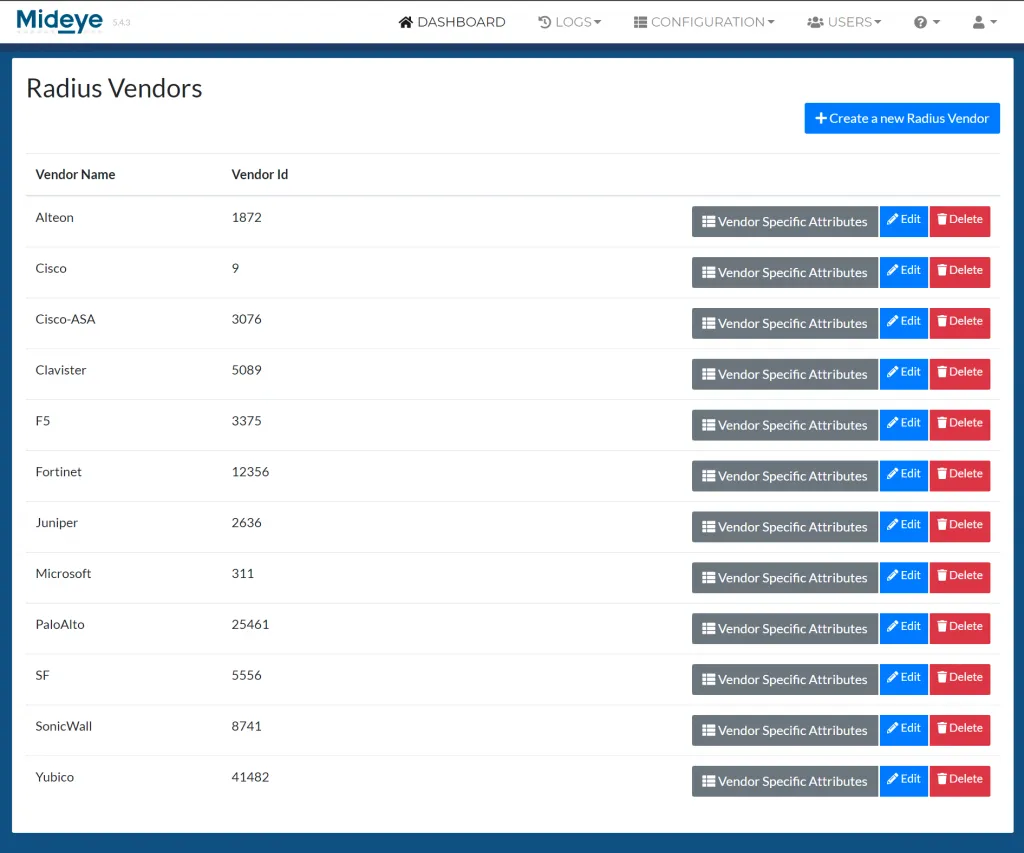
Section titled “Overview”The Vendor-Specific Attributes page manages custom RADIUS attributes defined by specific vendors. RADIUS Vendor-Specific Attributes (VSAs) extend the standard RADIUS protocol by allowing vendors to define their own attributes for use in Access-Accept, Access-Challenge, and Accounting responses.
This page uses a two-level hierarchy: the top level lists RADIUS vendors, and each vendor links to a detail page showing its defined attributes. Administrators can create custom vendors and define attributes with specific data types.
MideyeServer includes three built-in vendors:
- General (Vendor ID 0) — standard RADIUS attributes; hidden from the vendor list
- Alteon (Vendor ID 1872)
- SF (Vendor ID 5556)
Access & Permissions
Section titled “Access & Permissions”Required Role: ROOT, SUPER_ADMIN, or ADMIN (to create, edit, or delete vendors and attributes)
Navigation: Home → RADIUS Settings → Vendor-Specific Attributes
| Role | View Vendors & Attributes | Create / Edit / Delete |
|---|---|---|
| ROOT | ✅ | ✅ |
| SUPER_ADMIN | ✅ | ✅ |
| ADMIN | ✅ | ✅ |
| OPERATOR | ✅ | ❌ |
Vendors List
Section titled “Vendors List”Data Grid Columns
Section titled “Data Grid Columns”| Column | Description |
|---|---|
| Vendor Name | Name of the RADIUS vendor |
| Vendor ID | IANA-assigned Private Enterprise Number (PEN) |
| Action | Edit (admin), Delete (admin), View Attributes (all roles) |
Creating a Vendor
Section titled “Creating a Vendor”| Field | Type | Required | Validation | Description |
|---|---|---|---|---|
| Vendor ID | Number | Yes | Min: 1, unique (async check) | IANA Private Enterprise Number |
| Vendor Name | Text | Yes | Unique (async check) | Descriptive name for the vendor |
Deleting a Vendor
Section titled “Deleting a Vendor”Deleting a vendor also removes all its associated attributes. Confirm the deletion in the dialog before proceeding.
Vendor Attributes
Section titled “Vendor Attributes”Click the View Attributes icon on any vendor row to navigate to that vendor’s attribute list. The page title shows the vendor name: “{Vendor Name} Vendor Specific Attributes”.
Data Grid Columns
Section titled “Data Grid Columns”| Column | Description |
|---|---|
| Attribute Name | Name of the RADIUS attribute |
| Attribute ID | Numeric identifier within the vendor’s attribute space |
| Data Type | Value type (INTEGER, STRING, IP_ADDRESS, IP_V6_ADDRESS, HEX_BIN) |
| Action | Edit and Delete buttons (admin only) |
Creating an Attribute
Section titled “Creating an Attribute”| Field | Type | Required | Validation | Description |
|---|---|---|---|---|
| Attribute ID | Number | Yes | Min: 0, unique per vendor (async check) | Numeric attribute identifier |
| Attribute Name | Text | Yes | — | Descriptive name for the attribute |
| Data Type | Select | Yes | — | Value type for the attribute |
Data Types
Section titled “Data Types”| Type | Description | Example |
|---|---|---|
| INTEGER | 32-bit integer value | 42 |
| STRING | UTF-8 text string | "admin" |
| IP_ADDRESS | IPv4 address | 192.168.1.1 |
| IP_V6_ADDRESS | IPv6 address | 2001:db8::1 |
| HEX_BIN | Hexadecimal binary data | 0x1A2B3C |
Deleting an Attribute
Section titled “Deleting an Attribute”Attributes are deleted individually through a confirmation dialog. The dialog displays the attribute ID for verification.
Common Use Cases
Section titled “Common Use Cases”Adding a Custom Vendor
Section titled “Adding a Custom Vendor”- Click Add New on the vendors list.
- Enter the vendor’s IANA Private Enterprise Number as the Vendor ID.
- Enter a descriptive Vendor Name.
- Click Save.
- Click View Attributes on the new vendor row.
- Add attributes as needed.
Adding a Vendor-Specific Attribute
Section titled “Adding a Vendor-Specific Attribute”- Navigate to the vendor’s attribute page.
- Click Add New.
- Enter the Attribute ID (as defined in the vendor’s specification).
- Enter a descriptive Attribute Name.
- Select the appropriate Data Type.
- Click Save.
Configuring VSAs for VPN Concentrators
Section titled “Configuring VSAs for VPN Concentrators”Many VPN vendors use VSAs for role assignment and group membership:
- Create (or select) the VPN vendor.
- Add attributes for group name, role, or VLAN assignment.
- Configure Mideye Users or LDAP Profiles to include these attributes in RADIUS responses.
Using VSAs with LDAP-RADIUS Translation
Section titled “Using VSAs with LDAP-RADIUS Translation”VSAs are essential when using LDAP-RADIUS Translation to send tailored attributes in responses to RADIUS clients. If a required VSA is not available when creating a new translation rule, define the vendor and attributes first using the steps above, then return to the translation configuration.
Troubleshooting
Section titled “Troubleshooting”| Issue | Possible Cause | Resolution |
|---|---|---|
| Vendor ID validation error | ID already used by another vendor | Each vendor ID must be unique; check existing vendors |
| Attribute ID validation error | ID already used by another attribute in the same vendor | Attribute IDs must be unique per vendor |
| Cannot find General attributes | General vendor (ID 0) is hidden from the list | Standard RADIUS attributes are managed separately |
| Cannot delete vendor | — | Confirm the deletion dialog; all associated attributes will also be removed |
Related Pages
Section titled “Related Pages”- RADIUS Clients — Configure clients that send and receive VSAs
- RADIUS Servers — Configure servers that process RADIUS requests with VSAs
- Mideye Users — Assign RADIUS attributes (including VSAs) to individual users