

Setup Challenge
Security verification using the one-time code from server logs.
The configuration wizard runs the first time you access the Mideye Web GUI. It creates the root administrator account and connects the server to Mideye Switch.
Open the Web GUI:
https://<hostname-or-IP>:<port>The default port is 443 (Windows) or 8443 (Linux).
Setup Challenge
Security verification using the one-time code from server logs.
Root Password
Creates the initial administrator account.
Switch Connection
Connects to Mideye Switch for OTP delivery (SMS, Push). Can be configured for air-gapped operation.
LDAP Profile
Optional — connect to Active Directory or another LDAP directory for user lookup.
RADIUS Client
Optional — register the first VPN, firewall, or application as a RADIUS client.
Start the wizard
Click Start on the welcome screen to begin configuration.
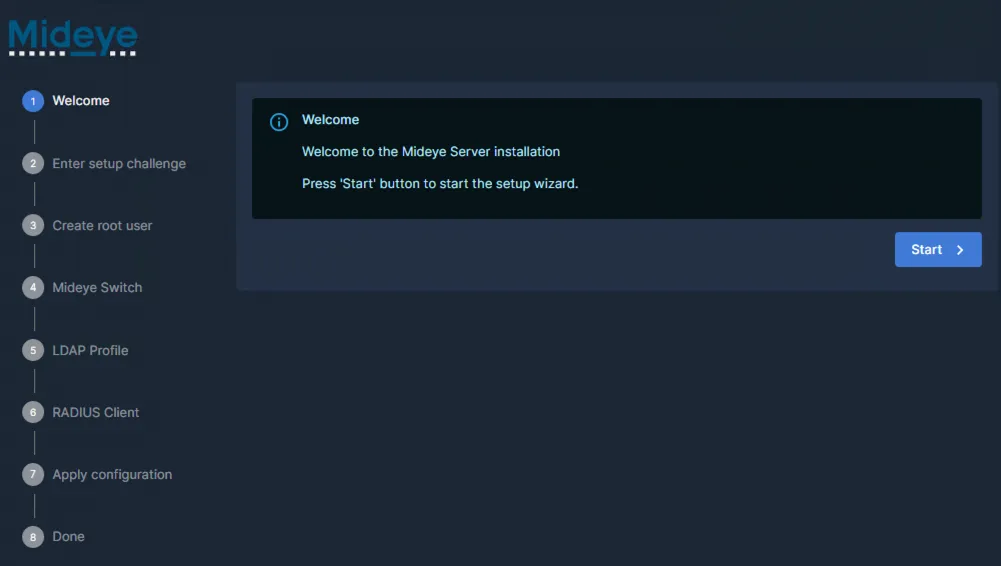
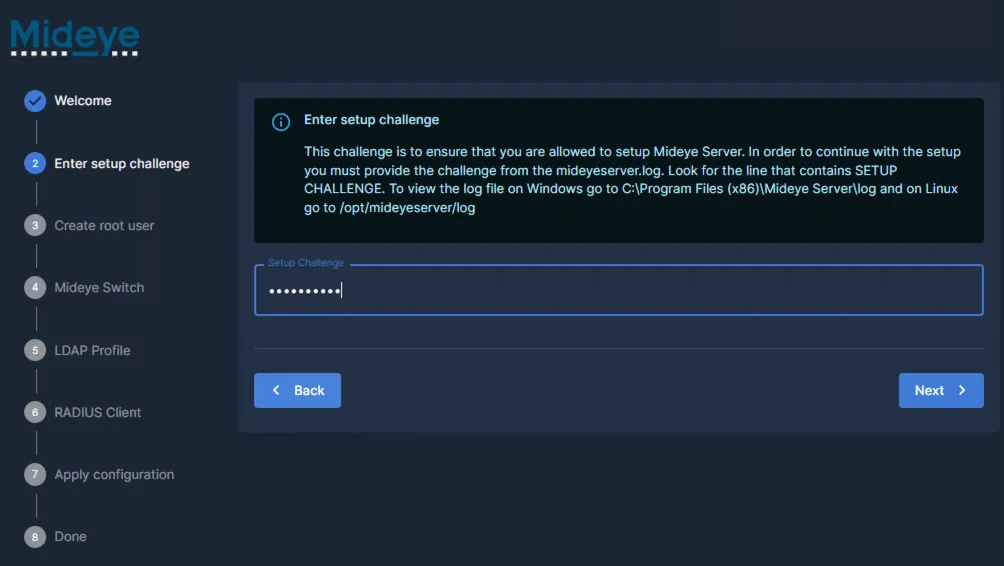
Enter the setup challenge
Paste the setup challenge code you found in the server log (see Find the setup challenge).
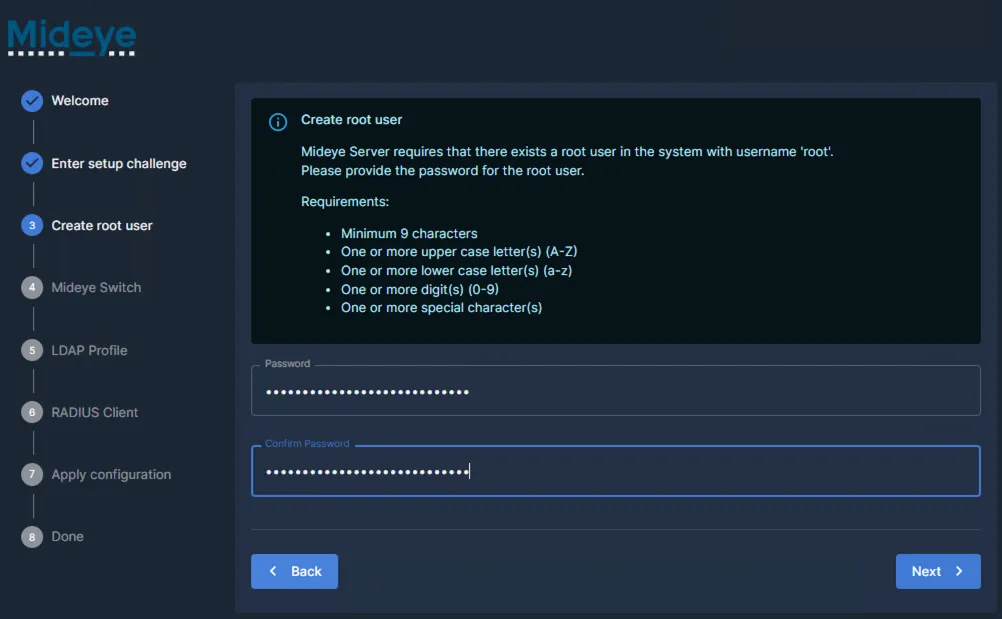
Create root password
Set a strong password for the root administrator account. This account is used for:
Configure Switch connection
Enter your customer-specific TCP port provided by Mideye Support. The wizard will verify the connection to Mideye Switch.
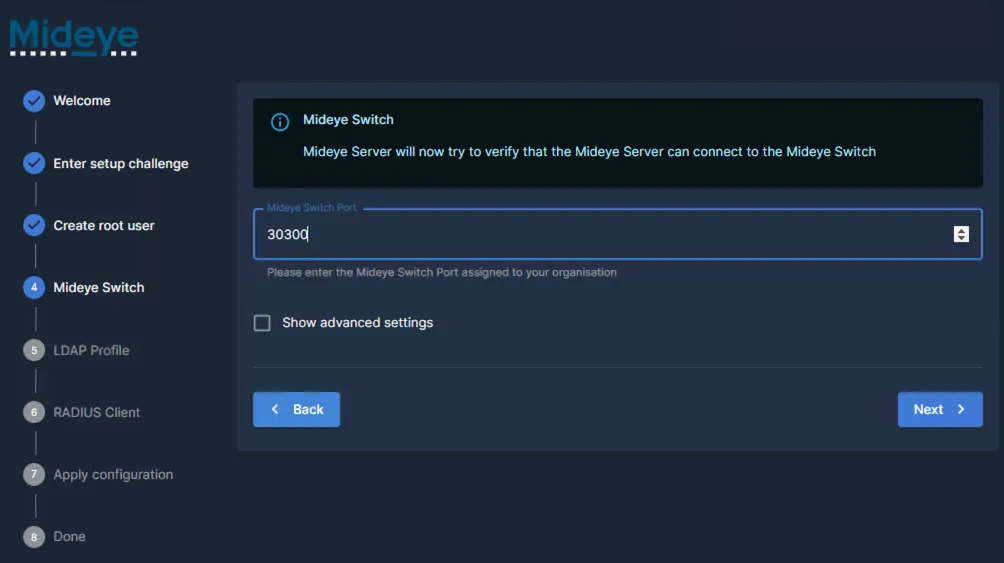
The connection indicator shows:
Add LDAP profile (optional)
The wizard offers to connect to an LDAP directory so that Mideye Server can look up user accounts. Click Skip to configure this later through the web interface.
If you configure it now:
389 for LDAP, 636 for LDAPS)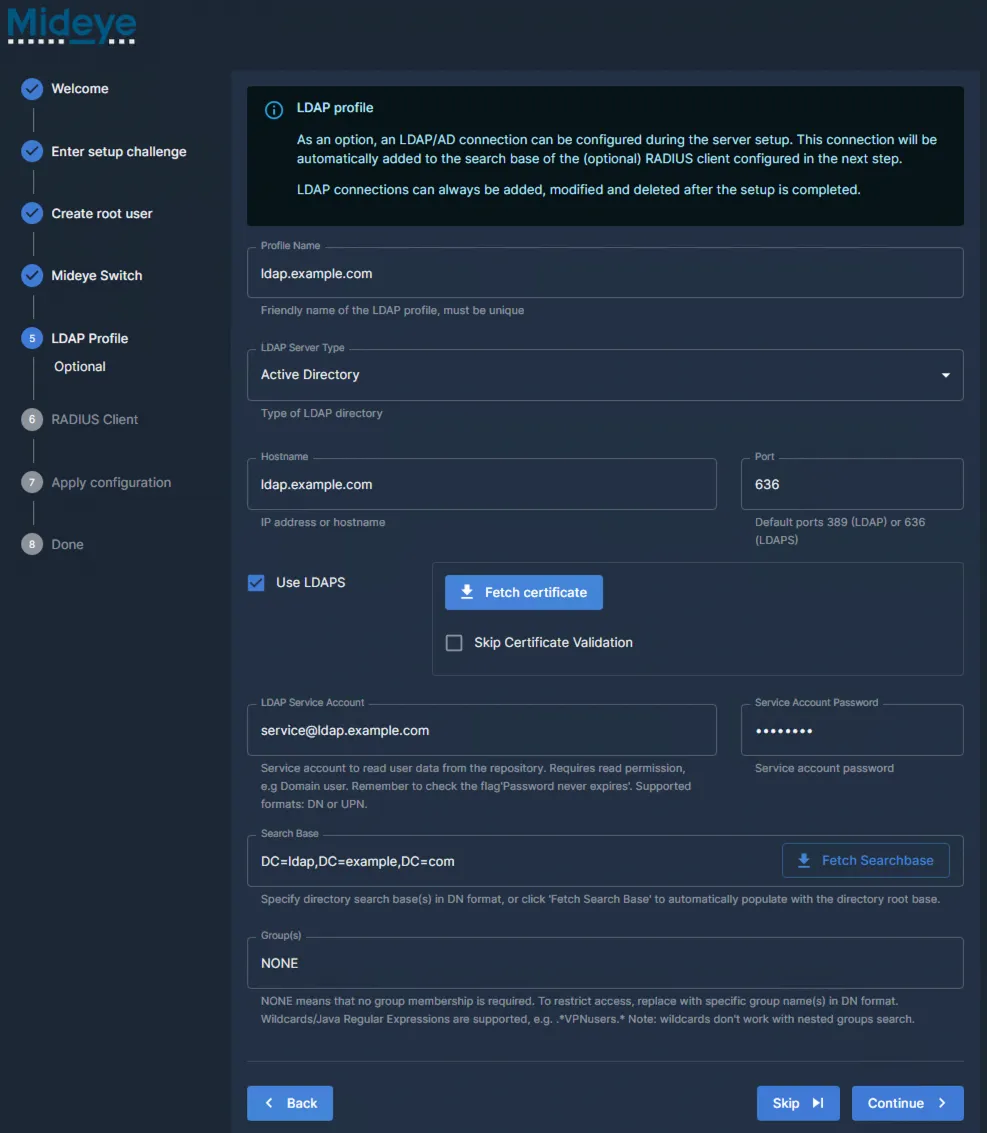
For full details, see LDAP Profiles.
Add RADIUS client (optional)
Register your first VPN, firewall, or application as a RADIUS client. Click Skip to configure this later through the web interface.
If you configure it now:
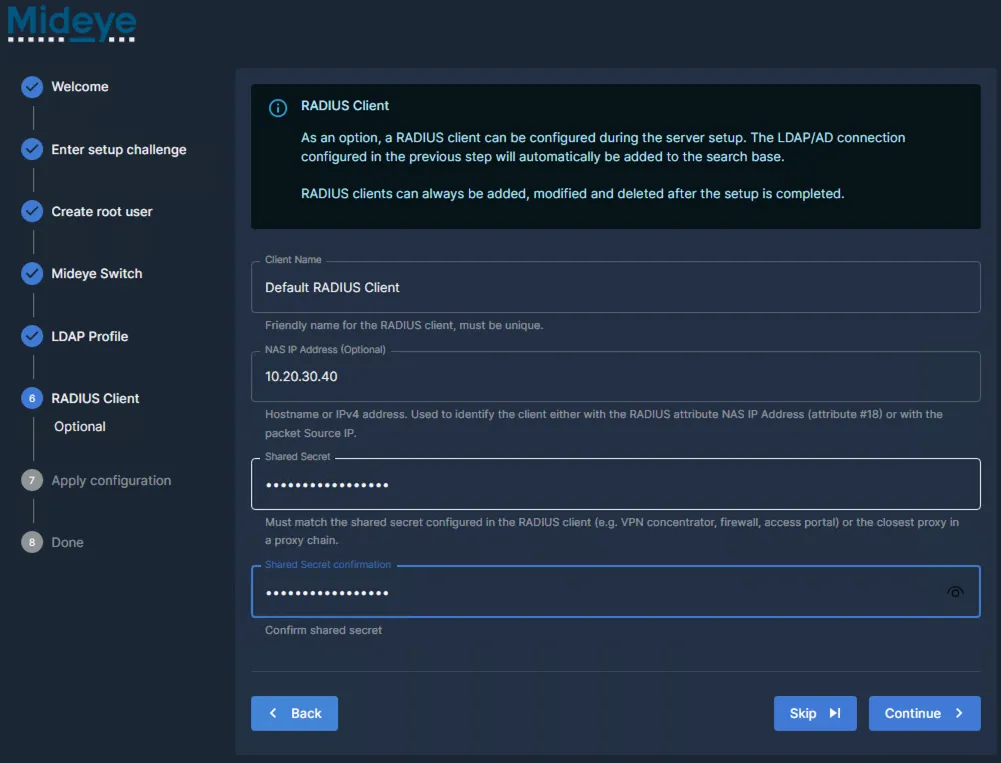
For full details, see RADIUS Clients.
Finish setup
Review your configuration and click Finish to complete the wizard.
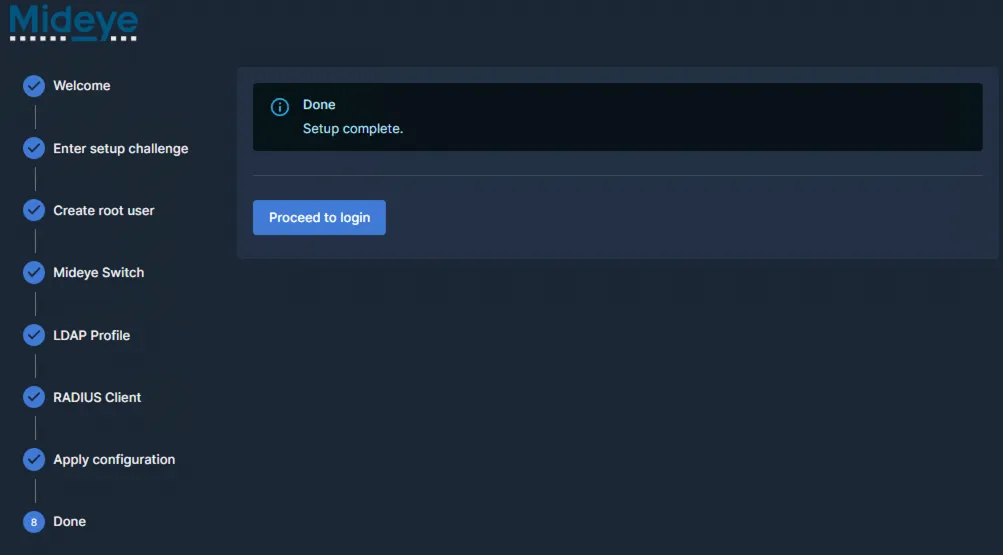
Click Show advanced settings in the Switch connection step to access additional options.
If your server cannot resolve DNS, enter IP addresses manually:
| Hostname | IP Address |
|---|---|
primary.mideye.com | 217.151.192.84 |
secondary.mideye.com | 79.136.112.54 |
Enable Air-gapped mode when:
Air-gapped mode limitations:
Contact support@mideye.com for air-gapped deployment assistance.
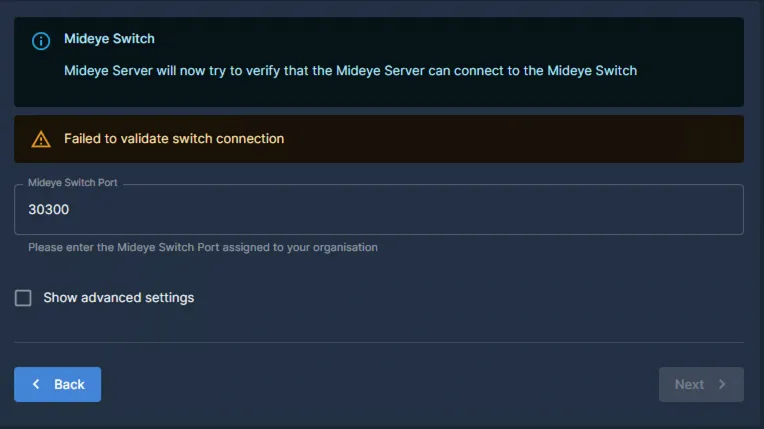
Common causes and solutions:
| Issue | Solution |
|---|---|
| Firewall blocking traffic | Open outbound TCP to ports specified by Mideye Support |
| DNS resolution failing | Use manual IP addresses in advanced settings |
| Incorrect port number | Verify the port with support@mideye.com |
| Proxy required | Configure proxy settings (see proxy configuration) |
The challenge code is logged every time the server starts while setup is incomplete. See Find the setup challenge for the exact commands. Always use the most recent value from the log — the challenge changes on each restart.
After completing the wizard, configure your Mideye Server through the web interface:
Connect directory
Add LDAP/AD profile to look up users from your identity source.
Add RADIUS clients
Configure RADIUS clients for your VPNs, firewalls, and applications.
Set up MFA methods
Configure authentication types — SMS, Push, TOTP, or hardware tokens.
Enable protection
Configure Mideye Shield to protect against authentication attacks.