

Mideye endpoint: MFA for Windows sign-in and Remote Desktop
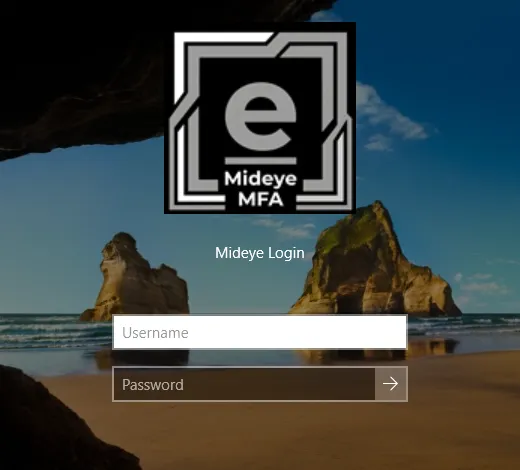
The Mideye endpoint adds multi-factor authentication to Windows sign-in, unlock and Remote Desktop (RDP). The user types the Windows user name and password as usual, then confirms with a second factor: Touch on the phone, a one-time code from a token or an authenticator app, or an approver through Assisted Login. You configure each computer with Mideye Configuration, or manage many computers centrally with Mideye Fleet. A fresh install changes nothing at sign-in until you turn protection on, with a break-glass account as your way back in.
Choose your backend
Section titled “Choose your backend”The backend checks the second factor. Choose one per computer.
| Mideye Cloud | Mideye Server | |
|---|---|---|
| What it is | The hosted Mideye service. You run no server. | Your own Mideye Server 6.6.6, one to five in failover order. |
| You need | A client ID and client secret from the Mideye portal. | An Authentication API endpoint and its API token. |
| Users, phones and tokens | Active Directory (mobile, ipPhone), or typed on the computer for local accounts. | The server’s own database or LDAP. |
| Assisted Login | By phone. | By phone or with codes. |
| Authenticator app and offline sign-in | Not available. | Available. |
| Setup | Connect Mideye Cloud | Connect Mideye Server |
Each computer is either standalone, configured on the computer itself, or managed by Fleet, where a central policy sets the configuration and Mideye Configuration is read-only. You can start standalone and join Fleet later.
Start here
Section titled “Start here”Check the requirements before you plan a rollout.