

Mideye endpoint logs and Windows events: where to look
This page is for administrators and helpdesk staff who need to find out why a sign-in failed. It shows where the logs and events are, which event IDs matter most, and what to collect for Mideye support.
Before you begin
Section titled “Before you begin”- You need local administrator rights. Only SYSTEM and Administrators can read the logs.
- Use Mideye Configuration or Event Viewer.
Log files
Section titled “Log files”| File | What it records |
|---|---|
%ProgramData%\Mideye\logs\broker.log | The Mideye service (broker). |
%ProgramData%\Mideye\credential-provider.log | The sign-in tile. |
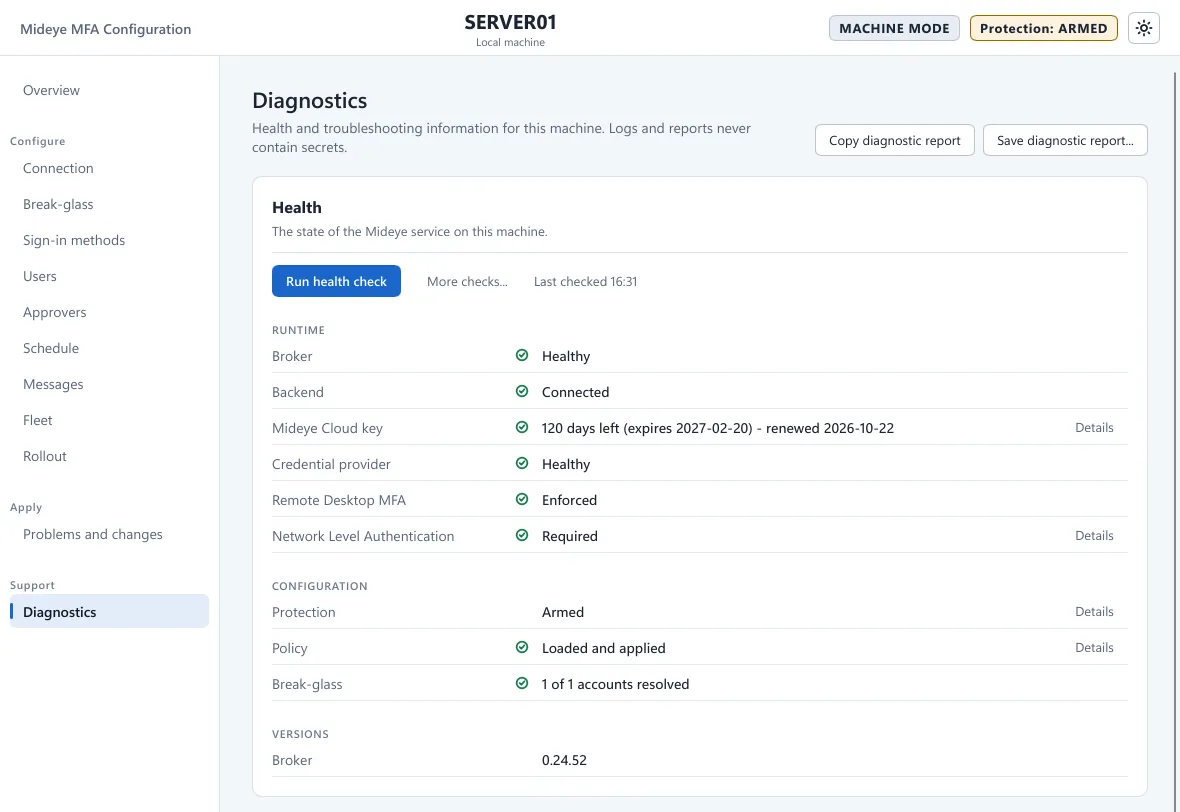
In Mideye Configuration, open Diagnostics and press Open log folder, or choose a file in the Logs card.
To record more, turn on debug logging under Diagnostics for 15 minutes or 1 hour. Debug logging records steps and outcomes, never what a user types. Logs and reports never contain secrets. Phone numbers and token serials are masked.
Event Viewer
Section titled “Event Viewer”- Open Event Viewer, Windows Logs, Application.
- Filter on the source Mideye Credential Provider (sign-in, service and installer). The source Mideye Fleet Agent is the Fleet agent.
- Open an event. The General tab shows every value of the event, one per line: user, method, reason, channel and server.
Treat the Application log, the status file and the logs as confidential. Do not type personal data into a reason or ticket field.
Key event IDs
Section titled “Key event IDs”Every event has a stable ID that is never renumbered.
| Event | Meaning |
|---|---|
| 4011 | The service started, with the version and the mode. |
| 1000, 1001, 1002 | A sign-in passed, was denied (with a reason), or timed out. |
| 1014 | A user was blocked after 5 wrong one-time codes in 15 minutes. |
| 1110 | The configuration was changed. |
| 1112 | The installer refused a step. |
| 5701, 5703, 5704 | A break-glass account signed in, was admitted on the password alone, or gave a wrong or reused code. |
| 5709, 5710, 5711 | A user signed in with the break-glass code, a user’s break-glass code was refused, or a block on users’ break-glass codes started. |
| 5810 | The backend could not be reached and the sign-in was refused. |
The full list, with what to alert on, is in the Fleet documentation in the downloads portal (login required).
Status and health
Section titled “Status and health”- Diagnostics, Run health check: Broker and Backend must be green.
mideye cp healthprints the same.mideye cp health --jsonis the machine-readable form.- The Overview page shows whether protection is OFF, ARMED or ACTIVE.
A blocked user is unblocked on Diagnostics.
What to send to support
Section titled “What to send to support”Do not send secrets: never an API token, a break-glass password or code, a TOTP seed or QR link. Send:
- The endpoint version and the Windows version, domain-joined or not, console or Remote Desktop.
- The backend (Mideye Cloud or Mideye Server) and the Mideye Server version.
- What you did, what you expected, what happened, and the time with the time zone.
- The output of
mideye cp healthandmideye cp show(secrets are masked). - The Application log events from source Mideye Credential Provider around that time.
- The last part of
broker.log. - For Touch or Assisted Login: whether the phone received the request.
Copy diagnostic report or Save diagnostic report… on the Diagnostics page collects most of this.
To report a security vulnerability, write to security@mideye.com. Do not use a public issue.