

Diagnostics page: health, logs, debug and unblock users
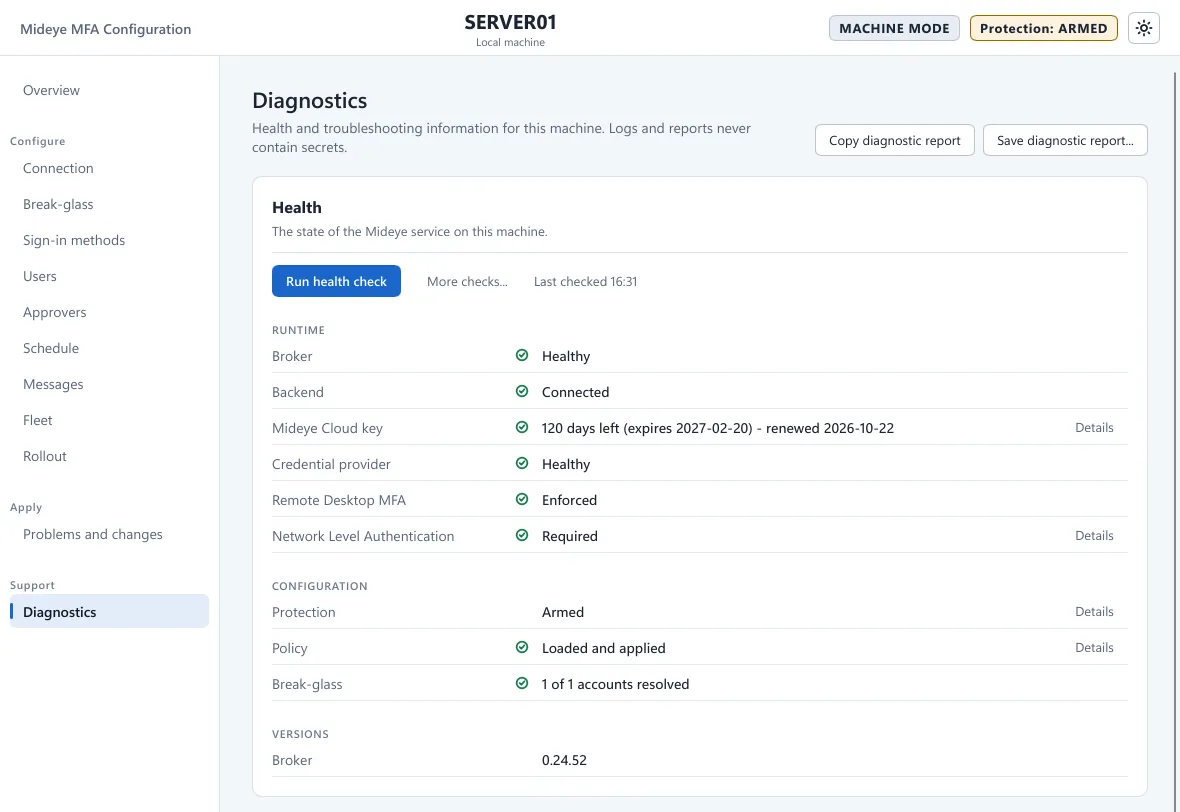
This page is for administrators and helpdesk staff who troubleshoot a computer. The Diagnostics page (“Health and troubleshooting information for this machine. Logs and reports never contain secrets.”). It is in the Support group of the menu. Use it when a sign-in fails, when the Overview says MFA requires attention, or when support asks for a report.
Reports
Section titled “Reports”Two buttons at the top of the page:
- Copy diagnostic report copies a text report to the clipboard.
- Save diagnostic report… writes it to a text file.
Reports never contain secrets. Send one to Mideye support when they ask for it.
Health card
Section titled “Health card”“The state of the Mideye service on this machine.” Press Run health check to read it again. Last checked shows the time. The page shows three groups.
| Group | Rows |
|---|---|
| Runtime | Broker (the Mideye service), Backend, Mideye Cloud key (Mideye Cloud only: days left and the expiry date), Credential provider, Remote Desktop MFA, Network Level Authentication. |
| Configuration | Protection (the rollout state), Policy (for example “Loaded and applied”), Break-glass (for example “2 of 2 accounts resolved”). |
| Versions | The version of the broker. |
A green check means healthy. A row with Details opens more. These checks use the same information as mideye cp health.
More checks
Section titled “More checks”More checks… opens read-only checks of the Mideye service (“Nothing is changed.”). Choose one in the list Check and press Run check:
| Check | What it reads |
|---|---|
| Service health | The service status. |
| Offline cache | The state of the offline TOTP cache. |
Logs card
Section titled “Logs card”“Logs of the broker and the credential provider.” Choose a log file in the list: broker.log (the Mideye service) is in %ProgramData%\Mideye\logs\, and credential-provider.log (the sign-in tile) is in %ProgramData%\Mideye\. Only administrators can read them.
| Control | What it does |
|---|---|
| Refresh | Reads the file again. |
| Open in Notepad | Opens the log file. |
| Copy log, Copy path | Copies the text or the path of the file. |
| Open log folder | Opens the log folder in an Open dialog. The file you choose opens in Notepad. |
| Open Event Viewer | Opens the Windows Event Viewer. The Mideye events are written to the Application log. |
| Search the log | Shows only the lines that contain the text. |
| Level | All, Errors, Warnings, Info or Debug. |
| Follow newest | Keeps the newest line in view. |
Wrong-code throttle
Section titled “Wrong-code throttle”“Lets a user try again after too many wrong one-time codes.” This is the one place to unblock a user. By default 5 wrong one-time codes within 15 minutes block the user for 15 minutes (event 1014). You change the numbers on Sign-in methods.
To let a blocked user in at once:
- Press Show blocked users…. A window Blocked users lists every user who is blocked or has entered wrong codes. A blocked user shows “Blocked - expires in 12 minutes”. Others show “2 failed codes”. An empty list says “No user is blocked.”
- Tick the users.
- Press Unblock selected. The tool says “Unblocked 1 user”.
The button is off on a computer managed by Fleet. Each unblock writes event 1117. From the command line, mideye cp throttle-status lists the users and mideye cp throttle-reset unblocks one. Break-glass codes have their own limits, see Break-glass.
Debug logging
Section titled “Debug logging”Debug logging writes more detail to the log. It makes logs much larger. Turn it on only while you look for a problem.
- Switch Debug logging on. The dialog Turn on debug logging says “Verbose logging may significantly increase log volume. Turn it off when you are done.”
- Under Turn off automatically choose After 15 minutes, After 1 hour or Until turned off.
- Press Turn on.
While it is on the card shows “Debug logging is enabled” with the time it started, and a Turn off button.
Log rotation
Section titled “Log rotation”“Debug logging and log file limits. Logs never contain secrets.”
| Field | What it does | Default |
|---|---|---|
| Debug logging | Verbose logging, see Debug logging. | Off |
| Maximum log file size | Size of one log file before it rotates, 1 to 1024 MB. | 10 MB |
| Log files kept | Number of files kept, the current one and the rotated ones, 1 to 100. | 5 |
| Log retention | Rotated files older than this are removed, 1 to 365 days. | 7 days |
The card shows the effect, for example “Logs rotate at 10 MB. Up to 5 log files are kept. Rotated files older than 7 days are removed.”