

Fleet page: join a computer to Mideye Fleet
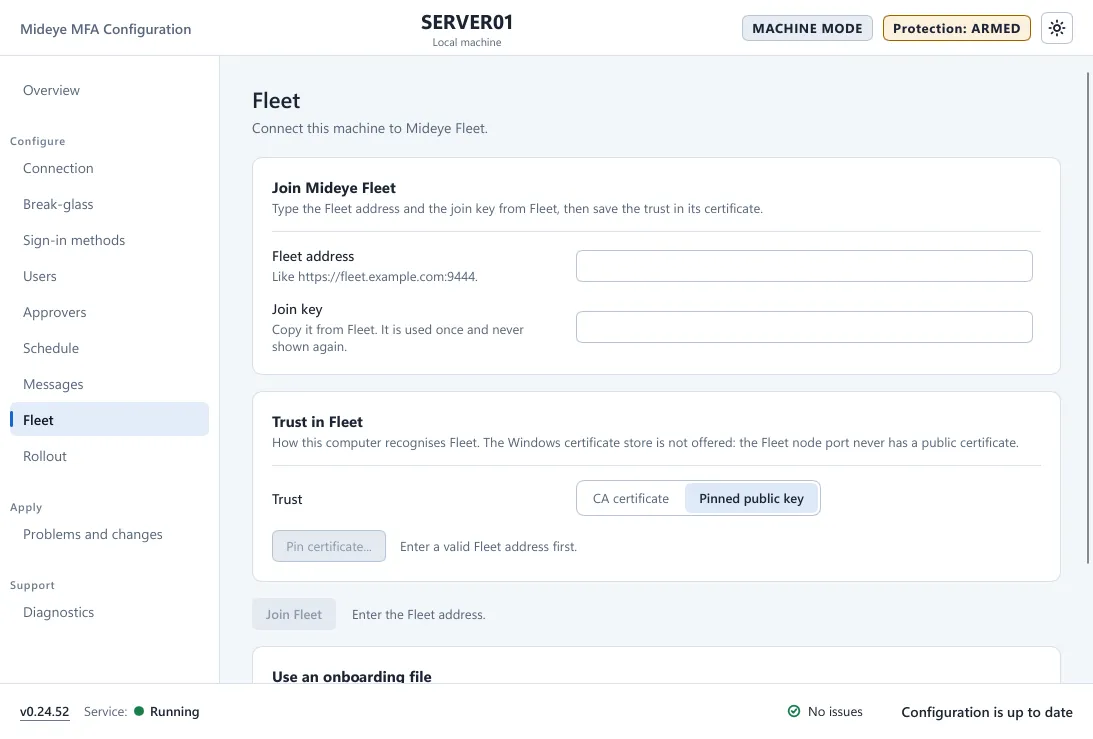
This page is for administrators who join a computer to Mideye Fleet. The Fleet page connects this computer to Mideye Fleet (“Connect this machine to Mideye Fleet.”). After it joins, Fleet sends the policy, and the Fleet page and the rest of the tool are shown read-only. You do not need this page for a standalone computer. For the whole join process, see Join Fleet.
Before you start
Section titled “Before you start”- The computer was installed in
standaloneorfleetmode. A computer installed inadminmode has no agent and cannot join. The page says so. - The computer can reach Fleet on its node port, 9444 by default. The agent connects out. Fleet never connects in.
- You have a join key or an onboarding file from Fleet (Nodes, Add computers). The key works once.
Join Mideye Fleet card
Section titled “Join Mideye Fleet card”“Type the Fleet address and the join key from Fleet, then save the trust in its certificate.”
| Field | What it does |
|---|---|
| Fleet address | “Like https://fleet.example.com:9444.” It must start with https://, include a port and have no path. |
| Join key | “Copy it from Fleet. It is used once and never shown again.” Fleet shows it as a token followed by the fingerprint of its policy signing key. It is kept in memory only until it has been handed over. |
| Policy signing key fingerprint | Shown only when your join key is a plain token. Type the SHA-256 fingerprint that Fleet shows (64 hexadecimal characters). |
Trust in Fleet card
Section titled “Trust in Fleet card”“How this computer recognises Fleet. The Windows certificate store is not offered: the Fleet node port never has a public certificate.”
| Choice | What you do |
|---|---|
| Pinned public key | Press Pin certificate…. The tool asks Fleet once for its certificate and shows the CA. Compare the SHA-256 public key pin with the server CA fingerprint that Fleet showed when the join key was created. Only the pin counts. Names in a certificate can be imitated. Press Save only if they match. |
| CA certificate | Press Choose CA certificate… and pick the CA file from Fleet. It must hold exactly one CA certificate. |
Save exists only when the agent would accept that Fleet with that pin. The first step only fetches the certificate. It sends no key and stores nothing.
Join Fleet
Section titled “Join Fleet”Join Fleet is off until the address is valid, the trust is saved and the key is entered. The line next to the button says what is missing, for example “Enter the Fleet address.” or “Save the trust in the Fleet certificate first.” A new trust or a changed address empties the key box.
When you press it, the tool hands the values to the Mideye agent, switches the agent service to automatic and starts it. The computer then waits for your approval in Fleet: on Nodes the new computer has Approve and Reject. See step 6 of the Windows quickstart.
Use an onboarding file
Section titled “Use an onboarding file”As an alternative to typing, press Choose onboarding file… and pick the file you made in Fleet. The dialog shows files named onboard*.conf, the name Fleet gives the download (a second download is onboard (1).conf). The key, the pin and the policy fingerprint are read from it. “The key is held in memory and never shown.” Change… picks another file. Press Join Fleet to continue. Delete the file afterwards.
Once the computer is joined
Section titled “Once the computer is joined”The page reads the agent’s state about every 30 seconds. An approval in Fleet, or a join or reset from the command line, shows without reopening the window. Once Fleet has approved the computer:
- the whole window turns read-only and shows Managed by Mideye Fleet,
- the Fleet page shows the Fleet address, the Fleet CA pin and the Policy signing key, read-only,
- Save and Apply are not offered. Change the policy in Fleet.
“This computer is enrolled. To use another Fleet or another pin, reset the enrolment and join again.”
Reset enrolment
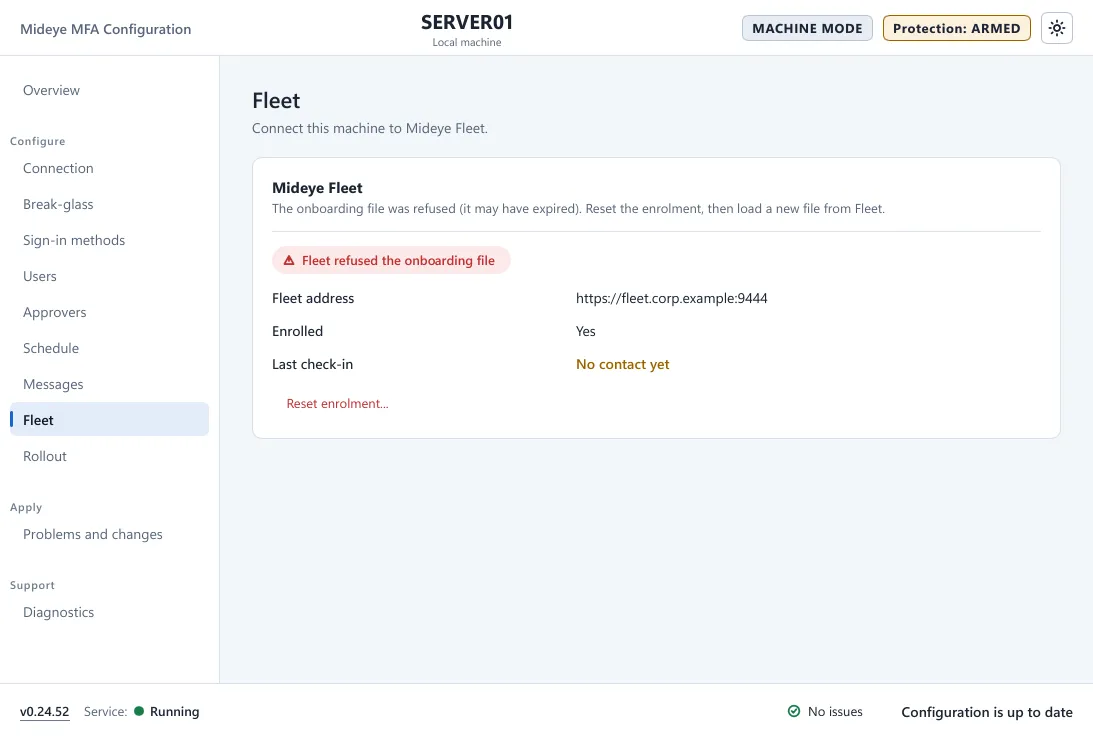
Section titled “Reset enrolment”Until Fleet has approved the computer (waiting for approval, the onboarding file refused, or no contact with Fleet yet), the page has Reset enrolment…. You must be an administrator. When Fleet refused the onboarding file, the page says “The onboarding file was refused (it may have expired). Reset the enrolment, then load a new file from Fleet.”
Press Reset enrolment…. The dialog Reset the enrolment? says what is deleted: the computer’s Fleet keys, certificates, stored policies and held secrets. Mideye MFA keeps running with the configuration in force. Press Reset enrolment. The join form shows again.
Once the computer is managed, the page is read-only: run mideye agent reset-enrollment in an elevated prompt instead. What a reset means for the computer: Reset an enrolment.
Common problems
Section titled “Common problems”| You see | Check |
|---|---|
| The address must start with https:// | Type the address as https://host:9444. |
| Fleet could not be reached at that address. | The name, the port and the firewall. The computer must reach Fleet outbound. |
| The certificate is not valid for this address. It cannot be saved. | The address must be the one the Fleet certificate was made for. |
| The key looks like mfl_… : copy it again from Fleet. | The join key was cut or changed when it was copied. |
| The onboarding file was refused (it may have expired). | Press Reset enrolment…, then load a new file from Fleet. |
| The values were stored, but the agent service did not start. | Start the service Mideye Fleet Agent in Services. |