

Enrol an authenticator app at Windows sign-in (TOTP)
This page is for the administrator who lets users enrol an authenticator app (TOTP) at the Windows sign-in screen, with no separate portal. The user scans a QR code at the Mideye tile, confirms with one code, and from then on signs in with codes from the app, also offline when the Mideye Server cannot be reached. This needs a Mideye Server; it is not available with Mideye Cloud. The fields of the TOTP card are described in Sign-in methods.
Before you begin
Section titled “Before you begin”- Mideye Server connected. See Connect Mideye Server.
- Users the server can find, with a Phone Number on the server (the server finds the user by mobile number).
- For enrolment with the break-glass code: a break-glass code enrolled on the computer. See Break-glass.
- For offline sign-in: a TPM 2.0, or a virtual TPM on a virtual machine.
Choose how a new app is approved
Section titled “Choose how a new app is approved”| Route | Who approves the new app | Needs |
|---|---|---|
| With Touch | A just-approved Touch (or Assisted Login) at the same sign-in. | The Mideye Server connected to Mideye Cloud. |
| With the break-glass code | A break-glass code from IT. For air-gapped sites. | A break-glass code enrolled on the computer. |
Steps on the Mideye Server
Section titled “Steps on the Mideye Server”- Open External Endpoints, Authentication API Endpoints and the endpoint these computers use. On the tab General Settings turn on TOTP self-enrollment. Without it the server refuses every enrolment. Check that Token verification (OTP) is on.
- Choose the Seed storage: Mideye database (creates hybrid users automatically) or Store in LDAP. LDAP storage needs an LDAP profile with a TOTP secret cipher attribute, on the tab User Repositories.
- Under TOTP self-enrollment, set Require prior authentication:
- With Touch: keep it on (the default). Enrolment then needs a just-approved Touch or Assisted Login.
- With the break-glass code: turn it off. The endpoint’s break-glass code approves the enrolment instead.
- Press Save.
Steps on the computer
Section titled “Steps on the computer”-
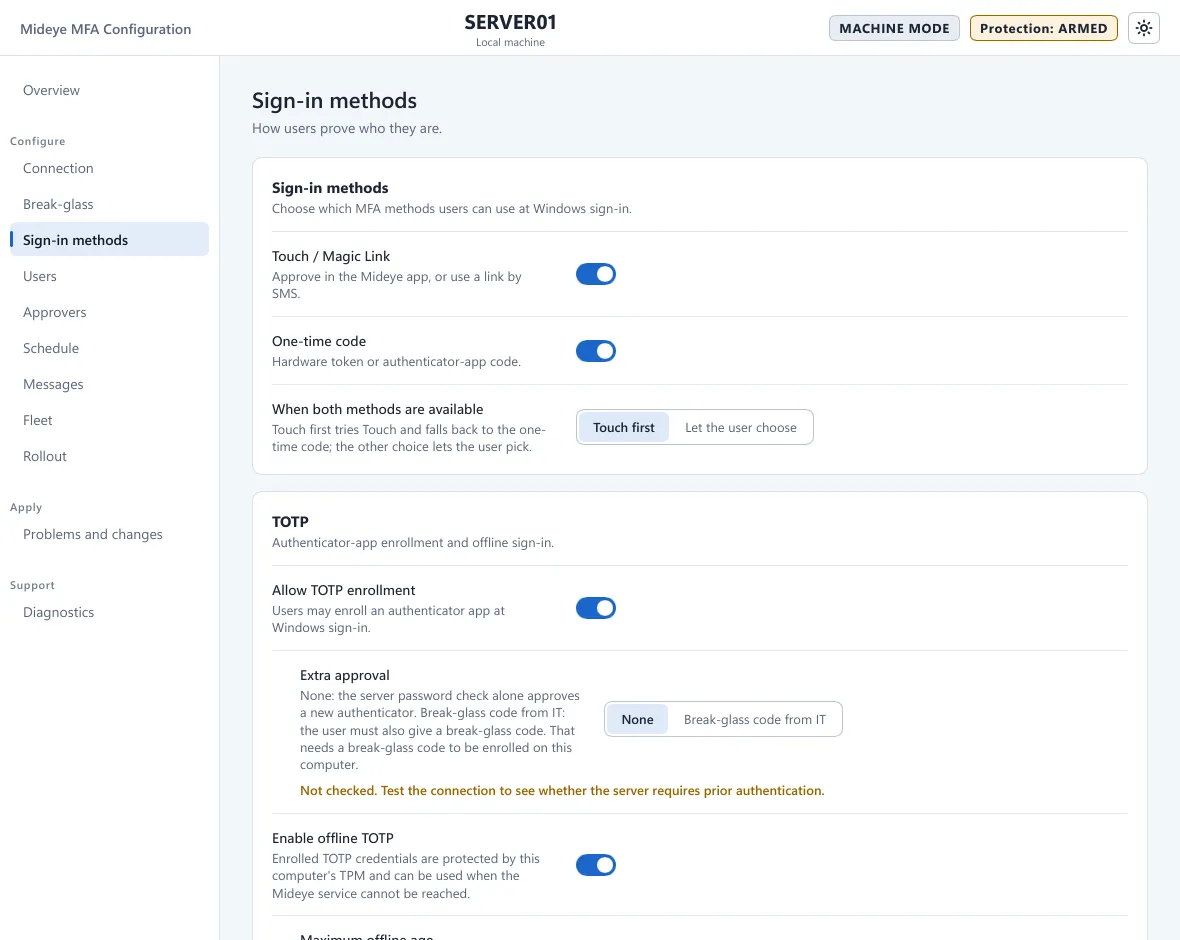
Open Mideye Configuration, page Sign-in methods, card TOTP. Turn on Allow TOTP enrollment.
-
Set Extra approval:
- With Touch: None. Keep Touch / Magic Link on.
- With the break-glass code: Break-glass code from IT. In a Fleet policy, also switch Ask break-glass accounts for the break-glass code on, on the Break-glass page. On an air-gapped site turn Touch / Magic Link off and keep One-time code on.
-
For offline sign-in turn on Enable offline TOTP and set Maximum offline age (1 to 180 days after the user’s last online sign-in on this computer).
-
Press Apply.
With Extra approval on None and Require prior authentication off, the tool warns: “Anyone with a user’s password could enroll an authenticator for that user.” Keep one of the two approvals on.
What the user sees
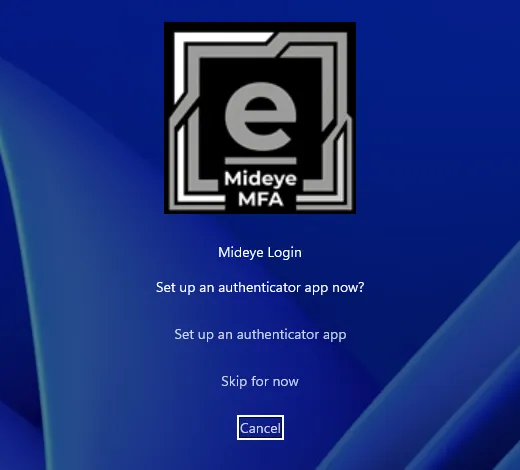
Section titled “What the user sees”With Touch: after an approved Touch the tile asks Set up an authenticator app now? with Set up an authenticator app and Skip for now. Skip goes on to the desktop.
With the break-glass code: on the code page the user clicks No authenticator app? Set one up. The tile says “Enter the break-glass code from IT to set up an authenticator app.” The user enters the code from IT, and is signed in when the enrolment completes.
In both routes the tile then shows a QR code and the key: “Scan the QR code or type the key in your authenticator app, then enter the code it shows.” The user scans it, types one code into One-time code, and sees “Enrollment complete. Enter a new code from your app to sign in.” At the next sign-in the user chooses Enter a code and uses the app.
| Message | Meaning |
|---|---|
| That code did not match. Try the next code from your app. | A wrong code, or the phone’s clock is off. |
| You already have an authenticator registered. Enter a code from it. | The user already has an app on the server. |
| Enrollment is not available. Contact your administrator. | TOTP self-enrollment is off on the server, or Allow TOTP enrollment is off on the computer. |
| The server could not be reached. Try again. | The Mideye Server did not answer. |
| Enrollment failed. Try again or contact your administrator. | Any other failure. The reason is in the server’s Authentication Logs. |
A failed enrolment never blocks the sign-in.
Offline sign-in
Section titled “Offline sign-in”With Enable offline TOTP on:
- A user who enrols on this computer: the app the user just set up is also this computer’s offline entry, sealed with the TPM. One entry in the app works online and offline. It needs a 6-digit, 30-second (SHA-1) code, the Mideye Server default.
- A user who enrolled elsewhere, or uses a hardware token: after a successful online sign-in the tile offers a separate per-computer entry: “Set up offline sign-in for this computer? You will need it only when the Mideye Server cannot be reached.” It is named
Mideye offline:<computer name>in the app. - Whenever a Mideye Server can be reached, the Mideye Server checks every code, never the copy on the computer. The offline entry is used only when no server answers, only on this computer, and only for Maximum offline age days after the user’s last online sign-in there.
The offline entry needs a TPM 2.0 on the computer.
Limits
Section titled “Limits”- The Mideye Server always checks the user’s password to start an enrolment, even with Require password (first factor) off. With Require prior authentication on, the approved Touch is needed in addition to the password, not instead of it.
- A local Windows account can enrol only when its Mideye Server database user has the same password as the Windows account. Domain accounts are checked through LDAP.
- With Extra approval set, the endpoint approves the enrolment, not the Mideye Server. Keep the endpoint’s API token secret and use a dedicated Authentication API endpoint for these computers.
- A lost computer cannot be revoked from here; its entries end when Maximum offline age runs out. When a computer is lost or replaced, re-enrol the user’s app on the Mideye Server.
Verify
Section titled “Verify”- Application log, source Mideye Credential Provider: event 1006 (enrolment started) and 1007 (completed).
- Sign out, choose Enter a code and sign in with the app.
- Mideye Server, Logs, Authentication Logs: the enrolment has the type
AUTH_API_TOTP_ENROLL. - Offline: with the server unreachable, the tile asks for the code from the offline entry, and the sign-in works.
Troubleshooting
Section titled “Troubleshooting”- The offer never shows (with Touch): the approval was not available. Event 1012 names it, for example no break-glass code enrolled while Extra approval asks for one.
- “The approval code was not accepted.”: the break-glass code is wrong. Event 1008 records the failed enrolment.
- A local account cannot enrol: the database user’s password differs from the Windows password.
- “Too many wrong codes.”: the user is blocked for 15 minutes. See Wrong-code throttle.