

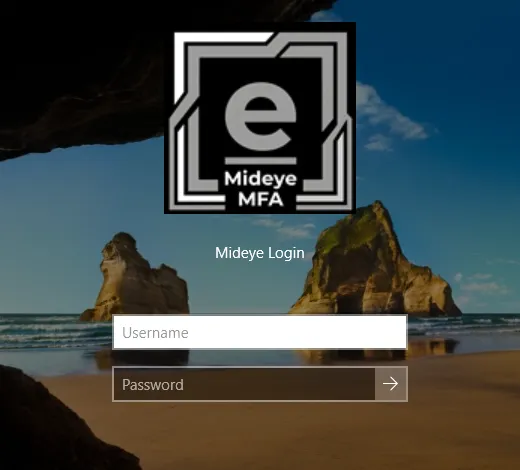
What users see at the Windows sign-in with Mideye MFA
This section is for the people who sign in, and for the helpdesk that supports them. It shows what you see on the Mideye tile at each step. The tile appears once your administrator has turned protection on; before that, Windows signs you in as usual.
The sign-in steps
Section titled “The sign-in steps”- Choose the Mideye Login tile, if it is not the only one.
- Type your user name and password, and press the arrow. With Remote Desktop and NLA your client has already sent them, so you are not asked again.
- Mideye checks your password. This can take a few seconds. On a laptop away from the office it can take longer (“Still checking your password”).
- Prove it is you with a second factor. What you see depends on how your administrator set it up.
- Windows signs you in.
Pick your guide
Section titled “Pick your guide”| Guide | When |
|---|---|
| Approve a Touch request | The tile says “Approve the request on your phone, or open the link in the SMS.” |
| Enter a one-time code | The tile asks for a one-time code from a hardware token, an authenticator app or a YubiKey. |
| Assisted Login | You cannot use your own factor and an approver helps you. |
| Set up an authenticator app | The code page shows No authenticator app? Set one up, or the tile offers it after you sign in. |
Cancel and Back
Section titled “Cancel and Back”- Back goes to the first page after your password check. Your user name and password stay filled in.
- On that first page the link is Cancel. It ends the attempt (“Sign-in cancelled.”).
- Cancel on a Touch wait goes back to “Choose how to sign in.” when you came from there. Otherwise it ends the attempt.
- A page after the password that gets no typing for 2 minutes ends with “The sign-in timed out. Sign in again.”
- In a Remote Desktop session an ended attempt shows its message and the session disconnects after you press OK, at the latest 30 seconds later.
Getting help
Section titled “Getting help”If you are locked out, or you lost your phone or token, contact your helpdesk. They can use the helpdesk handbook.