

Set up hardware tokens and YubiKeys for Mideye sign-in
This page is for the administrator who gives users a hardware token, for example an HID token with a display or a Mideye YubiKey, instead of or next to Touch. The user types the token’s one-time code at the Mideye tile.
Before you begin
Section titled “Before you begin”- The backend connected: Connect Mideye Cloud or Connect Mideye Server.
- The token and its serial number. A Mideye Cloud token serial starts with
AI. A Mideye YubiKey serial starts withubbc.
- Tell Mideye which token belongs to which user. This depends on the backend.
- Mideye Cloud, domain user: the serial is read from the Active Directory attribute
ipPhoneby default. - Mideye Cloud, local account: page Users, card User mappings, Add users or groups…, pick the account and type the Token serial.
- Mideye Server: assign the token to the user under Users and Tokens, Mideye Users on the server. On the Authentication API endpoint, Token verification (OTP) must be on.
- Mideye Cloud, domain user: the serial is read from the Active Directory attribute
- Open Sign-in methods. Check that One-time code is on.
- Press Apply.
What the user sees
Section titled “What the user sees”After the password the tile shows Enter your one-time code. and a One-time code box.
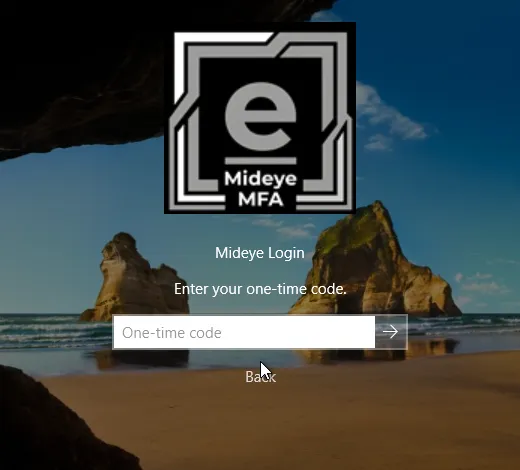
- Token with a display: type the digits as shown.
- YubiKey: put the cursor in the box and press the key’s button. The key types the code. Do not type the serial number or public ID printed on the key.
A code works once. See What users see for the user’s view.
Verify
Section titled “Verify”- Once protection is on, a sign-in with the token writes event 1000 with
method=Tokenin the Application log, source Mideye Credential Provider. - A wrong code shows That code was not accepted. Enter a new code.
Troubleshooting
Section titled “Troubleshooting”- A YubiKey serial or public ID typed by hand is “code not accepted” and counts as a wrong try. Press the button instead.
- “Too many wrong codes.”: five wrong codes in 15 minutes block the user for 15 minutes. To unblock at once, see Wrong-code throttle.
- “Your account has no sign-in method for this computer.”: the user has no token or phone. Check the serial mapping.
- A code refused again and again: the token may be out of sync. Your helpdesk or Mideye Server administrator can fix the token.