

Mideye Fleet Docker full install, step by step: no script
This page does by hand what install-docker.sh does, one step at a time. Use it when you want to see and run each step yourself. The result is the same as the Docker quickstart: the same folders, the same .env, the same backup timer. Plan about 45 minutes.
If you do not need this, use the quickstart. Do not run both on one host. To upgrade later, see Docker: upgrade.
Before you start
Section titled “Before you start”- Everything in “Before you start” of the Docker quickstart: Ubuntu 24.04, a DNS name, open ports, the AD bind account, the Mideye Cloud credentials.
- A fresh host. The steps refuse to go on if
/opt/mideye/.envexists. - Docker Engine with the compose plugin, and
openssl:
sudo apt-get install -y docker.io docker-compose-v2 opensslAll steps run as root. Open a root shell once and stay in it:
sudo -iYou should see a root@...# prompt. If a step fails, stop and read the message before you go on.
1. Portal: find the bundle and the registry login
Section titled “1. Portal: find the bundle and the registry login”Why: the bundle holds the files of the install, and the registry holds the images. Both need the download portal.
- Open the download portal, downloads.mideye.com, and click Sign in. Use the Mideye account you got from Mideye (your e-mail address). If Mideye gave you
downloads.dev.mideye.com, use that address here and everywhere below. - Click the Fleet tab at the top, then Docker in the menu on the left.
- Write down two values from the Docker section: the file name of the bundle (
mideye-quickstart-<version>.tar.gz) and its SHA-256. You download nothing in the browser: step 2 downloads the bundle on the host. - Click Repository access at the top. It shows a user name, a password and a
docker login <registry> -u <username>line. Copy the login line and keep the password at hand (secret); step 6 uses both.
Success: you have the file name, the SHA-256, the login line and the password.
2. Host: download the bundle
Section titled “2. Host: download the bundle”Why: the bundle is the release as one file.
mkdir -p /root/mideye-install && cd /root/mideye-installcurl -fsSL --proto '=https' -o mideye-quickstart.tar.gz \ https://downloads.mideye.com/public/quickstart/mideye-quickstart-<version>.tar.gzPut the real file name in place of mideye-quickstart-<version>.tar.gz.
Success: ls -l mideye-quickstart.tar.gz shows the file and the command printed no error.
3. Host: check the SHA-256
Section titled “3. Host: check the SHA-256”Why: it proves the file is the one Mideye published. A different file is never unpacked.
echo "<sha256-from-the-portal> mideye-quickstart.tar.gz" | sha256sum -c -Success: mideye-quickstart.tar.gz: OK. Anything else: delete the file and stop.

4. Host: unpack the bundle
Section titled “4. Host: unpack the bundle”Why: the bundle holds one top-level folder. The files go into a folder of their own.
mkdir bundletar -xzf mideye-quickstart.tar.gz --no-same-owner --strip-components=1 -C bundlels -A bundleSuccess: the list shows .env.example, README.md, compose.yml, db, install-docker.sh, mideye and tests. The tests folder is for Mideye’s own checks. You do not copy it.
You can read the script that this page follows: less bundle/install-docker.sh.
5. Host: put the files in /opt/mideye
Section titled “5. Host: put the files in /opt/mideye”Why: /opt/mideye is where the stack lives. The mideye helper is linked into your path.
dir=/opt/mideyetest -e $dir/.env && echo "stop: $dir/.env exists"install -d -m 0755 $dir $dir/dbfor f in compose.yml .env.example db/init.sh mideye install-docker.sh README.md; do cp -- bundle/$f $dir/$fdonechmod 0644 $dir/compose.yml $dir/.env.example $dir/README.md $dir/db/init.shchmod 0755 $dir/mideye $dir/install-docker.shln -sfn $dir/mideye /usr/local/bin/mideyeIf the test line printed stop:, this host is already set up. Do not go on.
Success: ls -lA /opt/mideye shows the six files and ls -l /usr/local/bin/mideye shows a link to /opt/mideye/mideye.
6. Host: sign in to the registry
Section titled “6. Host: sign in to the registry”Why: the images are private. The stack pulls them as root, so the login is root’s.
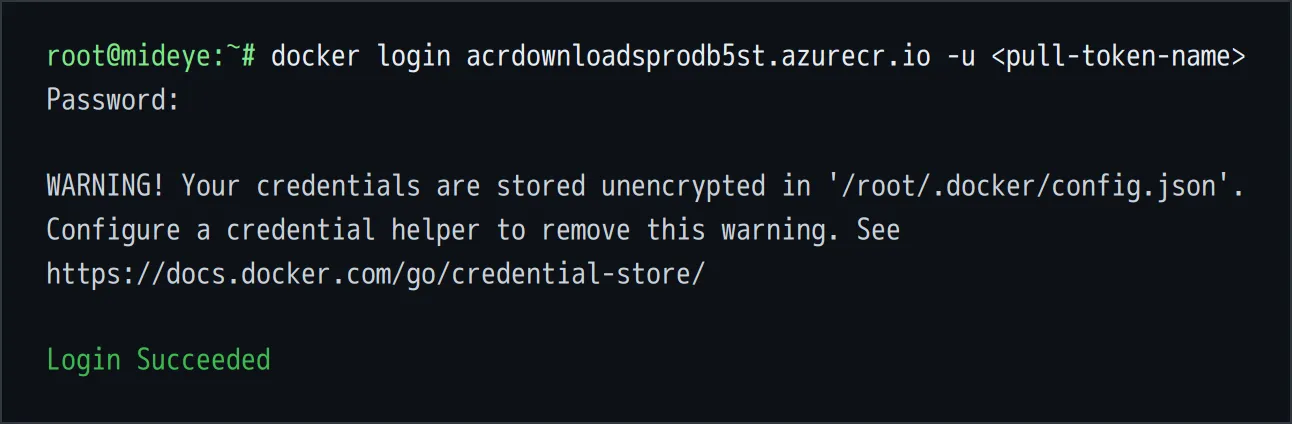
docker login <registry> -u <username>Use the login line from step 1. Paste the password when Docker asks. It stays out of your shell history that way.
Success: Login Succeeded.
7. Host: pull the four images
Section titled “7. Host: pull the four images”Why: the stack needs MariaDB, Mideye Server, the setup container and Fleet on the host before it starts.
The image names and tags are the defaults near the top of the script. Read them there so they match your bundle. Each line ends with the default tag, after :-:
grep -E '^(mideye|fleet|setup|mariadb)_image=' /opt/mideye/install-docker.shWith the bundle of this documentation they are Mideye Server 6.6.11 (image tag 6.6.11-prerelease), Fleet 0.27.0, setup 1.1.5 and MariaDB 11.4. Set the four variables from what the script shows. acr is the registry from step 6. The script uses acrdownloadsprodb5st.azurecr.io; the portal tells you if yours differs.
acr=acrdownloadsprodb5st.azurecr.iomideye_image=$acr/mideyeserver:6.6.11-prereleasefleet_image=$acr/mideyefleet:0.27.0setup_image=$acr/mideye-setup:1.1.5mariadb_image=$acr/mariadb:11.4for ref in $mideye_image $fleet_image $setup_image $mariadb_image; do docker image inspect $ref >/dev/null 2>&1 || docker pull $refdoneSuccess: no error, and docker image ls lists all four.
If a pull says unauthorized, repeat step 6. x509 or certificate: the host does not trust the registry’s certificate (a proxy that inspects TLS). no such host: DNS.
8. Host: make the folders with the right owners
Section titled “8. Host: make the folders with the right owners”Why: the containers run as their own users and mount these folders. Wrong owners make a container fail to start.
install -d -m 0700 -o 65532 -g 65532 $dir/fleet $dir/bootstrapinstall -d -m 0700 $dir/backupsinstall -d -m 0755 $dir/offline $dir/logsowner() { docker run --rm --network none --user 0 --entrypoint id "$1" -u "$2" | tr -d '\r'; }db_uid=$(owner $mariadb_image mysql)install -d -m 0700 -o $db_uid -g $db_uid $dir/databasems_uid=$(owner $mideye_image mideye)install -d -m 0750 -o $ms_uid -g $ms_uid $dir/mideyeserver $dir/logs/mideyeserverThe owner lines start a short container without network. It only reads the user ID that the image uses.
Success: ls -ln /opt/mideye shows fleet and bootstrap owned by 65532, and database and mideyeserver owned by the IDs the two owner calls printed (echo $db_uid $ms_uid).
9. Host: copy Mideye Server’s config folder out of the image
Section titled “9. Host: copy Mideye Server’s config folder out of the image”Why: a mounted folder hides the image’s own config folder. Copy its files in once, or Mideye Server starts without them.
if [ -z "$(ls -A $dir/mideyeserver)" ]; then docker run --rm --network none --user 0 --entrypoint sh -v $dir/mideyeserver:/out $mideye_image \ -c 'cp -a /home/mideye/config/. /out/'fiSuccess: ls /opt/mideye/mideyeserver lists files.
10. Host: create .env
Section titled “10. Host: create .env”Why: .env holds all settings and the generated secrets. Only root may read it.
Copy the example. The new file is root-only from the first byte.
umask 077cp $dir/.env.example $dir/.envchmod 0600 $dir/.envWrite the four image lines, the three database passwords and the two setup challenges. The passwords and challenges are random. This does not print them.
set_env() { sed -i "s|^$1=.*|$1=$2|" $dir/.env; }set_env MIDEYE_IMAGE "$mideye_image"set_env FLEET_IMAGE "$fleet_image"set_env SETUP_IMAGE "$setup_image"set_env MARIADB_IMAGE "$mariadb_image"for k in DB_ROOT_PASSWORD MIDEYE_DB_PASSWORD FLEET_DB_PASSWORD; do set_env $k "$(openssl rand -hex 24)"donefor k in MIDEYE_SETUP_CHALLENGE FLEET_SETUP_CHALLENGE; do set_env $k "$(openssl rand -base64 33 | tr '+/' '-_')"doneThe other lower-block lines already hold the install defaults: MIDEYE_AIR_GAPPED=false, FLEET_DOWNLOADS_URL=https://downloads.mideye.com (use https://downloads.dev.mideye.com if that is your portal), BACKUP_SCHEDULE='*-*-* 02:00:00' and COMPOSE_PROFILES=fleet. An air-gapped host is a different install; see the Fleet guides in the download portal.
Success:
stat -c '%a %U' $dir/.envgrep -E '^(DB_ROOT_PASSWORD|MIDEYE_DB_PASSWORD|FLEET_DB_PASSWORD|MIDEYE_SETUP_CHALLENGE|FLEET_SETUP_CHALLENGE|MIDEYE_IMAGE|FLEET_IMAGE|SETUP_IMAGE|MARIADB_IMAGE)=.' $dir/.env | cut -d= -f1The first command prints 600 root. The second prints the nine names (it does not print the values).
11. Host: make the backup passphrase
Section titled “11. Host: make the backup passphrase”Why: the daily backup is encrypted. The passphrase is in a root-only file, and you keep a copy elsewhere because a restore on a new host needs it.
test -e $dir/.backup-passphrase || openssl rand -base64 24 > $dir/.backup-passphrasechmod 0600 $dir/.backup-passphrasecat $dir/.backup-passphraseStore the line it prints in your password manager now. Then show the Fleet root password once and store it too:
grep -E '^FLEET_SETUP_CHALLENGE=' $dir/.env | cut -d= -f2-This is Fleet root’s first password (step 16). Leave MIDEYE_SETUP_CHALLENGE in .env for good: the stack does not start without it.
Success: both values are in your password manager. Clear the screen with clear.
12. Host: install the backup timer
Section titled “12. Host: install the backup timer”Why: a backup runs every day at 02:00, with no one to remember it. The service runs mideye backup --scheduled.
schedule='*-*-* 02:00:00'systemd-analyze calendar "$schedule" >/dev/null && echo "schedule OK"
cat >/etc/systemd/system/mideye-backup.service <<EOF[Unit]Description=Mideye quickstart backupRequires=docker.serviceAfter=docker.service
[Service]Type=oneshotExecStart=$dir/mideye backup --scheduledEOF
cat >/etc/systemd/system/mideye-backup.timer <<EOF[Unit]Description=Mideye quickstart backup (BACKUP_SCHEDULE)
[Timer]OnCalendar=$schedulePersistent=true
[Install]WantedBy=timers.targetEOF
The script also installs a second pair, mideye-verify.service and mideye-verify.timer. They check the newest synced backup on a warm standby. You can install them too; on this host the script leaves them off:
cat >/etc/systemd/system/mideye-verify.service <<EOF[Unit]Description=Mideye standby: check the newest synced backupRequires=docker.serviceAfter=docker.service
[Service]Type=oneshotExecStart=$dir/mideye verify latestEOF
cat >/etc/systemd/system/mideye-verify.timer <<EOF[Unit]Description=Mideye standby: daily check of the newest synced backup
[Timer]OnCalendar=dailyPersistent=true
[Install]WantedBy=timers.targetEOF
Then load them and start the backup timer:
chmod 0644 /etc/systemd/system/mideye-backup.service /etc/systemd/system/mideye-backup.timer \ /etc/systemd/system/mideye-verify.service /etc/systemd/system/mideye-verify.timersystemctl daemon-reloadsystemctl enable --now mideye-backup.timerSuccess: schedule OK after the first command, and systemctl list-timers mideye-backup.timer shows the next run at 02:00. No systemd on the host: skip this step and run mideye backup yourself.
13. Host: fill in .env
Section titled “13. Host: fill in .env”Why: these are the settings only you know.
nano /opt/mideye/.envFill in the upper block: PUBLIC_HOSTNAME, MIDEYE_ROOT_PASSWORD, MIDEYE_CLOUD_CLIENT_ID, MIDEYE_CLOUD_CLIENT_SECRET, and the AD_ fields. The table in step 6 of the quickstart says what goes in each one.
MIDEYE_ROOT_PASSWORD: at least 9 characters with a lower-case letter, an upper-case letter, a digit and a special character.- Put every password in single quotes, for example
AD_BIND_PASSWORD='a$b#c'. Characters such as$and#break unquoted values. - Leave
AD_HOSTempty if you have no Active Directory.
Success: grep -E '^(PUBLIC_HOSTNAME|MIDEYE_ROOT_PASSWORD)=.' /opt/mideye/.env | cut -d= -f1 prints both names.
14. Host: start the stack
Section titled “14. Host: start the stack”Why: this starts MariaDB, then Mideye Server, then the setup container, then Fleet. It takes about a minute, up to a few on a first start.
cd /opt/mideye && docker compose up -ddocker compose ps -a --format 'table {{.Service}} {{.Image}} {{.Status}}'The short table keeps the lines readable. Plain docker compose ps -a shows the same with more columns.
Success: mideye-setup shows Exited (0). db, mideyeserver and fleet show Up, and db and mideyeserver show (healthy). If the table shows mideyeserver as (health: starting), wait: it can need up to five minutes on a first start.

15. Host: see what the setup container did
Section titled “15. Host: see what the setup container did”Why: the setup container makes Mideye Server ready for Fleet, so you do not click it together by hand.
mideye-setup waits until Mideye Server is healthy. Then, once, it:
- sets Mideye Server’s root password and first configuration with
MIDEYE_ROOT_PASSWORDandMIDEYE_SETUP_CHALLENGE; - adds your Mideye Cloud credentials, the Active Directory settings from
.env, and the Mideye Switch port; - adds the Authentication API endpoint
fleetand a provisioning token for Fleet, written into/opt/mideye/bootstrap/; - fetches the Windows installer (endpoint MSI) from the portal;
- writes
/opt/mideye/bootstrap/doneand exits.
Fleet starts only after it exited with 0. The next time, it sees bootstrap/done and exits at once.
Check it:
docker compose logs mideye-setup | tail -n 20ls /opt/mideye/bootstrapcurl -fsk https://localhost:9443/healthSuccess: the log ends without an error, ls lists done, and the last command answers with "UP".
If it did not exit with 0: read the log, fix .env, set MIDEYE_SETUP_FORCE=true, run docker compose up -d again, then set MIDEYE_SETUP_FORCE back to empty. The quickstart lists the usual causes.
16. Fleet: first sign-in
Section titled “16. Fleet: first sign-in”Why: Fleet root has no password yet. FLEET_SETUP_CHALLENGE is the first one.
Open https://<PUBLIC_HOSTNAME>:9443, continue past the certificate warning, and sign in as root with FLEET_SETUP_CHALLENGE (the page calls it “your setup password”). Set a real password (at least 12 characters), scan the QR code with your authenticator app and type the code. Finish the page in one go.
Success: you are in Fleet. Now remove the value of FLEET_SETUP_CHALLENGE from /opt/mideye/.env. Remove it only after this first sign-in: until then it is your only way in as root.
17. Mideye Server: first sign-in
Section titled “17. Mideye Server: first sign-in”Why: it shows that Mideye Server answers and that the setup used your root password.
Open https://<PUBLIC_HOSTNAME>:8443 and sign in as root with MIDEYE_ROOT_PASSWORD. Under External Endpoints, Authentication API Endpoints you find the endpoint fleet that the setup made.
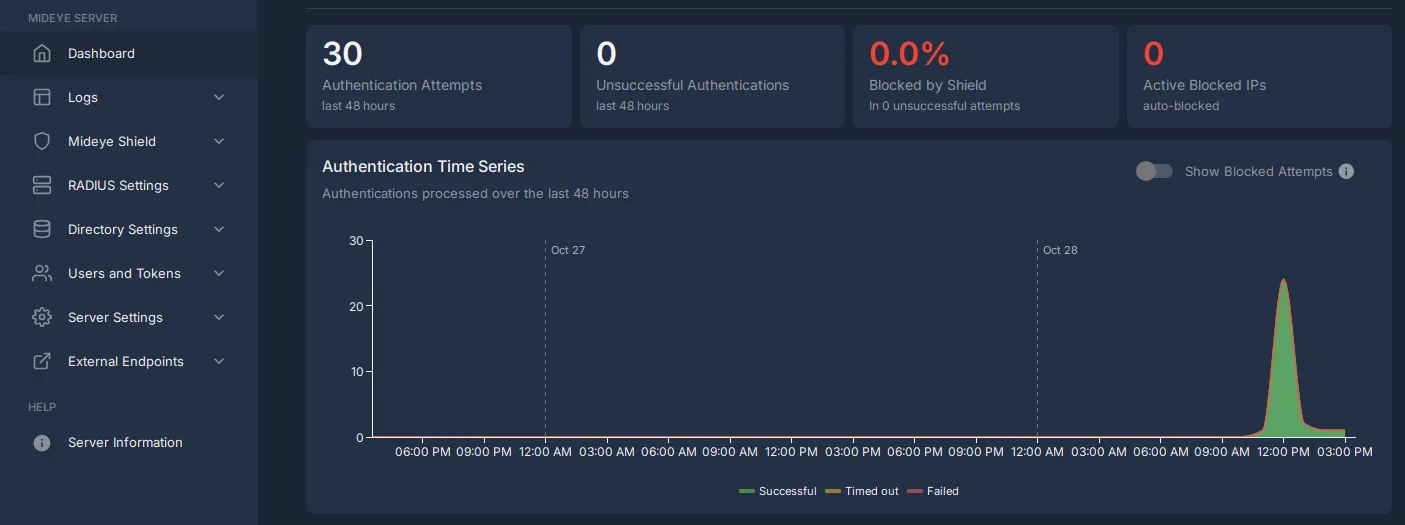
Success: the dashboard opens. A red “Server is failing” is normal: the quickstart has no Mideye Switch. Fleet sign-ins go through the Mideye Cloud API instead.
18. Host: take the first backup
Section titled “18. Host: take the first backup”Why: it proves the backup works before you need it.
mideye backupIt stops Mideye Server and Fleet for a moment, writes one encrypted file and starts them again.
Success: Backup written: /opt/mideye/backups/mideye-backup-<host>-<time>.tar.enc. Copy backups off the host. Never lose /opt/mideye/mideyeserver/keystore.p12.
Done. The host is the same as one installed with install-docker.sh. Continue with the Windows quickstart.
Variants of the script
Section titled “Variants of the script”The script has two options this page leaves out: --standby (a warm standby: nothing is started, a daily mideye-verify.timer checks the synced backups instead of making backups) and --mideyeserver-only (a further Mideye Server without Fleet, with COMPOSE_PROFILES empty in .env). The Fleet guides in the download portal describe both.