

Set up Assisted Login for Windows sign-in with an approver
This page is for the administrator who sets up Assisted Login: for the day a user cannot use their own factor, for example after losing the phone, a named approver (a colleague, the helpdesk or a security desk) confirms that it is really the user. Every field on the computer is described in Approvers and Users. What the user sees is in Assisted Login for users.
The two kinds
Section titled “The two kinds”You choose the kind for each user or group.
| Kind | How the approver confirms | Backend |
|---|---|---|
| Assisted Login by phone (Touch) | The approver gets a request on the phone and presses Approve. The user types nothing extra. | Mideye Cloud or Mideye Server |
| Assisted Login with codes (TOTP) | The user types their own one-time code, then calls the approver and types the code the approver reads out. Works without a cloud connection. | Mideye Server only |
Assisted Login with codes always needs the user’s own code as well as the approver’s. A user can never approve their own sign-in.
Before you begin
Section titled “Before you begin”- The backend connected: Connect Mideye Cloud or Connect Mideye Server.
- At least one approver: with a phone and the Mideye app for approval by phone, or with a token or authenticator app on the Mideye Server for codes.
- A decision on who may approve, and for which users.
With Mideye Cloud
Section titled “With Mideye Cloud”Mideye Cloud supports Assisted Login by phone only.
-
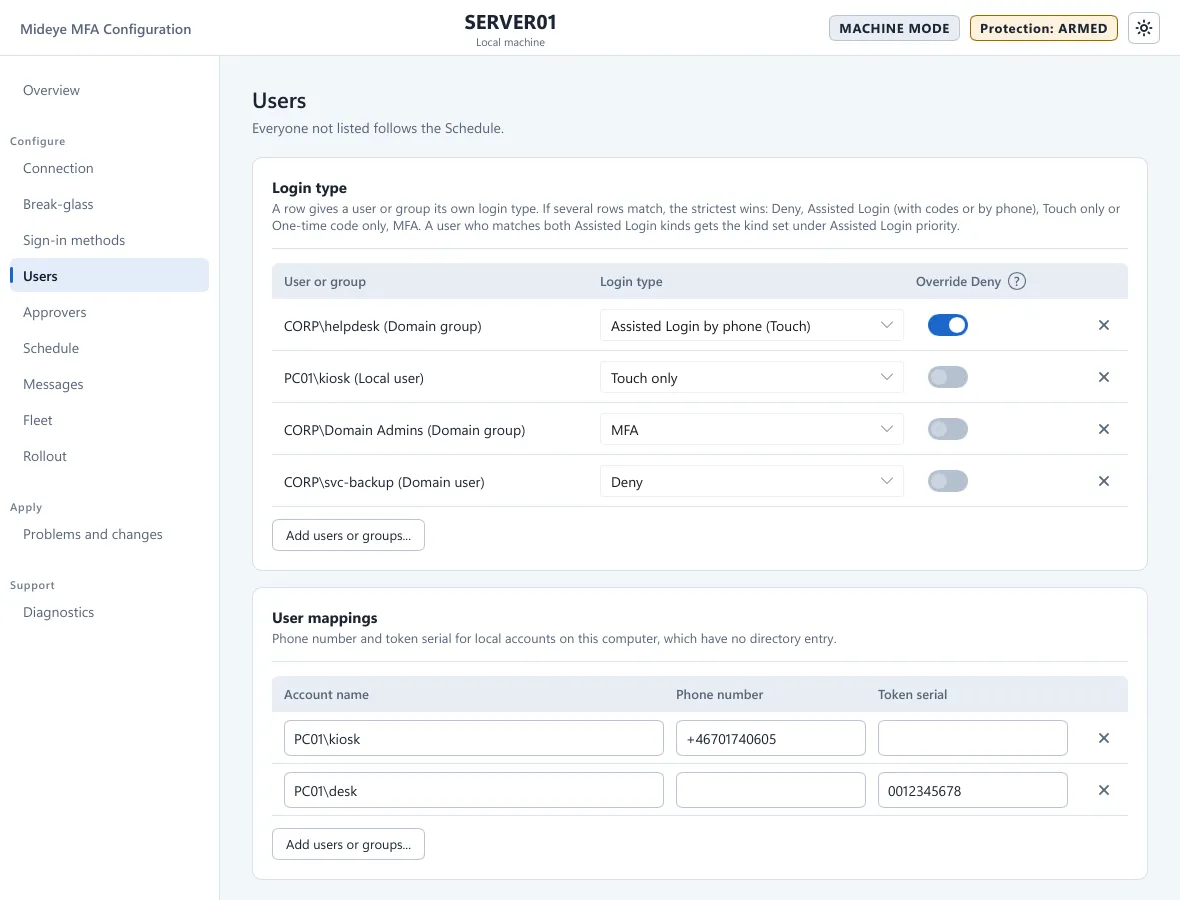
Open Mideye Configuration, page Users. For a local account, in User mappings press Add users or groups…, pick the account and type its Phone number.
-
In the card Login type press Add users or groups…, pick the users or groups and set Login type to Assisted Login by phone (Touch).
-
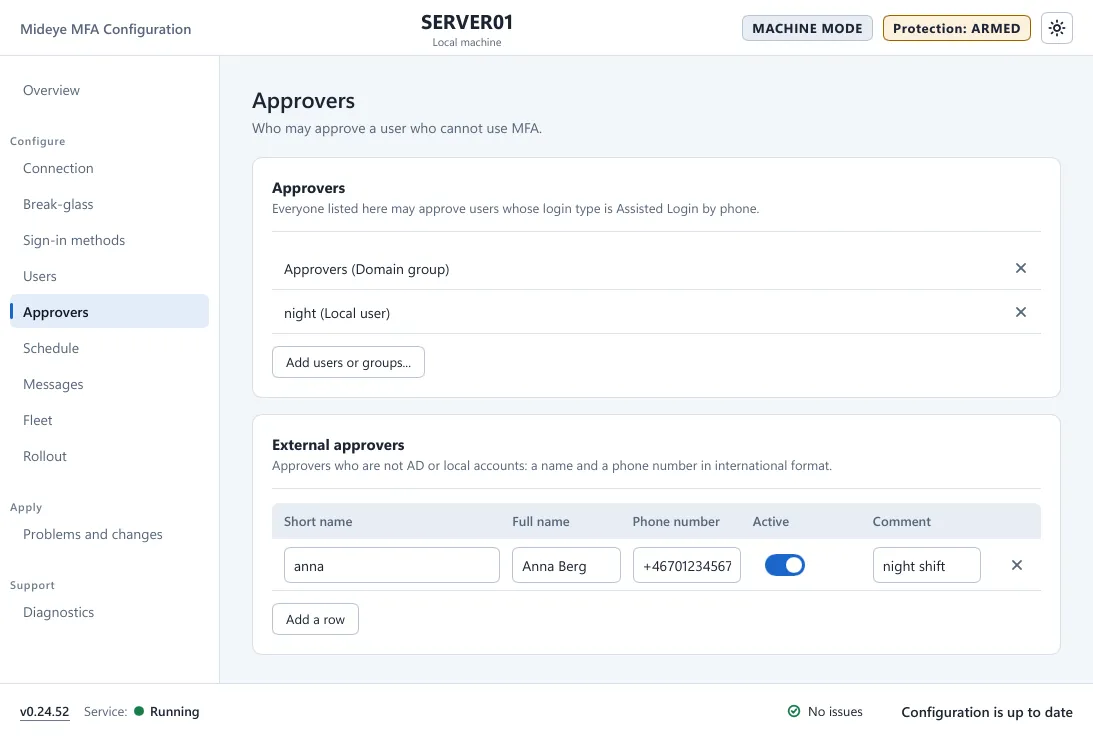
Open the page Approvers. In the card Approvers press Add users or groups… and add the users or groups who may approve. The approver list is read from Active Directory, at most 20 approvers. For people with no Windows account here, such as a security desk, use External approvers: Short name, Full name and Phone number, with Active on.
-
On Sign-in methods check that Touch / Magic Link is on and that the Assisted Login card says Available. If it says Not ready, the line under it says why.
-
Press Apply.
With Mideye Server
Section titled “With Mideye Server”The server holds the phone numbers and tokens and decides who may approve. The Approvers page on the computer shows “Set on the Mideye Server” and has nothing to type.
On the Mideye Server
Section titled “On the Mideye Server”- Open Server Settings, Assisted Login Profiles and create a profile with a Profile Name.
- On the tab User add the users who may use Assisted Login, as Users or Groups. For a local Windows account add the name of its database user.
- On the tab Approver add the approvers, as Approvers or Groups, and set the Approver Id Attribute that finds an approver in LDAP. Manager attribute match makes the user’s manager an approver (by phone only).
- Open External Endpoints, Authentication API Endpoints and the endpoint these computers use. Set the switches below. The profile is bound on the Authentication API endpoint, not on a token.
| Setting | By phone | With codes | Why |
|---|---|---|---|
| Assisted Login | On | On | Turns the feature on for this endpoint. |
| Assisted login profile | Your profile | Your profile | Says who the users and approvers are. |
| Token verification (OTP) (General Settings) | - | On | The server checks one-time codes. |
| Enable OTP approval | - | On | The server accepts an approver’s one-time code. |
| Enable approver lookup | - | On | The endpoint reads the list of approvers who can approve with a code. |
| Max approvers | - | Your limit | The longest approver list the user is shown. |
For codes, only approvers the server can verify a code for are listed: they need a token or an authenticator app on the server. The manager attribute is not used for codes.
Local accounts need a database user with the same name, and Require password (first factor) off. See Local Windows accounts.
On the computer
Section titled “On the computer”- Open Mideye Configuration, page Users. In the card Login type press Add users or groups…, pick the users or groups and set Login type to Assisted Login by phone (Touch) or Assisted Login with codes (TOTP).
- On Sign-in methods check the Assisted Login card. For codes it says “With codes: approvers from the Mideye Server’s Assisted Login profile (those with a token).” If a user matches rules of both kinds, Assisted Login priority decides; the default is Codes (TOTP) first.
- Press Apply.
To make users give a ticket number first, turn on Assisted Login under Reason at sign-in on Sign-in methods.
What the user sees
Section titled “What the user sees”By phone: the tile says “Open the link on your phone and choose an approver.” and then “Waiting for the approver to confirm.” The approver gets “{user} wants to sign in to {machine}. Press Approve to allow it, or Reject to deny.” and presses Approve. The user has 120 seconds, the approver 60.
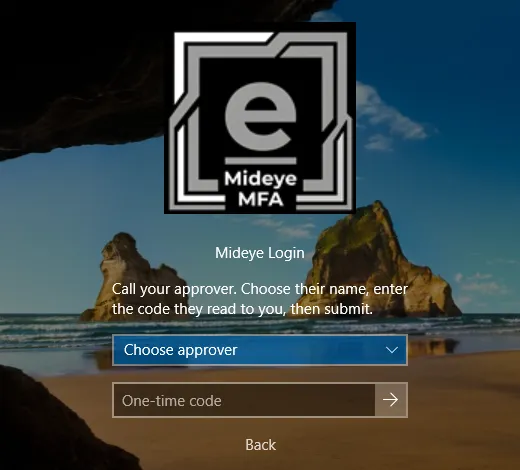
With codes: the tile says “Assisted Login: first enter your own one-time code.” and the server checks it. The next page says “Call your approver. Choose their name, enter the code they read to you, then submit.” The user chooses the approver under Choose approver and types the code the approver reads out. An approver gives a code only to a person they have identified, and only once.
Verify
Section titled “Verify”- Sign-in methods, card Assisted Login: Available, with the users and approvers listed.
- Test the whole flow once with a test account and a test approver. The Application log, source Mideye Credential Provider, has event 1000 with
method=Assisted(by phone) ormethod=AssistedTotp(codes) andactor=naming the approver. An approval by code also writes event 1004. - With Mideye Server, the approval also shows in Logs, Authentication Logs.
Troubleshooting
Section titled “Troubleshooting”- “Mideye Server: approver lookup is off. Contact your administrator.”: turn on Enable approver lookup on the Authentication API endpoint. Event 1001 shows
reason=OptionsLookupDisabled. - “Mideye Server: OTP approval is off. Contact your administrator.”: turn on Enable OTP approval. Event 1001 shows
reason=OtpApprovalDisabled. - “No approver can confirm this sign-in. Contact your administrator.”: no approver has a usable phone number or token. Event 1001 names each approver that was left out and why.
- “Assisted Login cannot start right now.”: on the Mideye Server, check that Assisted Login is on and a profile is chosen. With Mideye Cloud, codes are not available; choose Assisted Login by phone (Touch).
- “The approver or the code was not accepted. Sign in again.”: a wrong approver or code. There is no retry; start again.