

Set up break-glass access before you turn on Mideye MFA
This page is for the administrator who sets up the way back in when Mideye or the network is down. At least one break-glass account must exist before you can turn protection on. How break-glass behaves, its limits and its events are described in Break-glass.
Before you begin
Section titled “Before you begin”- The endpoint installed and connected to a backend.
- An authenticator app on a device kept by IT, to hold the break-glass code. Keep it apart from administrator credentials.
- A local or domain account with a long, random password, to use as the break-glass account.
- Open Mideye Configuration, page Break-glass.
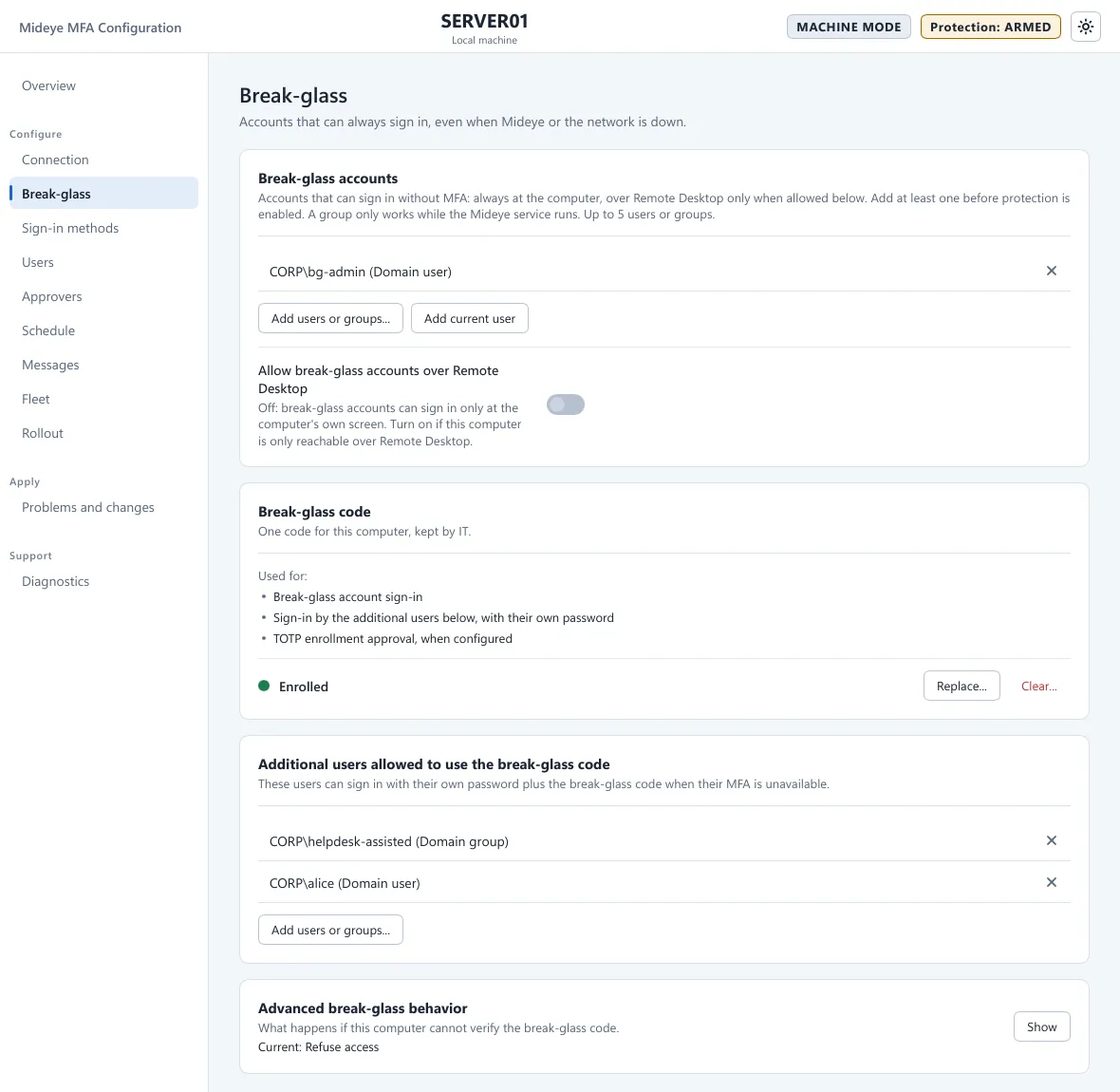
- In the card Break-glass accounts press Add users or groups… and pick one to five accounts. For a local account on a domain-joined computer write
.\name. - In the card Break-glass code press Enroll…. The tool saves the configuration, then shows a QR code.
- Scan the QR code with the authenticator app. Type the code into Code from the app (6 digits) and press Verify and enroll. The key is shown only once; Close and forget the key removes it for good.
- Optional: under Additional users allowed to use the break-glass code press Add users or groups…. These users can sign in with their own password and the code when their own factor is missing. The button is off until a code is enrolled.
- Press Apply. Wait for ✓ Configuration applied.
A code enrolled on one computer does not work on another. Enrol again after cloning or a restore.
Verify
Section titled “Verify”- The Break-glass page shows the code as Enrolled, and Overview names no missing break-glass account.
- After you arm the computer in Turn protection on, sign in once with the break-glass account. The tile says “Break-glass sign-in accepted. It has been recorded.” and the Application log has event 5701.
Troubleshooting
Section titled “Troubleshooting”- “The break-glass code was not accepted.”: the code is wrong or the clock of the IT device is off. The tile asks for the next code up to two more times.
- An account shows “Not found on this computer”: check the spelling and the
.\prefix. - Blocking after wrong codes, and the events to alert on: see Break-glass.
- Know the way back in before you go on: the recovery procedure is in the Fleet documentation in the downloads portal (login required).
Next: Turn protection on.