

Rollout page: activate Mideye MFA step by step
This page is for administrators who turn protection on. The Rollout page turns MFA on step by step (“Turn MFA on step by step, and choose when it is required at sign-in, unlock and Remote Desktop.”). A fresh install is inactive: the Mideye tile is not shown and Windows’ own sign-in is used until you activate the computer here. You test with the first sign-ins after arming. For the steps, see Turn on protection.
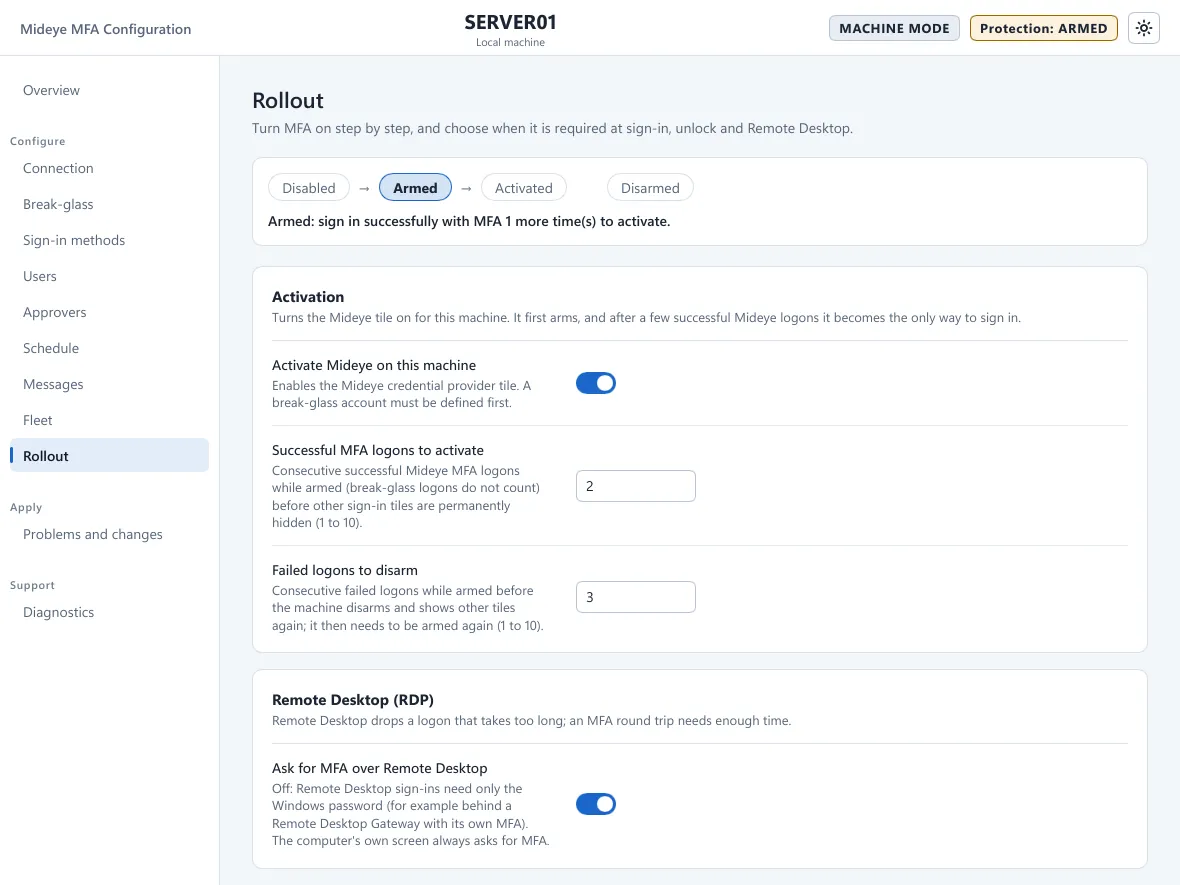
The four steps
Section titled “The four steps”The strip at the top shows where the computer is. The line under it says what to do next.
| Step | What it means |
|---|---|
| Disabled | “Disabled: not enforcing yet.” The Mideye tile is not shown. |
| Armed | The Mideye tile is shown next to the other sign-in tiles. “Armed: sign in successfully with MFA 1 more time(s) to activate.” |
| Activated | The Mideye tile is the only way to sign in. |
| Disarmed | “Disarmed after 3 failed MFA sign-ins: check Diagnostics; re-arm to try again.” The other tiles are shown again. |
The idea is safe by default. While the computer is only armed, you and your users still have the Windows tiles if Mideye does not work. Only after a few good sign-ins in a row are the other tiles hidden. From then on they stay hidden, even if Mideye stops working.
Activation card
Section titled “Activation card”“Turns the Mideye tile on for this machine. It first arms, and after a few successful Mideye logons it becomes the only way to sign in.”
| Field | What it does | Default |
|---|---|---|
| Activate Mideye on this machine | “Enables the Mideye credential provider tile. A break-glass account must be defined first.” Turning it on opens the checklist Arm the Mideye sign-in first, because Mideye then becomes required at every sign-in. | Off |
| Successful MFA logons to activate | Consecutive successful Mideye logons while armed before the other sign-in tiles are hidden, 1 to 10. Break-glass sign-ins do not count. | 2 |
| Failed logons to disarm | Consecutive failed logons while armed before the computer disarms and shows the other tiles again, 1 to 10. It then needs to be armed again. | 3 |
The checklist Arm the Mideye sign-in shows the Backend (tested OK or not tested), the Break-glass accounts found on this computer, the Break-glass code, the Sign-in methods that are on, the Users and Remote Desktop, then what happens next. The Remote Desktop row warns when Ask for MFA over Remote Desktop is off, or when break-glass accounts can sign in at the console only. A red row (no break-glass account, none found on this computer, no sign-in method) keeps Activate off and says why. Cancel changes nothing. Keep a second administrator session open until you have tested.
You can also reach this page from the Turn on MFA button on the Overview. That button waits until the readiness checklist is complete.
Unlock card
Section titled “Unlock card”“Whether unlocking the console asks for MFA again.”
| Field | What it does | Default |
|---|---|---|
| Unlock grace period | Hours after an MFA logon during which the same user, unlocking the same console session, is not asked for MFA again, 0 to 24. 0 turns it off, so every unlock asks. | 0 (off) |
Remote Desktop
Section titled “Remote Desktop”The page subtitle says MFA is required for sign-in, unlock and Remote Desktop. Once the computer is active, a Remote Desktop sign-in asks for the second factor too. The installer raises the RDP logon timeout to at least 240 seconds so that an MFA round trip fits. That timeout is not shown in the tool. For the steps, see Remote Desktop.
| Field | What it does | Default |
|---|---|---|
| Ask for MFA over Remote Desktop | On: a Remote Desktop sign-in asks for the second factor. Off: it needs only the Windows password where a second factor would be asked, for example behind a Remote Desktop Gateway with its own MFA. Deny rules and deny hours still refuse. Turning it off asks you to confirm. While it is off and the computer is armed or active, the Overview says Remote Desktop is not protected and event 5503 is written. | On |
Re-arm after a disarm
Section titled “Re-arm after a disarm”If the computer disarms, fix the cause first. Use Diagnostics and the Application log. Then arm it again from an elevated prompt:
& 'C:\Program Files\Mideye\mideye.exe' cp arm --reason "Fixed the connection, ticket 1234"On a computer managed by Fleet, change Activate Mideye on this machine from off to on in the Fleet policy instead.
The first Fleet policy after a computer joins also arms an active computer again. See Join Fleet.
What needs what
Section titled “What needs what”- A break-glass account must exist before you activate. See Break-glass.
- The backend must be reachable before anyone is signed in. See Connection.
- If you lock yourself out, follow the recovery procedure in the Fleet documentation in the downloads portal (login required).