

Sign-in methods page: Touch, codes, TOTP and limits
This page is for administrators who choose how users sign in. The Sign-in methods page (“How users prove who they are.”) holds the switches for Touch and One-time code, the authenticator-app (TOTP) settings, the reason at sign-in, a summary of Assisted Login, and the protection against wrong codes.
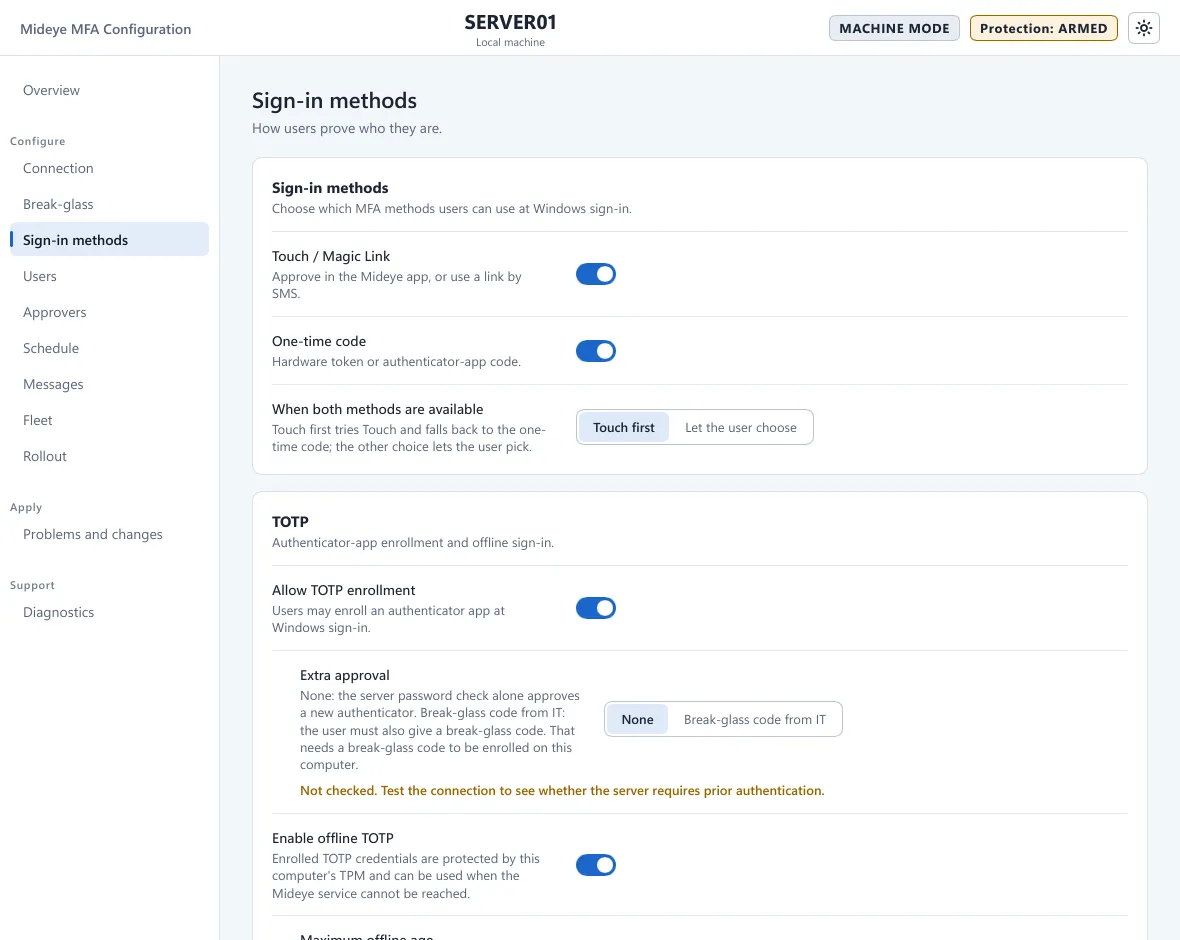
Sign-in methods card
Section titled “Sign-in methods card”“Choose which MFA methods users can use at Windows sign-in.”
| Field | What it does | Default |
|---|---|---|
| Touch / Magic Link | “Approve in the Mideye app, or use a link by SMS.” The user gets a request on the phone. The tile waits up to 60 seconds. Needs a phone number for the user. With Mideye Server: Touch on in the Authentication API endpoint, and a Mideye Server that can reach Mideye Cloud. | On |
| One-time code | “Hardware token or authenticator-app code.” The user types a code. Needs a token or an authenticator app for the user. With Mideye Server, the server checks the code (Token verification (OTP) on in the endpoint). | On |
| When both methods are available | Touch first tries Touch and falls back to the one-time code. Let the user choose shows the choice Send a request to my phone or Enter a code. Needs both switches on. | Touch first |
Touch / Magic Link has an automatic behavior. When it is on, Touch and the SMS link are used if the Mideye Server can reach Mideye Cloud. When it cannot, the sign-in asks for the code, and the code page says “Touch could not be started. Enter your one-time code.” Switch Touch / Magic Link off to make the code the rule. Do this when your Mideye Server has no internet access.
What the user sees: Approve a Touch request and Enter a one-time code.
TOTP card
Section titled “TOTP card”“Authenticator-app enrollment and offline sign-in.” The TOTP card needs a Mideye Server as backend. With Mideye Cloud its switches are off and greyed out. For the setup steps, the user’s view and the limits, see Authenticator app.
| Field | What it does | Default |
|---|---|---|
| Allow TOTP enrollment | “Users may enroll an authenticator app at Windows sign-in.” The tile offers the app after a successful sign-in, and the code page shows the link “No authenticator app? Set one up”. TOTP self-enrollment must also be on in the Authentication API endpoint on the Mideye Server. | Off |
| Extra approval | Shown when enrollment is on. None: the Mideye Server’s own checks approve the new authenticator. Break-glass code from IT: the user must also enter a break-glass code. This needs a break-glass code enrolled on this computer. | None |
| Enable offline TOTP | “Enrolled TOTP credentials are protected by this computer’s TPM and can be used when the Mideye service cannot be reached.” The app a user enrolls on this computer is also its offline entry. A user who enrolled elsewhere is offered a separate entry for this computer. Codes are checked by the Mideye Server whenever it can be reached. Needs a TPM 2.0. | Off |
| Maximum offline age | Shown when offline TOTP is on. Days an offline entry keeps working after the user’s last online sign-in on this computer, 1 to 180. | 180 days |
When enrollment is open and Extra approval is None, the page warns: “Anyone with a user’s password could enroll an authenticator for that user.” Set Extra approval to Break-glass code from IT, or turn on Require prior authentication on the Mideye Server.
Enrollment events: 1006 (started), 1007 (completed), 1008 (failed, the sign-in goes on) and 1012 (the offer could not be made, for example no break-glass code while Extra approval asks for one).
Reason at sign-in card
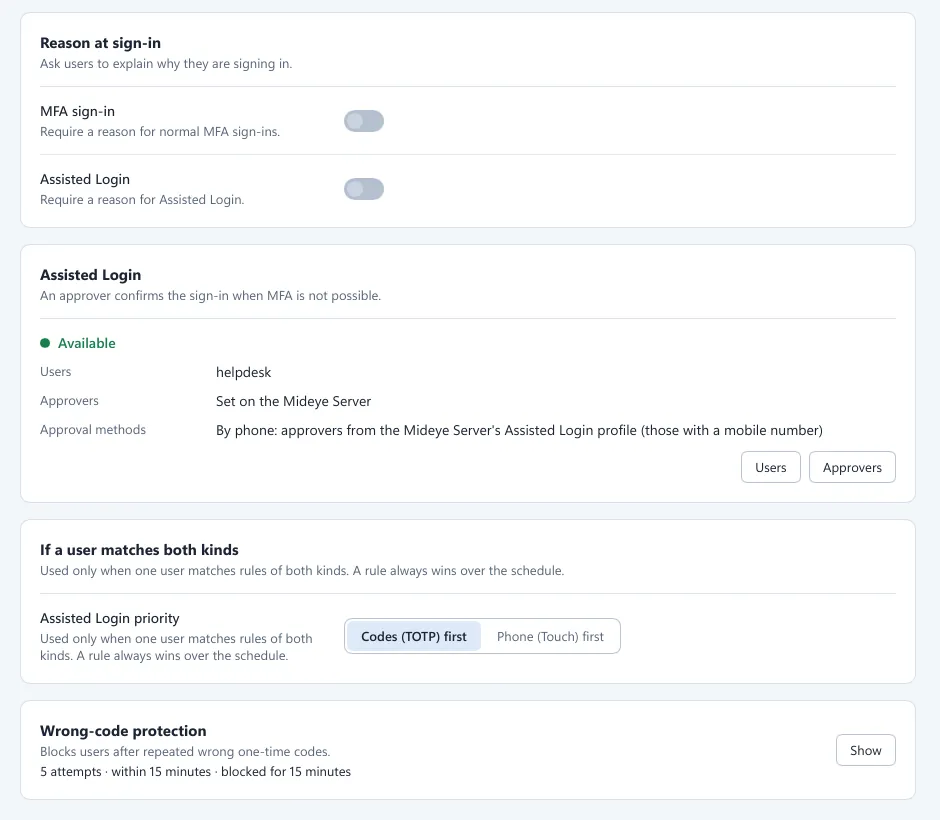
Section titled “Reason at sign-in card”“Ask users to explain why they are signing in.” The tile then asks for Reason / ticket, at least 4 characters. The reason is written to the sign-in event in the Application log (as ticket=), and Fleet shows it as the detail ticket.
| Field | What it does | Default |
|---|---|---|
| MFA sign-in | “Require a reason for normal MFA sign-ins.” | Off |
| Assisted Login | “Require a reason for Assisted Login.” | Off |
Assisted Login card
Section titled “Assisted Login card”“An approver confirms the sign-in when MFA is not possible.” This card only summarizes. You set who may use Assisted Login on Users and the Schedule, and who may approve on Approvers. The buttons Users and Approvers open those pages.
| Row | What it shows |
|---|---|
| Status | Available, Not ready or Not configured. Not ready comes with a reason, such as “Assisted Login users have no approvers.” or “Needs Touch / Magic Link or One-time code.” |
| Users | The users and groups with an Assisted Login rule, or By schedule. |
| Approvers | The number of approvers, or Set on the Mideye Server. |
| Approval methods | By phone (needs Touch / Magic Link) and With codes (needs One-time code and a Mideye Server). |
Assisted Login priority
Section titled “Assisted Login priority”The card If a user matches both kinds holds one setting.
| Field | What it does | Default |
|---|---|---|
| Assisted Login priority | Used only when one user matches rules of both Assisted Login kinds. Choose Codes (TOTP) first or Phone (Touch) first. A rule always wins over the schedule. | Codes (TOTP) first |
Wrong-code protection card
Section titled “Wrong-code protection card”“Blocks users after repeated wrong one-time codes.” The card shows the current rule, for example “5 attempts · within 15 minutes · blocked for 15 minutes”. Press Show to change it.
| Field | What it does | Default |
|---|---|---|
| Block after wrong codes | Wrong codes within the window before the user is blocked, 3 to 20. | 5 |
| Counted within | The window in which the wrong codes must fall, 1 to 60 minutes. | 15 minutes |
| Blocked for | How long a blocked user has to wait, 1 to 120 minutes. | 15 minutes |
The limit cannot be turned off. A block writes event 1014. Break-glass codes have their own limits, see Break-glass. To let a blocked user in again, see Diagnostics.