

Mideye Fleet Windows TOTP quickstart: enrol an authenticator app
From a Touch sign-in to an authenticator app (one-time codes) that the user sets up at the Windows sign-in. Plan about 10 minutes. At the end: enrol without MFA, for air-gapped sites.
Before: 2. Windows quickstart.
Before you start
Section titled “Before you start”-
No Mideye Cloud? Skip to Enrol without MFA (air-gapped). What still works: one-time codes for a user who has a token, and enrolling an authenticator app with Require prior authentication off. What does not: Touch, magic link and Require prior authentication (Mideye Server says “Requires the cloud connection”). Messages users see: a user with a token gets “Touch could not be started. Enter your one-time code.”; a user without a token gets “Your account has no sign-in method for this computer. Contact your administrator.” (see Good to know).
-
Requirement: the Windows quickstart is done: the user signs in with Touch.
-
Requirement: an authenticator app on the user’s phone.
-
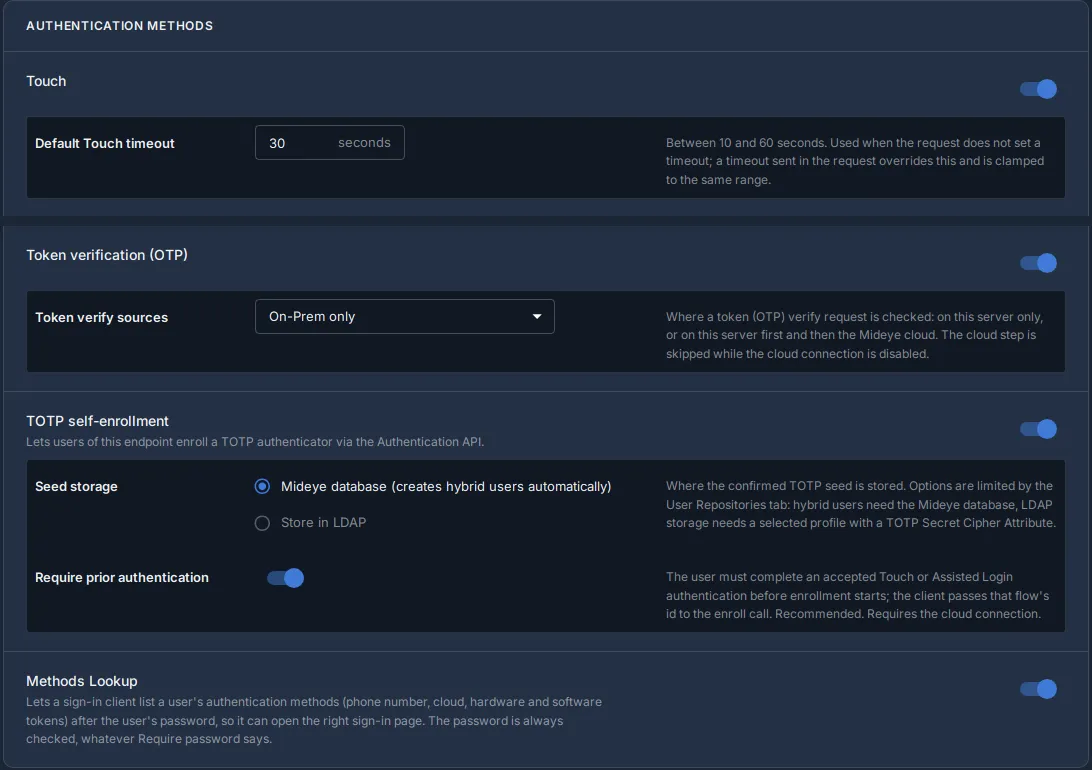
Mideye Server: open External Endpoints, Authentication API Endpoints, endpoint fleet. TOTP self-enrollment is on, and under it Require prior authentication is on. The Docker quickstart turned both on.
-
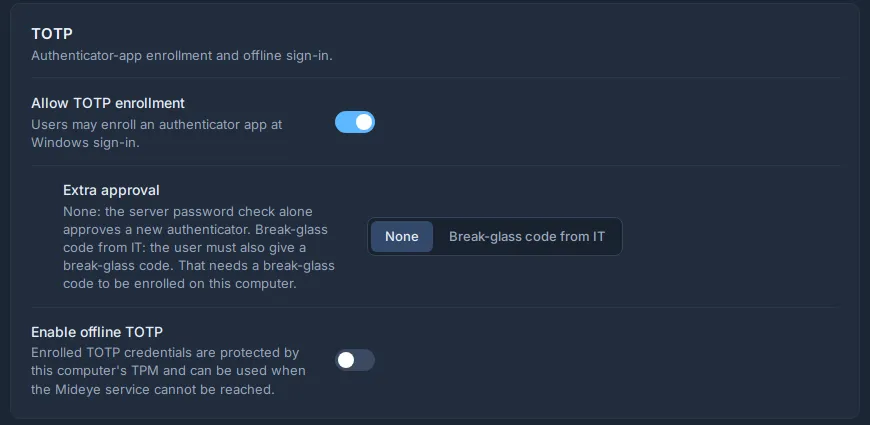
Fleet: open Policies, Windows, Sign-in methods. Allow TOTP enrollment is on and Extra approval is None. The default policy has it so.
Enrol an authenticator app, step by step
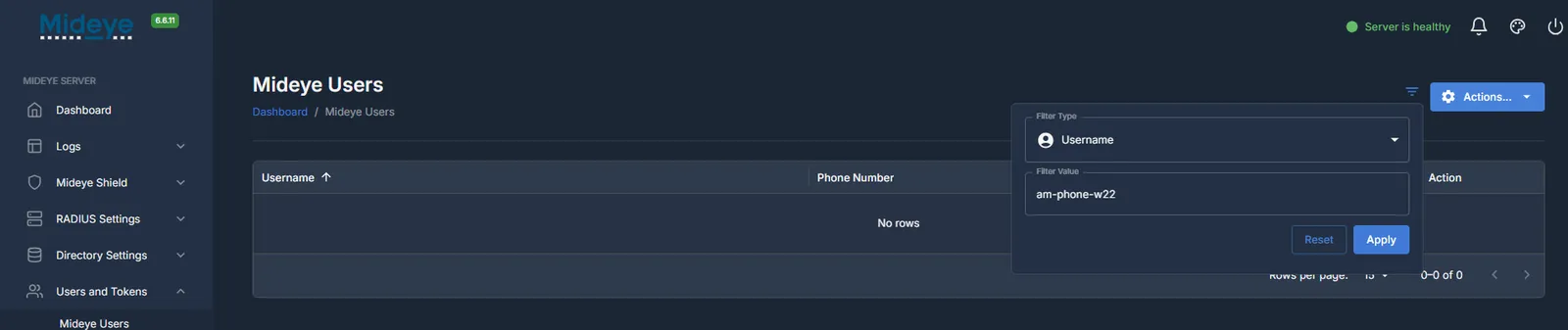
Section titled “Enrol an authenticator app, step by step”1. Mideye Server: the user is not in Mideye Server yet. An AD user with only a phone number needs no entry there.
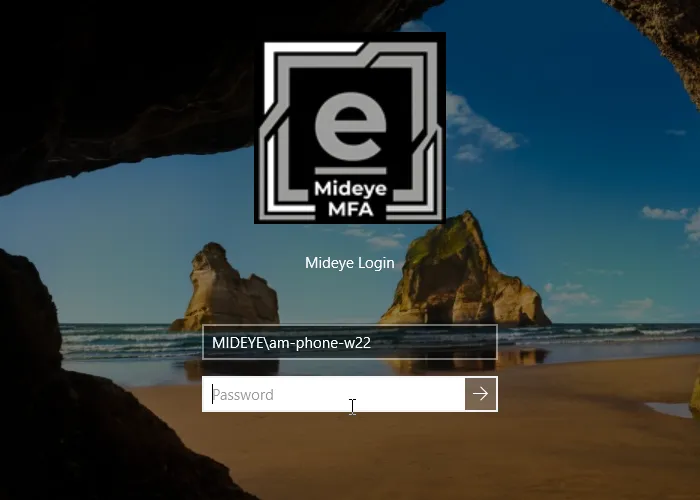
2. Windows: choose the Mideye Login tile and type the user name and password.
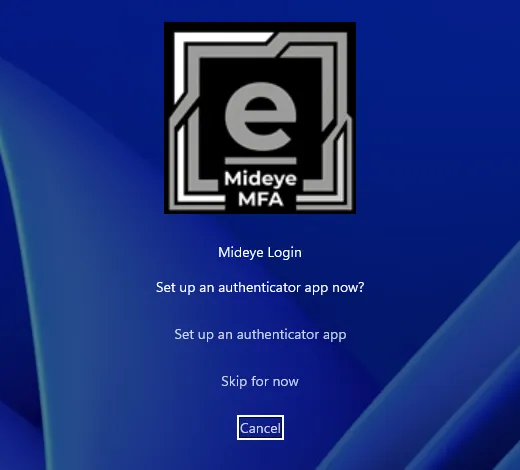
3. Phone: the tile says “Approve the request on your phone, or open the link in the SMS.” Approve the Touch. This is the second factor before the enrolment. The tile then asks “Set up an authenticator app now?”: choose Set up an authenticator app.
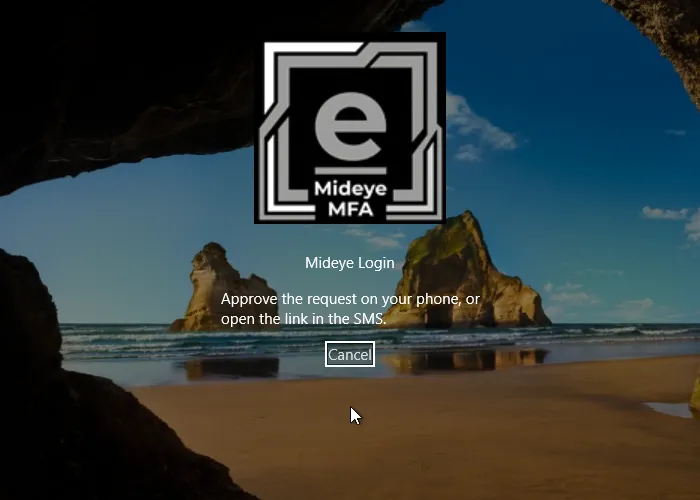
4. Phone: scan the QR code with the authenticator app.
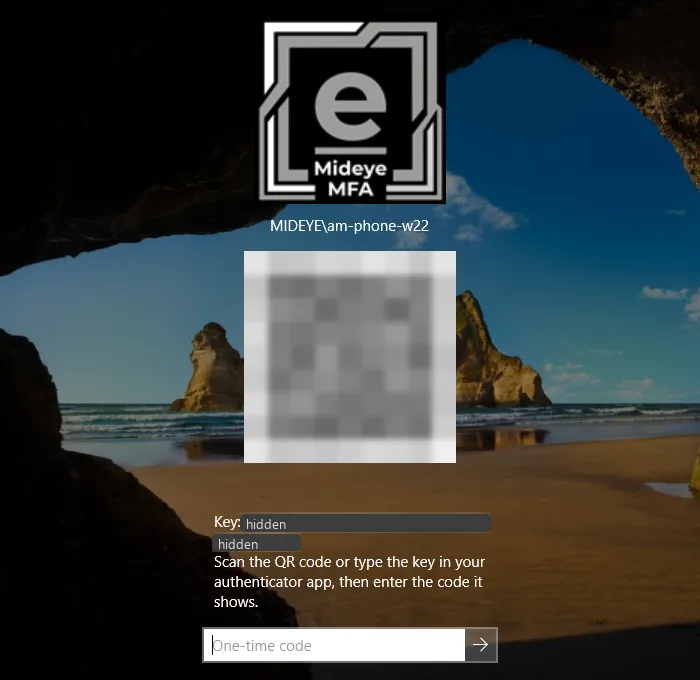
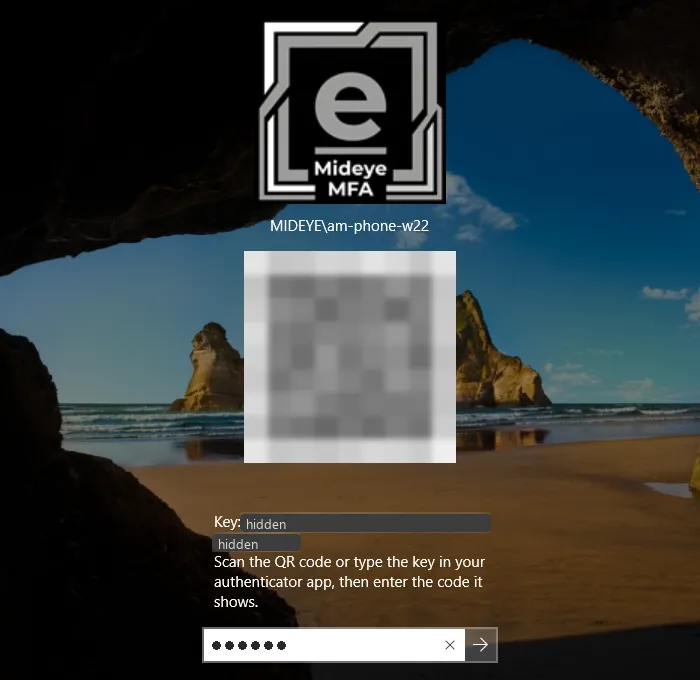
5. Windows: type the code the app shows in One-time code. The first code signs you in.
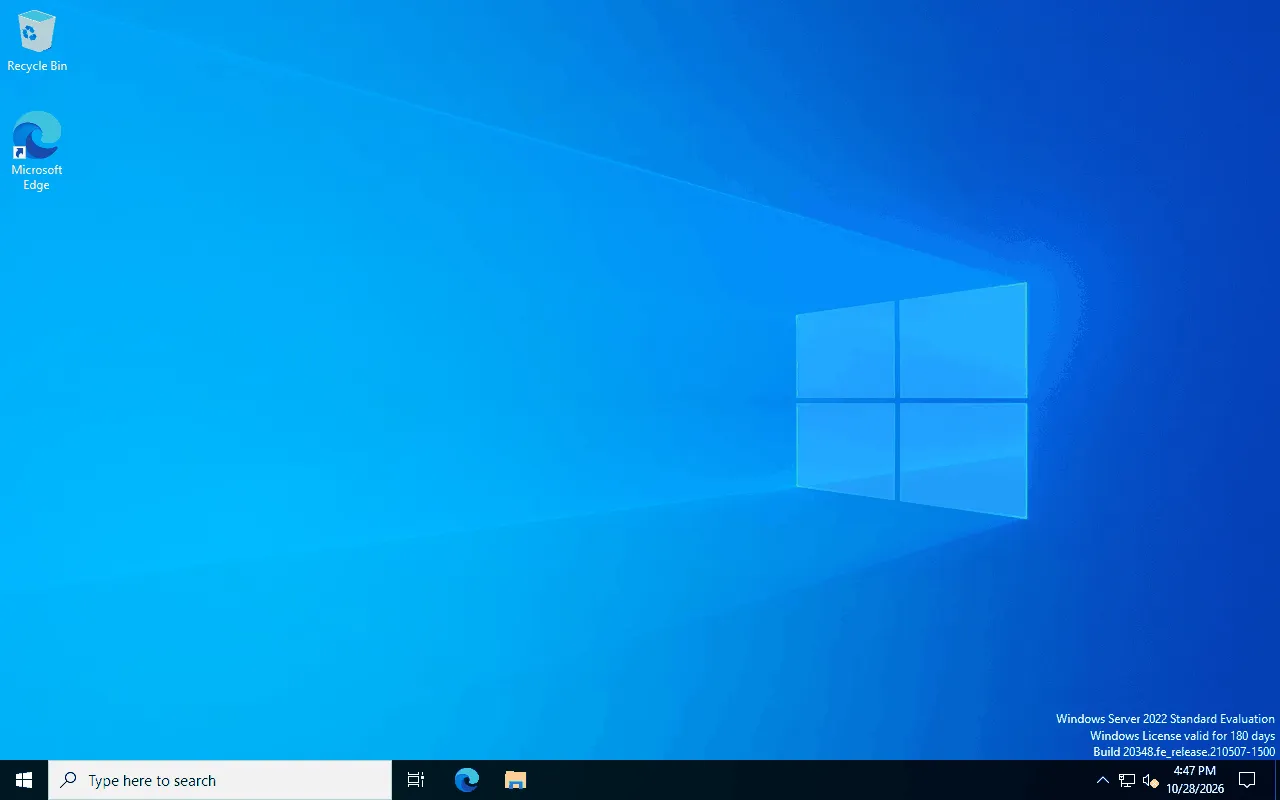
6. Windows: you are signed in to the desktop.
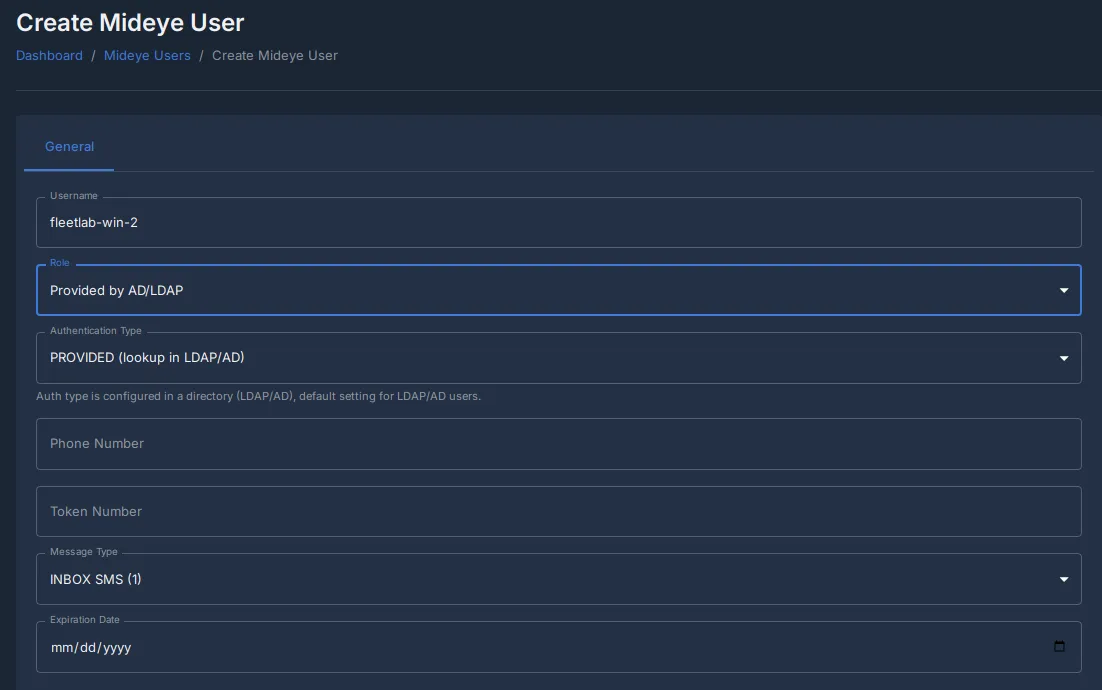
7. Mideye Server: the user is now a hybrid user with a token.
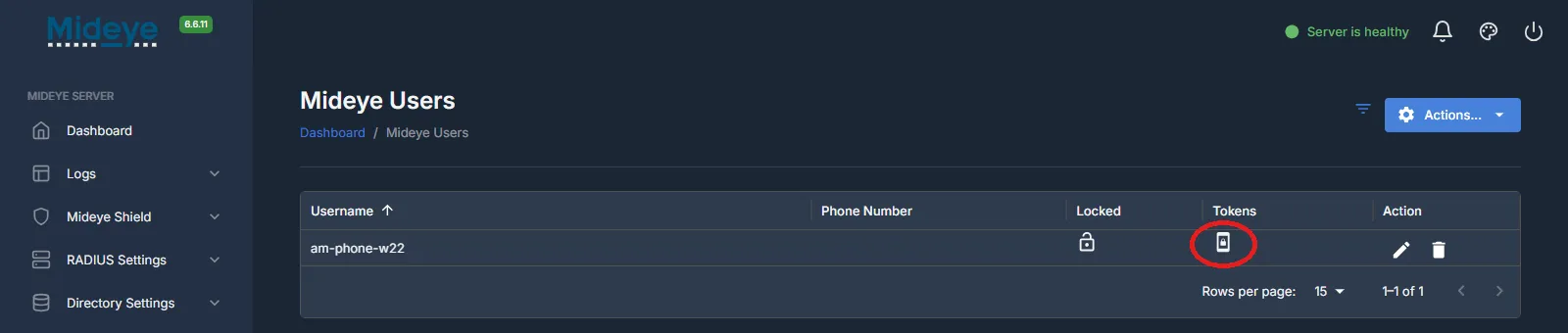
Done. The user can sign in with Touch or with a code from the app.
Good to know
Section titled “Good to know”-
After a Touch the tile asks “Set up an authenticator app now?” only for a user without a token. Skip for now goes on to the desktop.
-
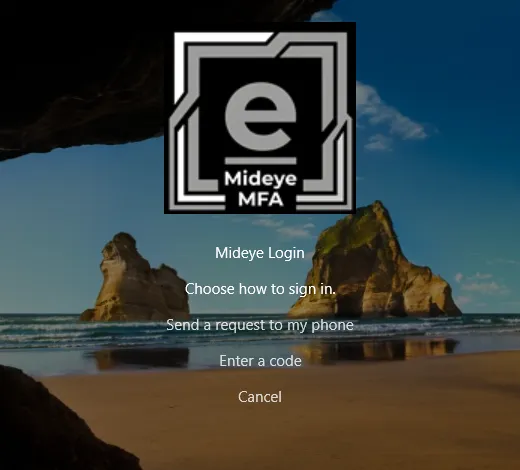
With a phone number, the sign-in still uses Touch. Touch first goes to the code page only when Touch cannot be started. To let the user pick the code, set When both methods are available to Let the user choose in the policy. The tile then asks Choose how to sign in.: choose Enter a code.
-
“That code did not match. Try the next code from your app.” during the setup: a wrong code, or the phone’s clock is off.
-
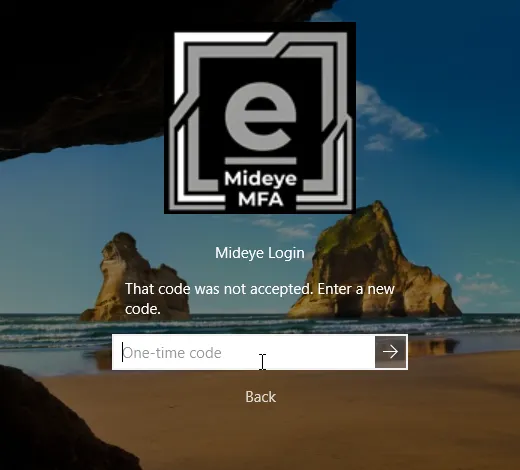
“That code was not accepted. Enter a new code.” at a later sign-in: the same causes.
-
“You already have an authenticator registered. Enter a code from it.” The user already has an app on the Mideye Server.
-
“Your account has no sign-in method for this computer. Contact your administrator.” The user has no token, and enrolment needs a Touch first (Require prior authentication on, but no Touch or no Mideye Cloud).
-
“Enrollment is not available. Contact your administrator.” TOTP self-enrollment is off on the Mideye Server, or Allow TOTP enrollment is off in the policy.
-
A hardware token instead of an app: in Mideye Server first add the AD user as a hybrid user, then assign the token. Assigning a token before the hybrid user exists fails.
-
More detail: Authenticator app.
Enrol without MFA (air-gapped)
Section titled “Enrol without MFA (air-gapped)”Without Mideye Cloud there is no Touch, so there is no second factor before the enrolment.
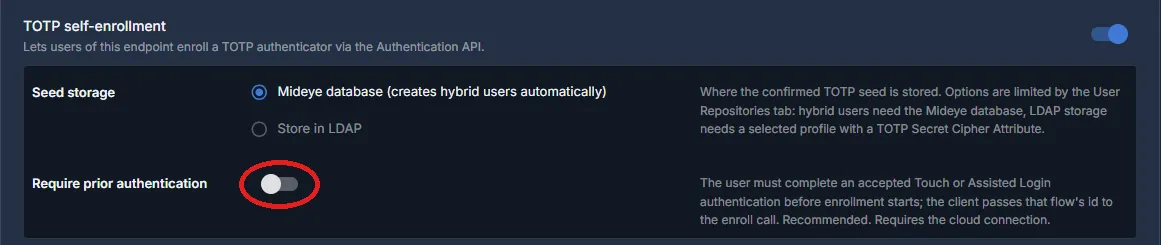
1. Mideye Server: open the endpoint fleet (the pencil). Under TOTP self-enrollment, below Seed storage, switch Require prior authentication off and press Save at the end of the page.
2. Fleet: in the Windows policy, Sign-in methods, turn Touch / Magic Link off and keep One-time code and Allow TOTP enrollment on.
Open Mideye Servers, press Set up a test authenticator, then Test with One-time code (see 2. Windows quickstart, step 3). The test must pass before you publish.
Back in the policy, press Publish. The computer gets the new policy within about 2 minutes. Publish anyway is only a last resort.
3. Windows: the user types the user name and password on the Mideye Login tile. A user without a token goes straight to the enrolment page, with no Touch step before it.
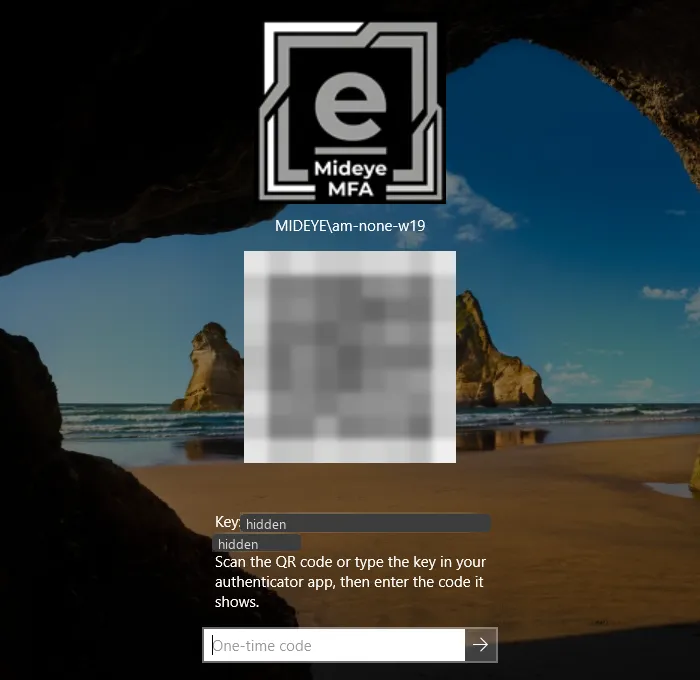
4. Windows: the user scans the QR code, types one code from the app, and is signed in.
The risk: with Require prior authentication off, the user’s password alone enrols a new app, so anyone with a user’s password could enrol an authenticator for a user who has none. What protects it: Mideye Server always checks the password, a user who already has a token cannot enrol another, and you can also set Extra approval to Break-glass code from IT in the policy: then the user must also type the computer’s break-glass code (Fleet: Nodes, the computer, Break-glass code, Show code). Turn Require prior authentication back on when the users have enrolled. With it back on and Touch / Magic Link off, a user without a token sees “Your account has no sign-in method for this computer. Contact your administrator.”