

Mideye Fleet Windows quickstart: sign in with Touch MFA
From a clean Windows computer to a sign-in with Mideye Touch. Plan about 15 minutes.
Before: 1. Docker quickstart. Next: 3. Windows TOTP quickstart.
Before you start
Section titled “Before you start”-
No Mideye Cloud? Touch, magic link and SMS need it. Without Cloud, one-time codes still work for a user who has a token, and a user can enrol an authenticator app when Require prior authentication is off. Touch, magic link and prior authentication do not work. Do these in order:
- In Mideye Server, switch Require prior authentication off: step 1 of Enrol without MFA (air-gapped).
- Do steps 1-6 below. In step 3 turn Touch / Magic Link off and use Set up a test authenticator and Test with One-time code instead of the Touch test.
- Go on with the rest of Enrol without MFA (air-gapped).
What you see without Cloud:
- Fleet, Mideye Servers, Test with Touch: “Touch needs the server’s cloud connection, which is down.”
- Windows, a user with a token: the code page, “Enter your one-time code.”
- Windows, a user without a token: “Your account has no sign-in method for this computer. Contact your administrator.”
-
Requirement: the Docker quickstart is done, with your Mideye Cloud credentials in
/opt/mideye/.env. Touch needs them. Add them later with the tip in 1. Docker quickstart. -
Requirement: a Windows Server 2019, 2022 or 2025 (or Windows 11), joined to the domain, that reaches the Fleet host on 9444 and Mideye Server on 8443.
-
Requirement: a second way into the computer while you test, for example a console or the hypervisor view.
-
Requirement: a break-glass account with a long, random password, for example
CORP\backup-admin. It is your way back in. -
Requirement: the Mideye app on the user’s phone.
1. Active Directory: put the user’s phone number, in international format (+46...), in the Mobile field: Active Directory Users and Computers, the user, Properties, tab Telephones.
2. Fleet: open Policies and the Windows policy. Finish this policy: check the Mideye Server (a Windows policy always uses a Mideye Server), type the break-glass account as DOMAIN\name, and press Apply answers. This changes the draft only; step 3 publishes it.
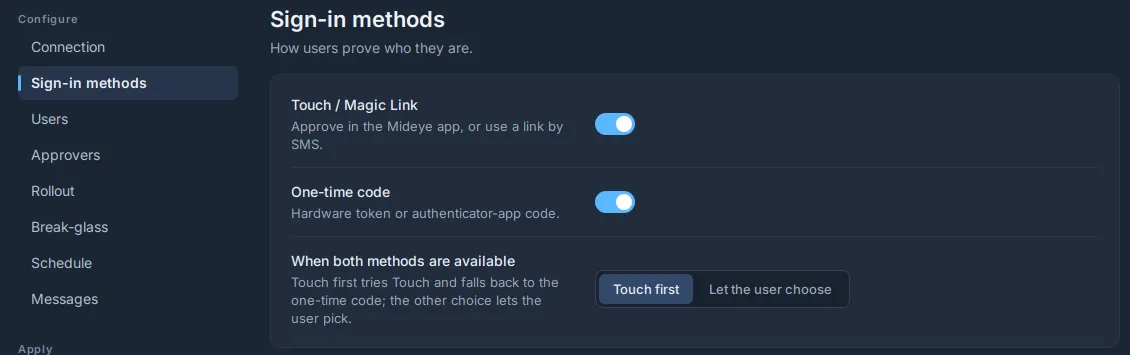
3. Fleet: check the Sign-in methods: Touch / Magic Link on, One-time code on, When both methods are available: Touch first.
Open Mideye Servers. Your server lists what each test needs: for Touch, Mideye Cloud set up on the Mideye Server; for One-time code, a user with a token.
With Mideye Cloud:
- Press Test on your server.
- Type your user id and password.
- Choose Touch.
- Press Run test and approve the Touch on your phone.
Without Mideye Cloud (or no user with a token yet):
- Press Set up a test authenticator on your server.
- Type a user id and the user’s password. Press Start.
- Scan the QR code with your authenticator app. It is shown once.
- Type the code the app shows. Press Activate.
- Press Test with One-time code.
- Type the password, and the next code the app shows, not the one you just used. Press Run test.
If the button says it cannot run because Require prior authentication is on and there is no Mideye Cloud, switch that setting off in Mideye Server (see No Mideye Cloud? above).
Back in the policy, press Publish, and Publish again in the dialog. Computers get the new policy within about 2 minutes, not at once; the computer’s page in Fleet says On the latest revision when it has it.
Still not passed? The dialog offers Publish anyway as a last resort: type a Reason (5 to 200 characters) and a code from your authenticator app. Each code works once: if you just used one, wait for the next.
4. Fleet: open Nodes, Add computers. Type a Name, choose the Group, press Create token, open the Windows tab and copy the command.
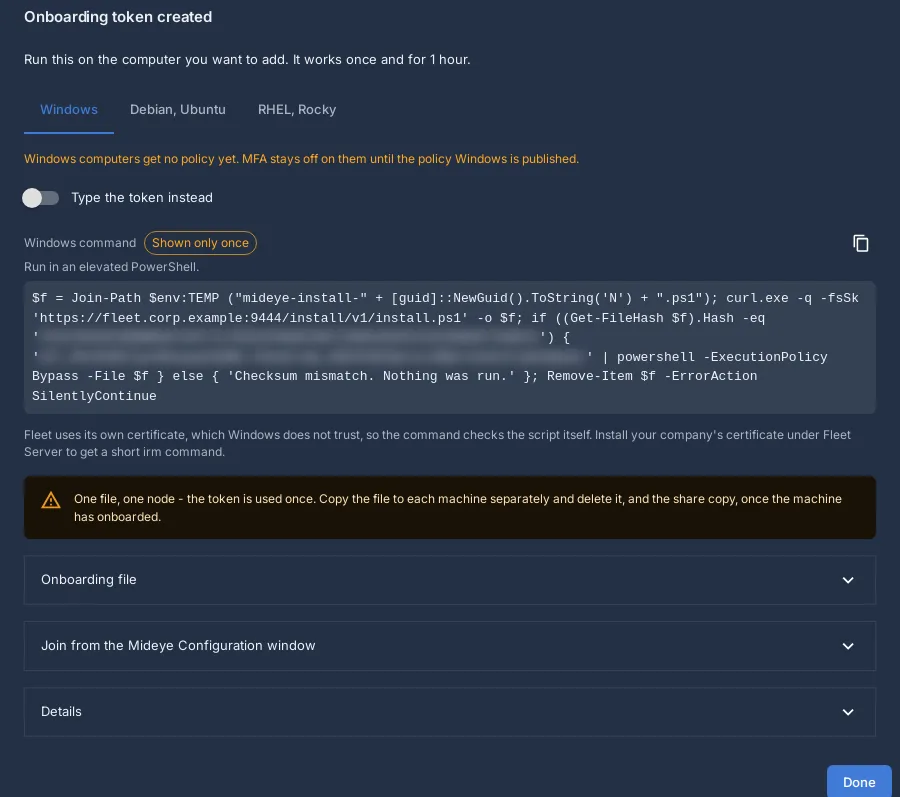
5. Windows: open PowerShell as administrator, paste the command and run it. It installs the Mideye endpoint. The command checks Fleet’s own certificate by its SHA-256, so Windows does not need to trust it. The last line ends with Approve it in Fleet: Nodes, Waiting (key fingerprint ...).
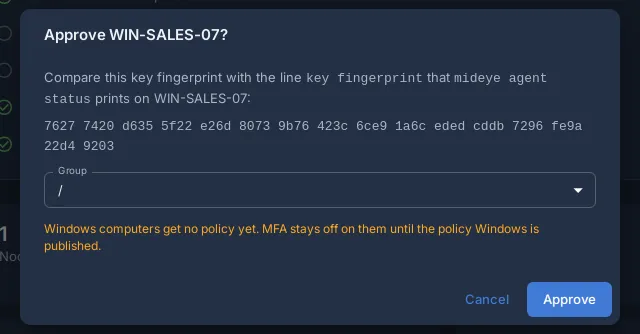
6. Fleet: open Nodes, Waiting, and press Approve. Check that the fingerprint in the dialog matches the one from step 5. Both show it in groups of four characters. Then press Approve. Within a few minutes the computer has the policy.
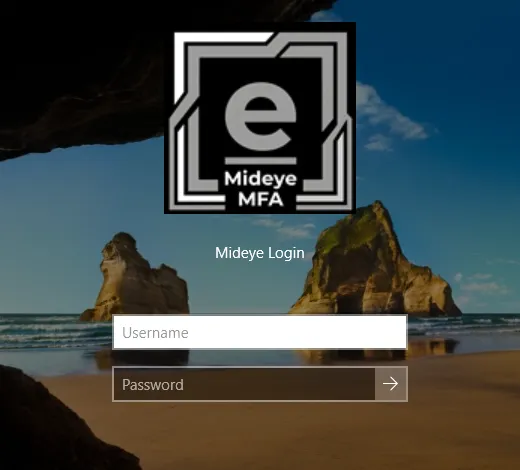
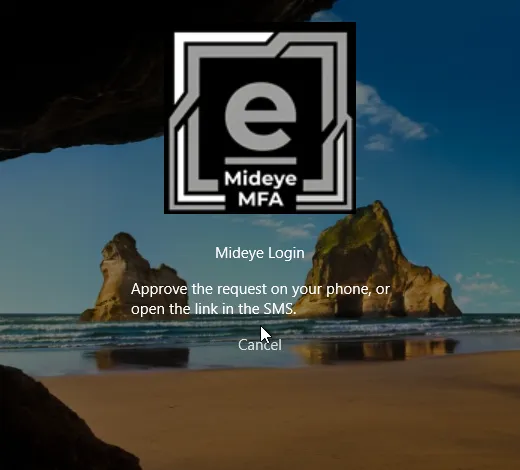
7. Windows: sign out. Choose the Mideye Login tile and type the user name and password.
8. Phone: approve the request in the Mideye app. You are signed in.
Done. Next: let users add an authenticator app, in 3. Windows TOTP quickstart.
Good to know
Section titled “Good to know”- The other sign-in tiles stay at first. The computer is armed: MFA is enforced after 2 Mideye sign-ins in a row succeed. Until then Fleet shows “Not enforcing yet”.
- A user with a phone number gets Touch, not the code page. The code page (“Enter your one-time code”) appears when the user has no phone number, or, for a user with a token, when the Mideye Server has Touch off or no Mideye Cloud connection. “Touch could not be started. Enter your one-time code.” appears only when a Touch was started and failed, for example the phone could not be reached. A user with no usable method (no token, and Touch cannot be started) sees “Your account has no sign-in method for this computer. Contact your administrator.” See No Mideye Cloud? above.
- Each user sees only the methods they have. Mideye Server 6.6.11 with Methods Lookup and endpoint 0.24.38 or later: no Touch for a user without a phone number, no code page for a user without a token. This works for domain users, not local accounts.
- After the Touch the tile may ask “Set up an authenticator app now?”. Choose Skip for now to go on, or see 3. Windows TOTP quickstart.
- Remote Desktop asks for MFA too. With Network Level Authentication, type the user name and password in the Remote Desktop client; the tile in the session asks only for the Touch. See Remote Desktop.
- The break-glass account signs in with its password only, at the console. That is the policy default since Fleet 0.27.0. To ask it for this computer’s break-glass code as well, open the policy, page Break-glass, switch Ask break-glass accounts for the break-glass code on and publish. The code is then in Fleet: Nodes, the computer, card Break-glass code, Show code. Over Remote Desktop the break-glass account is refused unless Allow break-glass accounts over Remote Desktop is on (off by default). See Break-glass.
- The computer already had a local configuration? It stays in force until the first Fleet policy applies. See Join Fleet.
- Touch never arrives? Check the number in Mobile (international format), that the user is under
AD_BASE_DN, and the Mideye Cloud credentials in.env. See Sign-in screen messages. - The command fails with
Could not reach Fleet at <url>. Open 9444/tcp from the computer to the host and check that it resolves the host name.Fleet refused the token: create a new command; each command works once, for 1 hour.