

Mideye Fleet Docker quickstart: Mideye Server and Fleet on Ubuntu
From an empty Ubuntu server to a working Mideye Server and Mideye Fleet. One host runs four containers: MariaDB, Mideye Server 6.6.11, a one-time setup container and Fleet 0.27.0. Plan about 30 minutes. The Windows computers get Mideye endpoint 0.24.52.
Next: 2. Windows quickstart. Want to see and run every step of the install yourself? Use Docker: full install, step by step.
Before you start
Section titled “Before you start”- Requirement: Ubuntu 24.04 LTS, x86-64, at least 2 vCPU, 4 GB memory, 30 GB disk, and
sudo. See the requirements. - Requirement: a DNS name for the host, for example
mideye.example.com, that your Windows computers resolve. Keep it for good. - Requirement: these ports open to the host: 9443/tcp (Fleet web interface), 8443/tcp (Mideye Server), 9444/tcp (from the Windows computers to Fleet).
- Requirement: an AD service account (bind account) that can read the directory, and its password.
- Requirement for Touch: your Mideye Cloud client ID and client secret. Without them there is no Touch, only one-time codes.
- Requirement: correct time (NTP) on the host.
- Fresh install only. Fleet 0.26 and later refuse a database from Fleet 0.25.x (“create a new database”). Do not reuse an old host or an old
/opt/mideye.
1. Host: install Docker.
sudo apt-get install -y docker.io docker-compose-v22. Portal: sign in to the download portal, open the Fleet tab, section Docker. If Mideye gave you downloads.dev.mideye.com, use that address everywhere below.
3. Host: copy the registry login line from the portal and run it. Paste the password the portal shows. You should see Login Succeeded. The install script pulls the images with this login.
sudo docker login <registry> -u <username>4. Host: download the install script, compare its SHA-256 with the portal, then run it.
curl -fsSLo install-docker.sh https://downloads.mideye.com/install-docker.shcurl -fsSL https://downloads.mideye.com/install-docker.sh.sha256 | sha256sum -c -sudo bash install-docker.shYou should see Mideye quickstart written to /opt/mideye.
5. Host: store the backup passphrase and FLEET_SETUP_CHALLENGE from the output in your password manager. They are shown only once. A copy of the passphrase stays in /opt/mideye/.backup-passphrase (root only), but a restore on a new host needs the one in your password manager. Leave MIDEYE_SETUP_CHALLENGE in .env for good: the stack does not start without it.
6. Host: fill in the upper block of /opt/mideye/.env (sudo nano /opt/mideye/.env). Leave the rest.
| Field | What to put in |
|---|---|
PUBLIC_HOSTNAME | The DNS name of the host. |
MIDEYE_ROOT_PASSWORD | Mideye Server’s root password. At least 9 characters with a lower-case letter, an upper-case letter, a digit and a special character. |
MIDEYE_CLOUD_CLIENT_ID, MIDEYE_CLOUD_CLIENT_SECRET | Your Mideye Cloud credentials, for Touch. |
AD_HOST | The domain controller by a name in its certificate, for example dc01.corp.example.com, not an IP address. |
AD_BIND_DN, AD_BIND_PASSWORD | The bind account, for example CN=svc-mideye,OU=Service,DC=corp,DC=example,DC=com, and its password. |
AD_BASE_DN | Where the users are, for example DC=corp,DC=example,DC=com. To try it on a few users first, use an OU. Separate several OUs with ;. |
AD_PHONE_ATTRIBUTE | mobile, or the attribute that holds the users’ mobile numbers: Touch goes to the number in it (by default the user’s Mobile field). |
AD_CA_FILE | Leave it empty. The setup finds the CA that issued the domain controller’s certificate (Mideye Server asks the domain controller and AD for it), checks that it signed that certificate, and makes Mideye Server trust it. See “If something fails” when it finds none. |
Leave MIDEYE_SWITCH_PORT at 20460, AD_PORT at 636 and AD_TLS at true. Put every password in single quotes (see “Good to know”).
7. Host: start it. It takes about a minute.
cd /opt/mideye && sudo docker compose up -dsudo docker compose ps -aYou should see mideye-setup as Exited (0) and the other containers running.
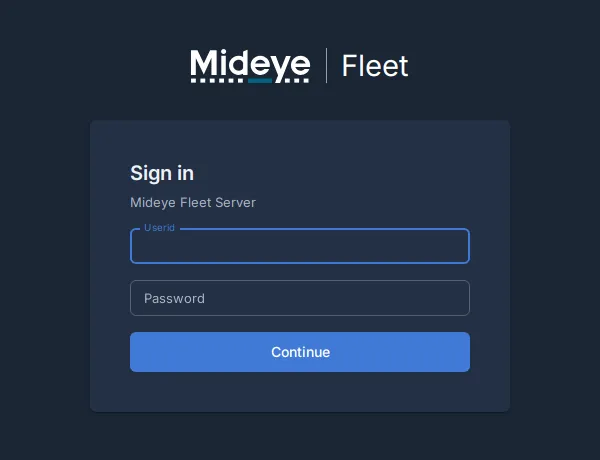
8. Fleet: open https://<PUBLIC_HOSTNAME>:9443, continue past the certificate warning, and sign in as root with FLEET_SETUP_CHALLENGE (the page calls it “your setup password”). Set a real password (at least 12 characters), scan the QR code with your authenticator app and type the code. Finish the page in one go. If you leave it, sign in again with the new password.
9. Host: when step 8 is finished, remove the FLEET_SETUP_CHALLENGE value from /opt/mideye/.env. Fleet no longer needs it. Remove it only after the first sign-in: until then it is the only way in as root.
10. Mideye Server: open https://<PUBLIC_HOSTNAME>:8443 and sign in as root with MIDEYE_ROOT_PASSWORD.
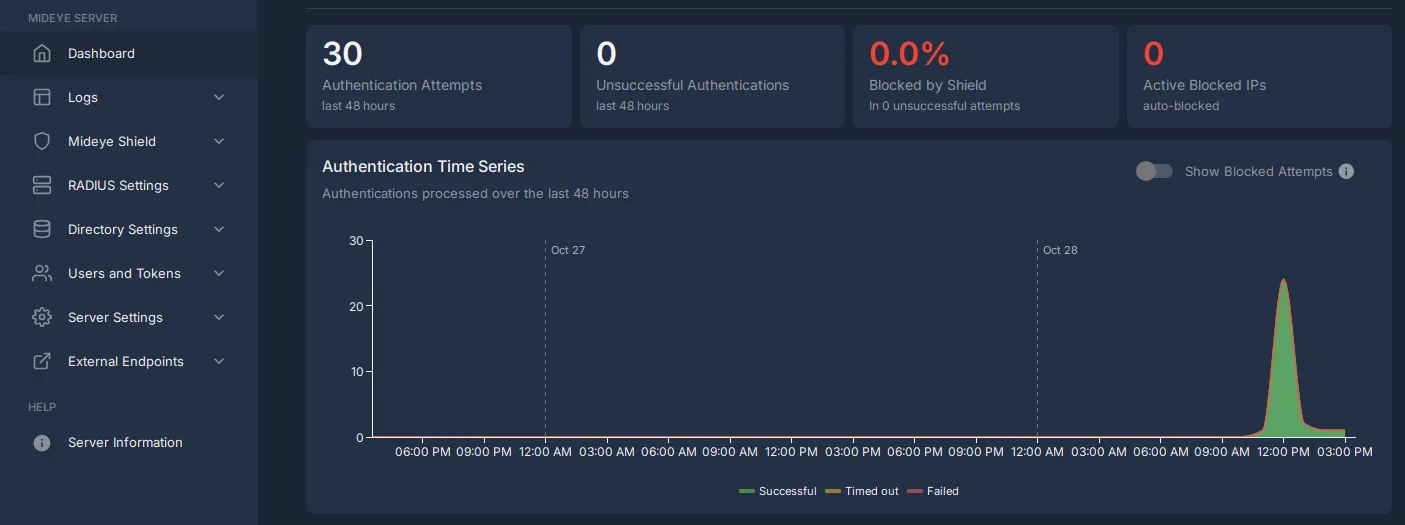
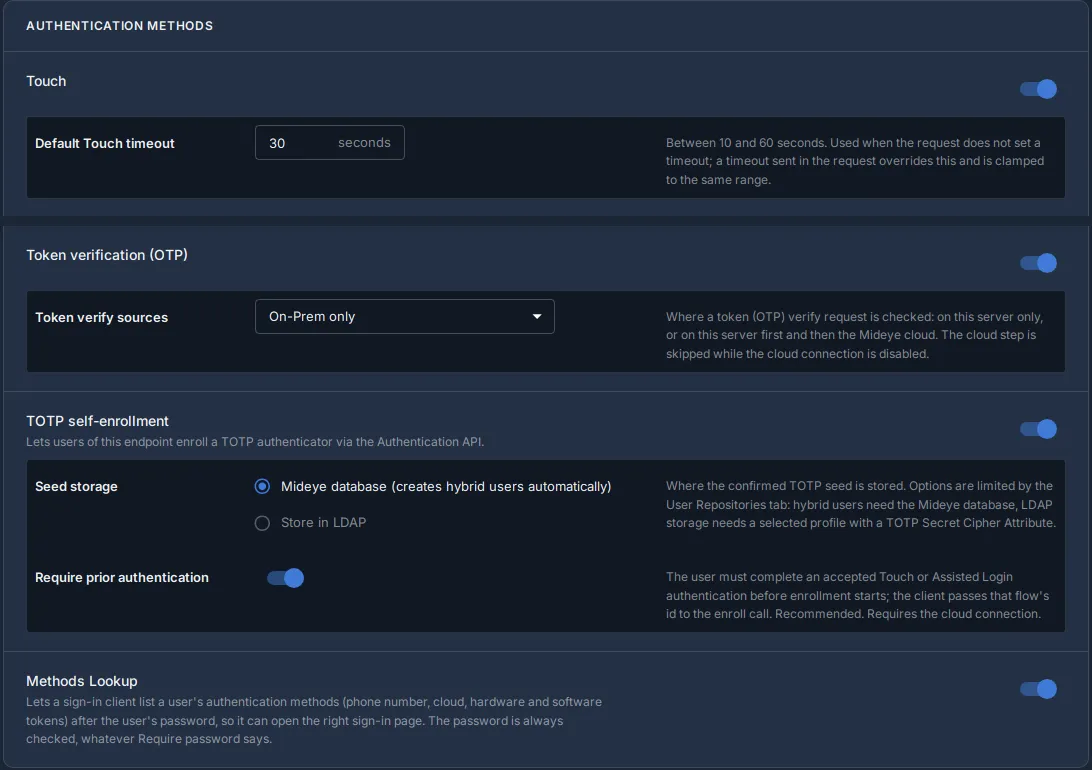
11. Mideye Server: open External Endpoints, Authentication API Endpoints, and the pencil next to endpoint fleet. Under Authentication Methods the setup turned on Touch, Token verification (OTP), TOTP self-enrollment (with the sub-switch Require prior authentication, which needs Mideye Cloud) and Methods Lookup. Nothing to change.
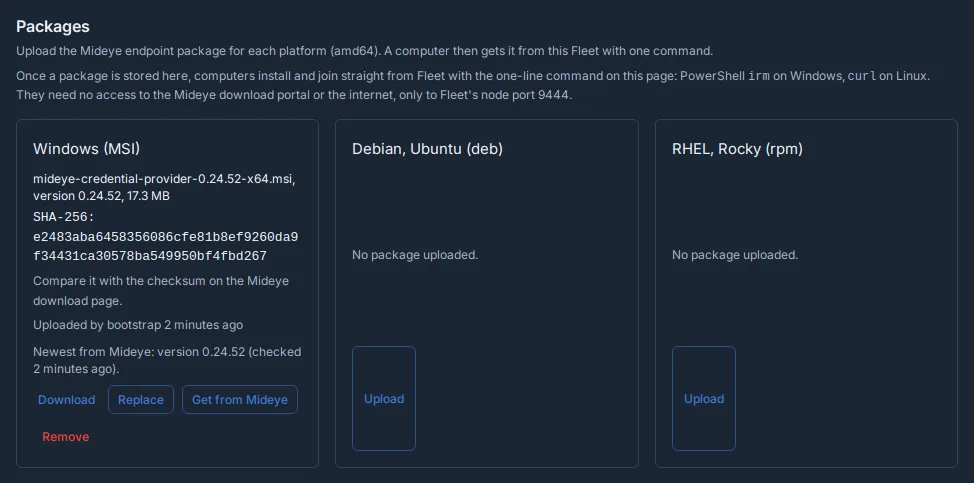
Done. Fleet already lists your Mideye Server under Mideye Servers and has the Windows installer under Add computers, Packages. Fleet’s Get started list on Nodes already has the address and the package ticked; guide 2 does the rest. Under Packages, the line Newest from Mideye shows the newest endpoint version on the download portal and when Fleet last checked. Fleet checks again when that is more than an hour old.
Continue with 2. Windows quickstart.
Good to know
Section titled “Good to know”-
The Mideye Server dashboard can show a red “Server is failing”. The quickstart does not connect a Mideye Switch. Signing in through the Fleet endpoint still works, because Fleet sign-ins go through the Mideye Cloud API, not the Mideye Switch.
-
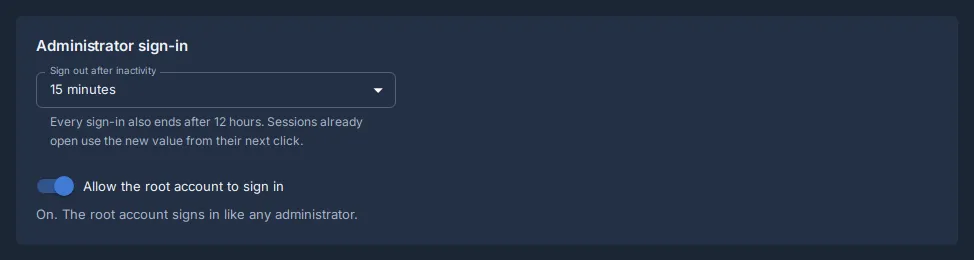
Fleet signs you out after 15 minutes without a click. Change it in Settings, Administrator sign-in, Sign out after inactivity (up to 8 hours). Every sign-in also ends after 12 hours. Each change asks for a code from your authenticator app.
-
You can stop root from signing in. First give another administrator the Root role. Then switch Allow the root account to sign in off in the same card. This ends every root sign-in at once. To switch it on again without another administrator, run
admin-reseton the host: see Reset root or an admin. -
The setup prepares everything. It adds the LDAP profile, the endpoint fleet, the Fleet provisioning token and the Windows installer. You do not set these up by hand.
-
Change AD settings in
.env, not only in Mideye Server. A later setup run sets them back from.env. -
Want to name the domain controller’s CA yourself? Put its file in
AD_CA_FILE(as in “If something fails”), or only its SHA-256 inAD_CA_FINGERPRINT. The setup then trusts no other CA. -
Put every password in single quotes, for example
AD_BIND_PASSWORD='a$b#c'. Characters such as$and#break unquoted values. -
Mideye Cloud credentials later? Put them in
.env, setMIDEYE_SETUP_FORCE=true, runcd /opt/mideye && sudo docker compose up -d, then setMIDEYE_SETUP_FORCEback to empty. Then turn Touch / Magic Link on in the Fleet Windows policy and publish. -
Docker goes around
ufw. Filter the ports in a firewall in front of the host if you need to. -
Without Mideye Cloud (air-gapped): no Touch. Users sign in with one-time codes. Fleet can set up a test authenticator for the publish test; see 2. Windows quickstart and Enrol without MFA (air-gapped).
mideye exportuses the same portal asmideye upgrade. Themideye exportandmideye importsteps are in the Fleet guides in the Mideye downloads portal (login required).
Using RADIUS
Section titled “Using RADIUS”Mideye Server finds a RADIUS client by the source IP of its packets, and takes the shared secret from that IP. The IP must reach Mideye Server unchanged.
- What was tested. Docker Engine 29.9.2 on Ubuntu 24.04 (rootful, default settings). A RADIUS client on another computer reached
1812/udpand Mideye Server logged its real IP. With that IP set up as a client, the shared secret matched. With no client for that IP, Mideye Server dropped the packet without a reply. - When the IP changes. Docker Desktop, rootless Docker and rootless Podman replace it with their own address. A request from the Docker host to
127.0.0.1shows up as172.18.0.1(the Docker network gateway). Then the client and shared secret do not match. A request from the host to its own network address keeps the IP. IPv6 clients are not covered by the test; Docker needsip6tablesfor them.
To use more RADIUS ports than 1812/udp:
-
Create
/opt/mideye/compose.override.yml(next tocompose.yml). Compose reads it by itself:services:mideyeserver:ports: !override ["8443:8443", "1812-1820:1812-1820/udp"]!overridereplaces the whole list, so keep8443:8443in it. -
Add the ports in Mideye Server as RADIUS servers, then run
cd /opt/mideye && sudo docker compose up -d. -
Open
1812-1820/udpin the firewall in front of the host. Docker goes aroundufw.
To check it:
- In Mideye Server, add a RADIUS client with the IP of the sending computer and its shared secret.
- Send a test request from that computer.
- Look in the Mideye Server log (
/opt/mideye/logs/mideyeserver/mideyeserver.log) forreceived packet, source IP:. It must show the computer’s own IP, not172.18.0.1.
Why MariaDB 11.4
Section titled “Why MariaDB 11.4”The bundle runs MariaDB 11.4, a Long Term Support (LTS) release with security fixes from MariaDB until May 2029. That is the longest support of the current MariaDB releases. MariaDB 11.8 ends a year earlier (June 2028), and MariaDB 12.3, the newest LTS (May 2026), ends at about the same time as 11.4. Mideye Fleet is tested on MariaDB 11.4.
Plan for the next MariaDB version. The bundle moves to a newer LTS release (12.3 or later) once Mideye Server and Fleet are tested on it, well before 11.4’s support ends. That bundle release says so in its notes. You move with the normal upgrade (Docker: upgrade), which takes a backup first. Until then, mideye upgrade keeps you on 11.4 and its security updates.
Upgrade and backup
Section titled “Upgrade and backup”The full upgrade guide, with the manual way, the version check and the rollback: Docker: upgrade.
sudo mideye upgrade # takes a backup first, keeps your .env; prints "Portal: <url>"sudo mideye backup # one encrypted file in /opt/mideye/backups/mideye upgrade prints Portal: <url>: the portal it takes the new files from. Check that it is the one you use. You cannot upgrade from Fleet 0.25.x to 0.26: install again from step 1 on a new host or a new database.
A backup also runs every day at 02:00. Copy the files off the host. A restore needs the backup passphrase from step 5. Never lose /opt/mideye/mideyeserver/keystore.p12.
If something fails
Section titled “If something fails”| Symptom | Fix |
|---|---|
mideye-setup did not exit with 0 | Read sudo docker compose logs mideye-setup. Fix .env, set MIDEYE_SETUP_FORCE=true, run sudo docker compose up -d again, then set MIDEYE_SETUP_FORCE back to empty. |
install-docker.sh: cannot pull ... | Docker’s reason is on the line above. unauthorized: run the docker login line from step 3 again. x509 or certificate: the host does not trust the registry’s certificate (a proxy that inspects TLS). no such host: DNS. |
| LDAPS fails | AD_HOST must be a name in the domain controller’s certificate. Check that the host reaches it on 636. |
| The setup log says it found no CA for the domain controller | Give the CA yourself. On an AD CS CA run certutil -ca.cert ca.cer (another CA: export its root certificate, PEM or DER). Copy it to /opt/mideye/ad-ca.cer, run sudo chmod 644 /opt/mideye/ad-ca.cer, set AD_CA_FILE=./ad-ca.cer, then run the setup again (first row). Without a CA the setup trusts the domain controller’s own certificate, and LDAPS stops working when that certificate is renewed. |
| The Mideye Server root password is refused | At least 9 characters with a lower-case letter, an upper-case letter, a digit and a special character. |
| Codes are refused | Check the time on the host, the Windows computer and the phone. |
| Root lost its password or authenticator | See Reset root or an admin. |