

Check Remote Desktop sign-in with Mideye MFA on Windows
This page is for the administrator who checks that Remote Desktop (RDP) is protected. The same configuration protects the console and RDP. One switch on the Rollout page, Ask for MFA over Remote Desktop, must stay on (the default). You check that it works.
Before you begin
Section titled “Before you begin”- The computer armed or activated. See Turn protection on.
- Network Level Authentication (NLA) on, and Remote Desktop kept off untrusted networks.
- A second computer to connect from, and a test user with a second factor.
-
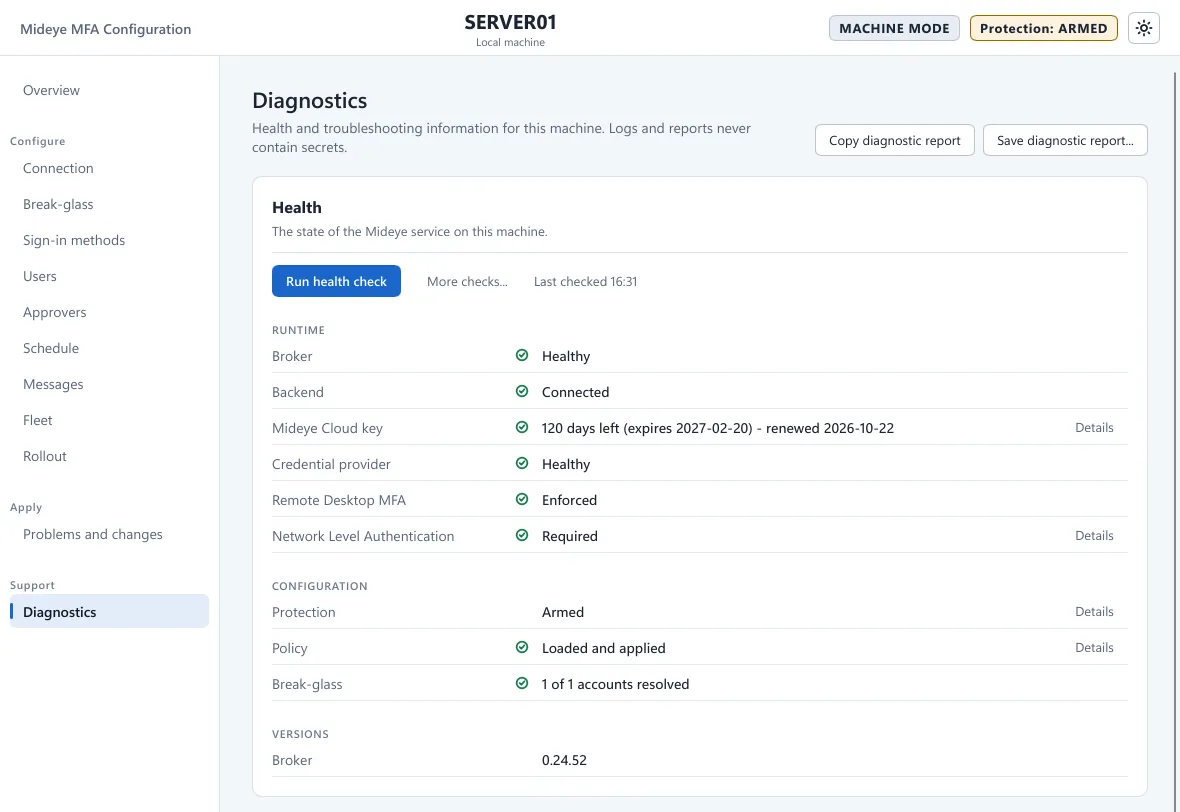
Open Mideye Configuration, page Diagnostics. Press Run health check. Under Runtime, Remote Desktop MFA and Network Level Authentication must be green.
-
From the second computer, connect with Remote Desktop.
-
With NLA, type the user name and password in the Remote Desktop prompt of your client.
-
In the session the Mideye tile asks only for the second factor. Approve Touch on the phone or enter the code.
The installer raises the RDP logon timeout to at least 240 seconds so that a Touch round trip fits. It only raises the value. It does not turn RDP or NLA on or off.
What the user sees
Section titled “What the user sees”The user is not asked for the password again. The tile goes straight to the second factor: “Approve the request on your phone, or open the link in the SMS.” or “Enter your one-time code.” A wrong code ends the remote session: the message shows, and the session disconnects when the user presses OK, at the latest 30 seconds later.
Verify
Section titled “Verify”- Application log, source Mideye Credential Provider: event 1000 for the RDP sign-in.
- Event 5503 does not appear. It means Remote Desktop is not protected, for example because Ask for MFA over Remote Desktop is off.
- A break-glass account signs in at the computer’s own screen only. Over Remote Desktop it is refused unless Allow break-glass accounts over Remote Desktop is on (off by default).
Troubleshooting
Section titled “Troubleshooting”- The session ends before the second factor: the RDP logon timeout is below 240 seconds. Run
mideye cp install-invariantsas administrator, then restart the Remote Desktop Services service. - Network Level Authentication is not green: turn NLA on in the Remote Desktop settings of Windows.
- Event 5503: the credential provider or filter is not healthy. See Diagnostics.
Next: optional features in the Setup guide.